
This playbook ties four Revamp365 features into one motion: Property Search → My List → skip trace → SMS Blast → Pipeline. Each step links to the detailed how-to so you can go deeper where you need it.
The full chain at a glance
| Stage | Where | What happens |
|---|---|---|
| 1. Find properties | Property Search | Filter off-market/unlisted parcels |
| 2. Save a list | "Add to My List" dialog | Group selected properties |
| 3. Skip trace | Saved Lists sidebar | Owner contacts land in Contacts CRM |
| 4. Text owners | SMS Blast | Bulk-text the new contacts |
| 5. Close | Pipeline | Push the contact to a deal, mark it won |
Step 1 — Search and save a list
- Open Property Search from the left nav (the unlisted-properties search page).
- Apply filters, then select the parcels you want.
- Use Add to My List — toggle Create New List, name it, and Save. Reuse a list with Add to List.
See Save a property search as a reusable list for filter and selection details.
Step 2 — Skip trace the list into contacts
This is the bridge that makes the rest of the playbook work. When you skip trace a saved list, Revamp365 processes it in batches and, for every successful match, creates a contact in Contacts CRM automatically. Each contact is tagged Skip-Traced plus your list name, and a saved view named "Property - [List Name]" is created for you.
- Large lists process in the background; you get progress emails as they complete.
- Free users are gated by credits before billable lookups run.
Walk through it in Skip trace a saved property list.
Step 3 — Run the SMS Blast
Owners are now contacts, so you target them by tag — no re-import needed.
- Open AI Voice & Chat → Campaigns → SMS Blast ("Bulk send batches of SMS messages").
- Click Create Campaign. You must finish A2P registration first, or sending is blocked.
- In Select Recipients, filter by your list-name tag (or the auto-created saved view), and narrow further by Lead Status, Lead Source, or Phone Status.
- Write your message and send.
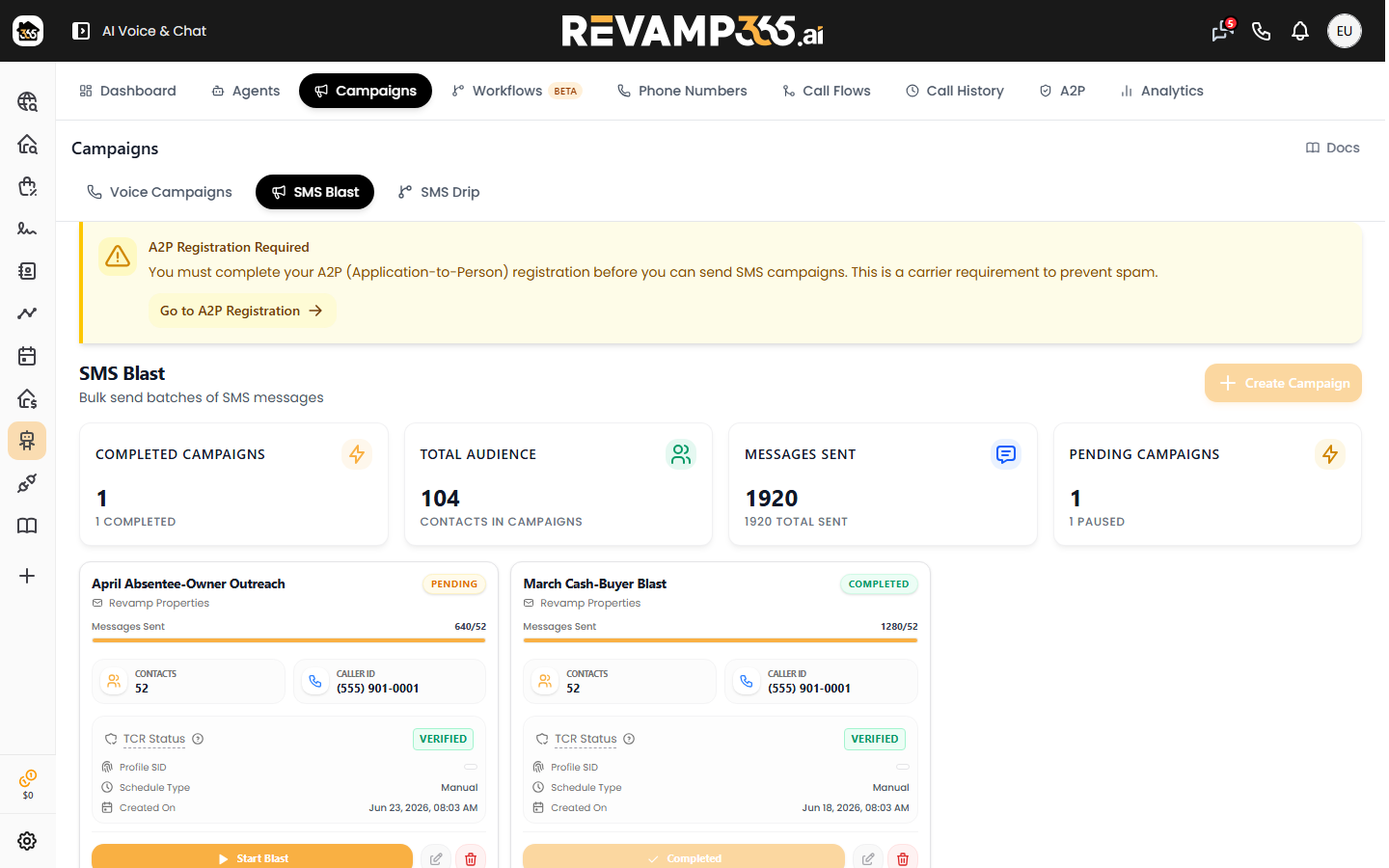
Details: Run an SMS blast campaign. To refine the audience, see Pick contacts for a campaign. Respect opt-outs — review Mark a contact DNC and understand STOP opt-outs.
Step 4 — Work replies and push to the pipeline
When an owner replies and the lead is real:
- Open the contact in Contacts CRM.
- Use Push to Pipeline to create a deal. If the contact has linked properties, pick the address; otherwise type one.
- The deal lands on the Pipeline board (deal type defaults to wholesale). A "pushed to pipeline" note is added to the contact timeline.
Step 5 — Move it to won
Drag the deal across your stages, then set its status to closed won (or closed lost). Learn the board in What is the deal pipeline and close it out in Track closing milestones and won/lost deals.
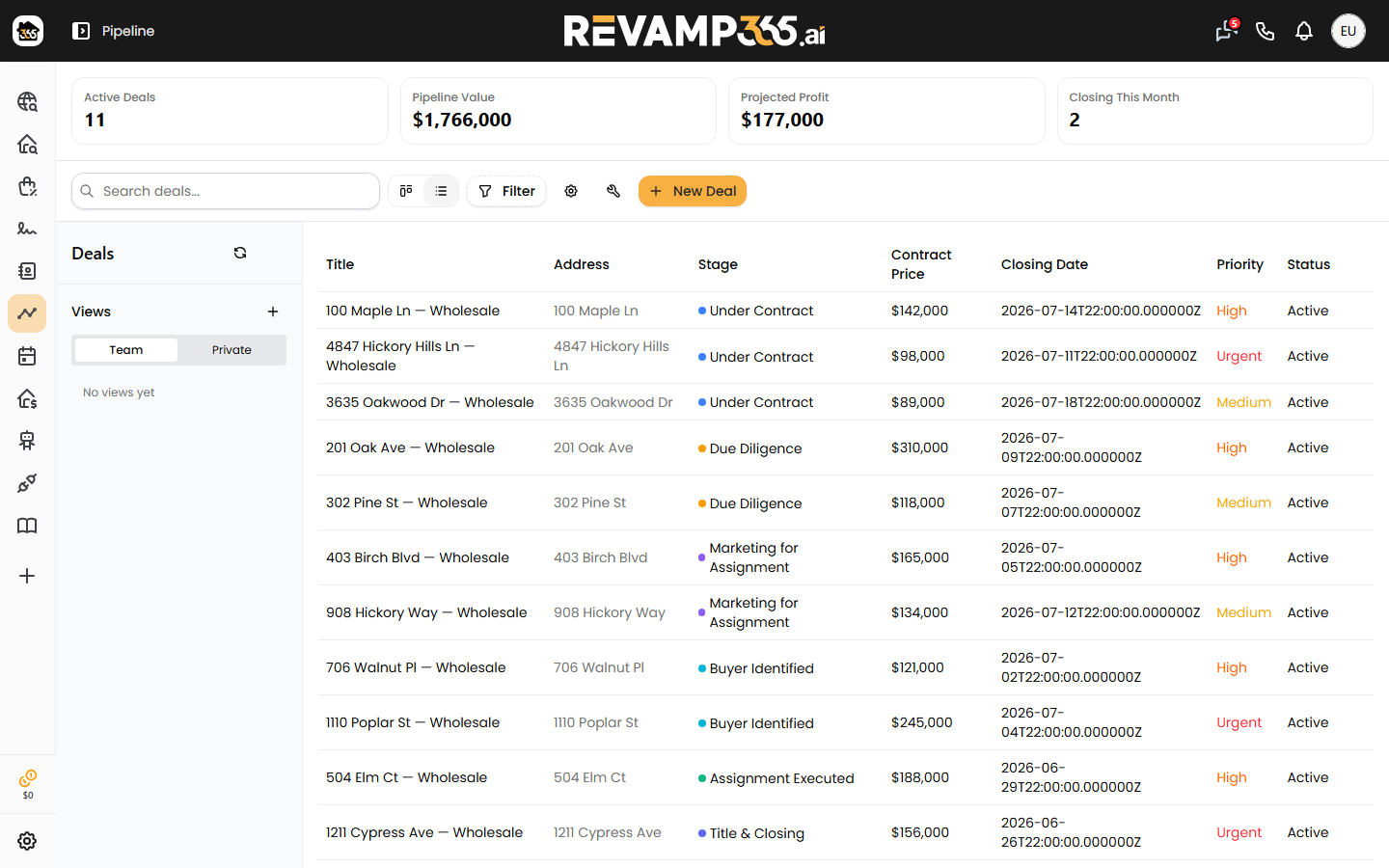
Note: Pipeline is a Beta, paid-tier feature. Free and Starter accounts will see an upgrade prompt.