
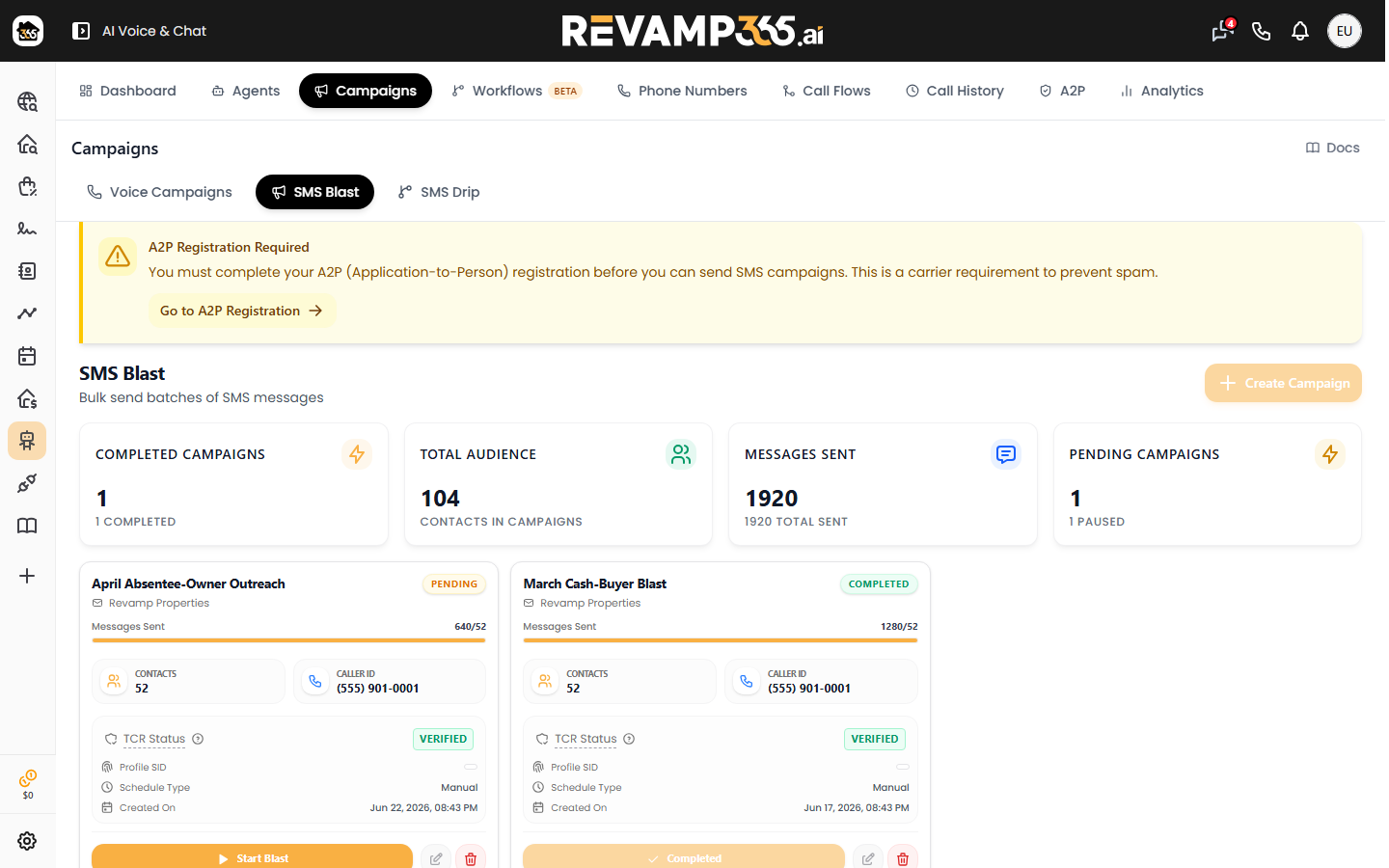
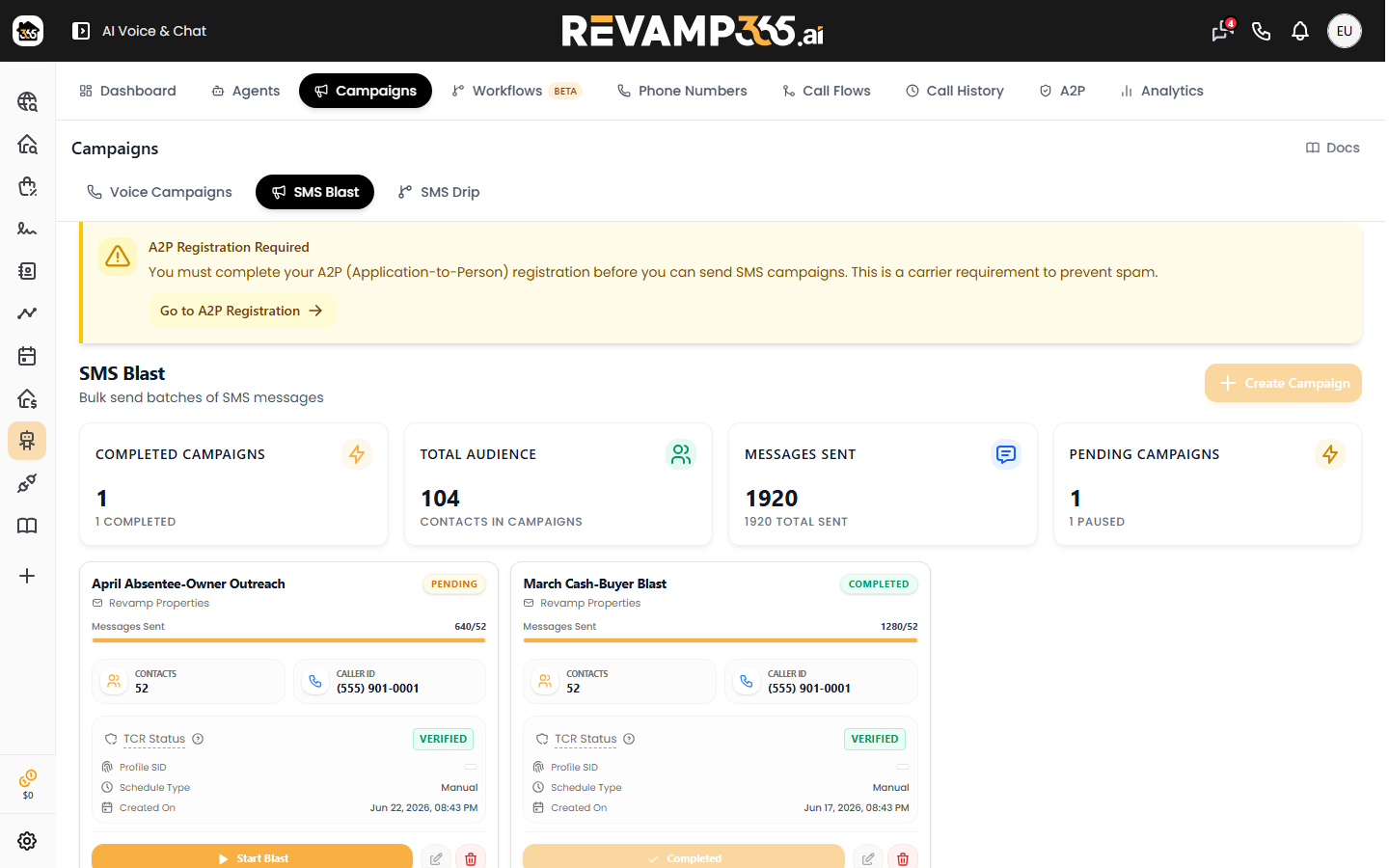
An SMS Blast sends one or more message waves to a batch of contacts from one of your purchased numbers. Campaigns are built and sent from the AI Voice & Chat area, and a few carrier-compliance gates must be cleared before the blast will go out.
Before you start: A2P registration
You cannot create a blast until you have an approved Trust Hub profile. Until then, the Create Campaign button is disabled and an "A2P Registration Required" banner links you to A2P Registration. The selected profile must also carry its own Privacy Policy and Terms of Service URLs — missing URLs cause TCR rejection (error 30908). If yours was rejected, see fixing a rejected A2P campaign.
Open the SMS Blast tab
- In the sidebar, open AI Voice & Chat.
- Click the Campaigns tab, then the SMS Blast sub-tab.
- Click Create Campaign to open the 3-step builder.
Step 1 — Basic info
| Field | What to enter |
|---|---|
| Campaign Name | An internal label (e.g. "Q1 Seller Outreach") |
| Trust Hub Profile | An approved A2P brand profile |
| Phone Number | The purchased number used as the sender / caller ID |
| How do recipients opt in? | 40–2000 characters describing the exact consent mechanism |
The opt-in description is read manually by TCR reviewers, so be specific — vague answers trigger rejection (error 30896). A ready-to-paste website opt-in checkbox template is shown here for your contact form.
Step 2 — Messages and schedule
Add 1 to 5 message samples. Each must be 20–1600 characters. Note that blast messages are sent as written — there are no merge variables, so the same text goes to every recipient. Always include opt-out language such as "Reply STOP to unsubscribe."
Each message wave has its own Schedule Type:
- Manual — only sends when you click Start Blast
- After TCR Approval — auto-sends once TCR status is VERIFIED
- Scheduled Date & Time — auto-sends at the time you set
- Immediately (Skip TCR) — auto-sends on the next run (roughly every 15 minutes)
Step 3 — Audience
Choose who receives the blast:
- Select Contacts By Tags — target a single tag (the count of matching contacts is shown)
- All Contacts — every contact in your list
Click Create Campaign to save it. Duplicate phone numbers are de-duplicated automatically, so a contact never gets the same wave twice.
Send the blast
On the campaign card, click Start Blast. If the campaign's TCR status is not VERIFIED, a confirmation warns that major carriers (T-Mobile, AT&T, Verizon) may block delivery (error 30034) — you can choose Send Anyway. Cards set to an auto schedule show a disabled "Auto:" button instead; edit the campaign and switch the schedule to Manual to send right away.
When sending, the campaign automatically skips:
- Numbers that replied STOP (opted out)
- Numbers blocked as DNT (Do-Not-Text) or Spam
The card's progress bar tracks messages sent against total contacts, and the status flips to Completed when the wave finishes. To review what was delivered, check SMS delivery statuses and errors.