
Revamp365 has no separate "drip" tool — you build a multi-step text sequence in the Automations engine by chaining Send SMS actions with Wait steps between them. The same builder handles delays, reply branching, and opt-out stops, so one automation drives the whole cadence.
Open the builder and pick the start trigger
The Automations engine is a paid feature on Pro+ and Dealmaker plans, and your phone number must be verified to reach it.
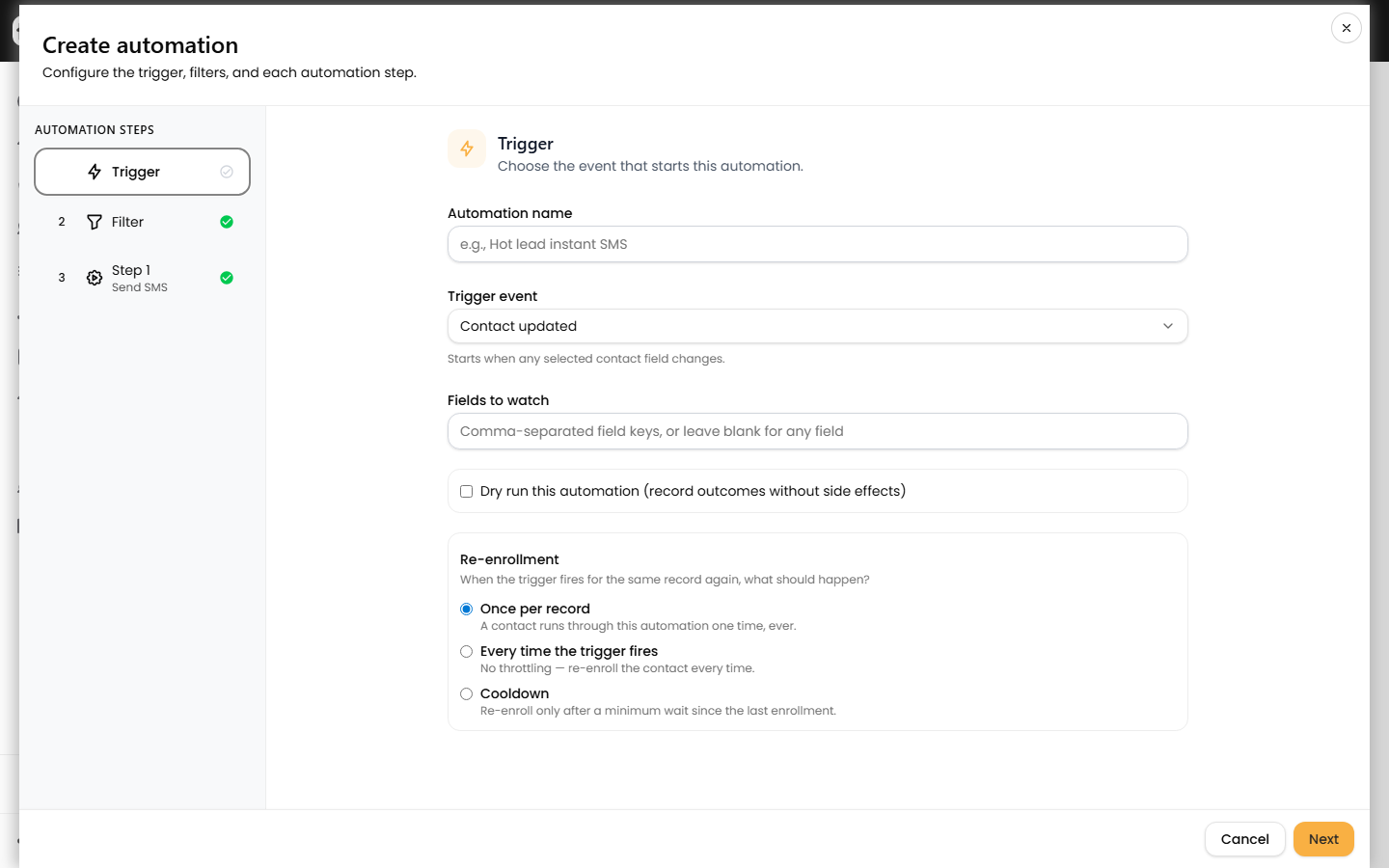
- Go to Automations and click + Create automation. A full-screen builder opens on the Trigger tab.
- Name it (for example, "Cold lead 4-touch SMS") and pick a Trigger event — Contact created, Lead status changed, Tag added, and List added are common drip starters.
- Set a Re-enrollment policy: Once per record (default) so a contact never gets the same drip twice, Every time the trigger fires, or Cooldown with a minimum gap in minutes.
- (Optional) On the Filter tab, add conditions like
lead_status equals Coldso only matching contacts enter the sequence.
Chain Send SMS and Wait steps
Each step runs in order. Insert a Wait before every follow-up to space the touches out.
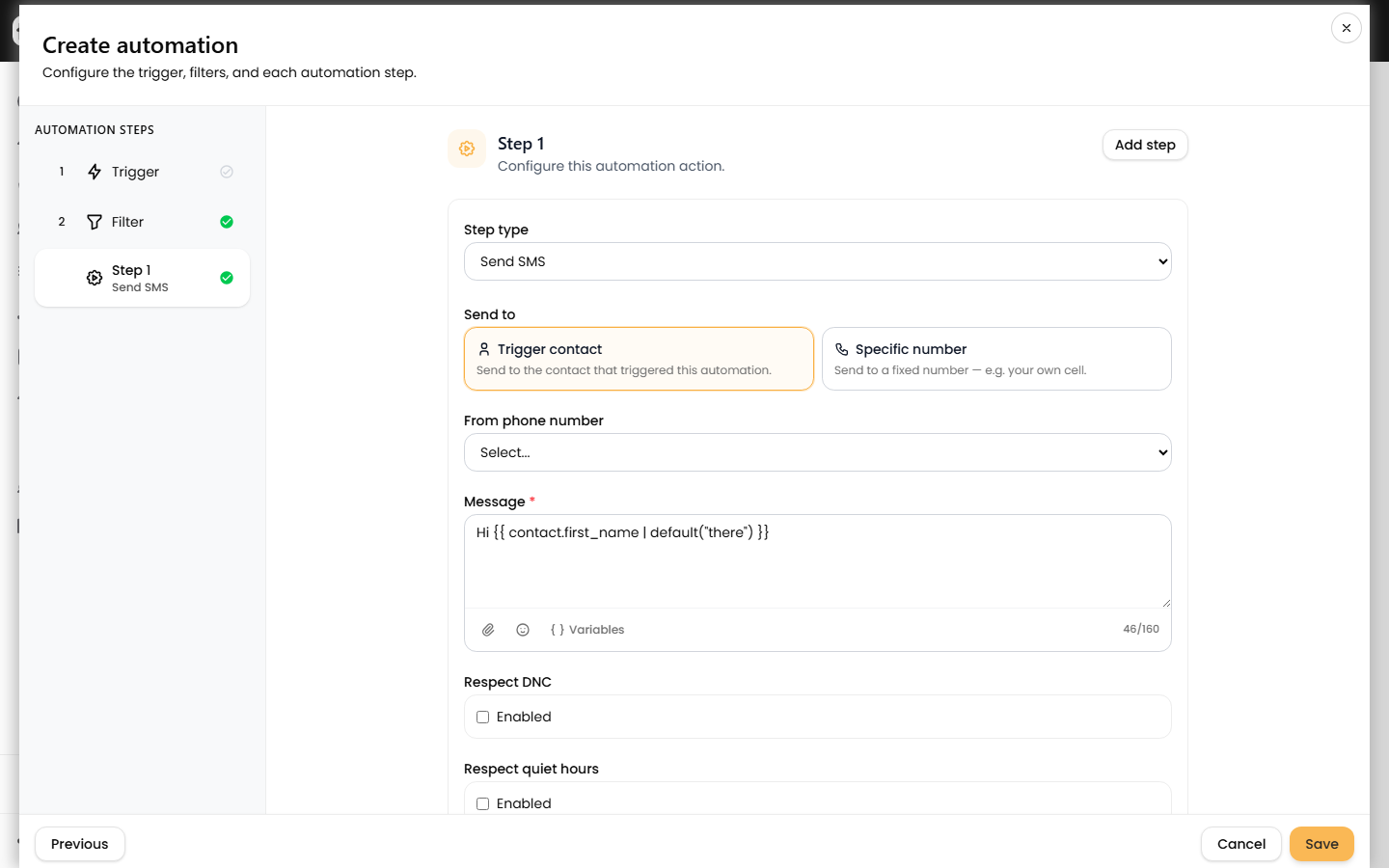
- On Step 1, choose Send SMS (under Communications). Write the Message — bodies support variables like
{{ contact.first_name | default("there") }}and an optional Media URL. - Pick the From phone number, or leave it blank to use your first active number.
- Click Add step, choose Wait (under Flow control), and set a Delay value plus Unit (minutes, hours, or days; the default is 1 day).
- Repeat: alternate Send SMS and Wait for each touch. You can add up to 25 steps total.
A four-touch drip looks like this:
| Step | Type | Setting |
|---|---|---|
| 1 | Send SMS | Intro message |
| 2 | Wait | 2 days |
| 3 | Send SMS | Follow-up |
| 4 | Wait | 3 days |
| 5 | Send SMS | Final nudge |
Handle replies and opt-outs
Every Send SMS step re-checks the contact before it fires, so later touches are skipped automatically when a contact opts out mid-drip:
- Respect DNC and Respect quiet hours are toggles on the step, both on by default. Quiet hours block sends during the configured overnight window.
- If the contact replied STOP (or UNSUBSCRIBE / END / QUIT / CANCEL), Revamp365 records the opt-out and the next Send SMS step throws an opt-out block instead of texting. The same happens if the contact is flagged do-not-contact. See mark a contact DNC and understand STOP opt-outs.
A blocked send only stops that one message — to halt the rest of the sequence on a reply, end the enrollment explicitly:
- Add a Branch if step; its false branch stops the run, or add an Exit automation step under Flow control.
- Or build a second automation triggered by Inbound SMS received (or SMS opt-out received) whose action is Unenroll from another automation, pointing at your drip.
Go live and monitor
New automations save as Draft. Flip the On / Off switch on the Automations list to activate. Turn on Dry run on the Trigger tab first to log what each step would send without texting anyone. Once live, open the Logs tab to watch enrollments and per-step runs, and confirm Wait steps are delaying as expected. For trigger, condition, and action details, see automation triggers, conditions, and actions.