
Every Revamp365 automation is three parts in sequence: one trigger that starts it, an optional filter that decides which records continue, and one or more action steps that run in order. Open Automations in the left nav and click New automation — the builder walks you through Trigger, then Filter, then Step 1, Step 2, and so on.
The trigger: what starts the workflow
You pick exactly one trigger. Triggers are grouped by category in the picker:
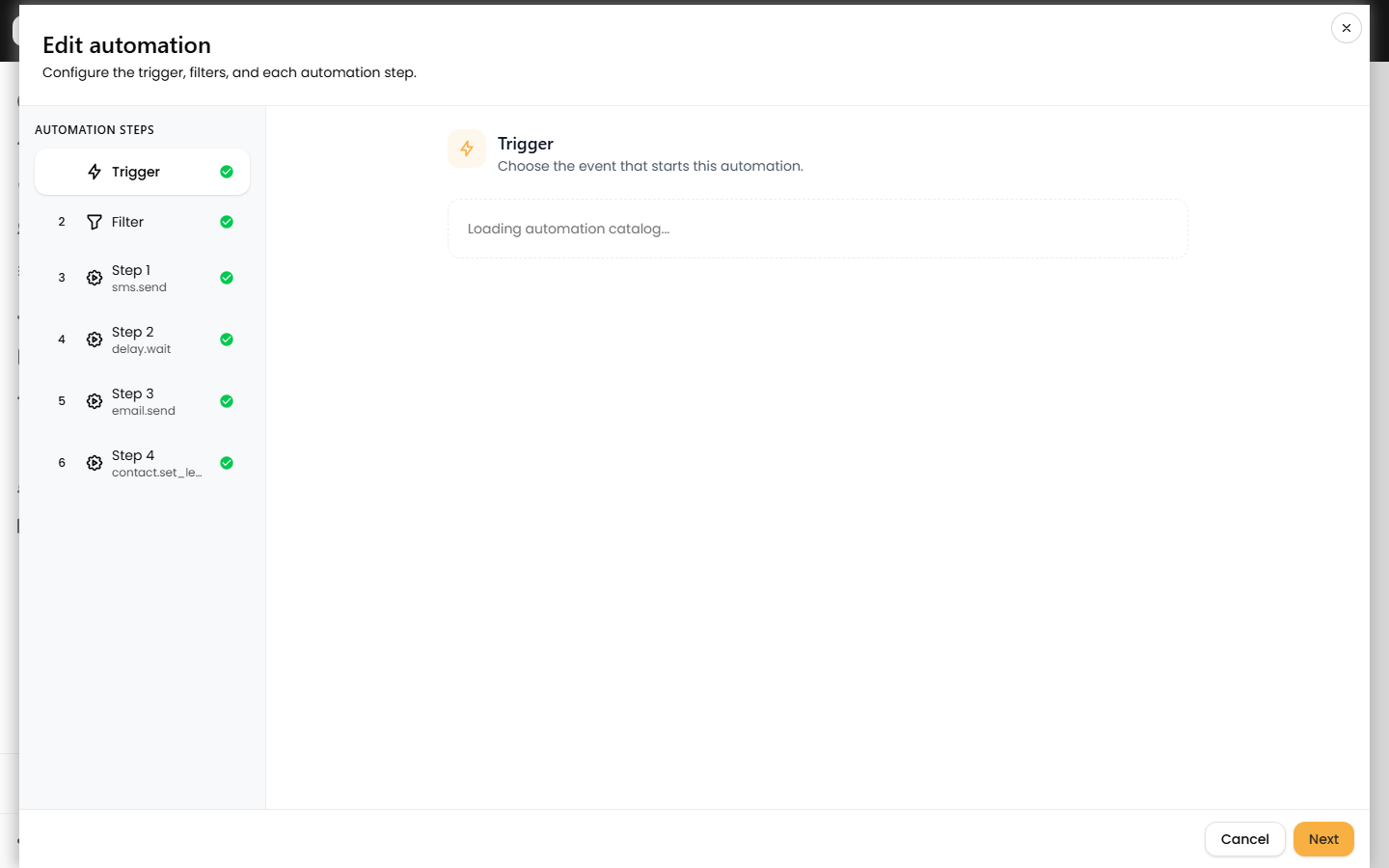
- Contact — created, updated (watch specific fields), lead status changed, lead temperature changed, tag added/removed, list added/removed, imported, merged, assigned/reassigned, do-not-contact set, lead score threshold crossed.
- Deal — created, stage changed, field changed, closed won, closed lost, amount changed, archived.
- Call — Retell call record created, completed, no answer, voicemail left, human call logged.
- SMS — inbound received, inbound keyword matched, sent, delivery failed, opt-out received.
- AI Agents — enrolled, replied, success, fallback, qualified/disqualified, paused/resumed, limit reached, stopped.
- Email — opened, clicked, bounced, replied, unsubscribed.
- Task / Note, Booking, Schedule / Time (recurring, contact-field date, business hours), Webhook, and Cross-automation (another automation completed, failed, or exited a branch).
Some triggers take config. "Inbound SMS keyword matched" asks for keywords and a match type (contains, exact, or starts_with). "Lead score threshold crossed" asks for a number and a direction (above/below) and fires only on the crossing, not while the score merely sits past the line.
The filter: conditions that gate enrollment
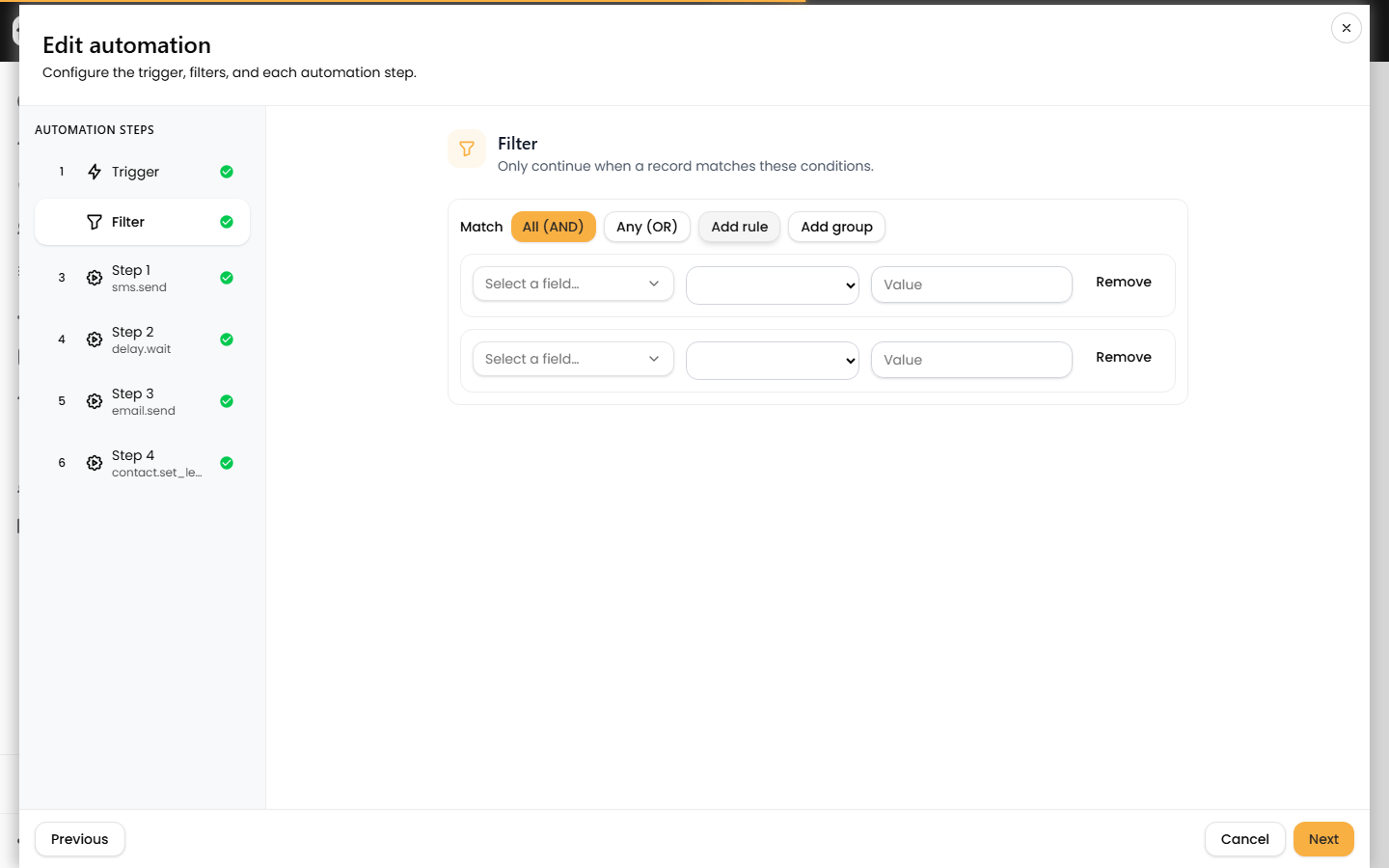
The filter is optional. When set, records that fail it are logged as filtered_out instead of running. Build conditions in the filter tree, combining them with AND, OR, and NOT groups. Each leaf compares a field to a value:
| Operator | Meaning | Field types |
|---|---|---|
| Equals / Does not equal | exact match | text, number, date, select, bool |
| Contains / Does not contain | substring or list membership | text, multiselect |
| Starts with | prefix match | text, email, phone |
| Greater / Less than (or equal) | numeric or date compare | number, date |
| Between / Not between | range | number, date |
| Is one of / Is not one of | set membership | select, multiselect |
| Exists / Is empty | presence check | any |
| Is true / Is false | boolean state | bool |
| Older than / Within last | relative date window | date |
| Is business hours | weekday 9am–5pm | date |
Fields can reference the contact, the deal, custom fields, or the trigger payload. Regex matching is also supported for text fields.
The actions: steps that run in order
Steps execute top to bottom by position. Available actions include sending SMS or email (template, AI-drafted, or from an assigned number), updating contact or deal fields, adding/removing tags and lists, creating tasks and notes, enrolling or pausing an AI SMS agent, starting a voice campaign or workflow, skip trace / Deep Trace enrichment, notifying a user, and calling a webhook.
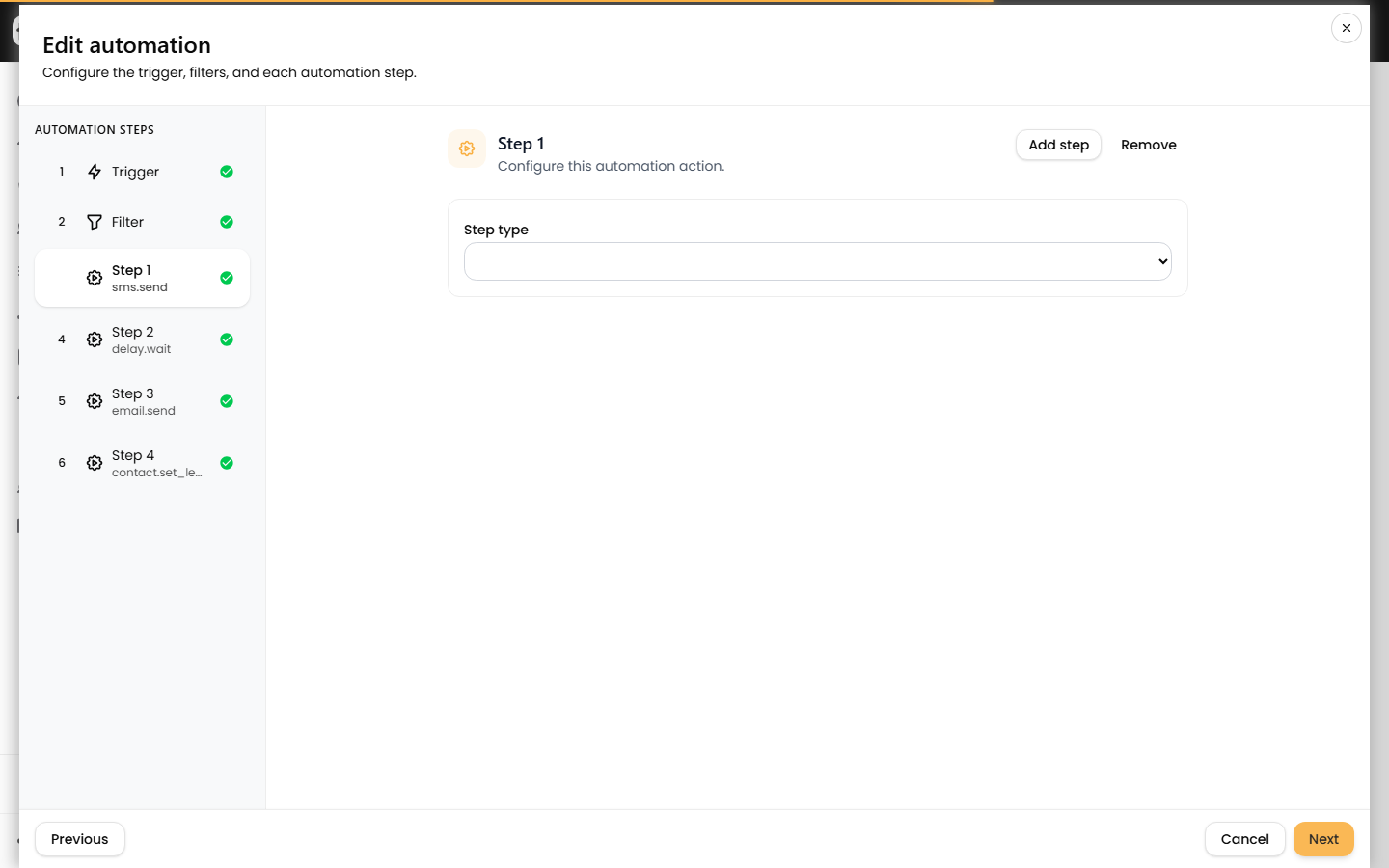
Flow-control actions shape the path: Wait (delay by minutes/hours/days), Branch if (evaluate a filter tree and split), Switch, Random split, Wait for event, Exit automation, and enroll/unenroll in another automation.
Putting it together
- Name the automation and choose a trigger.
- Add filter conditions (or skip — the filter is optional).
- Add action steps in the order they should run.
- Set the enrollment policy:
onceper record,re_enrollevery time, orcooldown(re-enroll only after a set number of minutes). - Toggle dry run to log what would happen without sending or writing anything, then save the automation.
New automations start as a draft. Activate one to move it to active; you can pause or archive it later. For a full walkthrough, see create your first automation, and check the run logs to see why a record was filtered out or a step failed.