
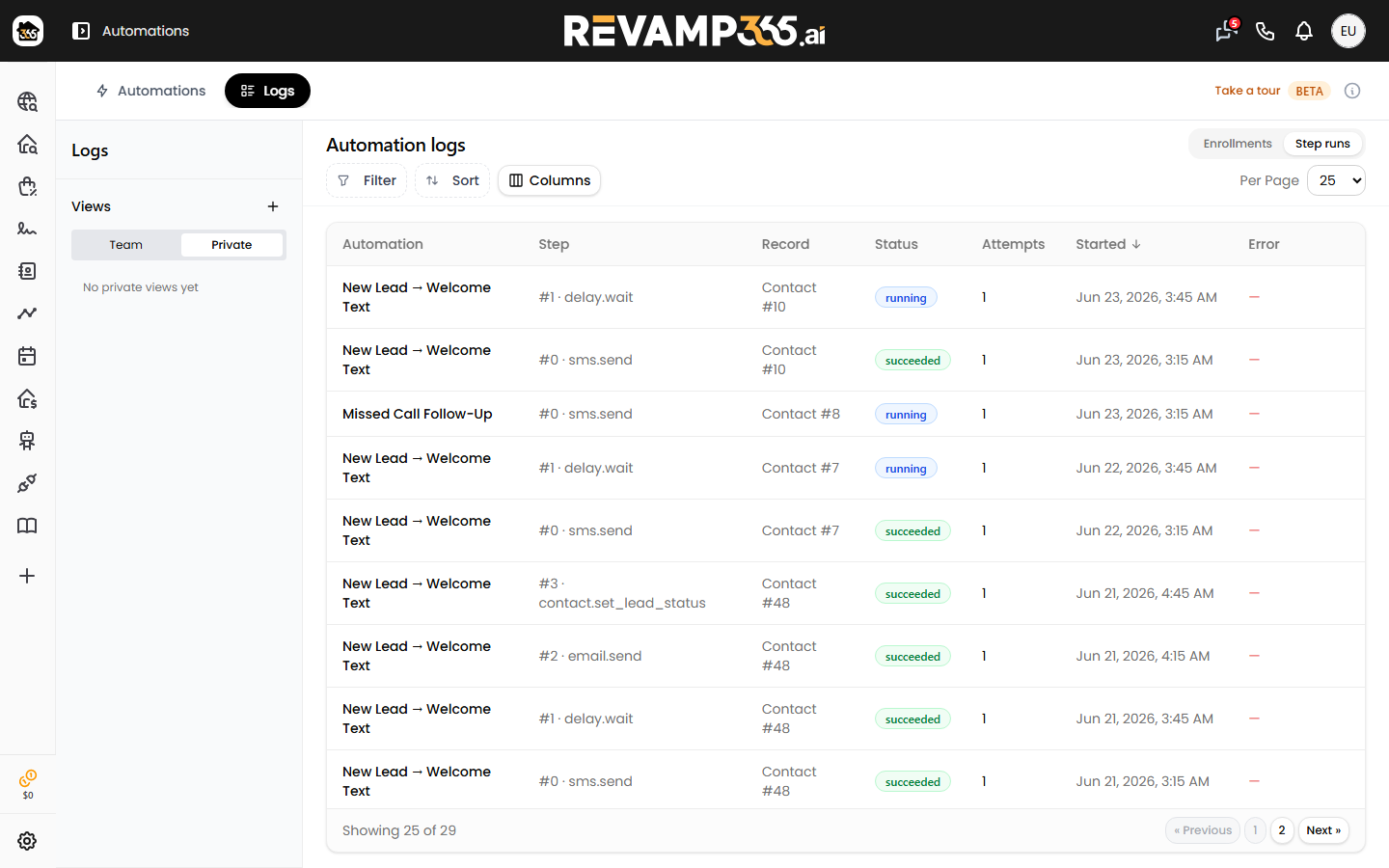
When an automation does not do what you expect, the Logs tab on the Automations page is where you diagnose it. Every enrollment and every step it ran is recorded with a status, timestamps, an error message, and the raw input/output, so you can see exactly which step failed and why.
Where the logs live
- Open Integrations & Apps in the left navigation.
- On the Automations card, click Open.
- Click the Logs tab (next to Automations).
- Use the toggle at the top right to switch between Enrollments and Step runs.
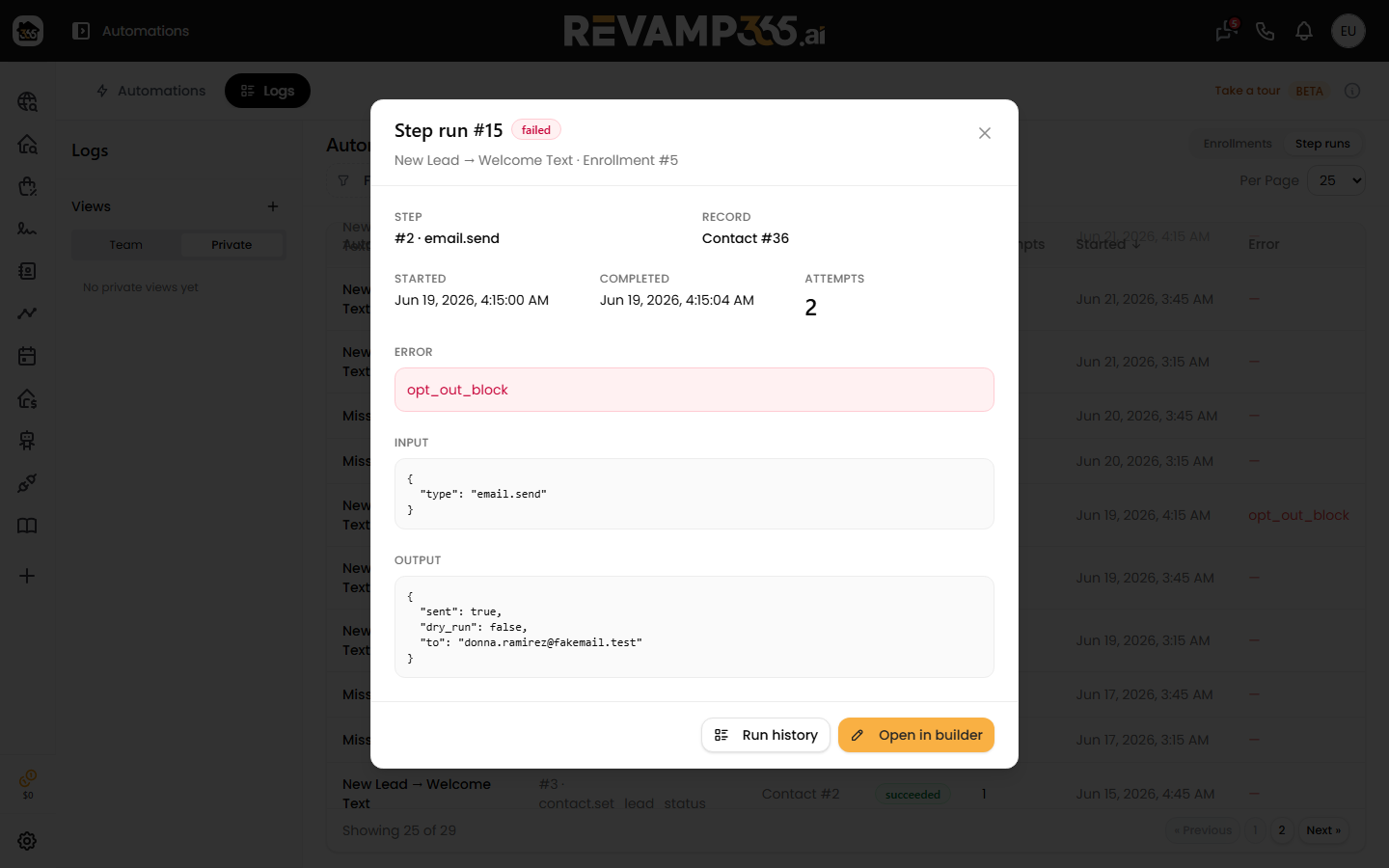
Enrollments is one row per contact or deal that entered an automation. Step runs is one row per individual action attempt. Click any row to open a detail dialog. The step-run detail shows Started, Completed, Attempts, the Error, and the full Input and Output JSON for that step.
You can also jump to a single automation's history: in the automations list, open the row's ⋯ menu and click Run history.
Run and step statuses
Enrollment status and step-run status use different vocabularies.
| Status | Where | Meaning |
|---|---|---|
pending |
both | Queued, not started yet |
running |
both | Currently executing |
delayed |
enrollment | Waiting on a delay or the next scheduled step |
succeeded |
step run | The action completed |
completed |
enrollment | Reached the end of all steps |
skipped |
step run | The step was bypassed |
failed |
both | The step threw an error (see the Error column) |
cancelled |
enrollment | Stopped, e.g. the contact or deal was deleted |
filtered_out |
enrollment | The record did not match the trigger filter |
Failed and error rows are tinted red. filtered_out is normal — it means your filter conditions did their job.
Common failure causes
The Error column shows the raw reason. The most frequent ones:
do_not_contact_block/opt_out_block— the contact is marked Do Not Contact or has texted STOP. See mark contacts DNC and understand STOP opt-outs.sms_quiet_hours_block— the send fell inside quiet hours and the step respects them.contact_missing/email_missing/from_phone_missing— the record has no linked contact, no email, or you have no active sending number.field_not_writable/custom_field_missing— an update step targets a field that does not exist or is read-only.engine_disabled— the automation engine is paused; the enrollment is set todelayedand retried on the next sweep.
Open the step run to read the full message and check the Input JSON to confirm the rendered values (phone, body, field name) were what you intended.
Use dry run to test safely
Dry run executes every step and records the outcome without firing real side effects — no SMS sent, no email delivered. In the builder, tick Dry run this automation (record outcomes without side effects), or set Dry run only on an individual step.
In dry-run step output you will see "sent": false and "dry_run": true. Run it against a real record, confirm the steps succeed and the input looks right, then turn dry run off to go live.
Fixing and re-running
- Fix the root cause (clear the DNC flag, add a sending number, correct the field, or edit the step config in the builder).
- Re-enter the record so the automation runs again from the failed step.
For a deeper walkthrough of triggers, conditions, and action settings, see automation triggers, conditions, and actions. To narrow a noisy log, use the Filter button to scope by automation, status, record, or date range, then save it as a view.