
When you find listings worth keeping in Listing Search, save them into a named "My List" so the exact set of properties is one click away later. A My List stores the specific listings you picked (their property IDs), so reopening it always shows that snapshot of properties rather than re-running a filter.
Pick the listings you want to keep
Open Listing Search from the left sidebar (/property/search). Run your filters, then choose the properties to save:
- One property — hover a property card and click the heart icon (its tooltip reads "Add to favorite").
- Several at once — click the checkbox on each card to select them, then open the Actions dropdown and choose Add to List for the whole selection.
Either path opens the Add to My List dialog, which shows how many properties you are about to save.
Save into a new or existing list
The dialog has a toggle between two modes:
| Mode | What it does |
|---|---|
| Create New List | Type a name under "Enter list name" and the selected properties become a brand-new list. |
| Add to List | Pick an existing list under "Choose the list" and the properties are merged into it. |
Click Save to finish. A few rules to know:
- A new list name is required, must be unique, and is capped at 20 characters.
- When you add to an existing list, Revamp365 merges and de-duplicates the property IDs, so adding the same listing twice never creates a duplicate.
- The "Choose the list" dropdown shows each list with its current count, like
Hot Leads (14).
Return to a saved list
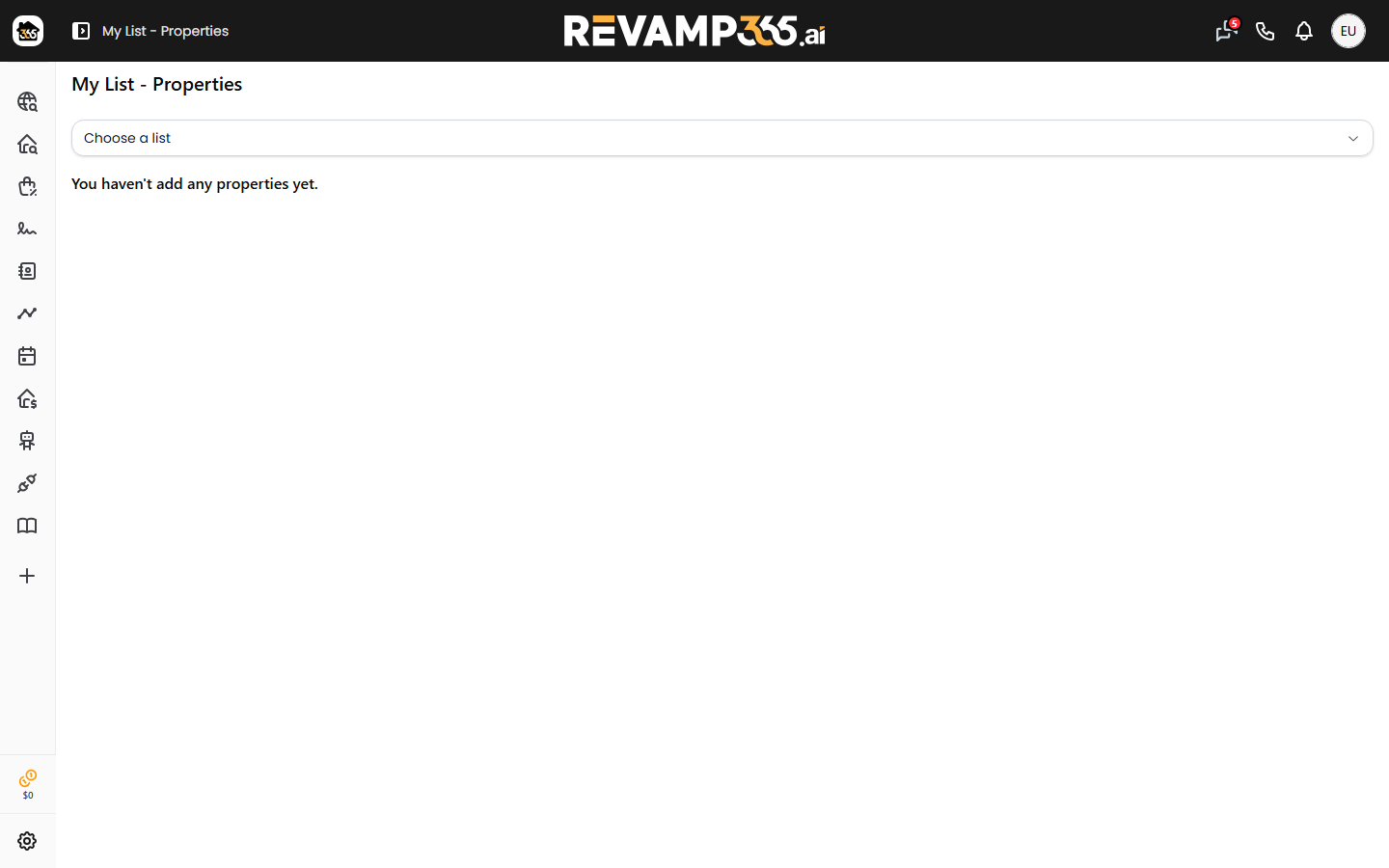
Saved lists live under My List → Properties (/my-list/properties). Use the Choose a list dropdown at the top to load one. The page shows a X Properties Found count and renders every saved listing as a card you can open for full details.
From this page you can also:
- Rename the list with the pencil icon.
- Delete the list with the trash icon.
- Remove specific properties — select their cards, then click the trash button that appears next to the selected count.
You can also reopen a saved list directly inside Listing Search: the filter panel has a My Lists section where each list can be loaded back into the results, renamed, exported, or deleted without leaving the search page.
What this is (and is not)
A My List is a fixed set of listings. It is not the same as a Saved Search, which stores your filter criteria and can email you alerts when new matching listings appear. If you instead want the search itself to keep running automatically, see Save MLS search and turn on alerts.
Once a list exists, you can act on it: export the property list for a mail house or dialer as a CSV, or skip trace the saved property list to pull owner contact info. For the broader workflow of feeding results into lists, see add search results to a property list.