
Revamp365 tags off-market owners with distress signals like tax delinquency and probate, and exposes them as checkboxes inside the Unlisted property search. Selecting these filters narrows your county results to the owners most likely to sell.
Open the Distress filters
- Open Property Search from the left sidebar (the page at
/unlisted-properties/search, which is also where the dashboard link lands). - Click the Filters button (the gear-and-funnel icon) to open the Advanced Property Search dialog.
- In the left sidebar, click Filters (the purple star) to jump to the Intelligent Filters section.
- In the tab strip, select the Distress tab.
The Distress tab holds eight checkboxes. Tax Delinquent, Probate, and Pre-Probate are the three you want for distressed-seller lists.
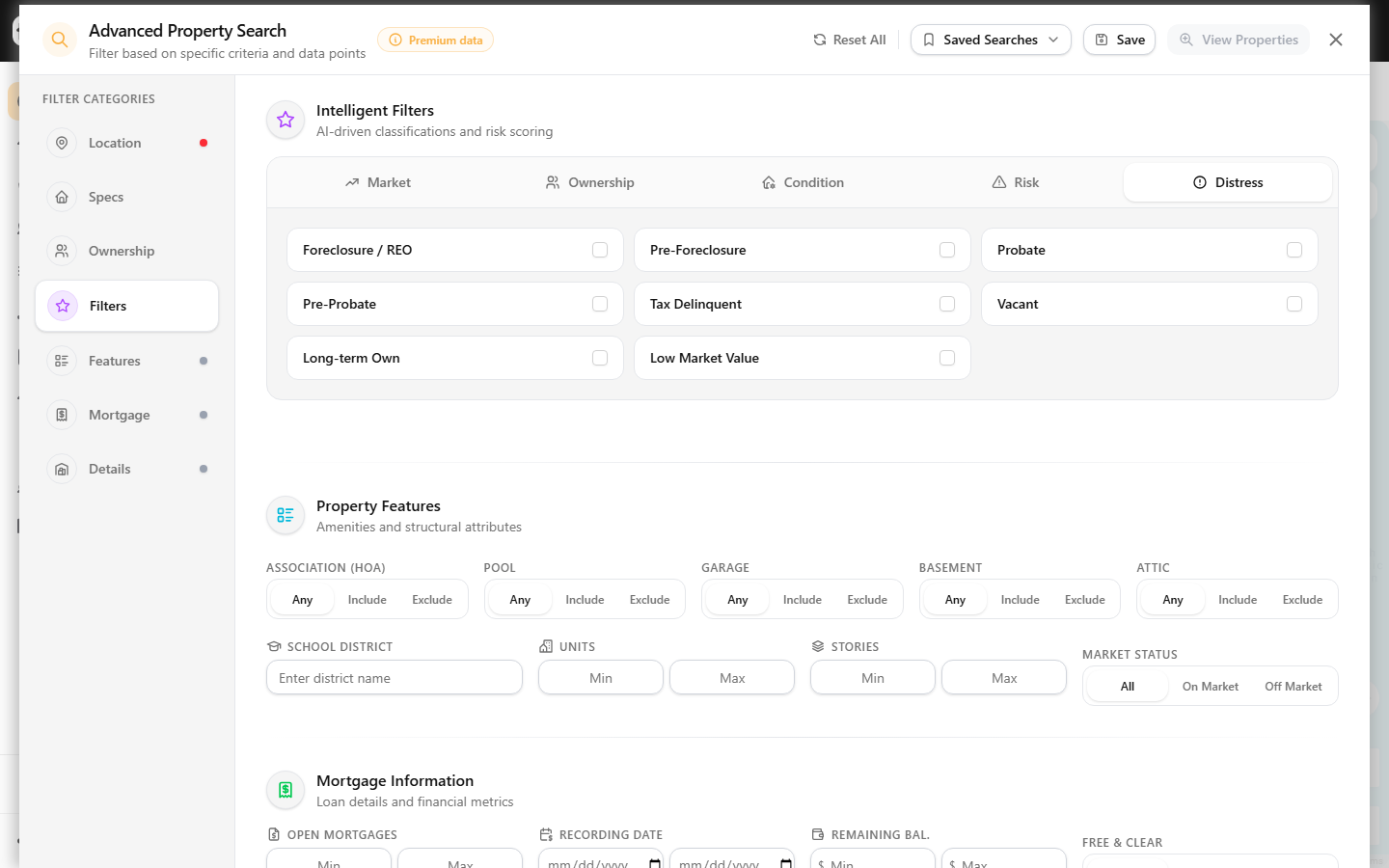
Distress tab options
| Checkbox | Targets |
|---|---|
| Foreclosure / REO | Properties in or past foreclosure, bank-owned |
| Pre-Foreclosure | Owners with a notice of default filed |
| Probate | Property tied to an estate in probate |
| Pre-Probate | Likely estate situations before filing |
| Tax Delinquent | Owners behind on property taxes |
| Vacant | Properties flagged as unoccupied |
| Long-term Own | Held many years (motivated, high-equity) |
| Low Market Value | Lower assessed/market valuation |
Check any combination — for example Tax Delinquent plus Probate to build a high-distress list. Each selected box adds to the amber count badge on the Distress tab and the Filters badge in the sidebar.
Pick a county first, then apply
A County is required. The View Properties button stays disabled until you set one, and applying without a county shows a "Please select a county" error.
- Click the Location tab in the sidebar.
- Use the County field (marked with a red
*) to search and select your target county. Optionally add a City or Zip Code. - Return to the Distress tab and confirm your distress checkboxes.
- Click View Properties (on mobile, View).
The dialog closes and your map and list reload, filtered to owners in that county carrying the distress tags you chose.
Confirm the count with the scorecards
Above the results, the Tax Delinquent scorecard (red triangle icon) shows how many properties carry that flag. When the Tax Delinquent filter is applied, that scorecard equals your full result count, which is a quick way to confirm the filter took effect. The probate filters do not have a dedicated scorecard chip — verify those in the result rows' tags.
Save, stack, or clear the filter
- Click Save (or the Saved Searches dropdown) to store the distress filter as a reusable search and get alerts on new matches. See save a property search as a reusable list.
- Combine distress checkboxes with the Ownership tab (Absentee Owner, Out-of-State Owner) to tighten the list further.
- Click Reset All in the header to clear every filter, including county, and start over.
If a distress search returns nothing, the flag may be sparse in that county — loosen to a single checkbox or widen the area, as covered in troubleshoot zero-result property searches.