
Every deal in your Pipeline carries its own contract timeline plus a clean way to close it out. Open Pipeline from the left sidebar, click a deal, and work from the Key Dates card and the close buttons in the header.
Set contract and closing dates
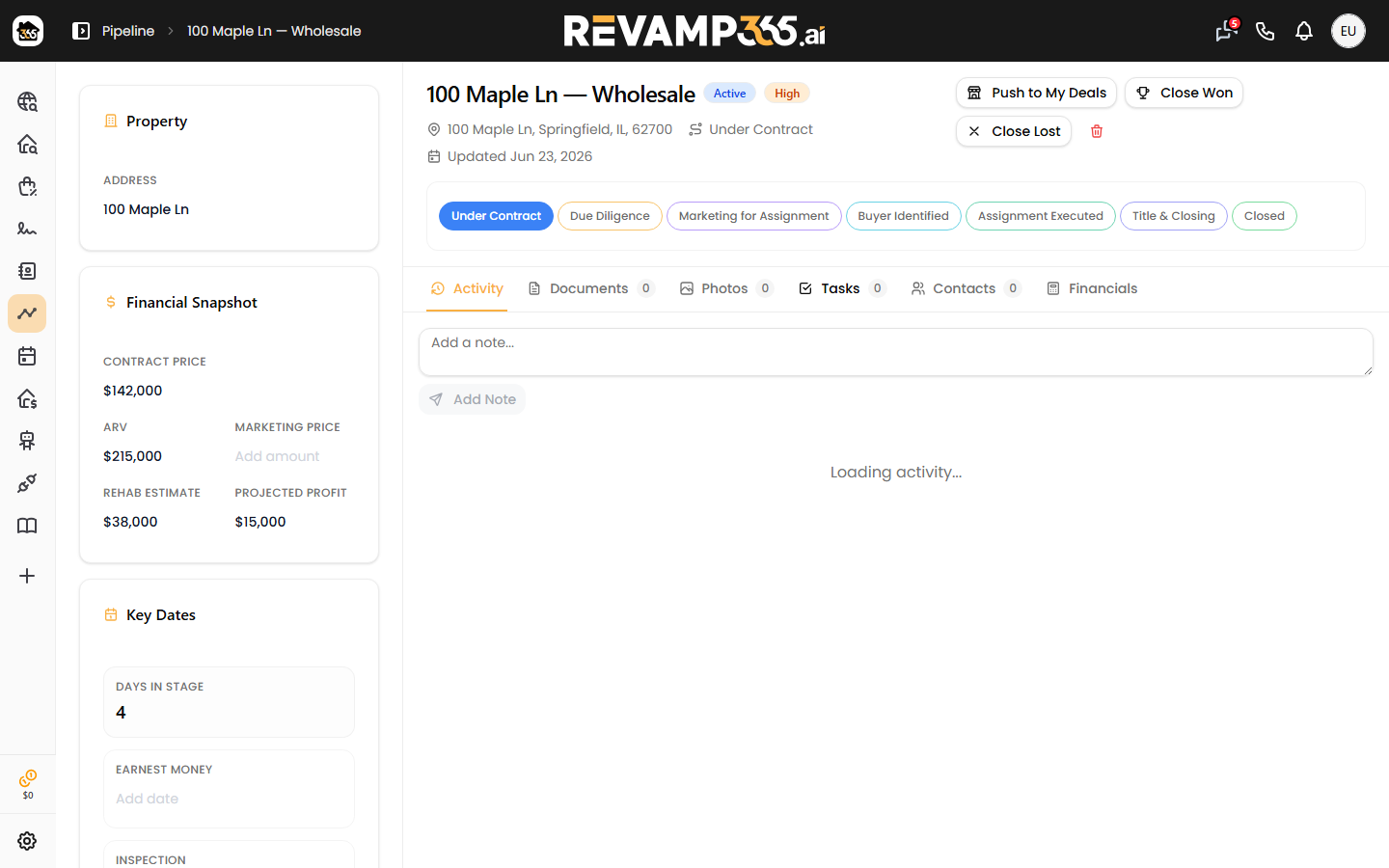
The Key Dates card lives in the left panel of the deal detail page. Each field is an inline date picker — click the value (or "Add date"), pick a date, and it saves on its own:
- Earnest Money — the earnest money due date
- Inspection — your inspection contingency deadline
- Financing — the financing contingency deadline
- Closing — the scheduled closing date
- Actual Close — the date the deal actually closed
The card also shows Days in Stage, counted from when the deal entered its current stage.
Read the urgency badges
While a deal is active, each date shows a colored badge based on how close it is to today:
| Badge | Meaning |
|---|---|
| Soon | Due within 3 days (or today) |
| This week | Due in 4 to 7 days |
| Past due | The date has passed |
Once a deal is closed (or sitting in a closed stage), these badges disappear so finished deals stay quiet.
Get reminded before deadlines
A daily job sends notifications for upcoming and overdue deadlines on active deals:
- Closing date — 7 days and 1 day before
- Earnest money — 3 days before
- Inspection and financing — 1 day before
- Overdue — alerts continue for up to 7 days past any missed date
Keep your dates accurate and the reminders take care of follow-up. To get tasks tied to milestones, see create and complete follow-up tasks.
Close a deal as won
- On an active deal, click Close Won in the header (or Close Won in the mobile menu).
- Confirm the Actual Closing Date — it defaults to today.
- Optionally enter the Closed Price.
- Click Close as Won.
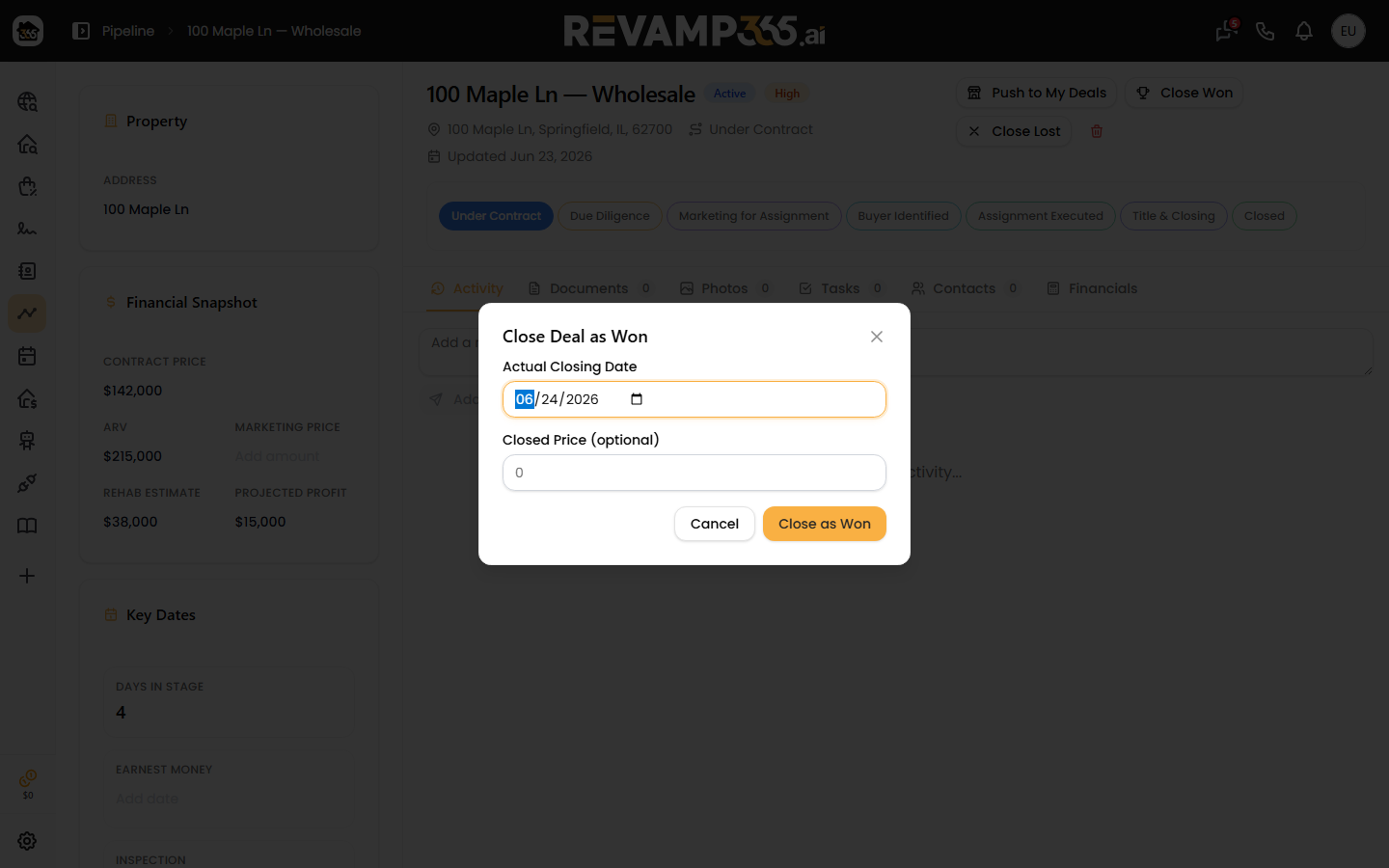
The deal's status becomes closed_won, the actual closing date is stamped in if you left it blank, and the linked contact's lead status flips to CLOSED. The deal leaves the active set, so it drops out of the Active Deals, Pipeline Value, and Projected Profit counters at the top of the board.
Mark a deal as lost
- Click Close Lost on an active deal.
- Type a Lost Reason — this field is required.
- Click Mark as Lost.
The status becomes closed_lost, your reason is saved on the deal, and the linked contact's lead status changes to Dead. Both outcomes are written to the deal's Activity tab so you keep a full history.
Reopen a closed deal
The Close buttons only appear while a deal is active. Reopening a deal back to active is logged as a reopen event in the Activity tab, so the audit trail stays intact.
To enter the financials that drive projected profit on each deal, see add deal financials, ARV, repairs, and MAO.