
Follow-up tasks keep your next move on every lead from slipping through the cracks. In Revamp365 you create a task with a due date directly on a contact, and it lands in that contact's Timeline where you can mark it done in one click.
Add a follow-up task
- Open Contacts from the left navigation and click the contact you want to follow up with.
- On the contact's Timeline tab, click the Add Activity button in the toolbar.
- Choose Add Task from the dropdown menu.
- Fill in the task fields and click Add Task to save.
The task is created with a pending status and immediately appears as an entry in the Timeline. A confirmation toast ("Task added successfully") confirms it saved.
Task fields
| Field | Required | Notes |
|---|---|---|
| Title | Yes | Short label, up to 255 characters. The Add Task button stays disabled until you enter one. |
| Description | No | Free text, up to 5,000 characters. |
| Due Date | No | A date-and-time picker. Sets when the task is due. |
Read a task in the timeline
Each task shows in the Timeline with a status badge and, when you set one, a due date rendered in orange (for example, "Due: Jun 12, 2026"). The badge style reflects the task's status — pending and in-progress tasks look different from completed ones, so you can scan the list and spot what's still open.
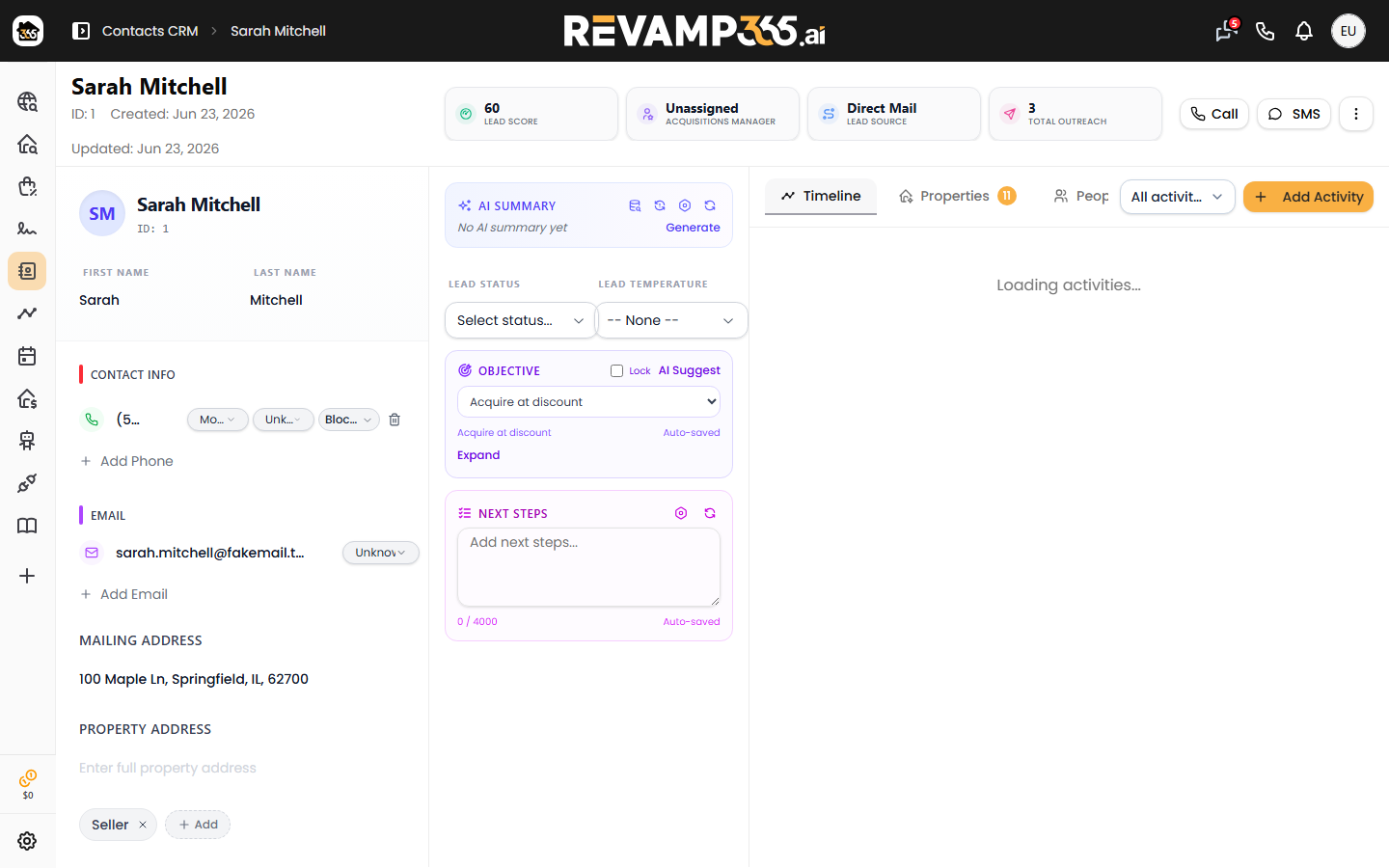
Because tasks live in the Timeline alongside calls, notes, and texts, you see the full history of a contact in one place. For more on reading that feed, see Use the contact timeline.
Complete or delete a task
- Complete: On any task that isn't already done, click the check icon on the right of the Timeline row. The task is stamped completed, its badge updates, and the check button disappears.
- Delete: Click the trash icon to remove the task entirely. A confirmation toast confirms the deletion.
Completing a task records the completion time and can kick off any automation you've built on the task completed trigger — for example, auto-creating the next step or sending a notification.
Stay ahead of due dates
Revamp365 watches for tasks that pass their due date without being completed. When a task goes overdue, it fires a task overdue automation trigger, so you can wire up a reminder or escalation instead of relying on memory.
A few things to keep in mind:
- Tasks are tied to the specific contact you created them on, and only you (the owner) see and manage them.
- The check icon is a one-click complete action; there's no separate edit dialog for a saved task, so to change the title or due date, delete it and add a fresh one.
- Pair tasks with a clear lead stage so your pipeline and your to-do list stay in sync — see Set lead status and temperature.