
Lead status tracks where a contact sits in your pipeline, and lead temperature flags how warm the lead is. Both live on every contact in your Contacts CRM and are saved the moment you pick a value.
Set them on a single contact
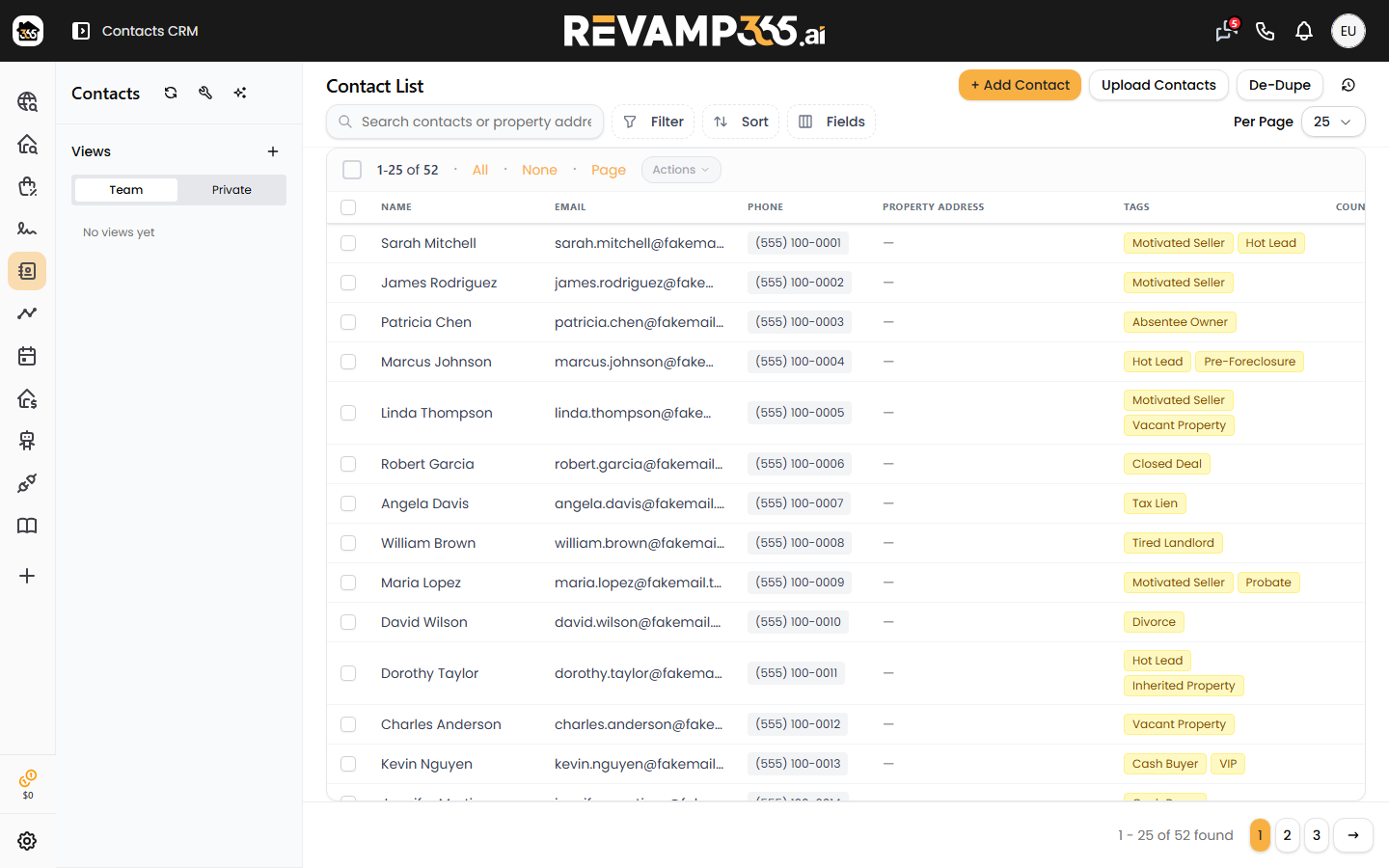
- Open Contacts CRM from the left navigation and click the contact you want to update.
-
Find the Lead Status dropdown and choose a stage (for example,
#2 Warm Follow Up). -
Find the Lead Temperature dropdown and pick
Hot,Warm, orCold. -
There is no separate Save button. The contact saves automatically as soon as you select a value, and the change is written to the contact's timeline.
To clear lead temperature, reopen the dropdown and choose -- None --.
Status options vs. temperature options
Lead status comes pre-loaded with a full wholesaling pipeline you can rename or replace. Lead temperature is fixed to three values.
| Field | Default values | Editable? |
|---|---|---|
| Lead Status | NEW, #1 Make Contact, #2 Warm Follow Up, #3 Motivated Appointment Set, #4 Verbal Offer Pending … CLOSED, Dead |
Yes — add, rename, or remove options |
| Lead Temperature | Hot, Warm, Cold |
No — these three are always the choices |
Any custom status value already saved on a contact (for example, imported from a CSV) is automatically merged into the dropdown so you never lose a value.
Customize status options and colors
- Edit the option list: Lead status options are saved per account through field settings. Adjusting the list updates the dropdown everywhere status appears.
- Color-code values: On a contact page, open the layout editor and click Customize Colors (the palette button). Assign a color to each status or temperature value so leads are easy to scan in the table and on cards.
Update many leads at once
- On the Contacts table, check the boxes next to the leads you want to change.
- Open the bulk update panel and choose the Lead Status or Lead Temperature category.
- Select a value. Leave a field on -- No Change -- to skip it.
- Apply the update. Selections of more than 500 contacts run in the background, and you'll get a notification when they finish.
Filter and review
Lead Status and Lead Temperature appear as sortable columns on the Contacts table, and both are available as filters so you can build views like "Hot leads in #2 Warm Follow Up." Every change is recorded on the contact timeline with the old and new value, so you can see exactly when a lead moved or cooled off.
Once a deal is real, mirror the stage on your board by moving and bulk-updating deals in the pipeline.