
Revamp365 gives every contact two kinds of notes: a single always-visible Lead Notes block and timestamped sticky notes that stack in the activity timeline. Pin a sticky note and it rises to the top so the next person opening the record sees it first.
Open a contact and find the notes
- Go to Contacts in the left navigation and click any contact to open the detail page.
- The Lead Notes panel sits on the left side under the contact's details (yellow marker, sticky-note icon).
- The timeline on the right holds sticky notes alongside calls, texts, and tasks.
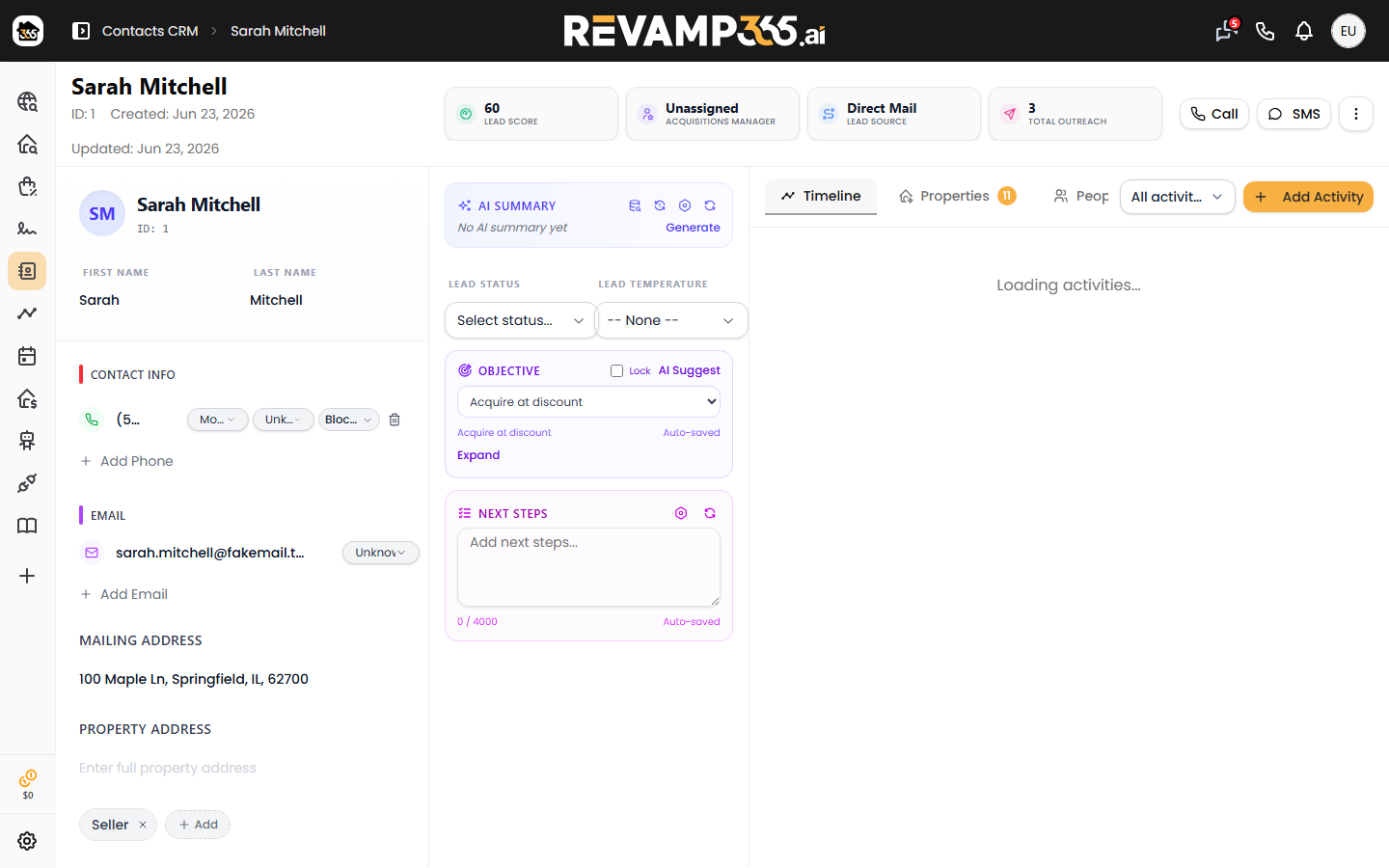
Add or edit Lead Notes
Lead Notes are one running block meant for the summary you always want visible.
- Click the Click to add lead notes... area in the left panel.
- Type your note and click away to save. A Lead notes saved confirmation appears.
- Editing the block again updates the same note rather than creating a new one.
Each save also drops an Added Lead Notes (or Edited Lead Notes) entry into the timeline so you keep a history.
Add a sticky note
Sticky notes are quick, dated entries for "called, left voicemail" moments.
- In the timeline header, open the Add Activity menu and choose Add Sticky Note.
- Type your note (up to 10,000 characters).
- To make it stand out, check Pin as Lead Note.
- Click Add Sticky Note (or Add as Lead Note if you pinned it).
Pin, edit, and delete
Pinned sticky notes appear in a Lead Notes section at the very top of the timeline, above everything else.
| Action | How |
|---|---|
| Pin a note | In the note's action buttons, click the pin icon |
| Unpin a note | Click the pinned-off icon in the Lead Notes section |
| Edit a note | Click the edit icon, change the text, then save (Cmd/Ctrl+Enter works) |
| Delete a note | Click the trash icon and confirm |
You can only delete sticky notes you created. Deleting a note also removes its matching timeline entry.
Which note type to use
- Use Lead Notes for the standing summary: motivation, asking price, the one thing to remember.
- Use sticky notes for a log of individual touches you want timestamped and attributed.
- Pin a sticky note when a single update matters more than the rolling summary.
Notes are one piece of the record. Pair them with the contact timeline to see calls and texts in context, and with lead status and temperature to keep the pipeline accurate.