
Every contact in Revamp365 keeps a single chronological feed of everything that has happened with that lead. The timeline pulls calls, texts, emails, notes, tasks, and behind-the-scenes system events into one place so you never lose context.
Open the timeline
- Go to Contacts CRM in the left sidebar.
- Click any contact to open their detail page.
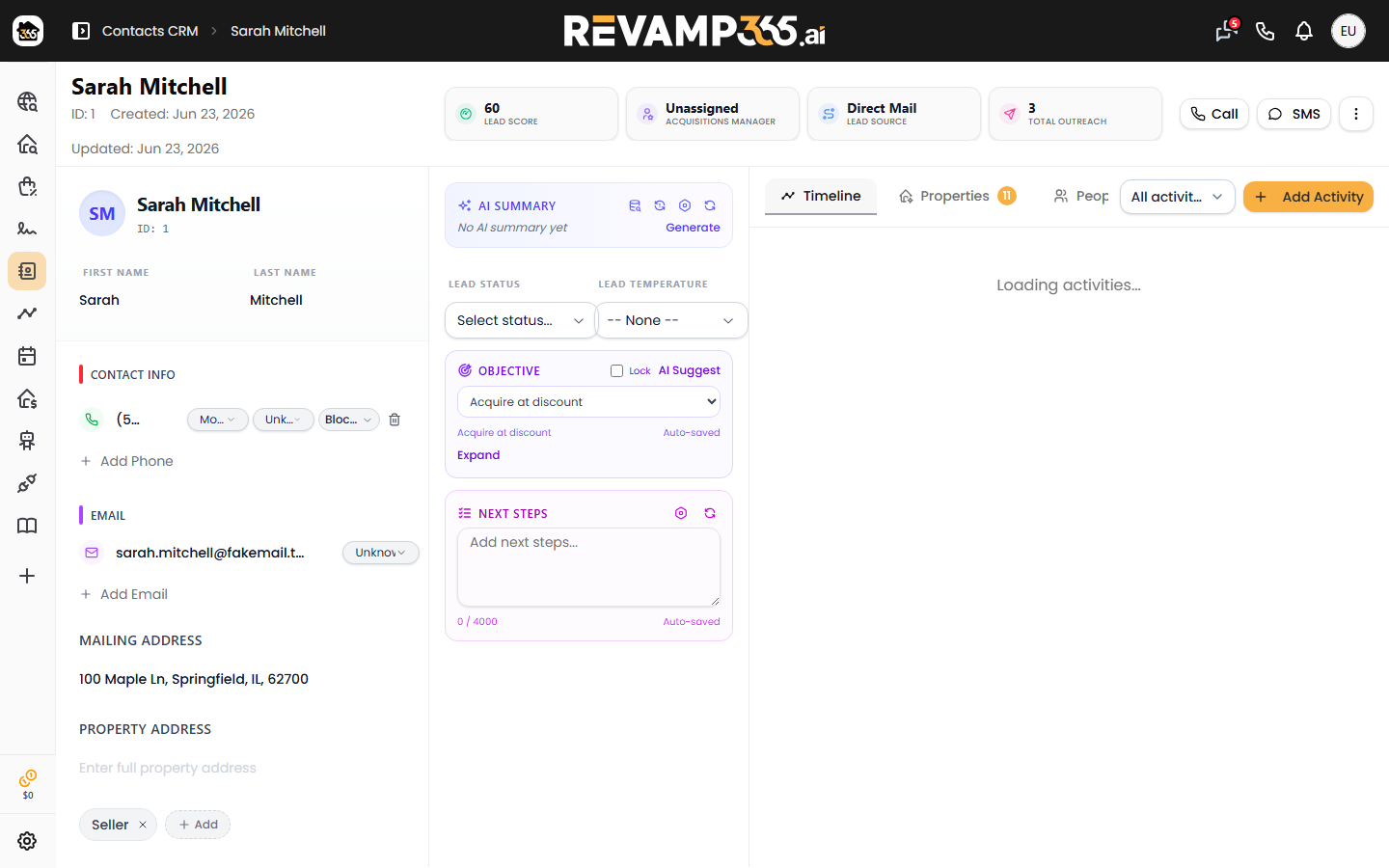
- The Timeline tab is selected by default. The tab badge shows how many activities exist.
Activities appear newest-first. Pinned Lead Notes are grouped in a highlighted yellow section at the very top, above the dated feed.
What appears in the feed
The timeline merges live records and logged activity. Common rows include:
| Row type | What it shows |
|---|---|
| Calls | AI voice calls and manual dialer calls, with outcome, duration, sentiment, and voicemail badges |
| SMS | Outbound and inbound texts, tagged Sent or Received; click the row to open the thread where MMS image attachments show inline |
| Emails | Campaign sends per recipient, with Sent, Opened, or Clicked status |
| Notes | Sticky notes and Lead Notes you add by hand |
| Tasks | Follow-up tasks with status and due date |
| System events | Tag and list changes, lead status/temperature changes, AI summary updates, contact-info edits, e-sign, and CRM sync |
Automated rows created by workflows or automations are labeled System Automation with a robot icon so you can tell them apart from your own actions. That one label covers every system in the product, not only the Automations engine — see who did this? reading the actor label.
Open the full detail of a row
Rows for calls, texts, emails, Zoom meetings, bookings, and CRM sync are clickable (a chevron appears on the right). Clicking them opens the matching detail view — for example, a call recording and transcript, or the SMS thread scrolled to that exact message.
Filter which activity types show
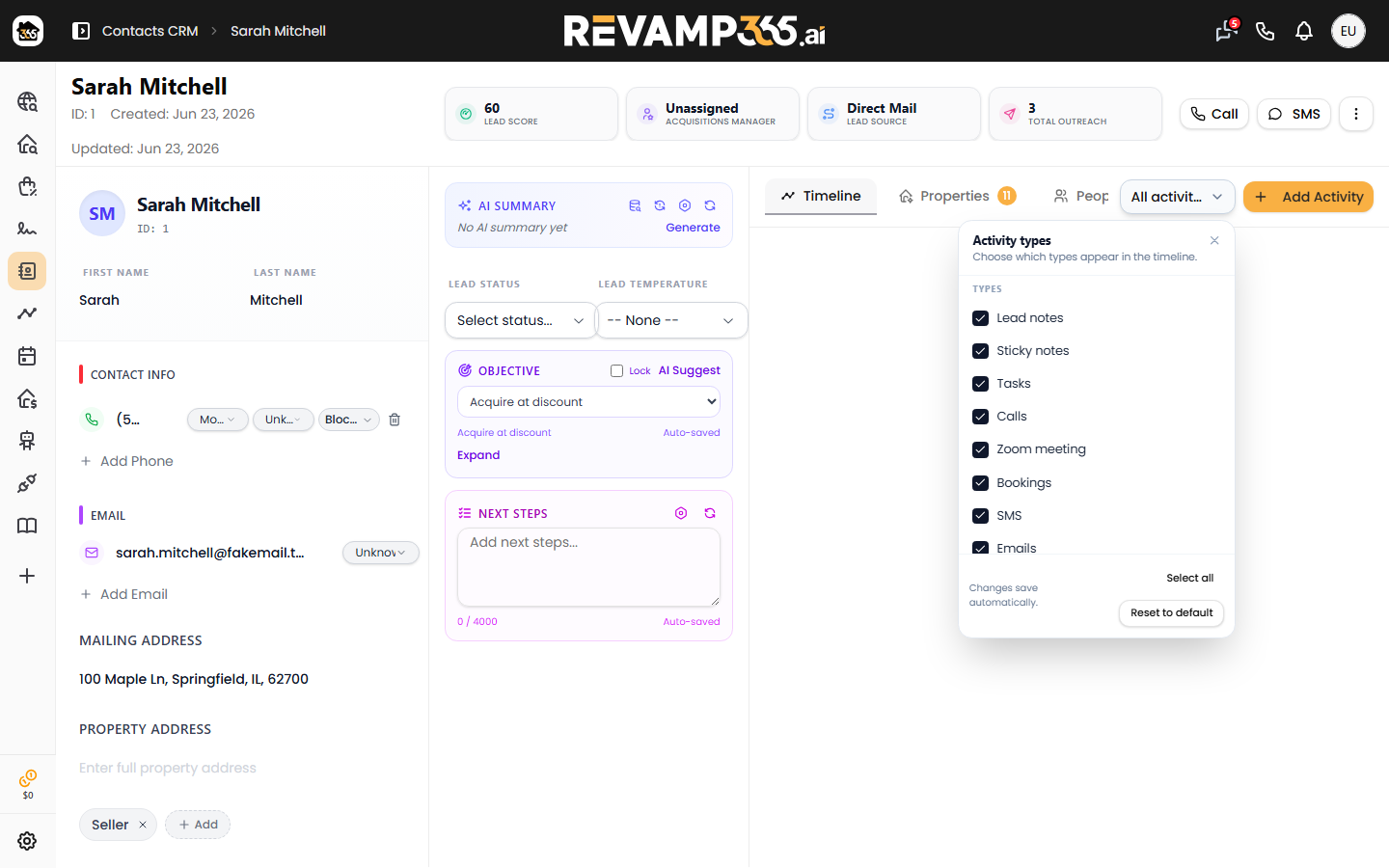
Use the activity-type dropdown in the timeline toolbar (it reads All activities by default) to focus the feed.
- Open the dropdown to see the Activity types list.
- Check or uncheck types such as Calls, SMS, Emails, Tasks, Lead changes, or CRM sync.
- Changes save automatically and persist on this device.
- Use Select all or Reset to default to restore the full feed.
Add a note or task
Click Add Activity in the toolbar to log something yourself:
- Add Sticky Note — type your note. Check Pin as Lead Note to keep it pinned at the top; otherwise it stays inline as a timestamped sticky note.
- Add Task — set a title, optional description, and due date.
On any sticky note you can later use the pin icon to promote it to a Lead Note, or edit and delete it. For richer note workflows, see add, pin, and manage contact notes.
Tips
- Files reach the timeline as MMS attachments on a text message, not a separate upload.
- If a row looks duplicated, Revamp365 already hides known duplicates (such as a workflow text and its raw SMS row), so the feed stays clean.
- A call that rang you and then transferred to your AI agent shows once, as the richer AI Voice Call entry.