
Linking a property to a contact keeps the address, valuation, and your relationship to the deal attached to the right person. Revamp365 can auto-pull property data from an address search, or you can enter the details by hand.
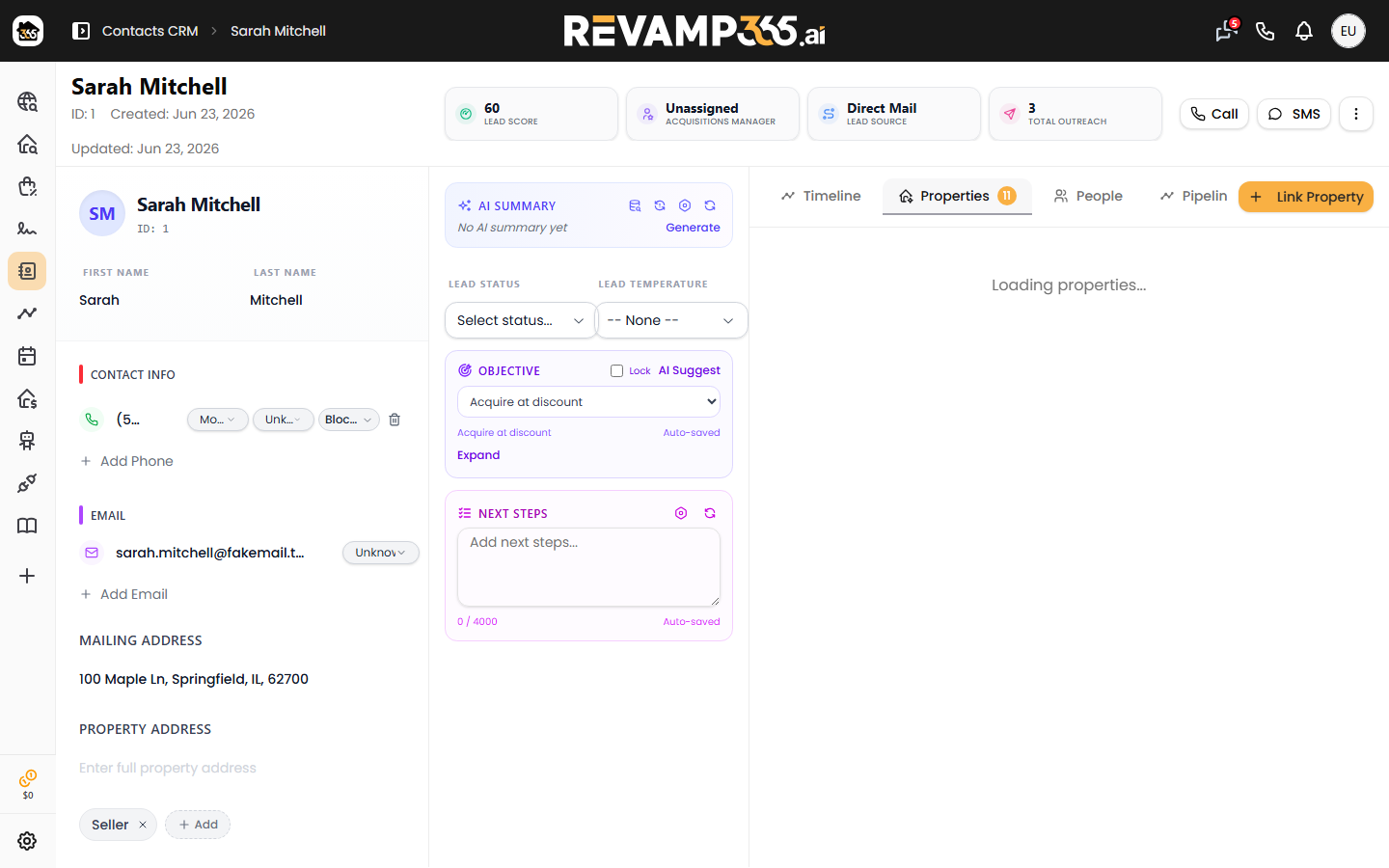
Open the Properties tab
- Go to Contacts CRM and click a contact to open their record.
- Click the Properties tab (the house icon). A number badge shows how many properties are already linked.
- Click Link Property in the top toolbar.
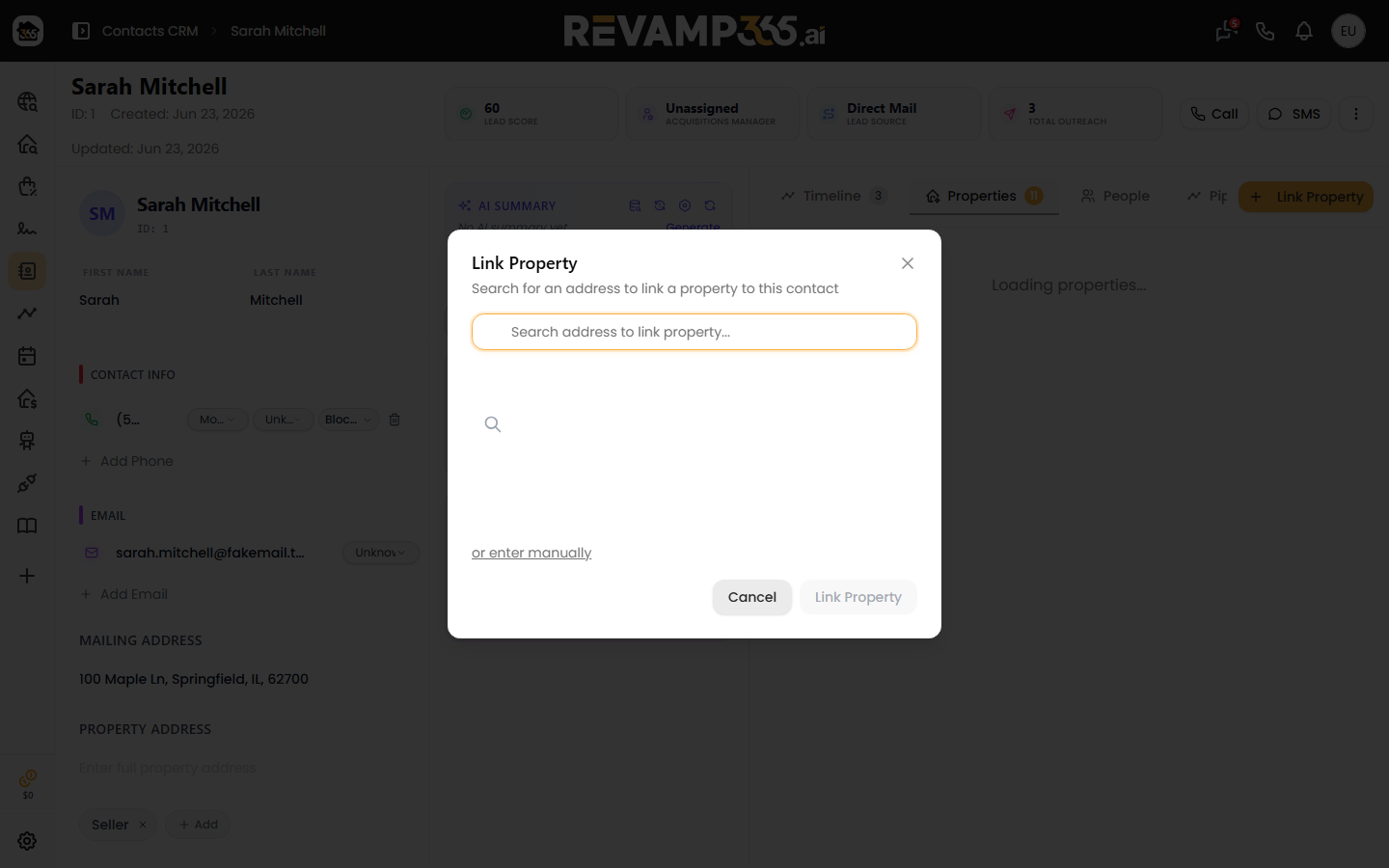
Search for an address
The fastest path pulls real property data automatically:
- In the Link Property dialog, start typing an address (3+ characters) in the search box.
- Pick a match from the autocomplete dropdown.
- Click Look up property. Revamp365 fetches a record card with beds, baths, square footage, year built, lot size, and a valuation (AVM or price) when available.
If the lookup finds no record, you can Link with address only (uses the geocoded address) or switch to manual entry.
Set the relationship and notes
After a property resolves, choose how this contact relates to it. The Relationship Type and Notes fields are both optional.
| Relationship Type | Use it when the contact is |
|---|---|
| Interested | A buyer or party interested in the property |
| Sold By Owner | The seller who sold it |
| Owned - Primary | The owner, primary residence |
| Owned - Portfolio | The owner, investment portfolio |
| Seller Lead For | A seller lead tied to this property |
| Buyer For | A buyer tied to this property |
| Other | None of the above |
Choosing Owned - Primary copies the address into the contact's mailing address. If that field is empty it fills automatically; if an address is already set, Revamp365 asks before overwriting it.
Click Link Property to save. You'll see a "Property linked successfully" confirmation.
Enter a property manually
No address match, or an off-market deal? Click or enter manually (or Enter manually after a failed lookup):
- Address is required; City, State, ZIP Code, and County are optional.
- Set a relationship type and notes the same way.
Manage linked properties
Each linked property appears as a card showing location, price, AVM, ARV, beds/baths, and your notes. A Summary strip at the top totals the count and combined values.
- Click the pencil icon to edit the link's details.
- Click the unlink (chain) icon to remove it.
- Click anywhere on the card to open the full property detail view.
You can't link the same property twice. Revamp365 blocks a duplicate when the property ID and type already exist on the contact.
To keep the rest of the record current, see edit contact basic details. For the calls, texts, notes, and system events tracked on a contact, see the contact timeline.