
Every field on a Revamp365 contact saves the moment you click away, so there is no Save button to hunt for. Open a contact, click the value you want to change, type, and the update is written and logged to the timeline automatically.
Open the contact
- In the left sidebar, click Contacts CRM.
- Click any contact row to open its detail page.
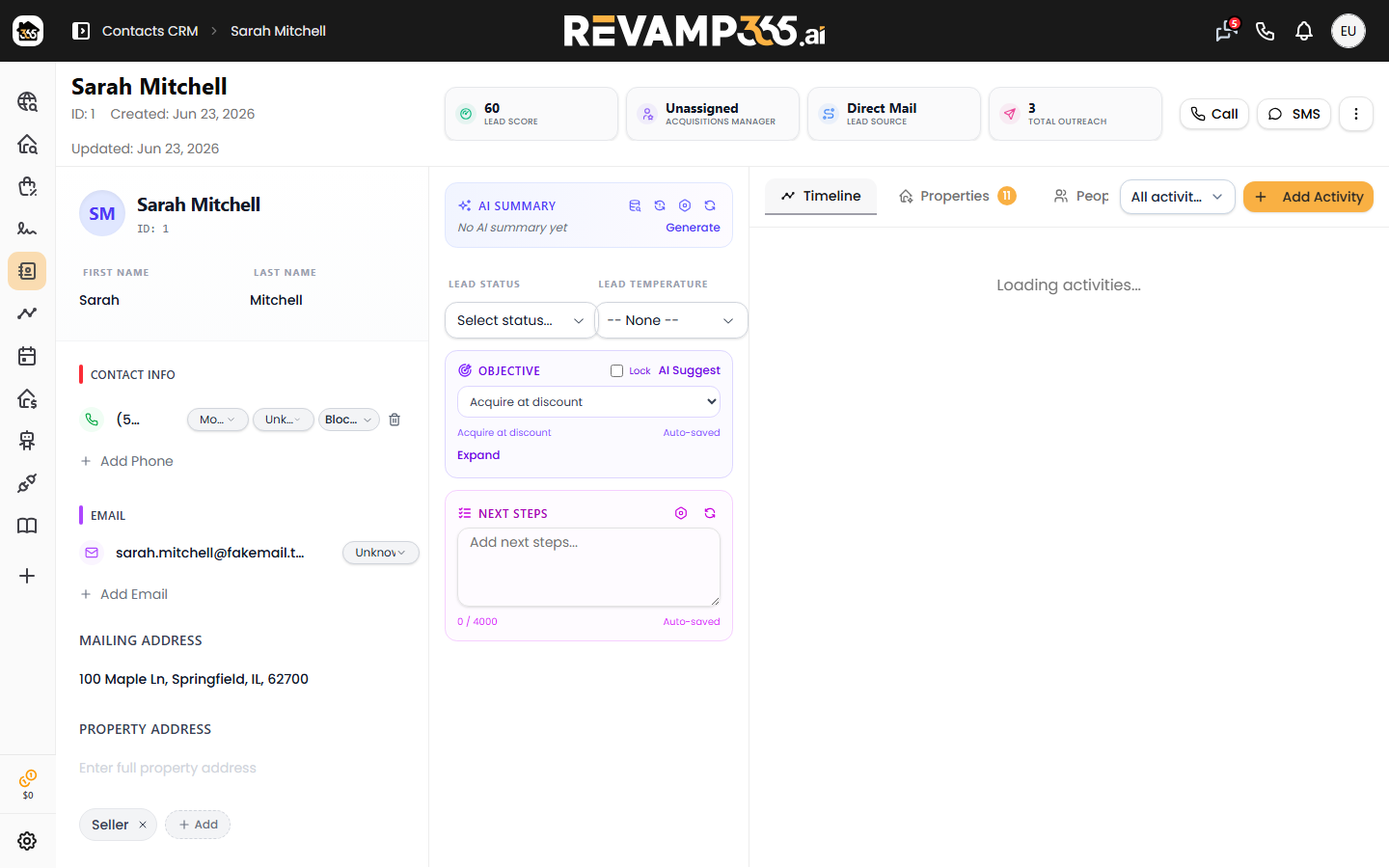
- The editable fields sit in the left details column: First Name, Last Name, the CONTACT INFO section (phone numbers plus an EMAIL sub-section), Mailing Address, and Property Address.
Edit the name
First Name and Last Name are separate inline fields near the top of the page.
- Click the First Name value, type the new text, and press Enter (or click away).
- Repeat for Last Name.
Revamp365 rebuilds the contact's full display name from these two fields, so update them rather than editing a combined name string.
Edit phone numbers
The phone area sits at the top of the CONTACT INFO section and holds one primary number plus any additional numbers.
- Edit the primary number: click it, type the new value, then press Enter. You can also use the pencil menu and choose Edit Number.
- Set the type: use the type pill or the pencil menu to pick Mobile, Home, Work, or Other.
- Mark verification: choose Valid, Invalid, or Unknown.
- Add another number: click Add Phone, enter the number, pick a type, and confirm with the check.
- Remove a number: click the trash icon on that row.
Phone numbers must be a valid 10-digit US number (or 11 digits starting with 1). International numbers must start with +. An invalid entry triggers an error and is not saved.
Edit email addresses
The EMAIL block works the same way.
- Click the primary email to edit it, or open the pencil menu and choose Edit Email.
- Set verification to Valid, Invalid, or Unknown.
- Click Add Email to store additional addresses, or the trash icon to remove one.
Edit mailing and property addresses
Both Mailing Address and Property Address are single free-text fields that hold the full address on one line.
- Click the field (for example, "Enter full mailing address").
- Type the complete street, city, state, and ZIP.
- Press Enter to save.
| Action | Result |
|---|---|
| Save a mailing or property address | Stored as one string; the linked property record updates |
| Clear the field | The address is removed from the contact |
Because the address is stored as a whole string, enter it exactly as you want it displayed.
What happens after a save
Each change shows a "Contact updated successfully" toast, stamps the contact's last-updated time, and writes an entry to the contact timeline. To attach a deal record or owned property instead of editing the address line, see add a property to a contact.