
After a skip trace runs, Revamp365 returns the owner's name, phone numbers, emails, and any connected people in the Owner Information dialog. This explains how to read that panel, tell a mobile from a landline, and decide which number to call first.
Open the Results Panel
From a contact's detail page, open the Companies tab and click the company (the owner entity) to open the Owner Information dialog. The panel loads the stored skip trace result for that mailing address, so reopening it later shows the same numbers without re-running (and re-paying for) the trace. If a trace was attempted but came back empty, you will see a red note: "No contact information (email/phone) was returned for this skip trace."
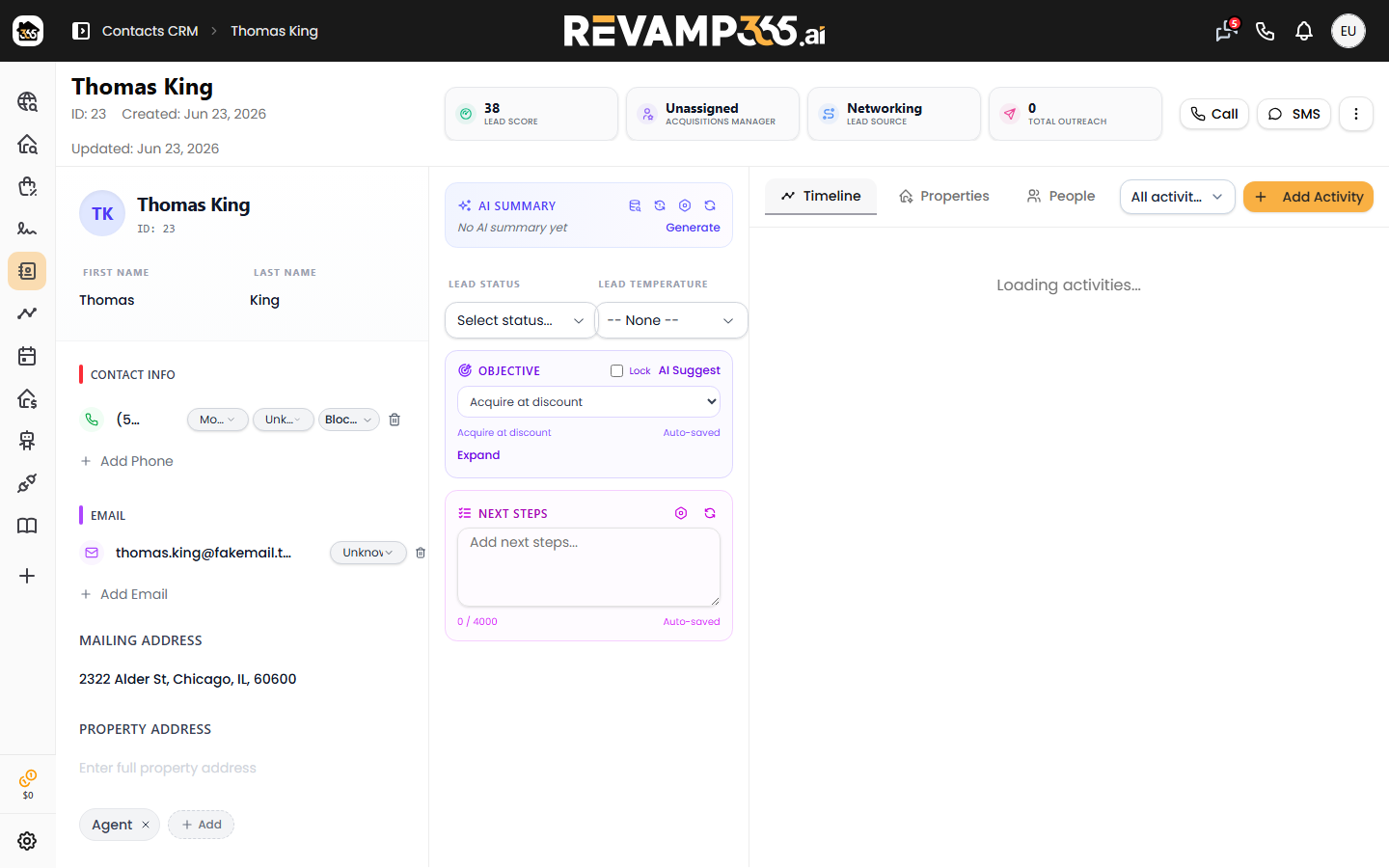
Read the Contact Card
Each person is shown as a card with a CONTACT INFO column, an EMAIL column, and a TAGS column. The first listed phone is the primary number; up to two alternates follow. Every phone has its own Valid / Invalid / Unknown dropdown next to it.
Line type matters because texting only works on mobile numbers. The skip trace tags each number Mobile or Landline:
- Mobile — a cell number, best for SMS and most likely to reach the person directly.
- Landline — a home or office line, voice only, no texting.
For connected people, the line type appears as a small note in parentheses beside the number, such as "(Mobile)". When you add a number yourself, you choose its type as you save it.
Choose the Best Number
Work down the card in this order:
- Prefer a Mobile line over a landline if you plan to text or want the most direct reach.
- Trust verified numbers. A number another investor already confirmed as Valid is your strongest lead; skip anything marked Invalid.
- Check the owner badge. Confirmed principals are flagged OWNER 1, OWNER 2, or ASSOCIATE, and a per-person dropdown lets you set Verified Owner, Unverified, or Unknown. Call the verified owner before associates.
- Fall back to alternates only when the primary is a landline or marked Invalid.
Mark What You Learn
When you call or text a number, set its dropdown to Valid (it answered and was the right person) or Invalid (wrong number or disconnected). These statuses save to the shared result for that address, so your verification carries forward the next time you — or another user — open the same owner. You can also use Add Phone or Add Email to record a number you found elsewhere, choosing Mobile or Landline as you add a phone.
Connected People and Deep Trace
Below the main owner, the panel lists connected people (relatives and associates) with their own phones and emails, each with its own Valid/Invalid/Unknown control. If a Deep Trace investigation ran on an LLC-owned property, a separate panel shows the Identified Principal with a high, medium, or low confidence badge plus any phones and emails discovered from public and social sources — useful when the basic trace returns no direct number.
Act on the Number
Once you pick a number, use the user-plus button to push the person into your contacts, then call or text from there. Before you run any texting campaign, scrub the numbers you marked Invalid and honor opt-outs — see Mark a Contact DNC and Understand STOP Opt-Outs. To run a trace in the first place, see Skip Trace a Single Contact.