
Your Revamp365 pipeline is where deals travel from contract to close. Open Pipeline in the left sidebar, then move cards, re-stage them in batches, and flip status or priority as deals progress. Pipeline requires a Pro+ or Dealmaker Syndicate plan.
Pick a deal type and a view
The board shows one deal type at a time. Use the Filter button to switch between Wholesale, Fix & Flip, Buy & Hold, Listed Sale, and Other — each type keeps its own stages and deals.
Two view buttons sit in the toolbar:
- Kanban (column icon) — drag-and-drop cards between stage columns.
- Table (list icon) — a sortable row list showing Title, Address, Stage, Contract Price, Closing Date, Priority, and Status.
The board opens in Table view by default. Switch to Kanban whenever you want to move deals by dragging.
Move a deal to a new stage
On the Kanban board:
- Click and hold a deal card.
- Drag it onto the target stage column (the column highlights with a ring).
- Release. You'll see a Stage updated toast.
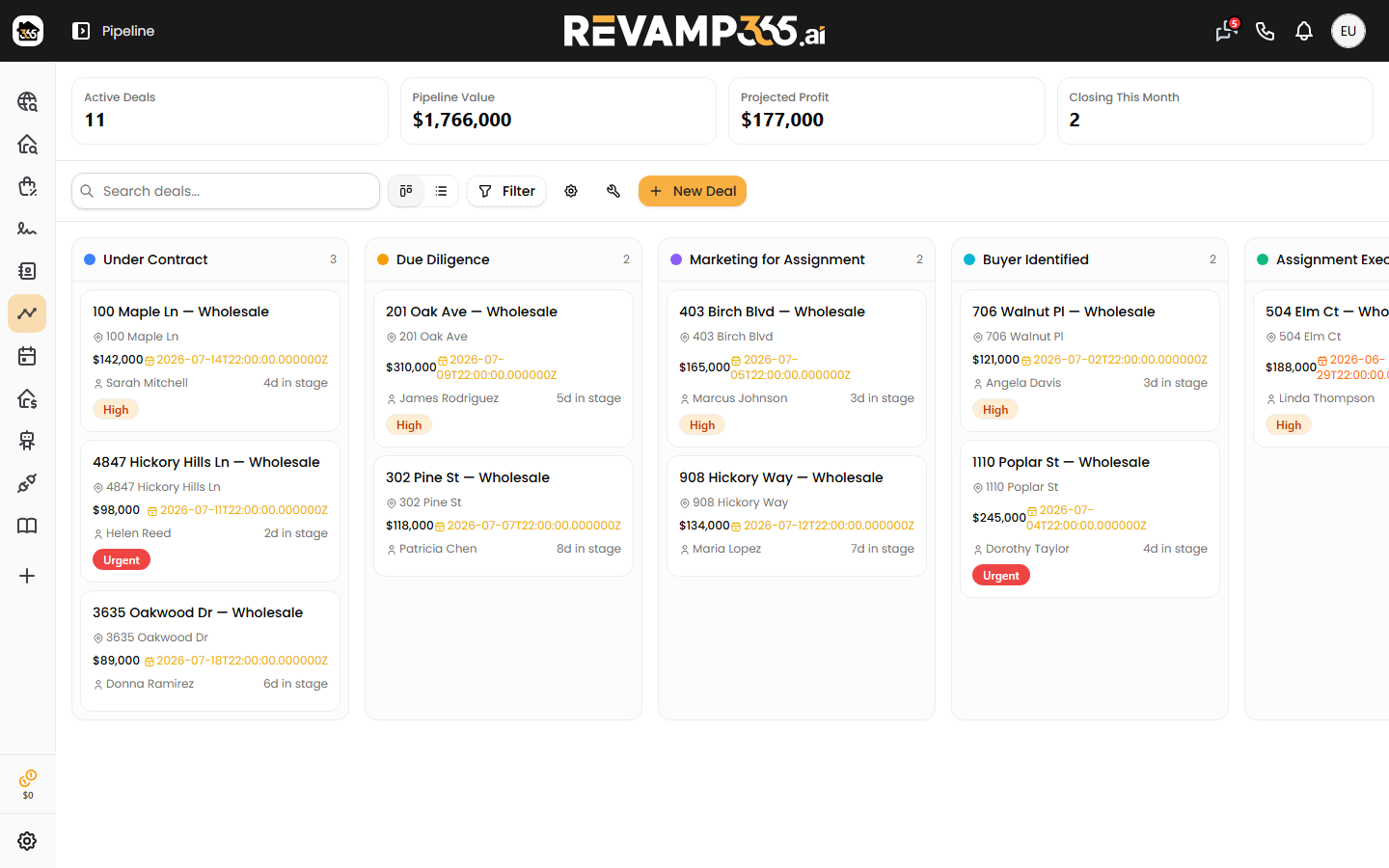
Each move stamps the time the deal entered the stage (the card shows "Nd in stage"), logs a stage-change entry on the deal's activity feed, and auto-creates any tasks you set up for that stage.
You can also re-stage from inside a deal. Open it, then click a stage in the progress bar and confirm the Move deal to "…" prompt.
Re-stage many deals quickly
There is no multi-select checkbox on the board — instead, drag cards one after another to update a batch fast:
- Use the Search deals… box or Filter to narrow the board to the deals you want to touch.
- Drag each card to its new column; every drop saves on its own.
- Tall columns paginate — click Load More to pull additional cards into a stage before dragging.
To reorder the columns themselves (not the deals), open Customize stages (gear icon). See customize your pipeline stages.
Update status and priority
Stage and status are separate. Priority (Low, Medium, High, Urgent) and status come from each deal's detail page, opened by clicking a card or table row.
On an active deal's page, the top-right actions (shown as buttons on desktop and under the ⋮ menu on mobile) offer:
| Action | Result |
|---|---|
| Close Won | Marks the deal won, sets the actual closing date, and flips the linked contact to a Closed lead status |
| Close Lost | Marks the deal lost (with a reason) and sets the linked contact to Dead |
| Push to My Deals | Lists the deal on your marketplace |
| Delete Deal | Removes the deal (restorable later) |
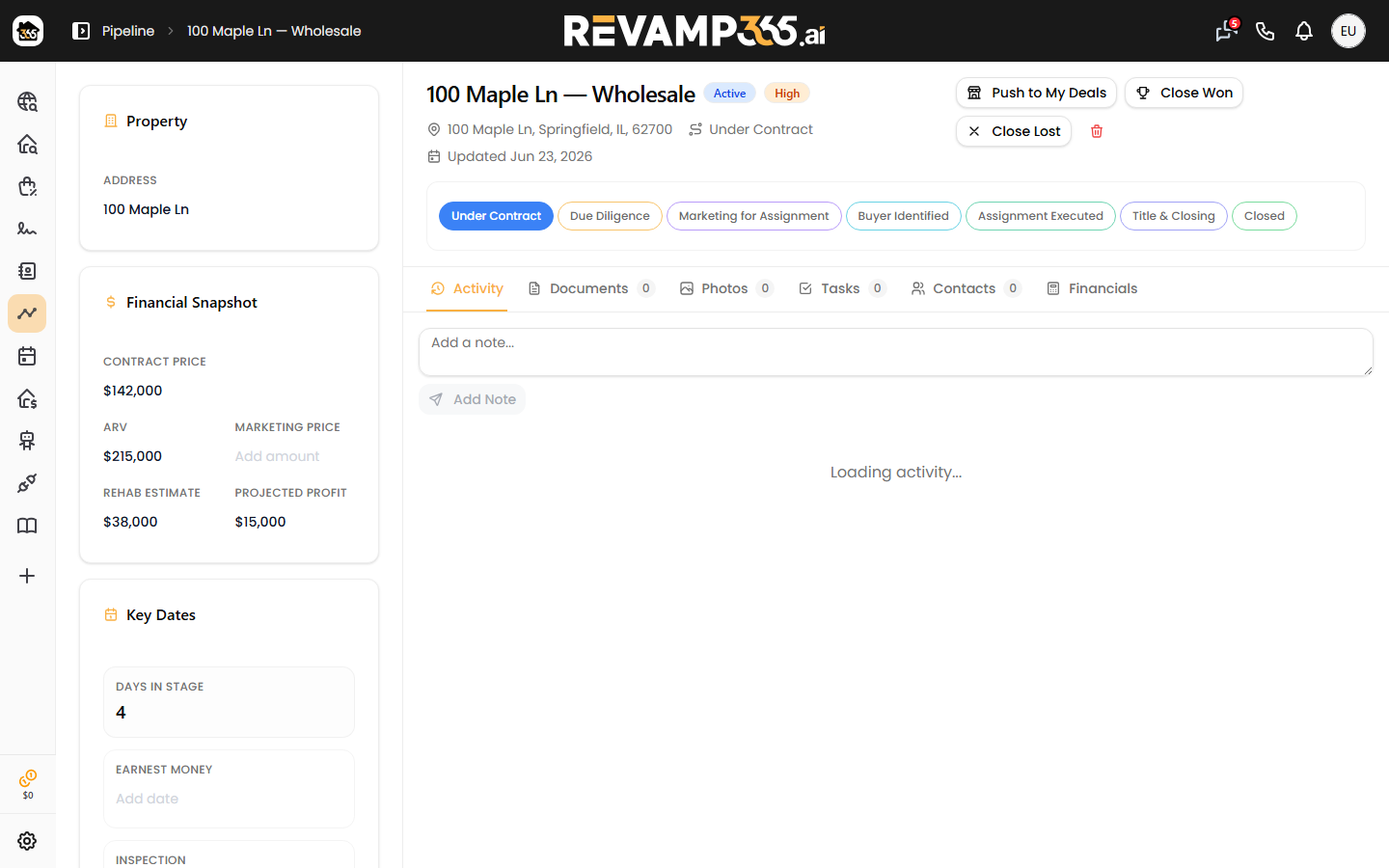
Closed-won and closed-lost deals stop showing closing-date urgency. To dig into financials while you move a deal, see add deal financials, ARV, repairs, and MAO.