
Your Deal Pipeline ships with sensible default stages for each deal type, but you can rename them, change their colors, add your own, and remove the ones you do not use. Stages are saved separately for each deal type, so editing Wholesale stages never touches your Fix & Flip board.
Open the stage customizer
- In the left sidebar, click Pipeline (this requires a Pro+ or Dealmaker Syndicate plan).
- Pick the deal type you want to edit. The board defaults to Wholesale; use the Filter dialog to switch to Fix & Flip, Buy & Hold, Listed Sale, or Other.
- On the toolbar, click the gear icon labeled Customize stages.
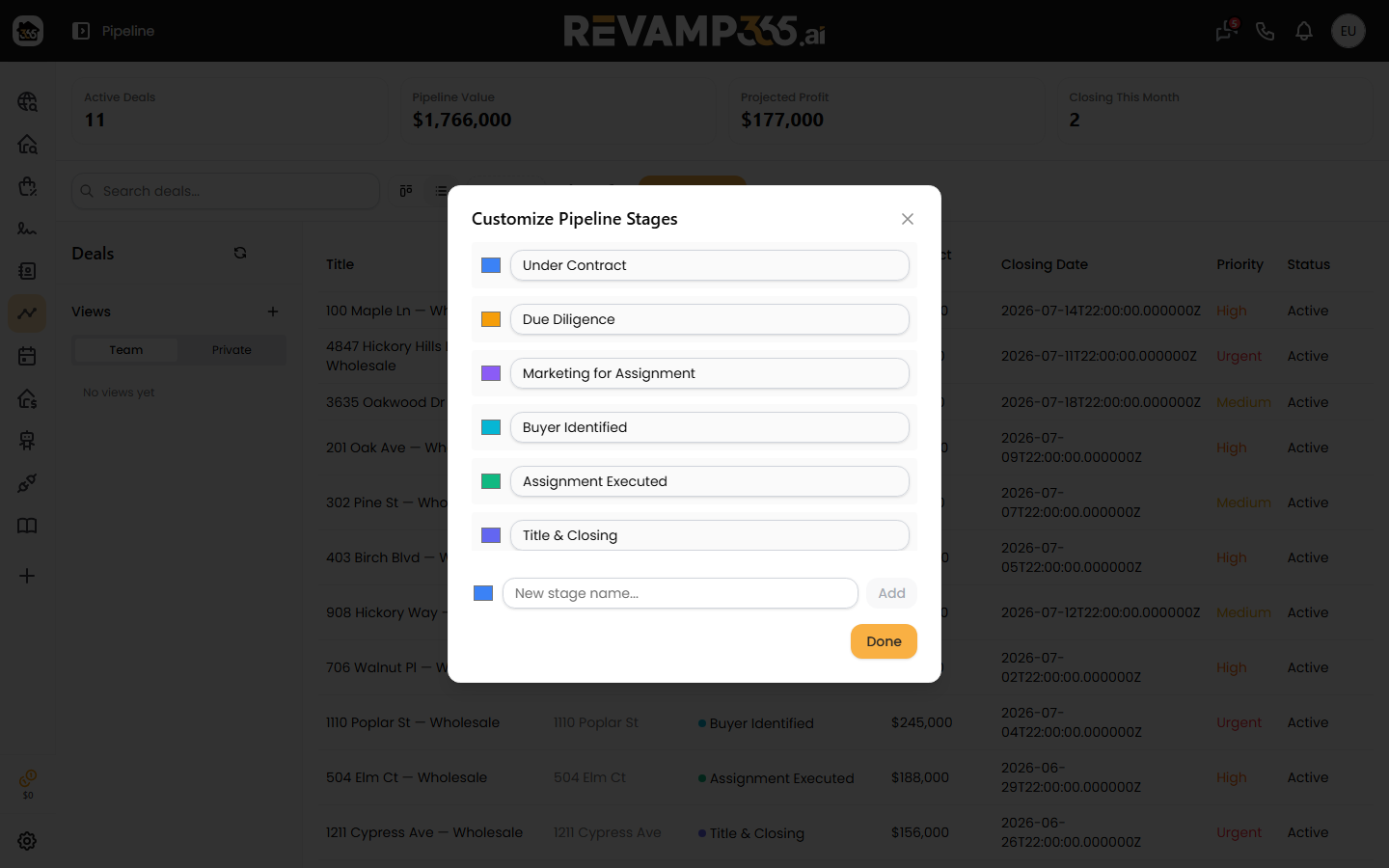
- The Customize Pipeline Stages dialog opens with every stage for the current deal type.
Rename a stage or change its color
Each row has a color swatch on the left and the stage name beside it.
- To recolor, click the swatch and pick a color from your browser's color picker.
- To rename, click into the name field and type a new label (up to 100 characters).
Changes save automatically when you click away from the field or close the picker — there is no separate Save button. A toast confirms a failure if one occurs; otherwise the new name and color appear on the board after it reloads.
Add a new stage
- At the bottom of the dialog, click the color swatch to set a color (the default is blue).
- Type a name in the New stage name... field.
- Click Add, or press Enter.
New stages append to the end of the board for that deal type. Drag a deal card into the new column on the Kanban view to start using it — see move and bulk-update deals.
Delete a stage
Stages you created show a trash icon. Click it and confirm to remove the stage.
Important: any deals sitting in that stage are not deleted — they become No Stage and stay searchable. Re-stage them from the board afterward.
Default vs. custom stages
| Stage type | How it is created | Can rename / recolor | Can delete |
|---|---|---|---|
| Default | Seeded automatically on first visit (for example Under Contract, Due Diligence, Closed) | Yes | No |
| Custom | Added by you with the Add button | Yes | Yes |
Default stages are protected from deletion so you never lose your closing stage by accident. If you try, the app blocks it with a "Cannot delete a default stage" message. To retire a default stage you no longer want, rename it instead of deleting it.
When you finish, click Done. Your stage layout drives the columns on both the Kanban and table views, and it feeds the auto-task templates attached to each stage.