
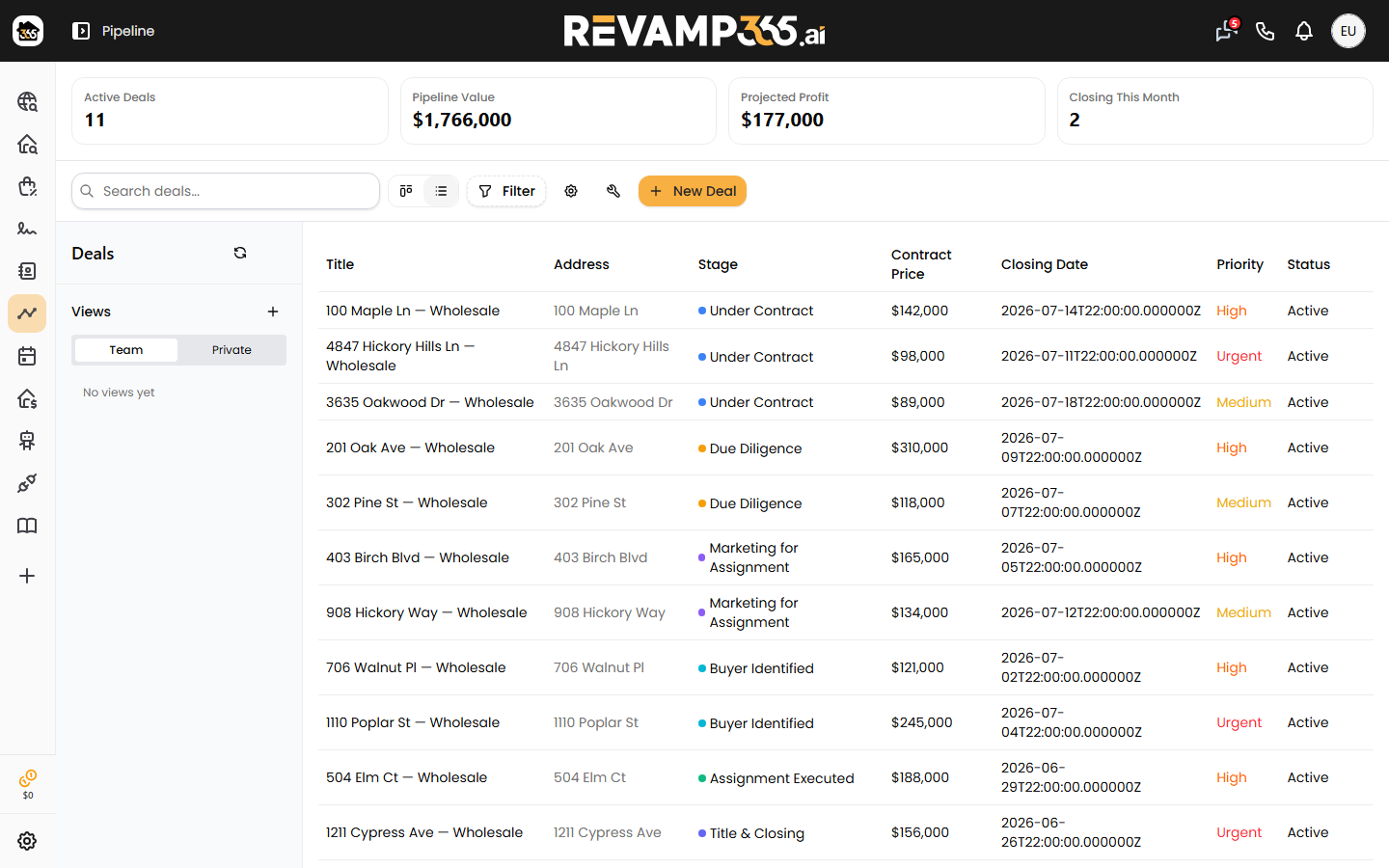
When your pipeline fills up, the Filter dialog lets you zero in on a slice of deals by stage, priority, status, contract value, location, and date ranges. Filtering is per deal type, so pick your board first, then narrow it down.
Open the filter dialog
- Go to Pipeline in the left sidebar.
- In the toolbar, click Filter (the funnel icon). A badge on the button shows how many filters are active.
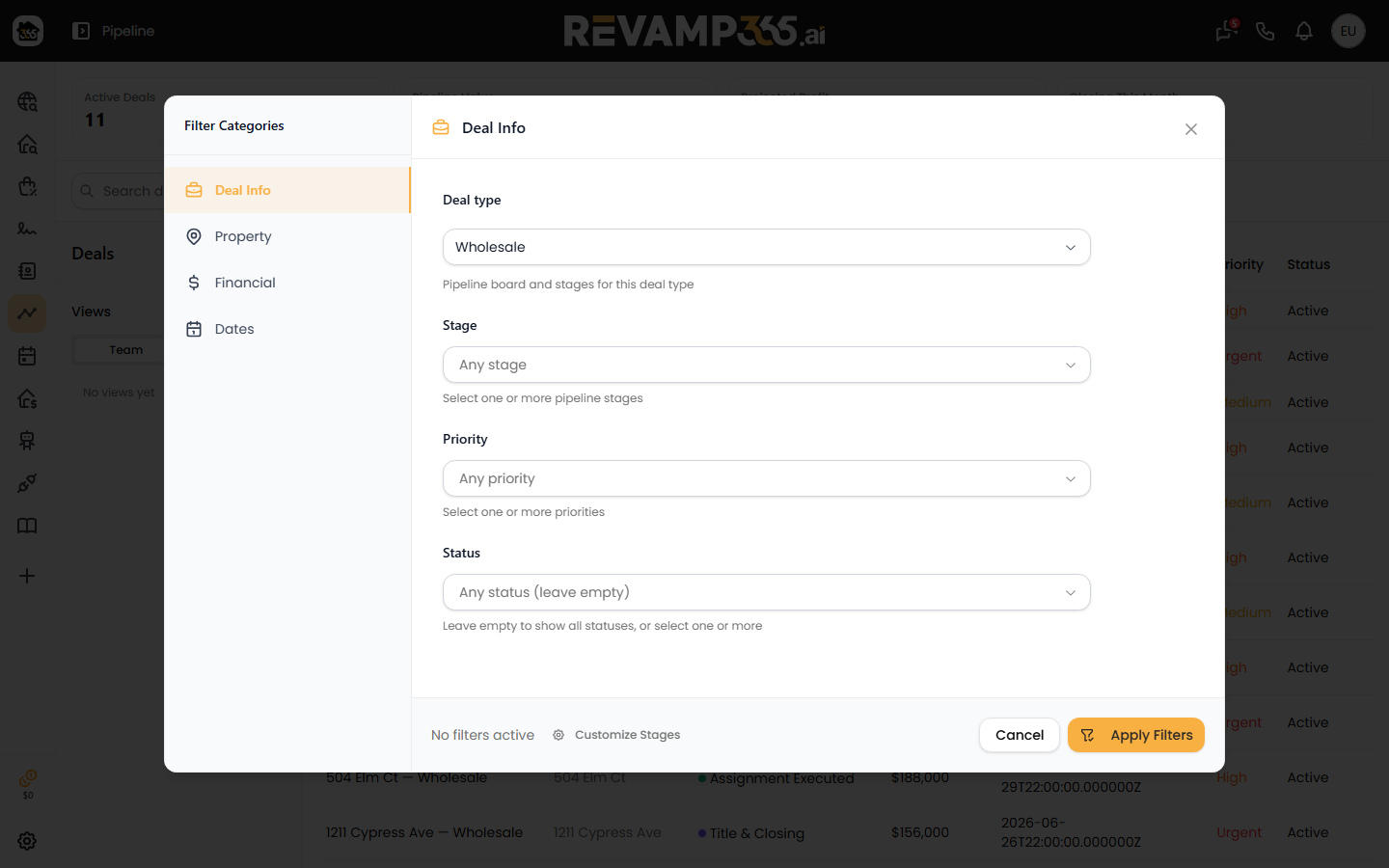
- The dialog opens with four categories down the left side: Deal Info, Property, Financial, and Dates. Each category shows a count badge once you set something inside it.
Filter by stage, priority, and status
Under Deal Info you control the core deal attributes:
- Deal type — switches the board (Wholesale, Fix & Flip, Buy & Hold, Listed Sale, Other). Each deal type has its own stages.
- Stage — pick one or more stages. Leave it as "Any stage" to show all.
- Priority — choose any of urgent, high, medium, or low.
- Status — select one or more. Leave it empty to show every status.
| Status value | Meaning |
|---|---|
| active | Live, in-progress deals |
| closed_won | Deals you closed successfully |
| closed_lost | Deals that fell through |
| on_hold | Paused deals |
Filter by value and dates
Use Financial to set a Contract Price Range with a Min and Max in dollars. Leave Max blank for no upper bound.
Use Dates for two independent ranges:
- Closing Date (From / To) — the expected closing window.
- Date Created (From / To) — when the deal was added, useful for surfacing recent or stale activity.
Under Property, you can also filter by County, Zip Code, or whether a deal has a property address.
Apply, clear, and search
- Set any combination of filters, then click Apply Filters. The board reloads and the URL updates so the view is shareable.
- To reset everything, open the dialog and click Clear All.
- Need to add or rename stages first? Click Customize Stages in the dialog footer. See customize pipeline stages.
The Search box in the toolbar is separate from the filter dialog. It matches a deal's title, property address, buyer name, and title company, and stacks on top of whatever filters are active.
Good to know
- Filters apply to the active deal type only. Switching deal types loads that board's own stages and deals.
- Table view paginates 25 deals per page; Kanban view shows up to 20 cards per stage column with a "more" indicator beyond that.
- The Deal Pipeline requires a Pro+ or Dealmaker Syndicate plan. Once you've narrowed the board, move and bulk-update deals to act on the results.