
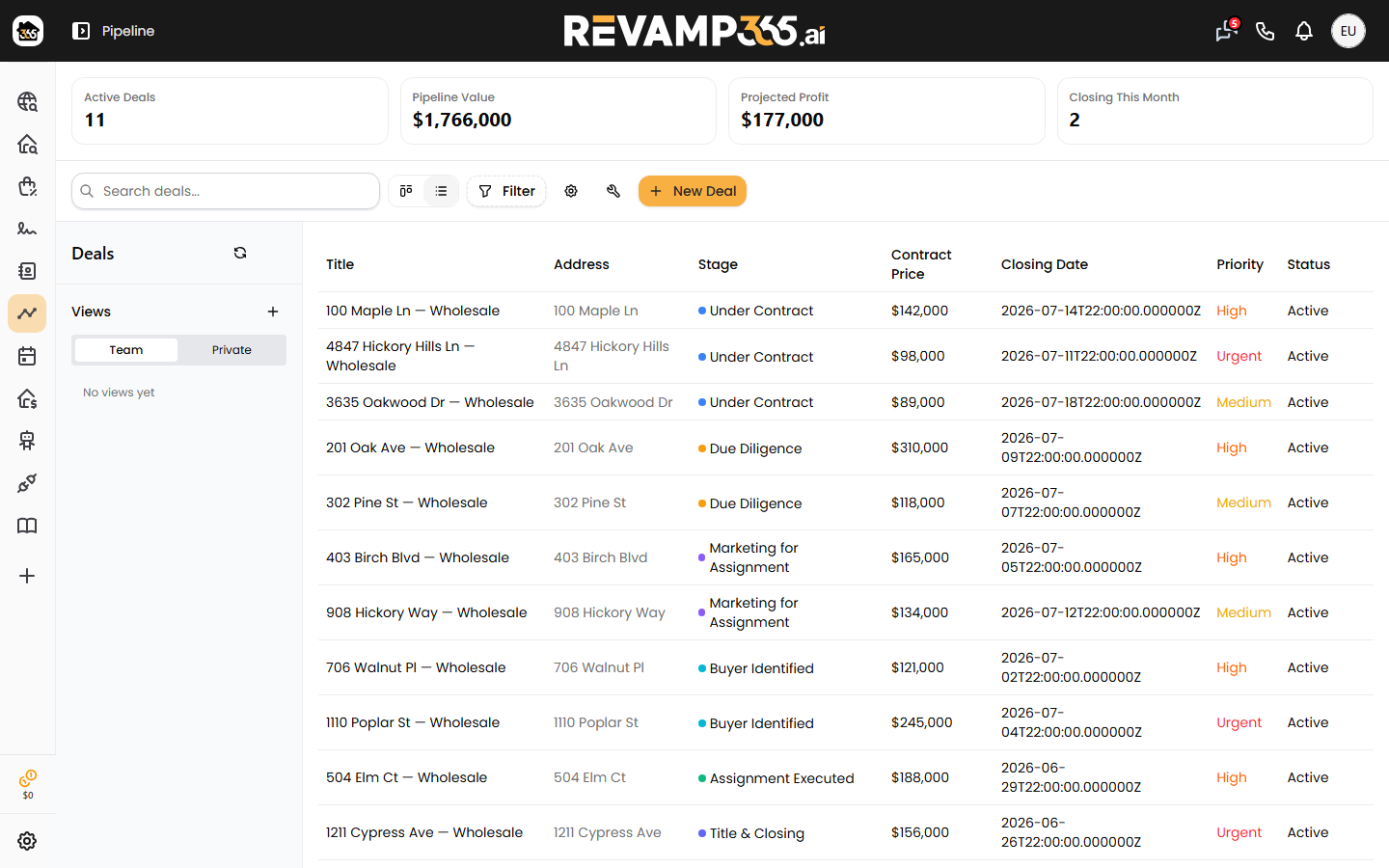
A deal is how you track one property from contract to close inside Revamp365. Open Pipeline from the left sidebar to reach your board, then create a deal and work it through each stage.
Create a deal
- On the Pipeline board, click New Deal (top right).
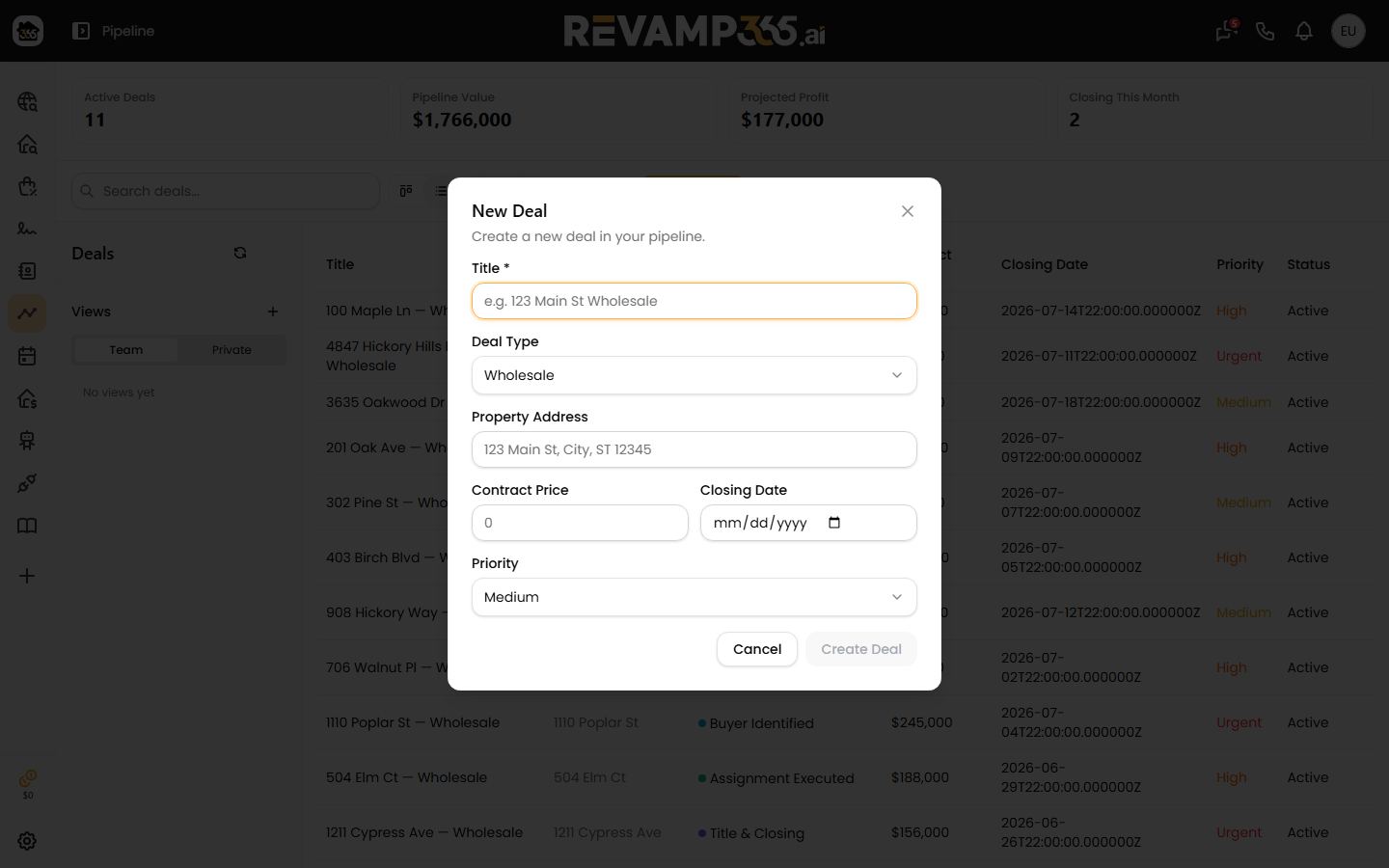
- Give it a Title (required) — for example, "123 Main St Wholesale."
- Pick a Deal Type: Wholesale, Fix & Flip, Buy & Hold, Listed Sale, or Other. The type determines which stages and starter tasks your deal gets.
- Optionally add the Property Address, Contract Price, Closing Date, and Priority (Low, Medium, High, or Urgent).
- Click Create Deal. You land on the deal's detail page.
The first time you create a deal of a given type, Revamp365 seeds a default set of stages and auto-task templates for that type. You can also start a deal from a person in the Contacts CRM — that links the contact to the deal as the seller automatically.
Fill in the details
The deal detail page has a sidebar with editable cards plus tabbed sections:
| Section | What you manage |
|---|---|
| Property card | Address, city, state, ZIP, county |
| Financial Snapshot | Contract price, ARV, repair estimate, projected profit |
| Key Dates | Earnest money due, inspection and financing deadlines, closing date |
| Documents / Photos | Upload contracts, settlement statements, and property images |
| Tasks | Per-stage to-dos, including auto-generated ones |
| Contacts | Link sellers, buyers, and other parties |
| Financials tab | Full numbers, with auto-calculated assignment fee and profit |
Click any field to edit it; changes save on the spot. For the full breakdown of ARV, repairs, and MAO, see Add Deal Financials.
Move it through the stages
The stage progress bar at the top shows where the deal sits (for example, Under Contract → Due Diligence → Closing → Closed).
- Click a stage on the progress bar to move the deal there, then confirm.
- On the Kanban view, drag a deal card between columns.
- Moving into a stage adds that stage's template tasks automatically.
To track or bulk-move deals, see Move and Bulk Update Deals and Customize Pipeline Stages.
Close or push a deal
When a deal is active, use the actions menu to:
- Close Won — record the actual closing date and final price.
- Close Lost — note a reason it fell through.
- Push to My Deals — list a wholesale deal on the marketplace.
The Pipeline board's stats bar tracks active deals, pipeline value, projected profit, and win rate so you always know how your portfolio is moving.