
The Contacts CRM is where every lead, seller, buyer, and partner lives in Revamp365. It's the system of record that ties a person to their property, your outreach history, and the deal they may become. Open it from Contacts CRM in the left sidebar (available on paid plans).
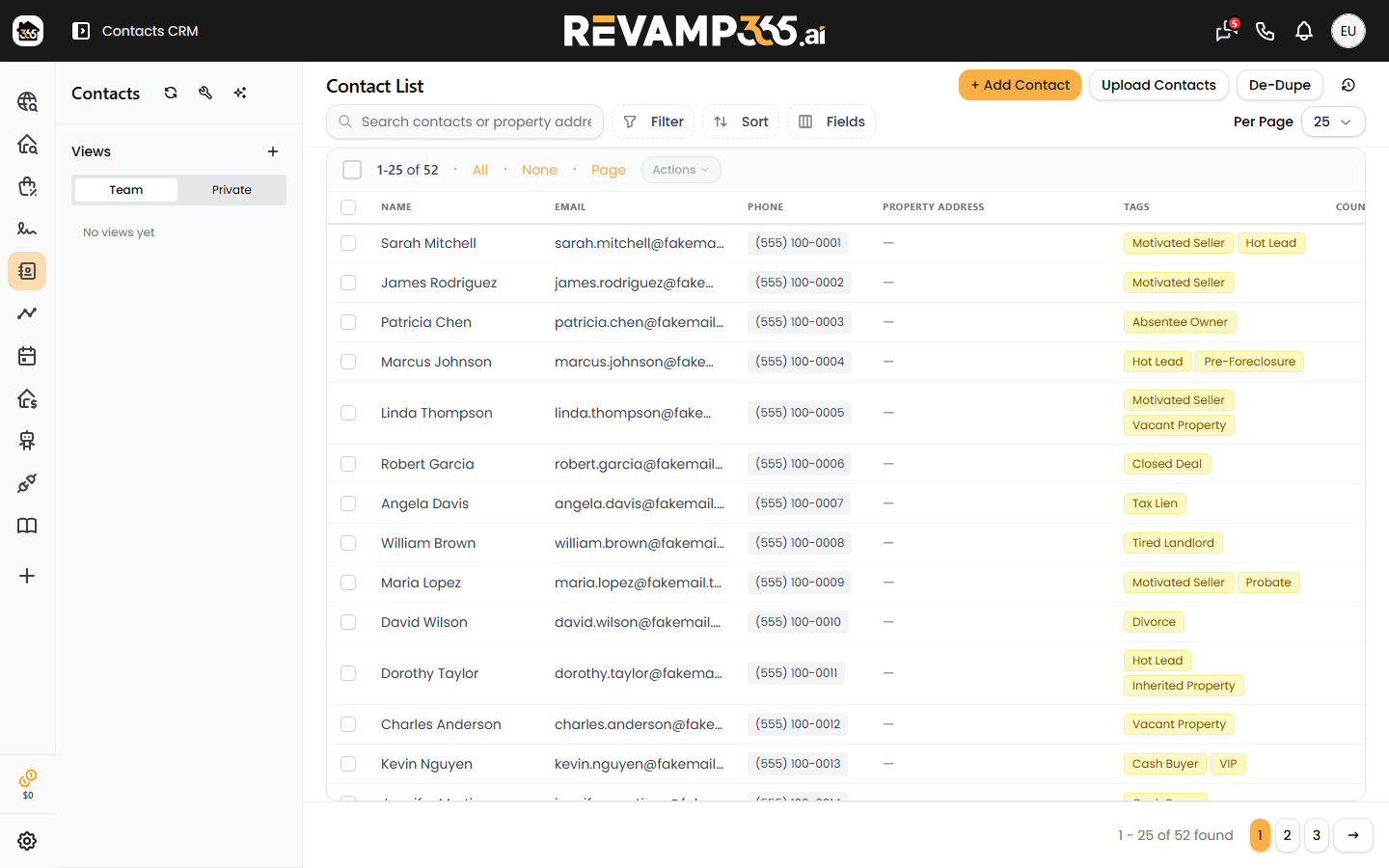
What a contact holds
Each contact is a person plus everything you know about them:
- Identity — name, phone numbers, email, and a linked property address
- Tags — free-form labels you attach to group people any way you like
- Lists — a separate grouping field (shown as the "Lists" column) for segmenting campaigns and pulls
- Lead fields — Lead Status, Lead Temperature, Lead Source, Lead Manager, and a Lead Score
- Counties and optional custom fields you define for your own pipeline
What you can do here
| You want to... | Where it happens |
|---|---|
| Add or import people | Import wizard (CSV) and single-add |
| Group and find them | Tags, Lists, advanced filters, saved views |
| Stay on top of follow-up | Tasks and the activity timeline |
| Track history | Per-contact timeline of calls, texts, notes, and field changes |
| Clean your database | Duplicate detection and merge |
Open any contact to see its detail page: a timeline, tasks, notes, linked properties, linked people, and any connected deals — plus a built-in dialer and texting so outreach is logged automatically.
How tags, lists, and views differ
These overlap, so it helps to keep them straight:
- Tags are sticky labels on a person (for example, "absentee" or "called-back").
- Lists segment contacts for campaigns and exports.
- Saved views are filter presets in the left rail — Team views are shared, Private views are yours. They don't move contacts; they just change what you see.
Bulk actions let you update tags, lead fields, lists, or enroll many contacts into a workflow at once.
How it fits your workflow
The CRM sits between sourcing and closing. You push property pulls into it, work leads with calls, texts, and tasks, then promote the serious ones into the deal pipeline.
- Send leads in from a search: Push a property list into Contacts CRM
- Move a hot lead forward: What the deal pipeline is
Where to go next
- Adding and importing contacts
- Use tags, saved views, filters, and lists
- Set lead status and temperature
- Create and complete follow-up tasks
- Use the contact timeline
Start by getting people in, then layer on tags and tasks so nothing slips.