
Your Contacts CRM is the home for every lead, buyer, and seller you work. Revamp365 gives you four ways to get people into it, from typing one record to capturing web-form leads automatically.
Where contacts live
Open Contacts CRM from the left navigation (/contacts-crm). The header holds the two manual entry points: + Add Contact and Upload Contacts. The other two methods feed contacts in from elsewhere in the app. New to the workspace? Start with navigating the dashboard.
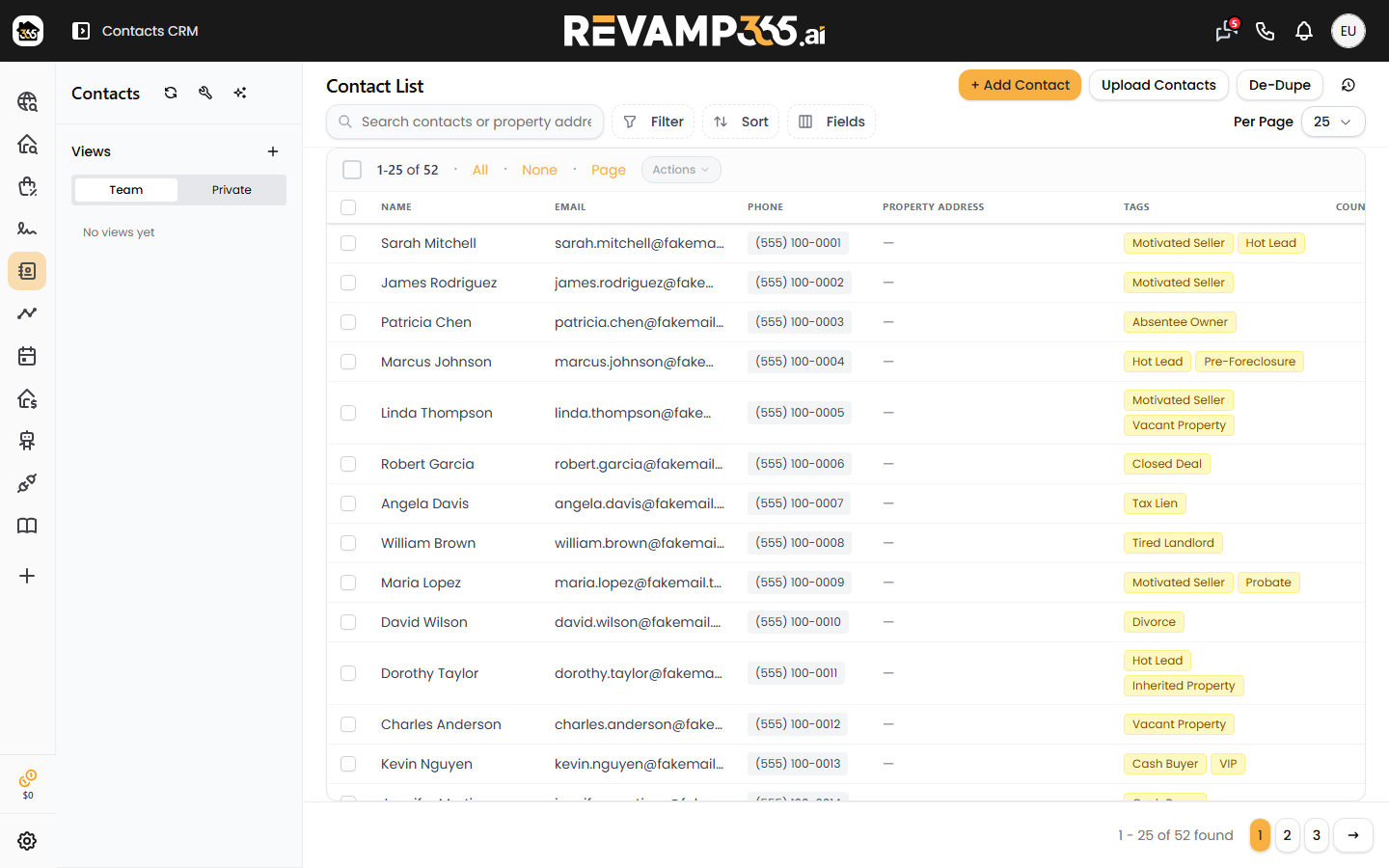
The four ways to add contacts
| Method | Best for | Where it starts |
|---|---|---|
| Manual entry | One person you just spoke with | + Add Contact button |
| CSV import | A list you exported from another tool | Upload Contacts button |
| Property lists | Skip-traced owners and buyers | Skip Tracing results |
| Inbound leads | Web-form and connected-CRM leads | Automatic |
Add a contact manually
Click + Add Contact to open the contact dialog. Enter the first name, last name, email, and phone, set tags or a lead source if you like, then save. The contact appears in your list immediately.
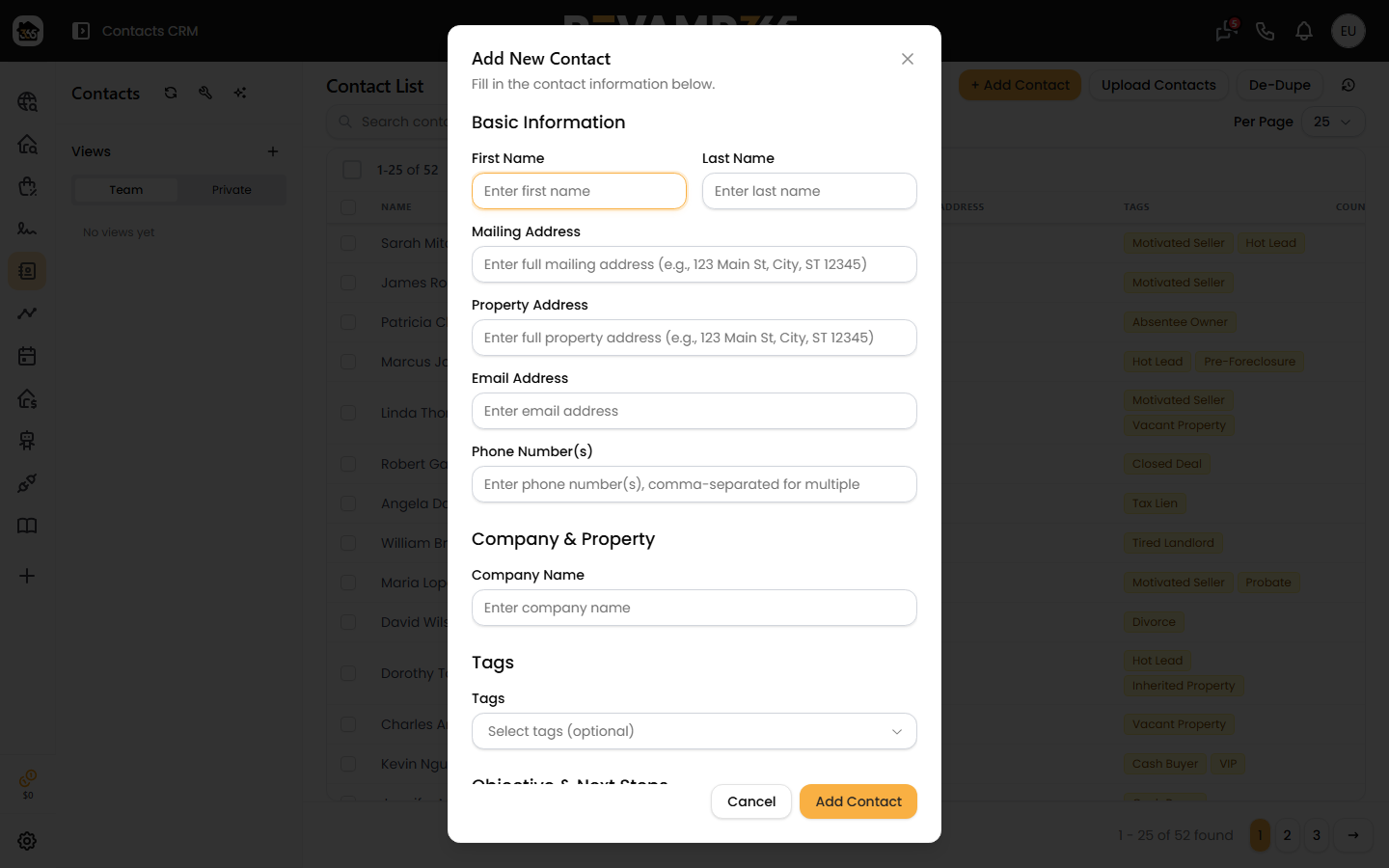
Import a CSV
Click Upload Contacts to launch the import wizard, which walks through five steps: Upload, Map Fields, Settings, Processing, and Results. On the Settings step you choose how the file is applied:
- Create and update — add new contacts and update any that already match.
- Update only — change existing contacts, skip new rows.
- Create only — add new contacts and leave matches untouched.
Matching is done on email and phone, so re-importing an updated list won't pile up duplicates. For column mapping detail, see import contacts from CSV and map columns, and preview a file safely first with dry-run a CSV import before committing.
Push from a property list
When you skip-trace a saved property or buyer list, the results screen shows an Add to Contacts button with the count of successful matches. Click it to send those owners or buyers straight into your CRM with their phone and address attached. Walk through it in push a property list into Contacts CRM.
Capture inbound leads automatically
Leads from your hosted opt-in pages and connected CRMs (such as Podio) create contacts on their own. Each one lands in your list and logs an auto-created entry on the contact timeline, so you can see exactly when and how it arrived. No manual step is needed.
After they're in
However a contact arrives, you work it the same way. Set a lead status and temperature, organize records with tags, saved views, filters, and lists, and clean up overlaps with find and merge duplicate contacts.