
Duplicate contacts pile up from imports, inbound leads, skip tracing, and form submissions. Revamp365's De-Dupe tool scans your CRM, groups likely duplicates, and merges them while preserving notes, tasks, and history.
Open the De-Dupe tool
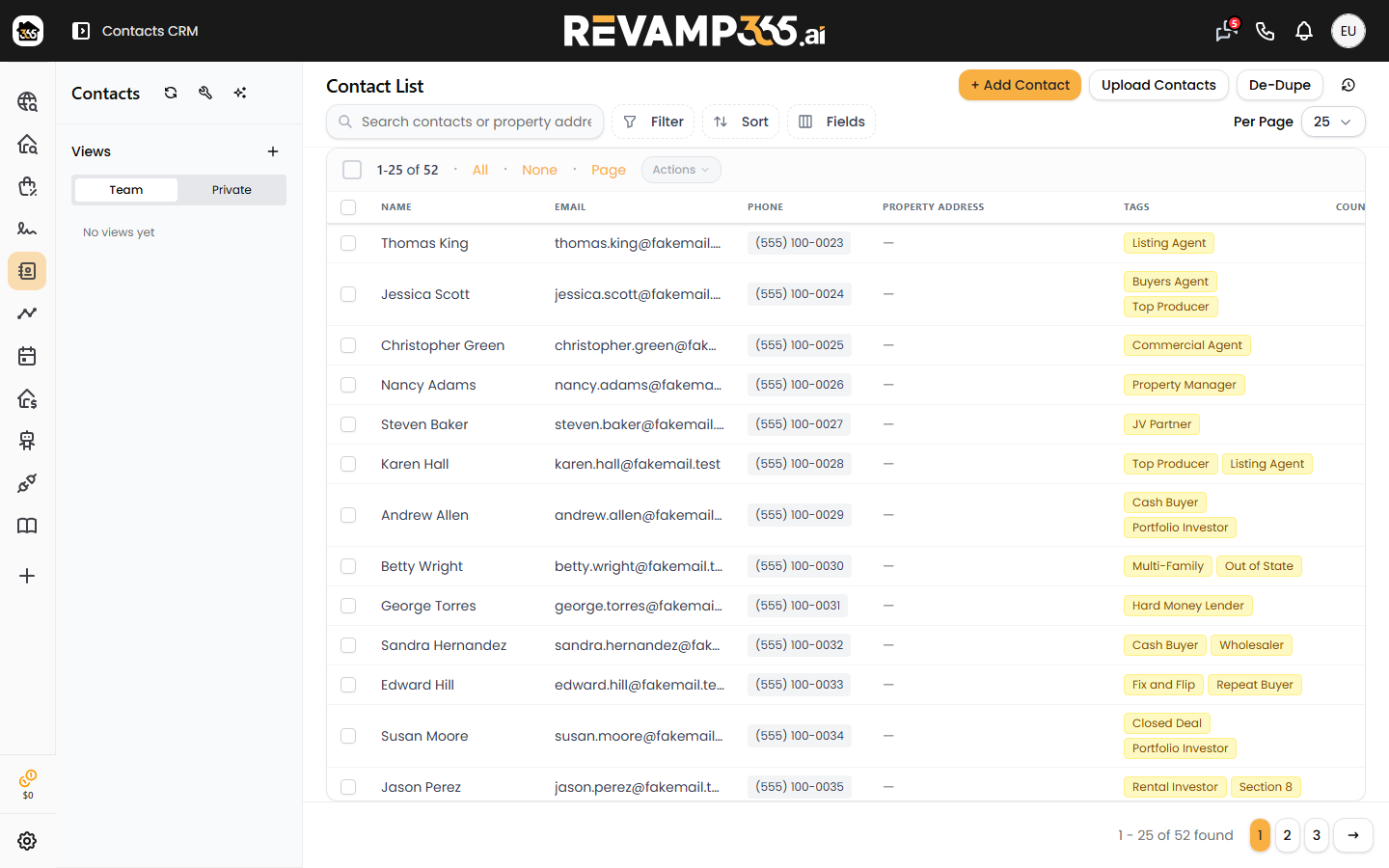
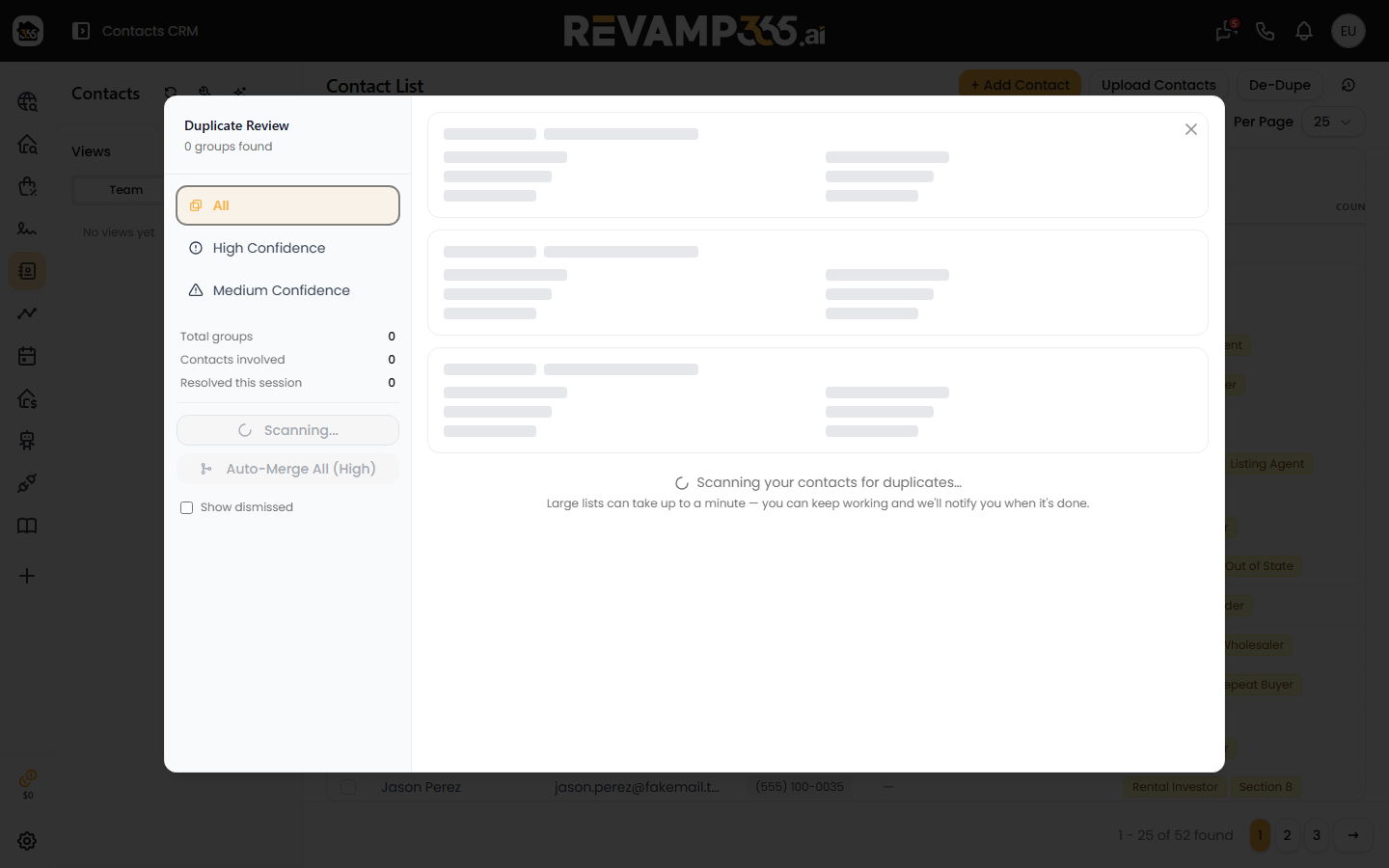
In Contacts CRM, click De-Dupe in the toolbar. A red badge on the button shows how many duplicate groups are waiting. The tool opens with a list of clusters and a side panel where you can filter by confidence and re-scan.
How duplicates are detected
Revamp365 matches contacts three ways:
- Shared phone number — high confidence
- Shared email address — high confidence
- Same name and mailing address — medium confidence, and nickname-aware (it knows "Bob" and "Robert" are the same person)
Matching records are grouped into one cluster, so a person who appears three times is resolved once. If a high-confidence group contains two different last names, Revamp365 flags a name mismatch so you can check whether they are really the same person.
Review a group and pick the survivor
Open a cluster to see the records side by side. Revamp365 marks one record Recommended as the surviving "primary," based on how complete it is and how much history it carries — but you can choose a different one. Watch for the warnings it surfaces:
- Name mismatch — shared phone or email but different names
- Affects synced records — one record is linked to an external CRM
- Oversized group — more than 10 records, so automatic merging is disabled and you review it manually
Choose what survives
With automatic merging, Revamp365 keeps the best value for each field: the most complete name, a validated email and phone when available, the most advanced lead status, the hottest lead temperature, and the combined set of all tags, lists, and extra phones and emails. Notes, tasks, and activity history from every record are always kept and moved to the survivor. Properties and custom fields are combined with duplicates removed. You can also open the field-by-field view to decide each value yourself.
Merge and undo
When you merge, the duplicate records are deleted and all of their related records re-point to the survivor. A message appears with a one-time Undo — use it right away if the merge was wrong. Undo restores the deleted contact records, but it does not unwind the moved notes and activities, so treat a merge as close to permanent.
To clear a large backlog quickly, use Auto-Merge All (High). After you confirm, it merges every pending high-confidence group in the background.
Good to know
- Merged contacts are permanently deleted, not archived.
- Skip a group to dismiss it; you can bring dismissed groups back from the filter panel.
- Scan results older than 24 hours are marked stale — re-scan after a big import.
Most duplicates trace back to imports, so map your columns carefully when you import contacts from CSV.