
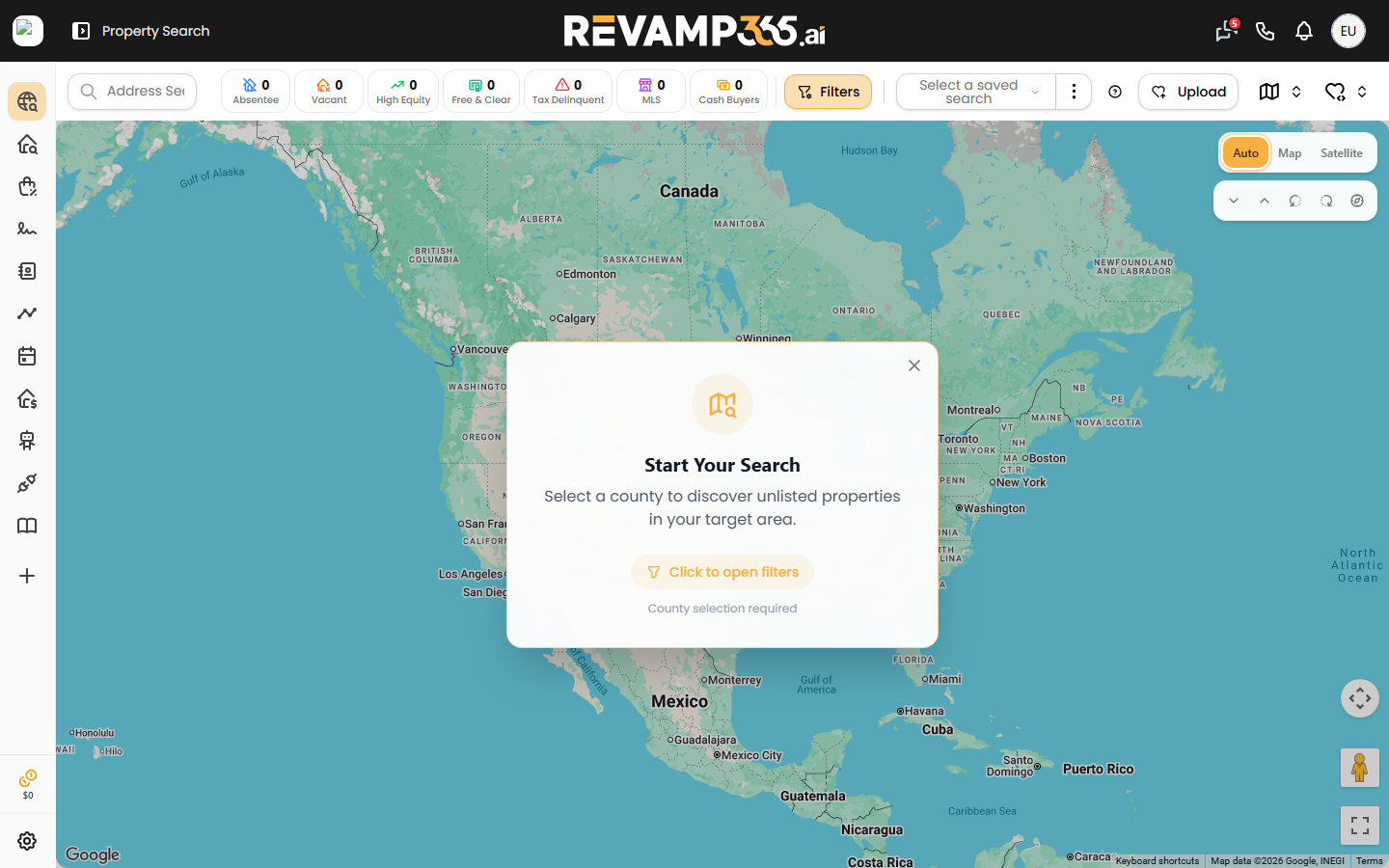
Revamp365 is built around a single left sidebar and a slim top bar. Once you know what each section does, every tool is one or two clicks away. After you log in, the dashboard drops you straight onto Property Search, your default home screen.
Where you land
There is no separate "home" screen with widgets. Logging in (or clicking the 365 logo) takes you to Property Search, the off-market property finder. From there you move around using the sidebar on the left.
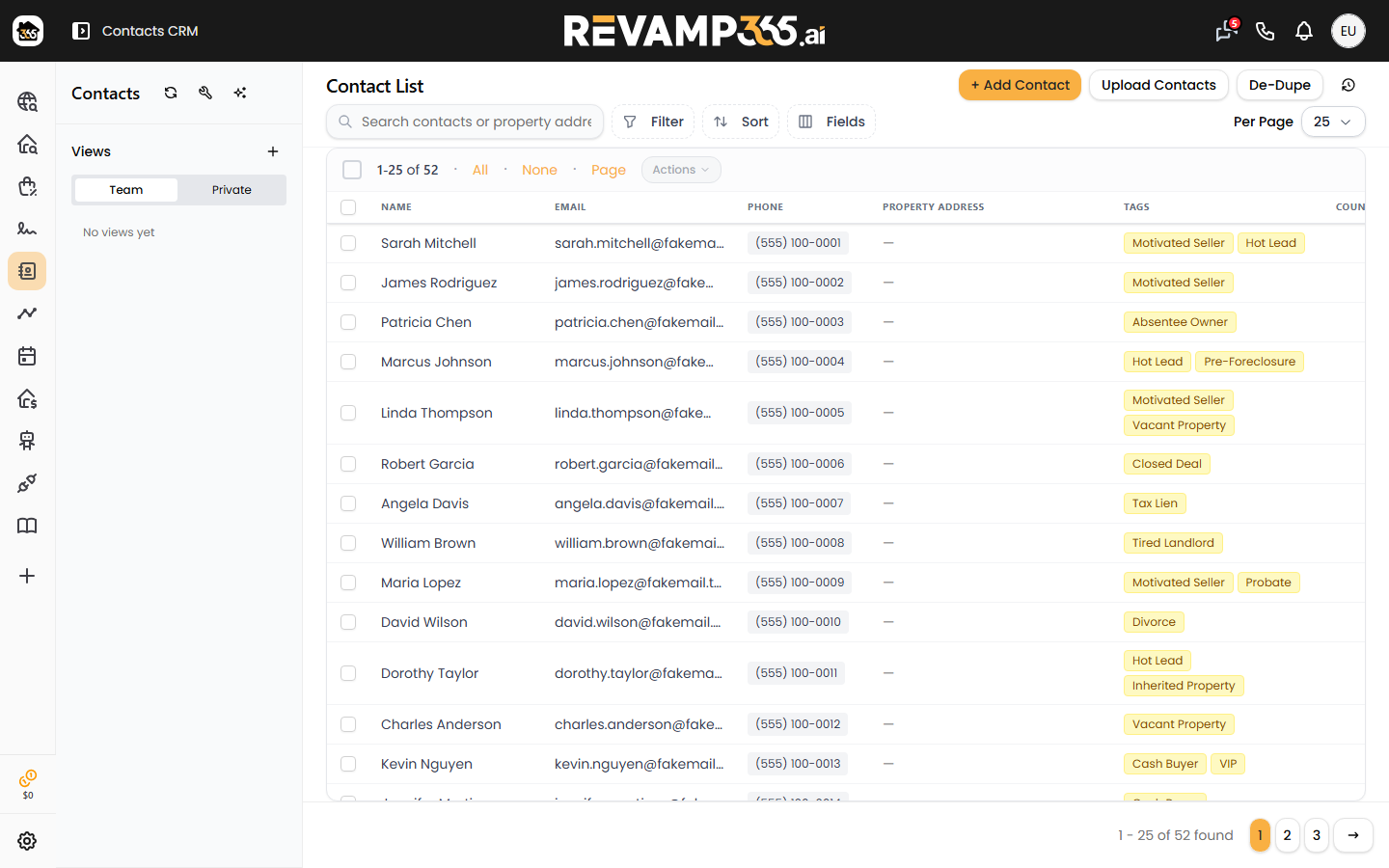
The left sidebar
The sidebar collapses to a strip of icons and expands to show labels when you hover over it (on desktop) or tap the menu button (on mobile). The main sections, top to bottom:
| Section | What it does |
|---|---|
| Property Search | Find off-market and public-record properties |
| Listing Search | Browse active and pending MLS listings |
| Offer Bot | Generate and send offers on listings |
| Contacts CRM | Your lead database, tags, timeline, and tasks |
| Pipeline | Track deals by stage (Beta) |
| Calendar | Scheduling and bookings |
| Wholesale Toolbox | Buyers Search, Email Blast, and My Deals |
| AI Voice & Chat | Voice agents, SMS campaigns, and phone numbers |
| Integrations & Apps | Connect external tools and webhooks |
| Resources | Instant Comp, Market Data, calculators, and the Help Center |
Property Search and Listing Search are open to every plan. Items like Contacts CRM, Pipeline, and the Wholesale Toolbox show a lock icon on the Free plan; clicking them opens an upgrade prompt instead of the tool. Wholesale Toolbox and Resources expand into submenus when you select them.
The top bar
The bar across the top holds your account-level shortcuts:
- SMS hub opens your text conversations and unread count.
- Missed-call tray surfaces recent missed calls.
- Notifications shows account alerts.
- Avatar menu (your initials, far right) links to My Profile, Referrals, Upgrade Account, and Log out.
If you are on the Free plan, a credit-balance pill appears near the bottom of the sidebar so you can see remaining usage at a glance.
The "More" menu
At the bottom of the sidebar, More holds the suppression and compliance lists: Suppress List, DNC Numbers, DNT Numbers, Spam Numbers, and Support Tickets, plus a light/dark appearance toggle.
Where to go next
- New to the platform? Start with what Revamp365 is for the big picture.
- Haven't signed up yet? See creating your account.
- Ready to source deals? Try running your first unlisted search or learn what the Contacts CRM is.