Creating a Revamp365 account takes a few minutes: you sign up, confirm your phone by text, answer a short profile survey, and pick a plan. Here is the happy path from start to your first login.
Sign up
Go to the Create your account page at /register. You have two options:
- Sign up with Google — one click using your Google account.
- Sign up with email — enter your first name, last name, email address, phone number, and a password (at least 8 characters).
Use a real, non-disposable email (Gmail, Outlook, or your work address). Each phone number can only be tied to one account, so enter the number where you can receive a text.
Verify your phone
Right after you submit, Revamp365 texts a 6-digit code to your phone and drops you on the verify phone screen. Enter the code to continue.
| If this happens | Do this |
|---|---|
| Code never arrives | Click Resend to get a new one |
| You typed the wrong number | Update the number on the same screen and a fresh code is sent |
| Code expired | Request a new code and re-enter it |
You must verify your phone before you can reach the rest of the app.
Check your email
When you register, Revamp365 also emails a verification link to the address you used. Open that email and click the link to confirm your address. If it is not in your inbox, check spam, or trigger a new one from the email-verification prompt inside the app.
Complete your profile
After your phone is verified, a short 4-step onboarding survey appears so Revamp365 can tailor the app to your business:
- Strategy — Fix & Flip, Buy & Hold, Wholesaling, BRRRR, and more.
- Markets — the counties, cities, or zip codes you target.
- Experience — roughly how many deals of each type you have done.
- Background — how long you have been investing.
Every step is optional. Use Skip this on any step, or I'll do this later to jump straight to the app.
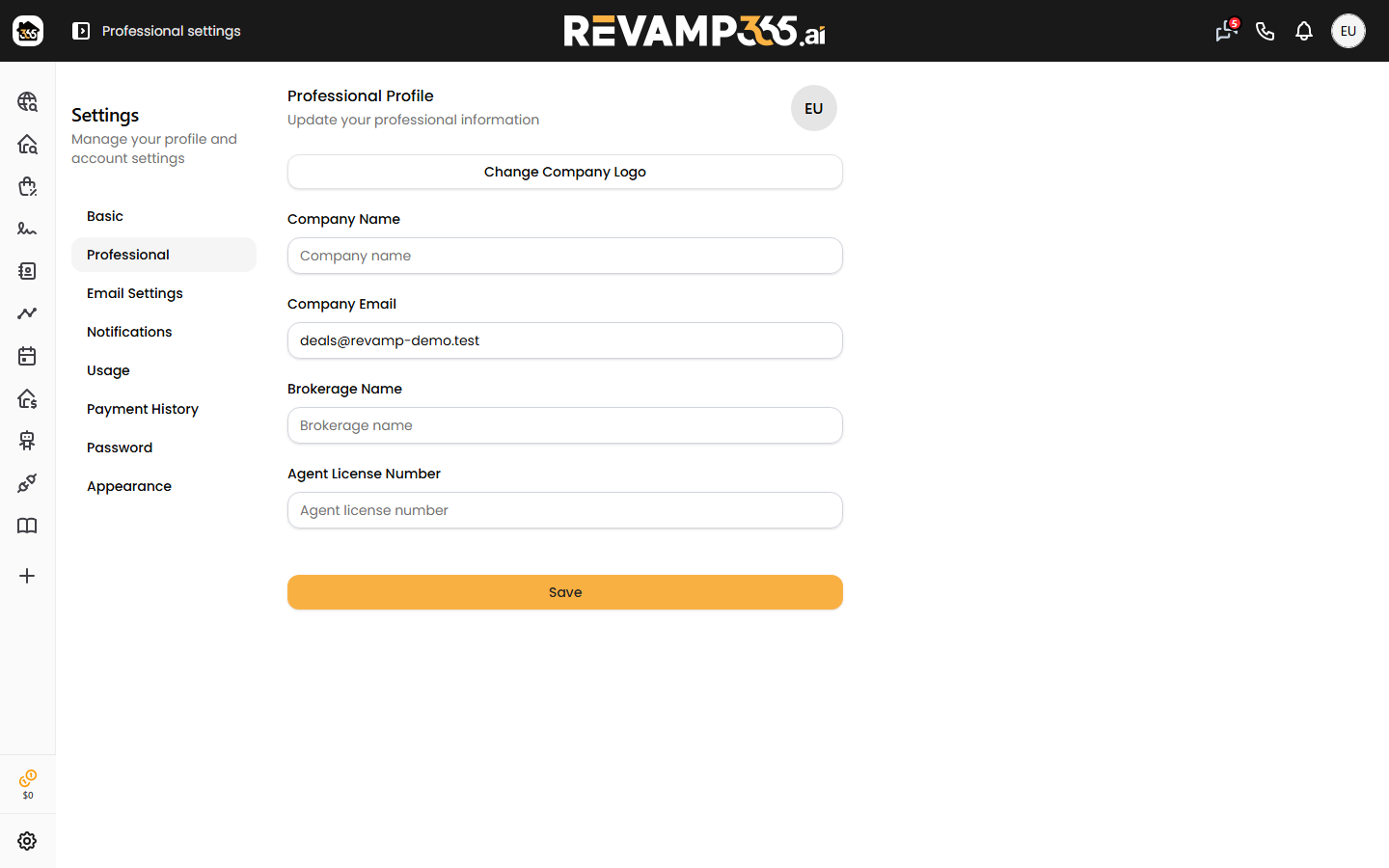
You can revisit and complete your investor profile anytime from Settings > Professional Profile.
Choose a plan
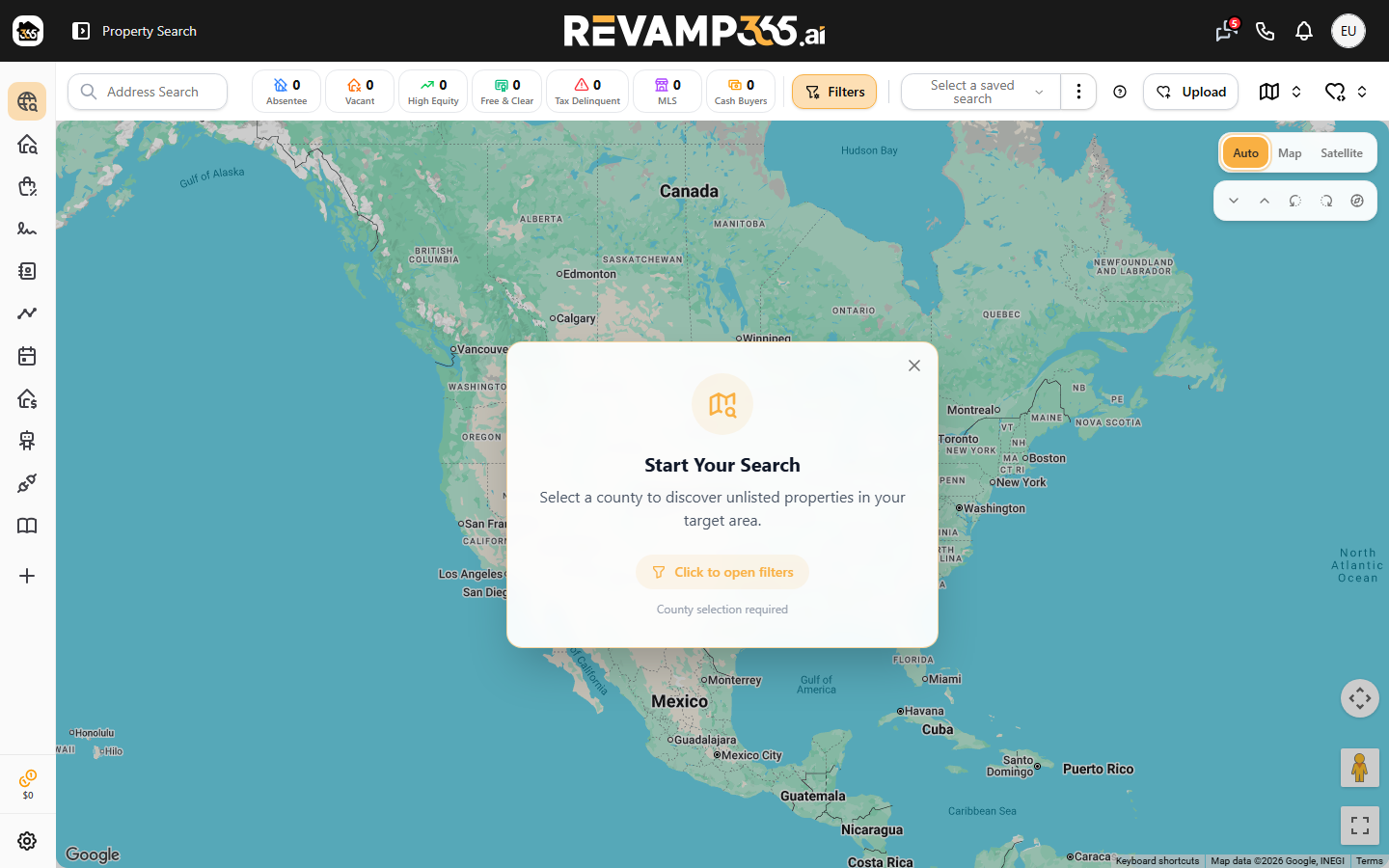
Once you finish or skip onboarding, you land on the Unlisted Property Search (your home screen) and a plan dialog opens automatically. There are three plans:
- Free — start sourcing with included credits.
- Pro+ — everything in Free, plus expanded outreach and CRM tools.
- Dealmaker Syndicate — everything in Pro+, plus the top-tier features.
You can stay on Free and upgrade later from the same dialog whenever you need more.
Where to go next
Your home screen is the property search. From here, get oriented with these guides: