
Every deal in your Revamp365 pipeline stores its own financials: after-repair value (ARV), rehab estimate, contract price, and a projected profit that the system calculates for you. Enter the inputs once and the math updates automatically based on the deal type.
Open the deal you want to edit
- Click Pipeline in the left sidebar to open your board.
- Click any deal card to open its detail page.
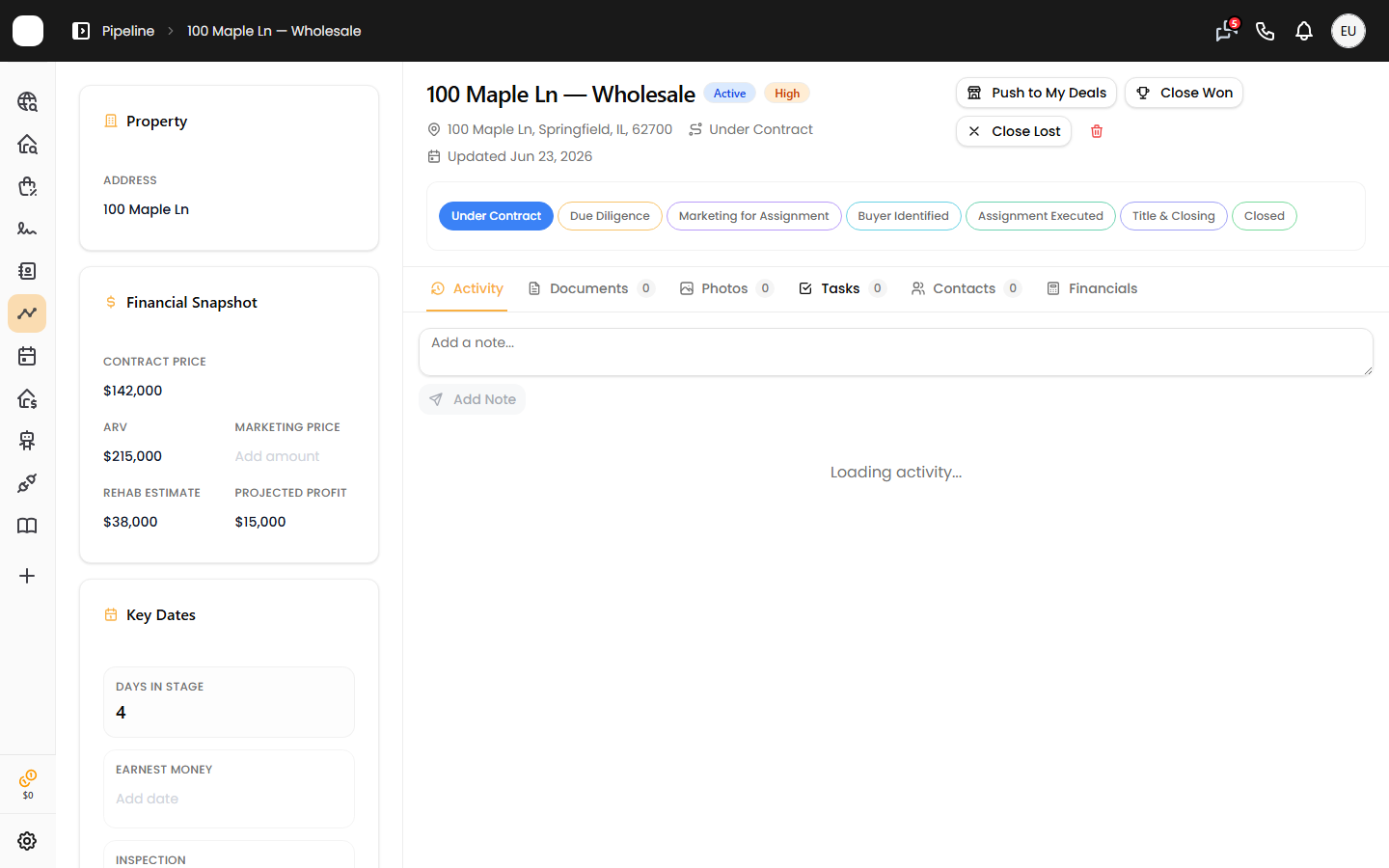
- Find the Financial Snapshot card in the deal sidebar (shown to the left of the tabs on desktop, stacked below them on mobile). This is where you type the numbers.
Enter your numbers in the Financial Snapshot
The snapshot card has five inline-editable fields. Click any value (it reads "Add amount" when empty), type a number, and it saves on its own:
- Contract Price — your purchase price under contract. Treat this as your max-allowable-offer (MAO) target.
- ARV — after-repair value.
- Marketing Price — your assignment/list price (used for wholesale).
- Rehab Estimate — estimated repair cost.
- Projected Profit — auto-calculated, but you can override it.
All amounts accept dollar amounts and cannot be negative, except projected profit and assignment fee, which can go below zero.
How projected profit is calculated
The formula depends on the deal's type, set when the deal was created:
| Deal type | Projected profit formula |
|---|---|
| Wholesale | Marketing Price − Contract Price |
| Fix & Flip | ARV − Contract Price − Rehab − Holding Costs − Selling Costs |
For wholesale deals, the Assignment Fee is computed the same way (Marketing Price − Contract Price).
See the full breakdown in the Financials tab
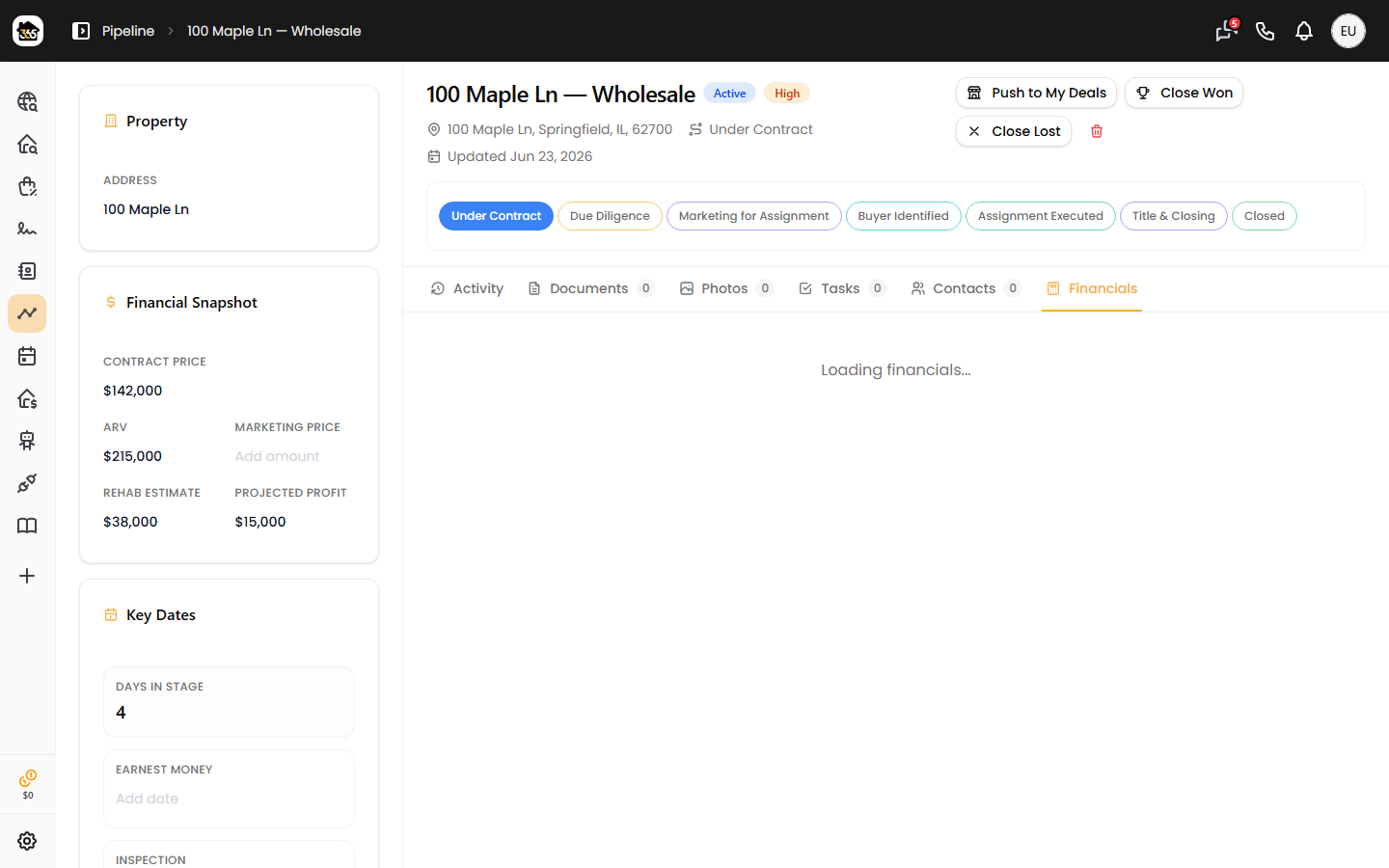
Click the Financials tab (calculator icon) at the top of the deal for a read-only summary grouped into Revenue, Costs, and Profit. Holding Costs, Selling Costs, and Earnest Money also appear here. A calculator icon means the value was auto-computed.
Overriding a calculated value
If you type a projected profit (or assignment fee) that differs from the formula, the deal marks it as a manual override:
- A pencil icon and "Manually set" label appear next to it.
- The system stops recalculating that field, even if you change ARV or rehab later.
- Click Reset to computed to drop the override and return to the formula.
Tips
- Set the deal type correctly first — it decides which formula runs. To rework your stages, see customize pipeline stages.
- Projected profit only auto-fills once its required inputs exist (for fix & flip, both ARV and Contract Price).
- Active-deal projected profit rolls up into your pipeline summary stats at the top of the board.