
Plans change, and a follow-up you set for today might need to move to next week. In Revamp365, follow-up tasks live on the contact timeline, and the timeline gives you three actions on a task: create it, mark it complete, and delete it. There is no in-place "snooze" button or due-date editor on an existing task, so the practical way to reschedule is to add a new task with the later due date and close out the old one.
Where follow-up tasks live
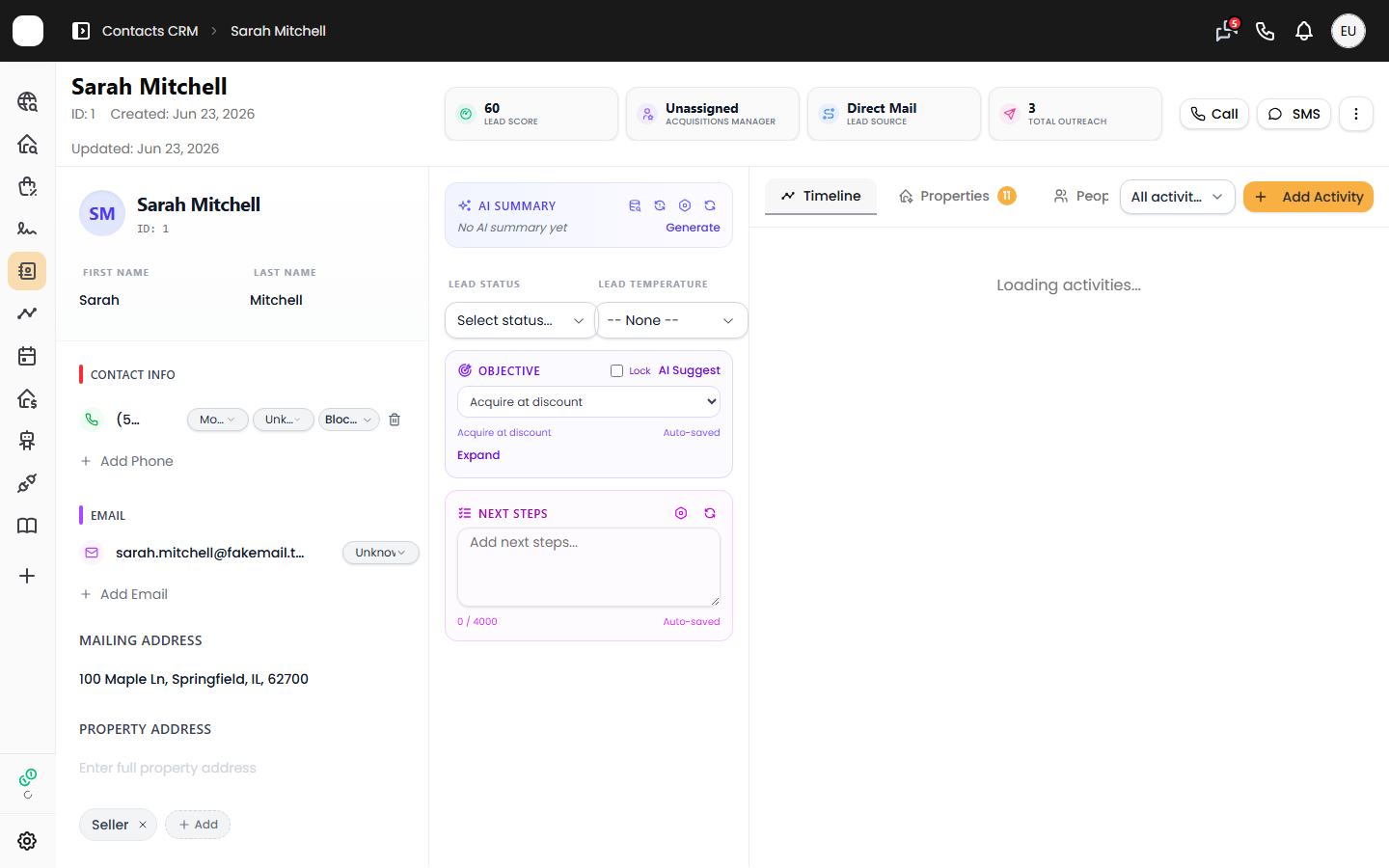
Tasks are attached to a single contact and appear in that contact's activity timeline.
- Open Contacts CRM from the left sidebar.
- Click the contact whose task you want to move.
- On the Timeline tab, find the task row. It shows a status badge (for example, pending) and, when a due date is set, an orange Due: {date} label.
For the full create-and-complete flow, see Create and Complete Follow-Up Tasks.
Reschedule by re-creating with a new due date
Because the timeline has no edit affordance for an existing task's due date, you reschedule by adding a replacement task:
-
On the contact's Timeline tab, click Add Activity, then choose Add Task.
-
Re-enter the title and any description, then set the Due Date to the day you want.
-
The Due Date field is a date-and-time picker, so you can also pick a time — a 9:00 AM call-back stays separate from end-of-day admin work.
-
Click Add Task to save. The new task appears in the timeline with its orange Due: label.
-
Close out the original task with the check icon (mark complete) or the trash icon (delete) so you are not chasing two copies.
Leaving Due Date empty creates an undated task with no overdue tracking — useful when you want a reminder but not a deadline.
What you can do with a task
| You want to… | Do this |
|---|---|
| Move a still-open follow-up later | Add a new task with the later Due Date, then complete or delete the old one |
| Stop chasing it entirely | Mark it complete (check icon) or delete it (trash icon) |
A task's status is one of pending, in progress, completed, or cancelled. When the marked-complete status is applied, Revamp365 stamps a completion time on the task automatically.
How overdue tasks behave
- A task is overdue once the current time passes its Due Date and it is not completed or cancelled.
- Revamp365 scans for newly overdue tasks and can fire a task overdue automation trigger when a task crosses its due date.
- The scan tracks the time of each run, not a per-task flag, so a brand-new task dated to a future day that later lapses can fire the trigger when that new date passes.
Quick tips
- Set the exact date each time: there is no one-click "+1 day," so choose the new due date deliberately when you re-create the task.
- Use time, not just date: since the field captures a specific time, due times keep morning call-backs separate from later tasks.
- Don't leave duplicates: after adding the rescheduled task, complete or delete the original so the timeline stays clean.