
Many sellers never check their email, but they read every text. You can send each signer their signing link by Text, Email, or Both. You choose per signer, so one agreement can go to a seller by text and to their agent by email.
Add a signer's mobile number
- Open eSign, click Sign or get signatures, name the document, and upload the PDF.
- On the Signers step, enter each signer's name, and then their Email, their Mobile phone, or both.
- Under Send via, pick how this signer gets the link:
- Text is picked for you as soon as you enter a valid US mobile number.
- Email sends the link by email only.
- Both sends it by email and by text.
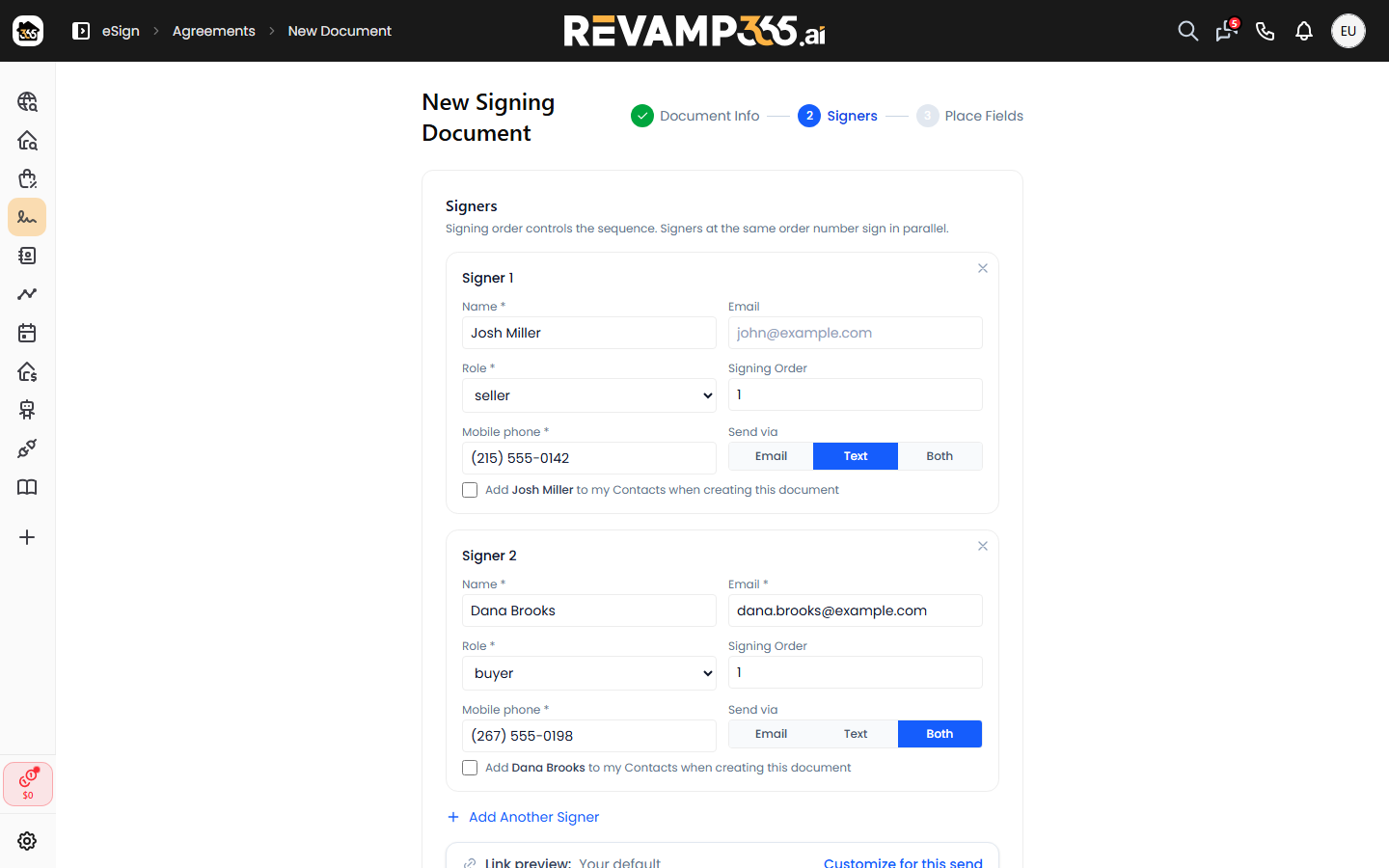
The fields you have to fill in follow your choice: Text needs a mobile number, Email needs an email address, and Both needs both. Only US mobile numbers can be texted.
Signing order works the same as with email. If you check Set signing order, signers later in the order get their text automatically when it's their turn. Leave it unchecked and everyone is texted or emailed at the same time.
Send and confirm texting consent
Place your signature fields, click Create Draft, then click Send on the draft. The Send for signature dialog lists every signer and how they'll get their link. Signers who are waiting on an earlier signer are marked Waiting.
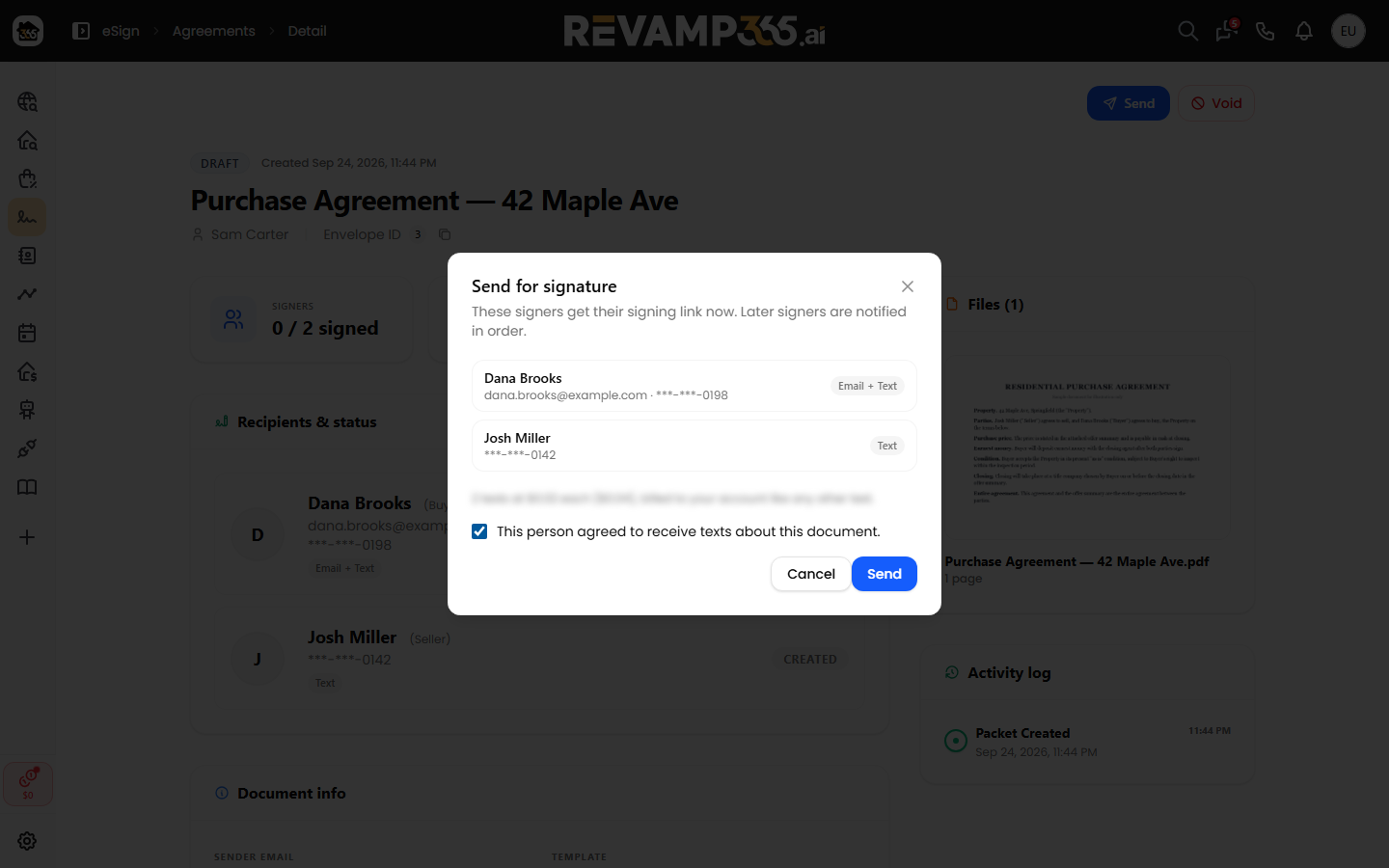
- Tick This person agreed to receive texts about this document. Send stays greyed out until you do. Only text people who told you they're OK getting texts about this deal.
- The note under the list shows how many texts will go out. Each text is billed at your plan's normal SMS rate, like any other text you send. See billing, usage, and overages for your rate.
- If your account needs more credits to cover the texts, the dialog says so. Add credits, then send again.
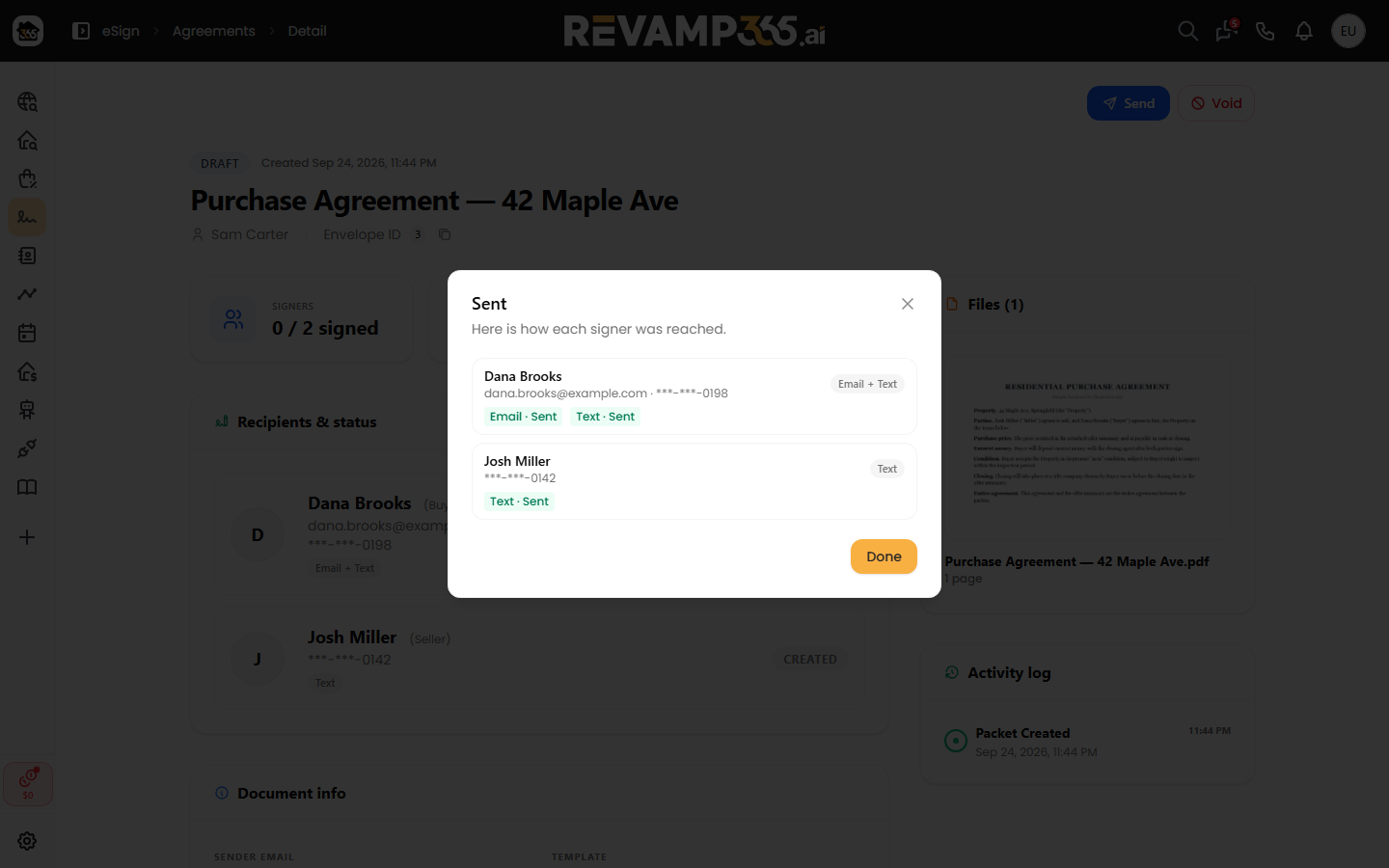
Click Send. The dialog then shows how each signer was reached, such as Text · Sent, or Email · Sent plus Text · Sent for a signer set to Both.
The text greets the signer by first name, says who sent it (your company name, or your name) and which document, and ends with a short signing link and "Reply STOP to opt out". Long names are shortened so the message fits in a single text. The text also shows up in that contact's conversation in your SMS inbox, with the signing link hidden.
Track each signer on the agreement
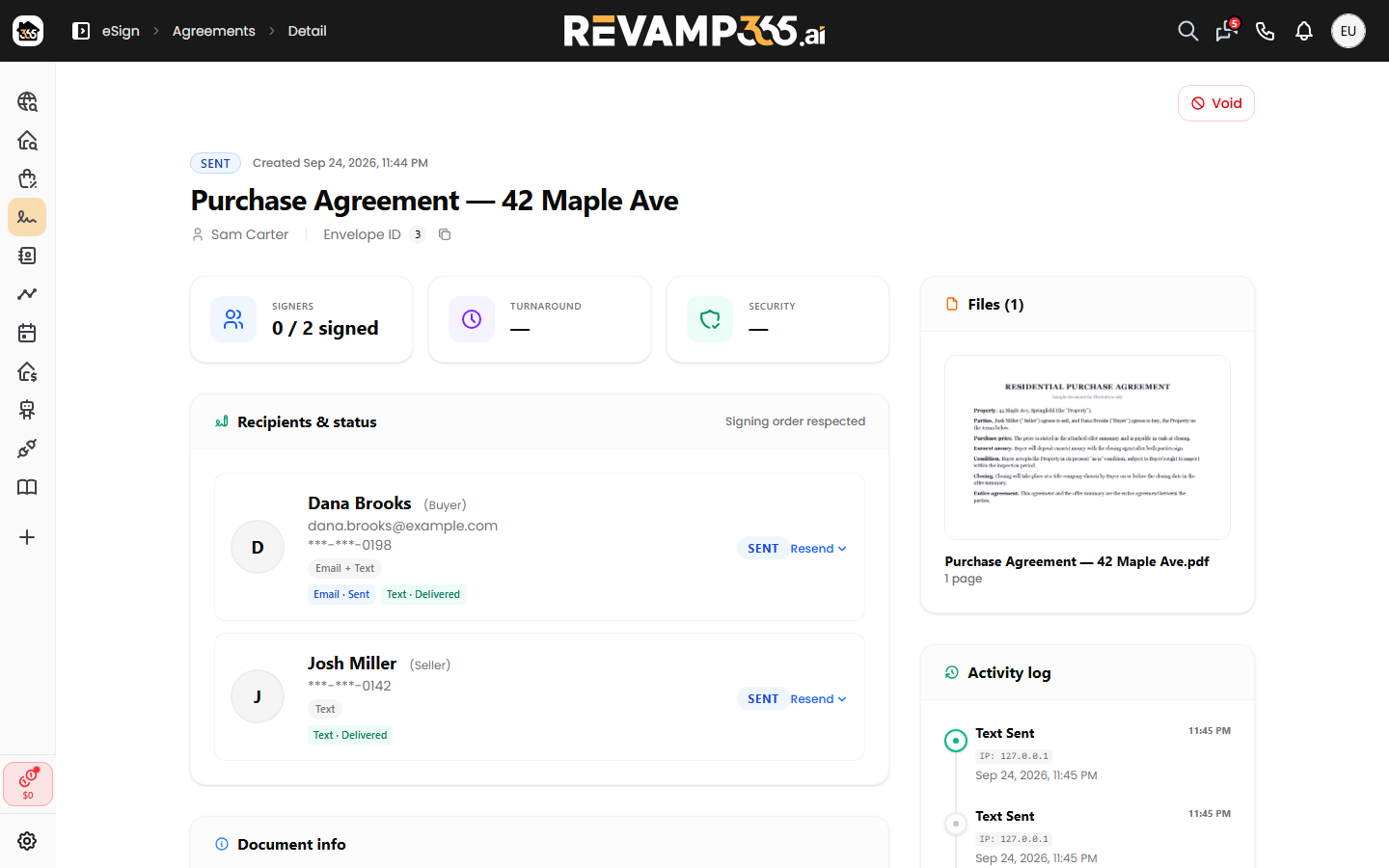
Open the agreement to see each signer under Recipients & status:
- A badge shows how they were sent the link: Text, Email, or Email + Text.
- Their mobile number is masked to the last four digits, like --0142.
- Each channel has its own status. Email · Sent, and Text · Sent, Text · Delivered, or Text · Failed. A failed text shows the reason next to it, such as a landline or a number that replied STOP.
Resend the link or fix a phone number
Click Resend ▾ next to a signer who hasn't signed yet.
- Under Resend link by, choose Email, Text, or Email + Text. You only see the channels that signer already has.
- You can text the same signer again once every 10 minutes, up to 5 times a day.
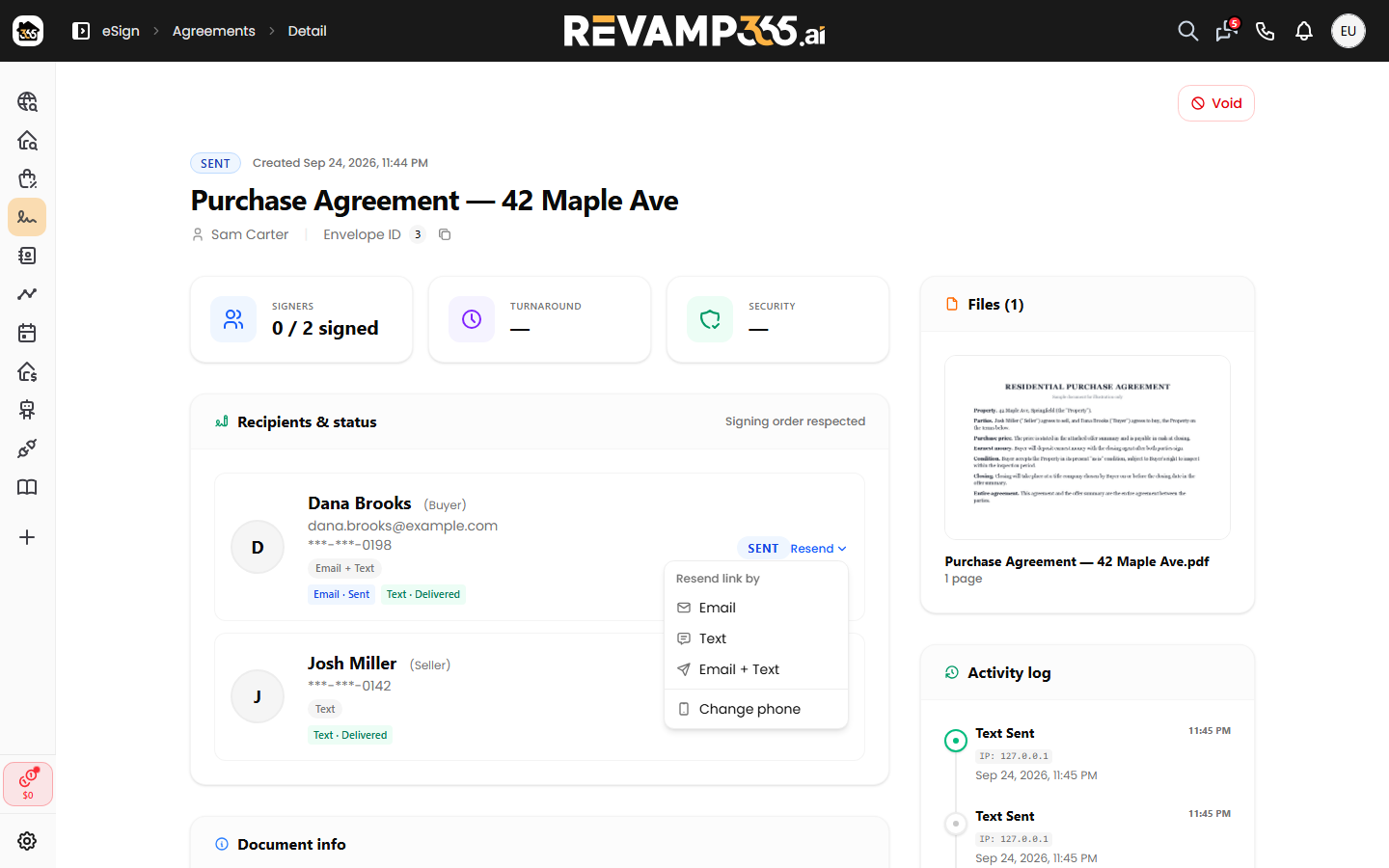
If the number was wrong, or you want to add texting for someone you emailed, choose Change phone (or Add phone if they don't have a number yet). Enter the number, pick Send via, and confirm the texting consent checkbox for the new number.
- Save updates the signer.
- Save & text link updates them and texts the new link right away.
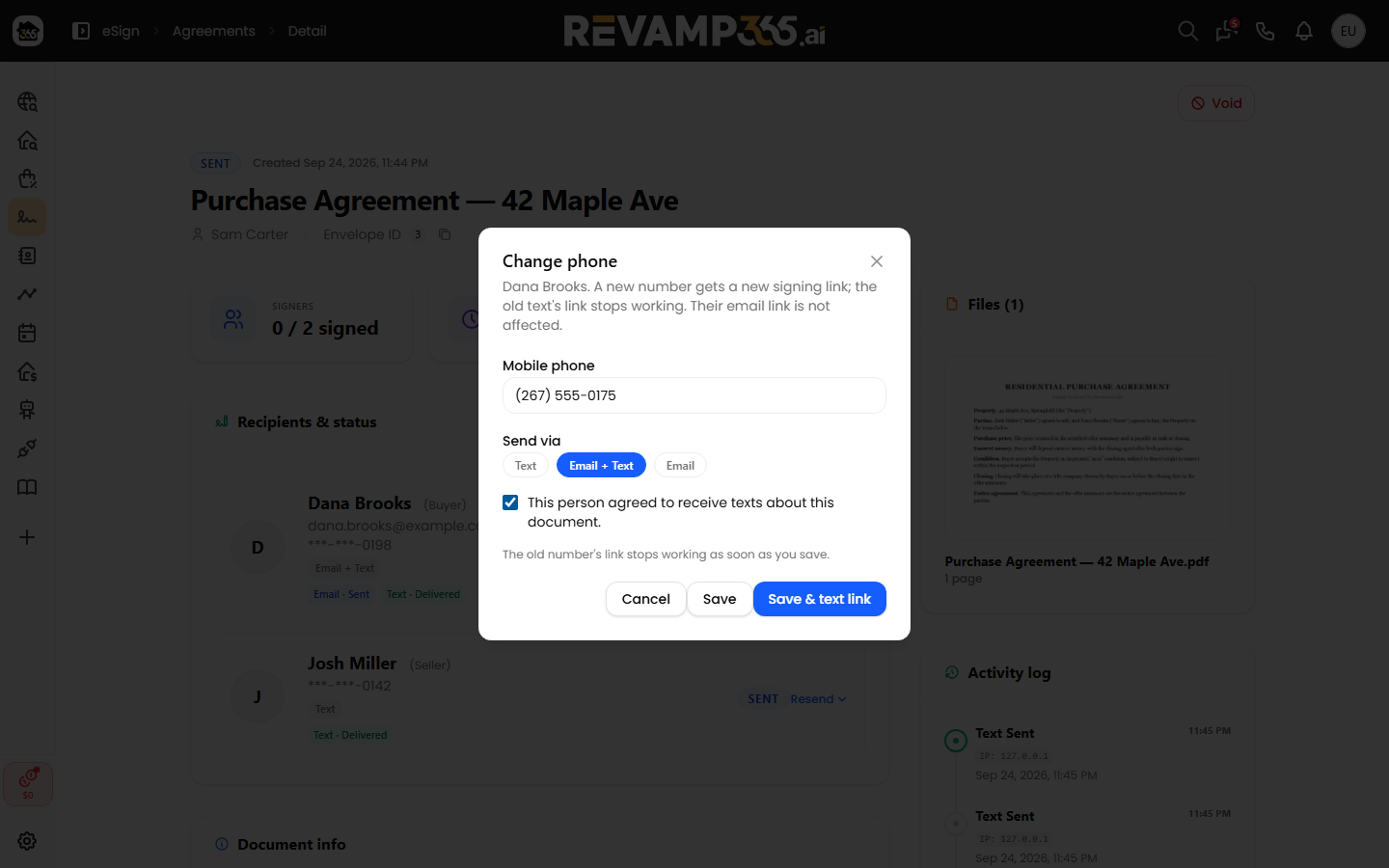
A new number always gets a new signing link. The link in the old text stops working as soon as you save, so someone who got a mistyped text can't sign. The signer's email link keeps working.
Find agreements by phone number
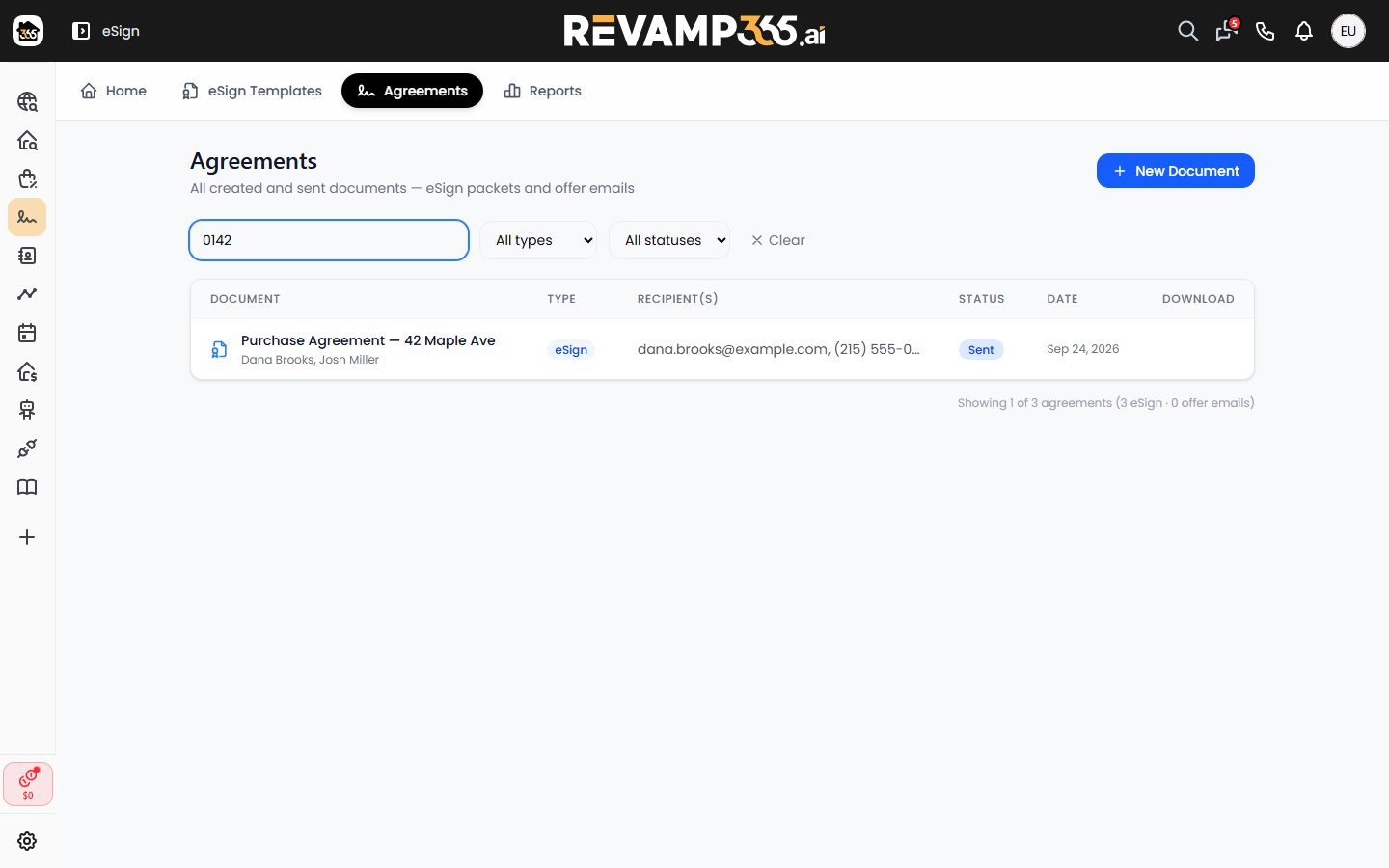
In Agreements, a signer who only has a phone number shows that number in the recipient column. Type the last 4 digits of a signer's number in the search box to find their agreements.
Automatic texts and quiet hours
Once you've sent an agreement, some texts go out on their own:
- Next signer: when it's a later signer's turn in the signing order.
- Reminders: for signers who haven't signed yet, on the schedule you choose in eSign settings. By default the first goes two days after the signer got the link, then every two days, up to three, at 10 AM the signer's time. You can change the schedule and wording, change it for one send, or stop reminders on one agreement. See customize your eSign texts, emails, and reminders.
- Signed copy: when everyone has signed, a signer with no email address gets a text with a link to their signed copy. Signers with an email address get the signed PDF by email, as before.
These automatic texts only go out between 8 AM and 9 PM in the signer's time zone. Any that come due overnight are held until 8 AM their time. While one is waiting, the agreement shows "Text scheduled for" the time it will go out. The first send and anything you resend yourself go out right away.
If Text is greyed out
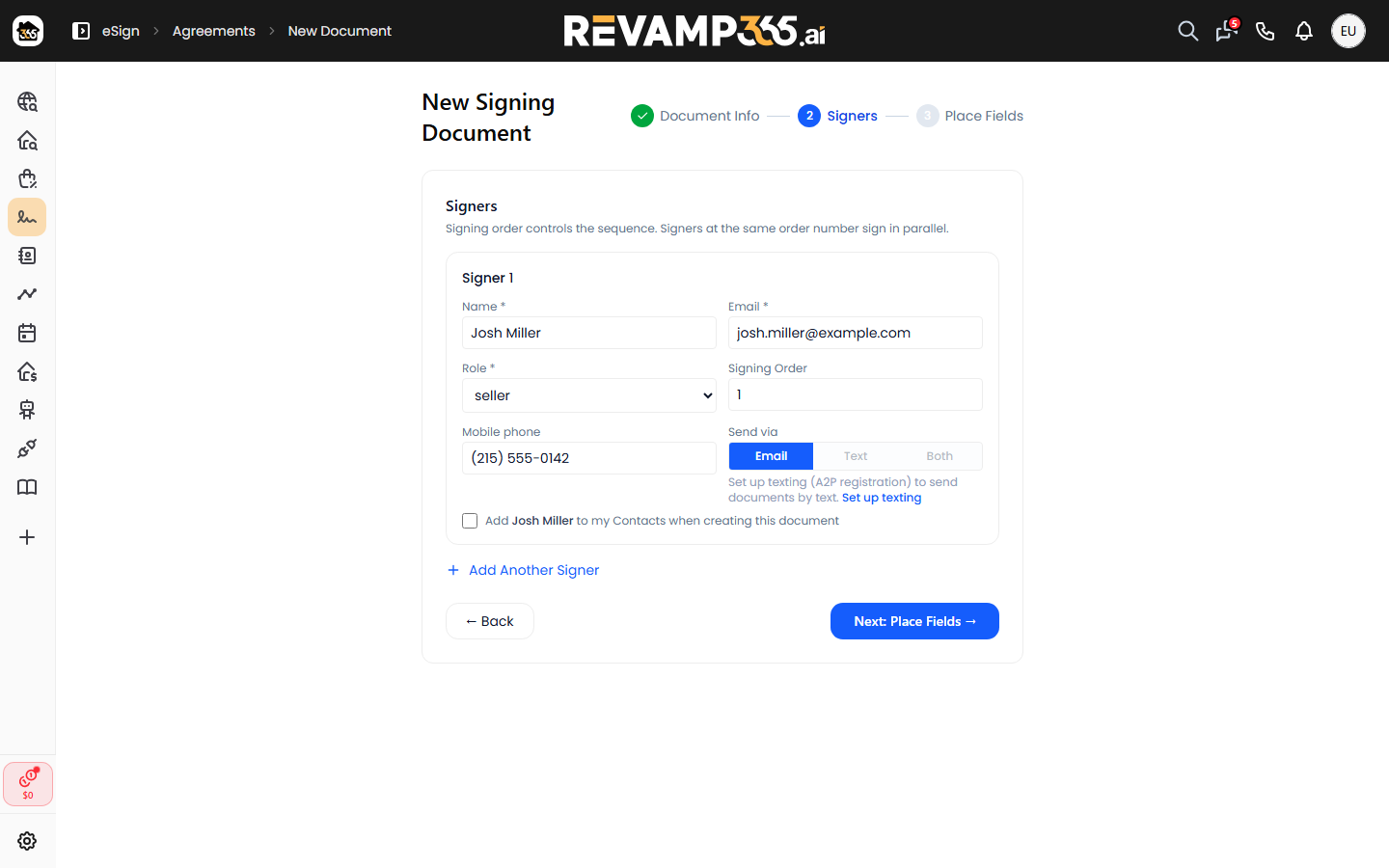
Text and Both need texting set up on your account. Until then, they're greyed out on the signer card with a short note on why. If you still need to register for texting or add a registered texting number, the note links to Set up texting. You can always send by Email in the meantime. See activate texting with the Trust Center checklist.
If carriers start filtering texts from your number, texting pauses automatically. Signers set to Both get the email only, you'll be asked to send Text-only signers by email for now, and texting resumes on its own.
Opt-outs and replies
- Every text ends with "Reply STOP to opt out". If a signer replies STOP, their number can't be texted again. When you send, you'll see "This number opted out of texts (replied STOP). Send by email instead." next to that signer. See DNC and STOP opt-outs.
- Numbers on your Do Not Contact or Do Not Text lists, contacts marked Do Not Contact, and numbers known to be landlines can't be texted either. Send those signers by email.
- If a signer replies to the text, the reply comes to your texting number and lands in your SMS inbox like any other conversation.