
Once you have placed signature and initial blocks on a packet, you send it to your signers and watch each step from one screen. Revamp365 tracks the whole envelope and every recipient in real time.
Send the packet
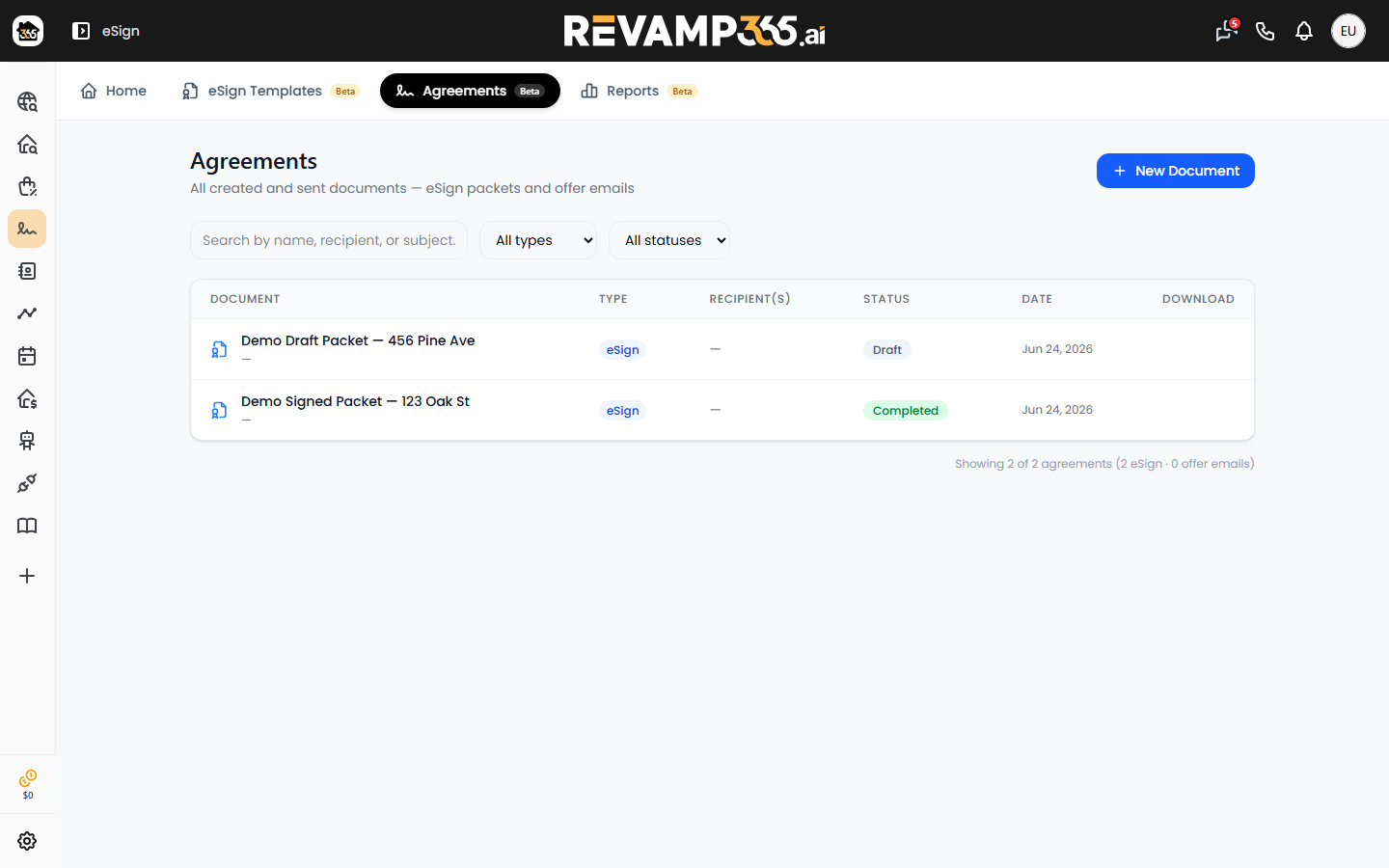
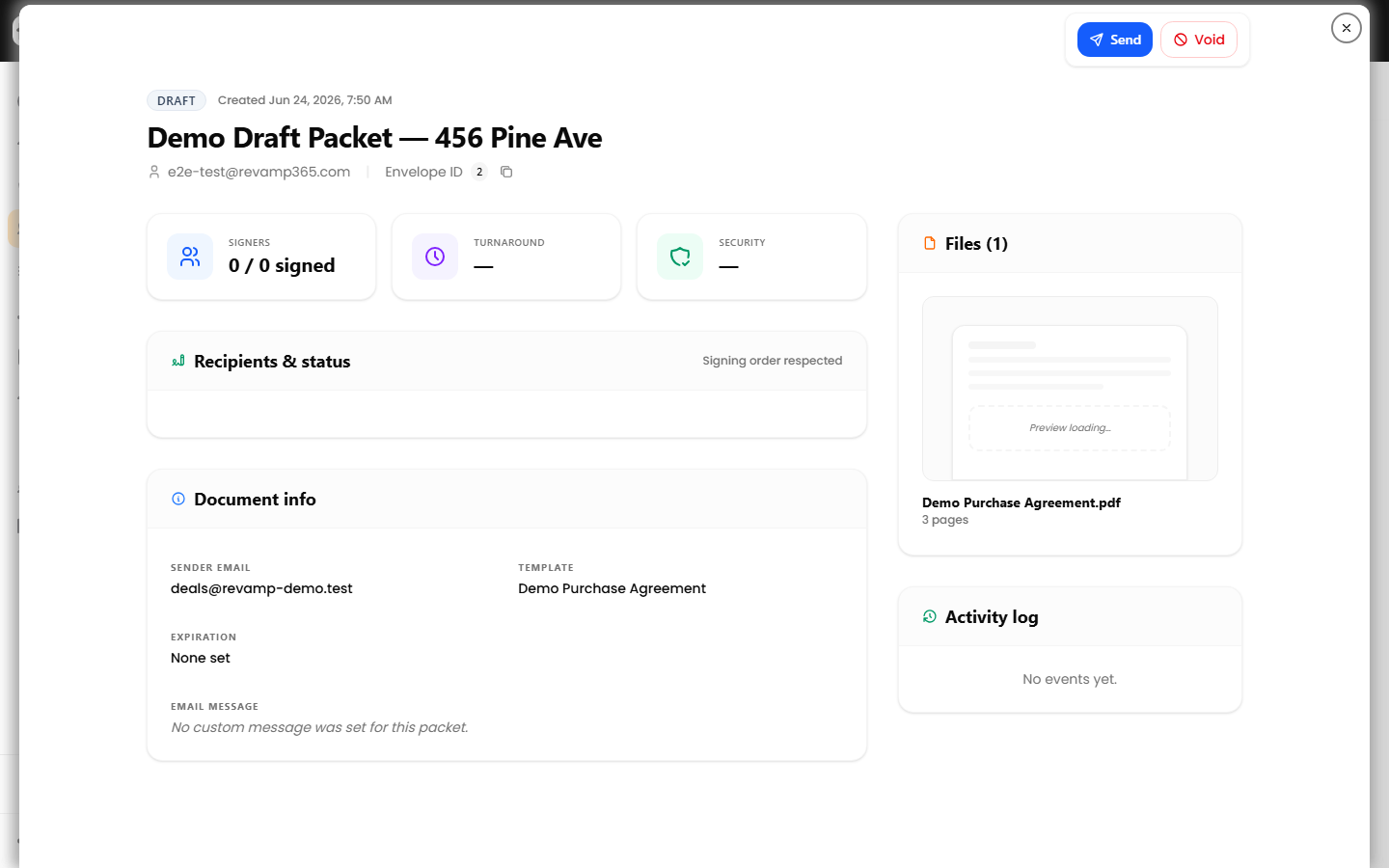
A newly built packet starts in draft status — nothing goes out until you send it.
- Open Offer Bot from the sidebar, then choose the Agreements tab. Click New Document to build a packet from a template (upload the template first under eSign Templates if you don't have one yet).
- Click a draft packet to open its detail view.
- Click the blue Send button, check who gets their link in the Send for signature dialog, and click Send.
You can also send each signer their link by text instead of, or as well as, email. See send an agreement by text, email, or both.
By default, every signer gets the document at the same time. To send it in order, check Set signing order above the signers and give each signer a number. Signers who share a number get it together, and the next number goes out automatically once everyone before them has signed. For example, 1, 2, 2, 3 means signer 1 first, then both 2s together, then signer 3. Each packet also has an expiration (14 days by default) after which unsigned links stop working, so every signer in the order has to finish by then.
Statuses you will see
The packet shows one overall status; each recipient carries their own. Watch both — a packet stays sent or viewed until a signer acts.
| Status | What it means |
|---|---|
| Draft | Built but not yet sent |
| Sent | Email delivered; signer has not opened the link |
| Viewed | Signer opened the signing page |
| Signing | At least one signer has signed; others remain |
| Completed | All required signers have signed |
| Declined | A signer refused to sign |
| Voided | You cancelled the packet (reason required) |
| Expired | The expiration date passed before completion |
| Error | Final-document processing failed |
Track progress on the packet detail
The detail page gives you a live picture without leaving Revamp365:
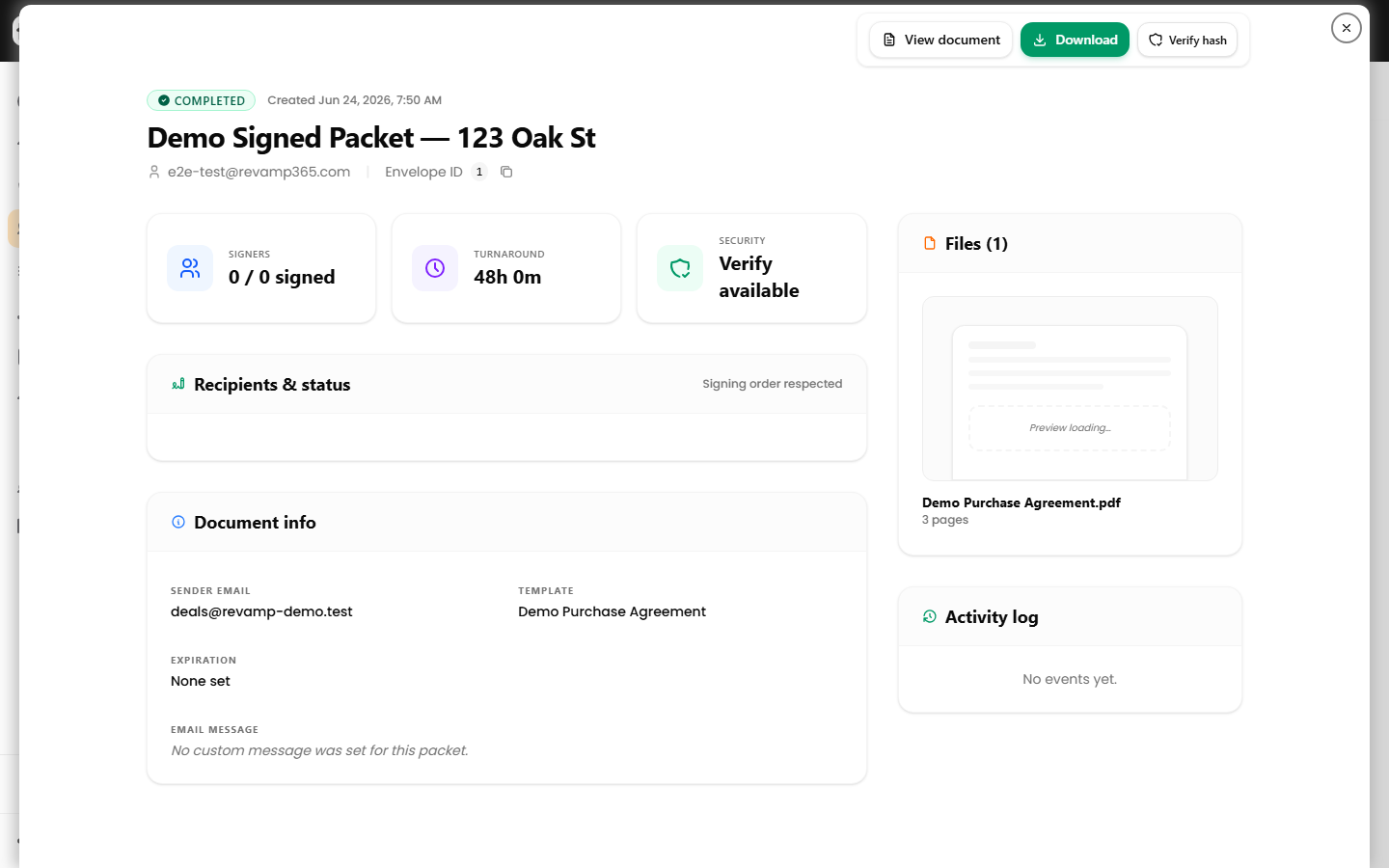
- Signers card shows a signed-vs-total count and a green check on each completed signer.
- Recipients & status lists every signer with their individual badge (sent, viewed, signed, or declined) and signed timestamp.
- Activity log is the audit trail — packet created, packet sent, recipient viewed (with IP), signed, completed, downloaded, and reminders, each time-stamped.
- Turnaround and a tamper-check Verify hash appear once the packet is completed.
Resend, filter, and act
- For any signer still in sent or viewed, click Resend link to email a fresh signing link.
- To cancel before completion, click Void, enter a reason, and confirm. Voiding invalidates outstanding links; completed or already-voided packets cannot be voided.
- When a packet reaches completed, use View document, View with certificate, or Download (combined PDF or a ZIP of document plus certificate of completion).
In the Agreements tab, narrow the list with the status dropdown and the search box (matches document name, recipient, or subject). eSign packets and Offer Bot offer emails both appear here, so use the type filter to isolate signing packets.
Before you send, double-check that every required field sits on the right signer — see place eSign signature and initial blocks.