
Once you upload a fillable PDF as an eSign template, you place the signing blocks yourself by dragging them onto the document. Every signature, initial, and date field is pinned to an exact spot on a page and assigned to a specific signer.
Open the field editor
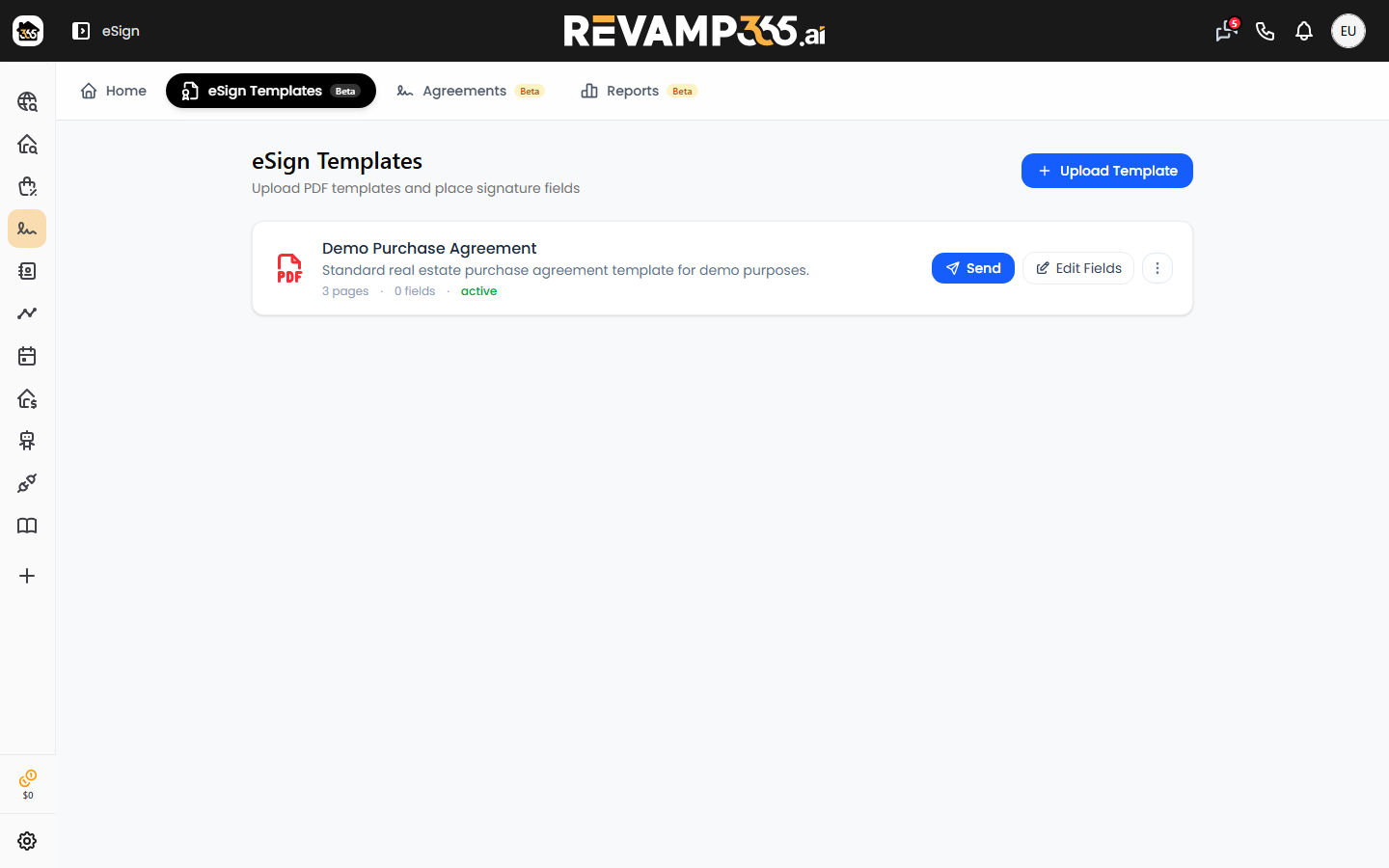
- Go to Offer Bot and open the eSign Templates tab.
- Find your template in the list and click Edit Fields. (If you have not uploaded a PDF yet, click Upload Template first.)
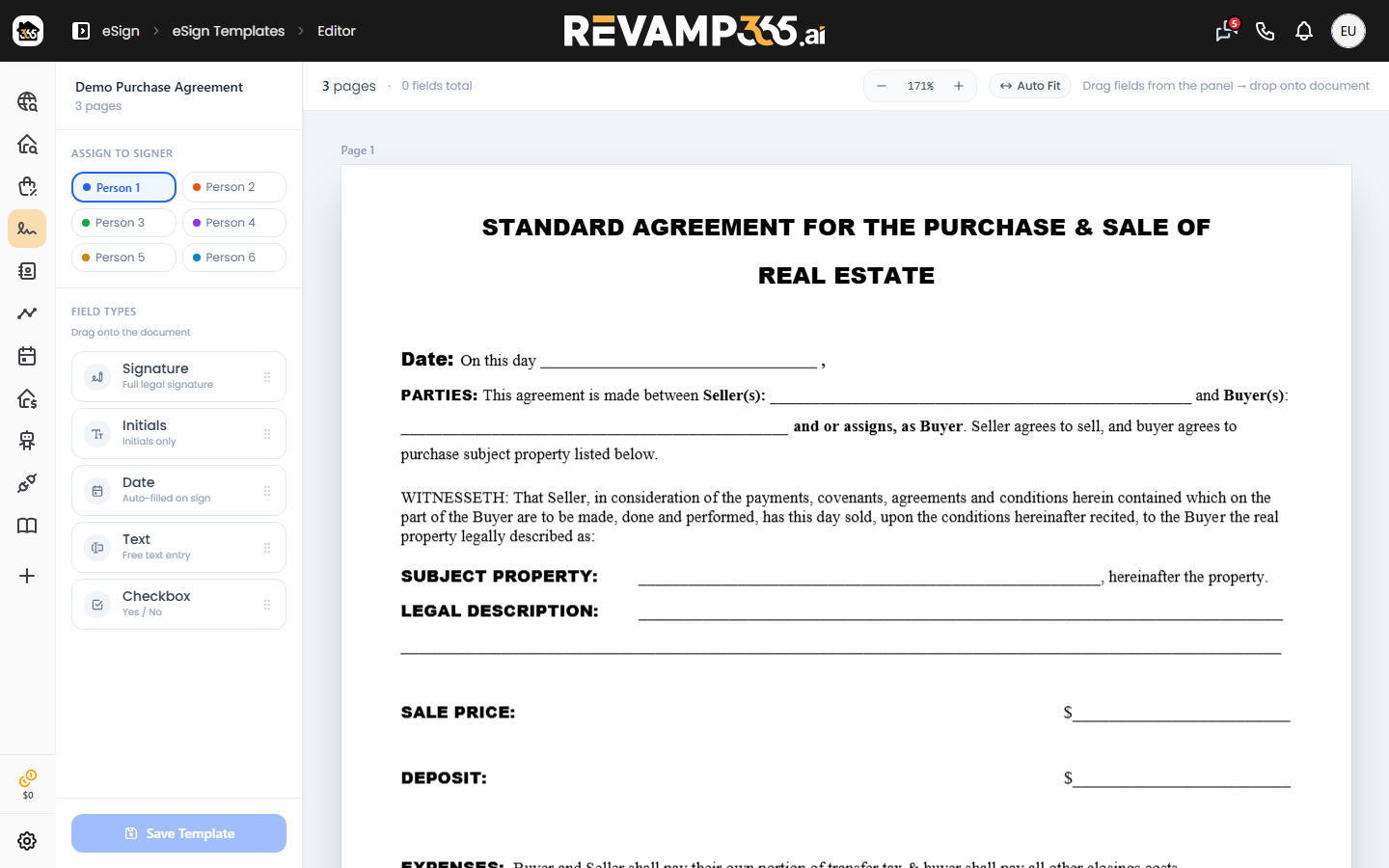
- The editor opens to your PDF, scrolling top to bottom with one block per page. Use the zoom controls or Auto Fit (Ctrl+0) to size the page to your screen.
Pick the signer, then drop a field
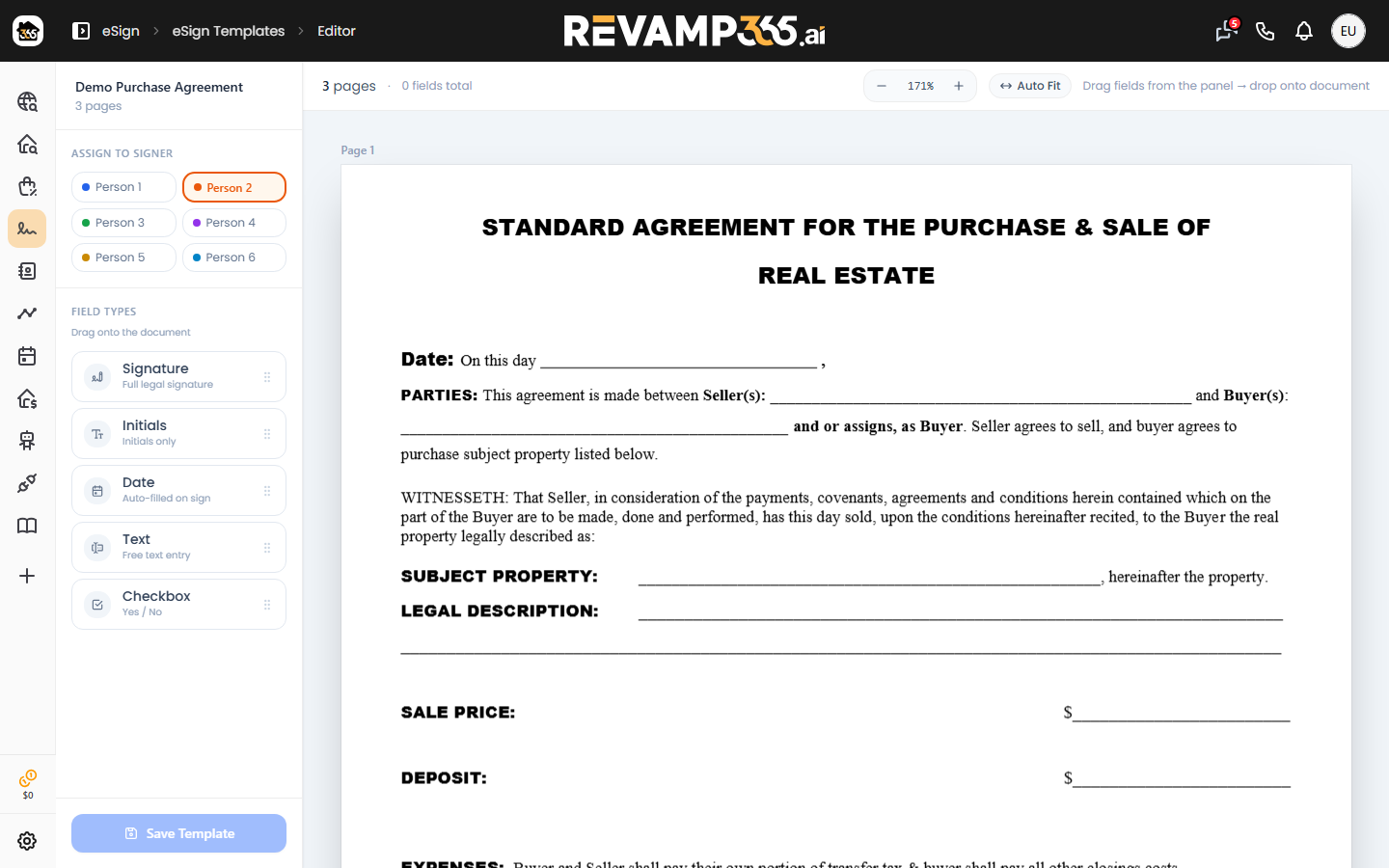
The left panel has an Assign to signer selector (Person 1 through Person 6) and a Field types list. Always choose the signer first, because each new field is assigned to whoever is active.
- Under Assign to signer, click the person who will complete the block (each gets its own color).
- From Field types, drag a type onto the page and release where you want it. The block drops centered on your cursor.
| Field type | Use it for |
|---|---|
| Signature | Full legal signature |
| Initials | Initials only |
| Date | Auto-filled with the signing date |
| Text | Free text the signer types |
| Checkbox | A single yes / no box |
On a phone or tablet, tap a field type so it shows Tap to place, then tap the spot on the page.
Adjust each block
Click any placed block to open the Field Properties panel on the right:
- Assigned to — reassign the block to a different signer.
- Label — an internal name like
Buyer Signatureshown on the block. - Required — toggle off only if the block is optional.
- Merge key — appears for Text and Date fields only. Enter a key such as
property.full_address,seller.name, ordate.todayto auto-fill from the linked contact record instead of asking the signer.
Drag a selected block to move it, or drag its corner and edge handles to resize. The panel shows live Position & Size percentages and the page number. Remove a block with the red × or Remove field.
Save the layout
Click Save Template. The button stays disabled until at least one field is placed.
Saving rewrites the entire field set for that template, so the saved layout always matches exactly what is on screen. The editor warns you before leaving with unsaved changes.
Tips
- Place blocks for every signer. A buyer signature line and a separate seller line need different Assign to signer values.
- Replacing the PDF later keeps your placed fields, but always reopen the editor to confirm they still line up with the new pages.
- Signature, initials, and date blocks are filled by the signer at signing time; only Text and Date fields accept a merge key for pre-fill.
When the layout looks right, return to the templates list and click Send to add recipients and route it for signing. Before that, make sure your underlying form is ready by reviewing how to map offer PDF fields.