
After you place fields on the PDF, tell Offer Bot which data fills each one. Mapping connects a form field to a Revamp365 tag. Listing details come from the MLS listing you send against — the same fields and values that display on public listing pages.
You only map fields you placed. Unused blanks on the paper form do not need a mapping.
Open the mapping panel
- Go to Offer Bot in the left sidebar.
- Open the Offerbot Templates tab.
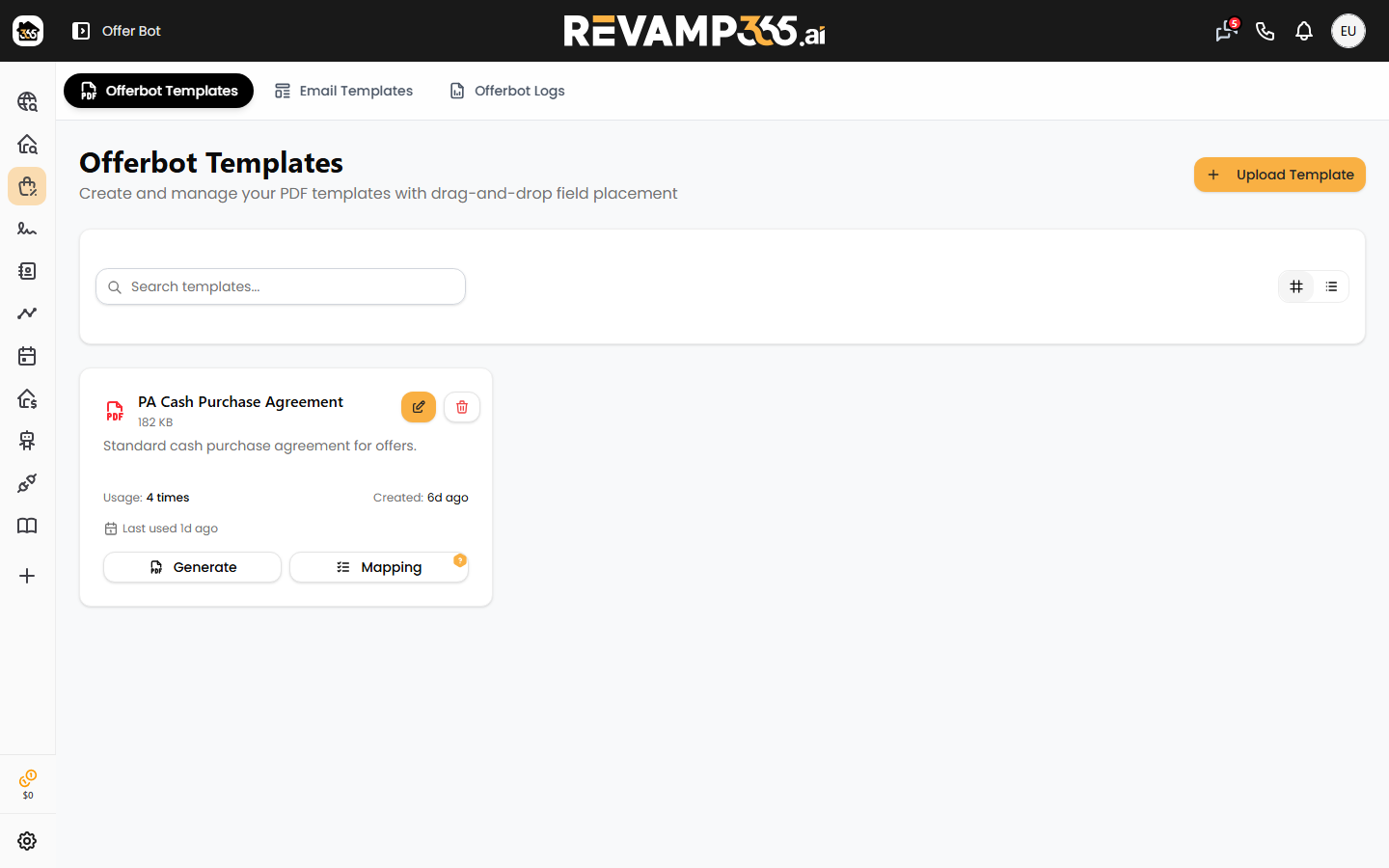
- Find your template card and click Mapping. A small help icon on the button means no mapping is saved yet.
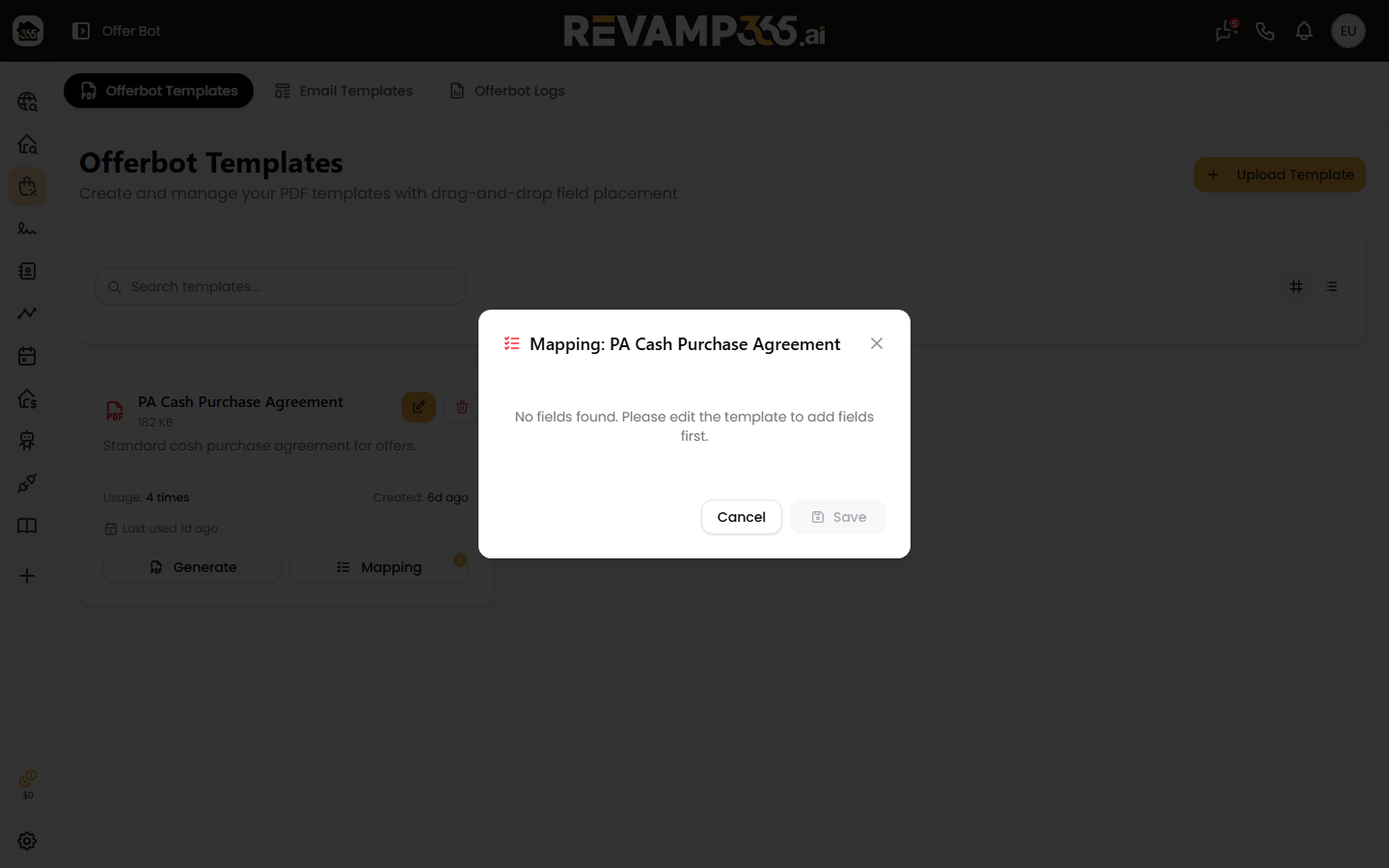
The dialog lists every field you placed, with its type (text, date, checkbox, image) in parentheses.
Choose a data tag for each field
Each field has a searchable Choose an option dropdown. Tags fall into these groups:
- MLS / listing — Property Address, List Price, Bedrooms, MLS Number, Year Built, and other values that also appear on public listing pages.
- Offer inputs — Offer Price, Earnest Money / Deposit, Proposed Closing Date. Price and closing date come from the Automated Offers dialog; deposit can default from Signing Profile.
- You / buyer — User Full Name, Company Name, Buyer Entity (from Signing Profile).
- Dates — Current Date, Current Date + 30 Days, and similar send-time calculations.
- Static text — fixed wording you set on the field, such as a disclaimer.
Buyer signature and initial image slots stamp from Signing Profile. You do not map those to MLS tags.
If a listing is missing a value, that field stays blank and the offer still generates.
Save and reuse
- Click Save. You will see "Mapping saved successfully," and the unmapped icon leaves the template card.
- Reopen Mapping anytime — previous selections reload.
Each mapping is stored on that one template, scoped to your account. After it is saved, generating an offer from a saved MLS list fills the PDF from these connections.