
When you send an agreement by text, your signer does everything on their phone. They don't need an app, an account, or a password. Knowing each screen helps when a seller calls you in the middle of signing.
The text and the link
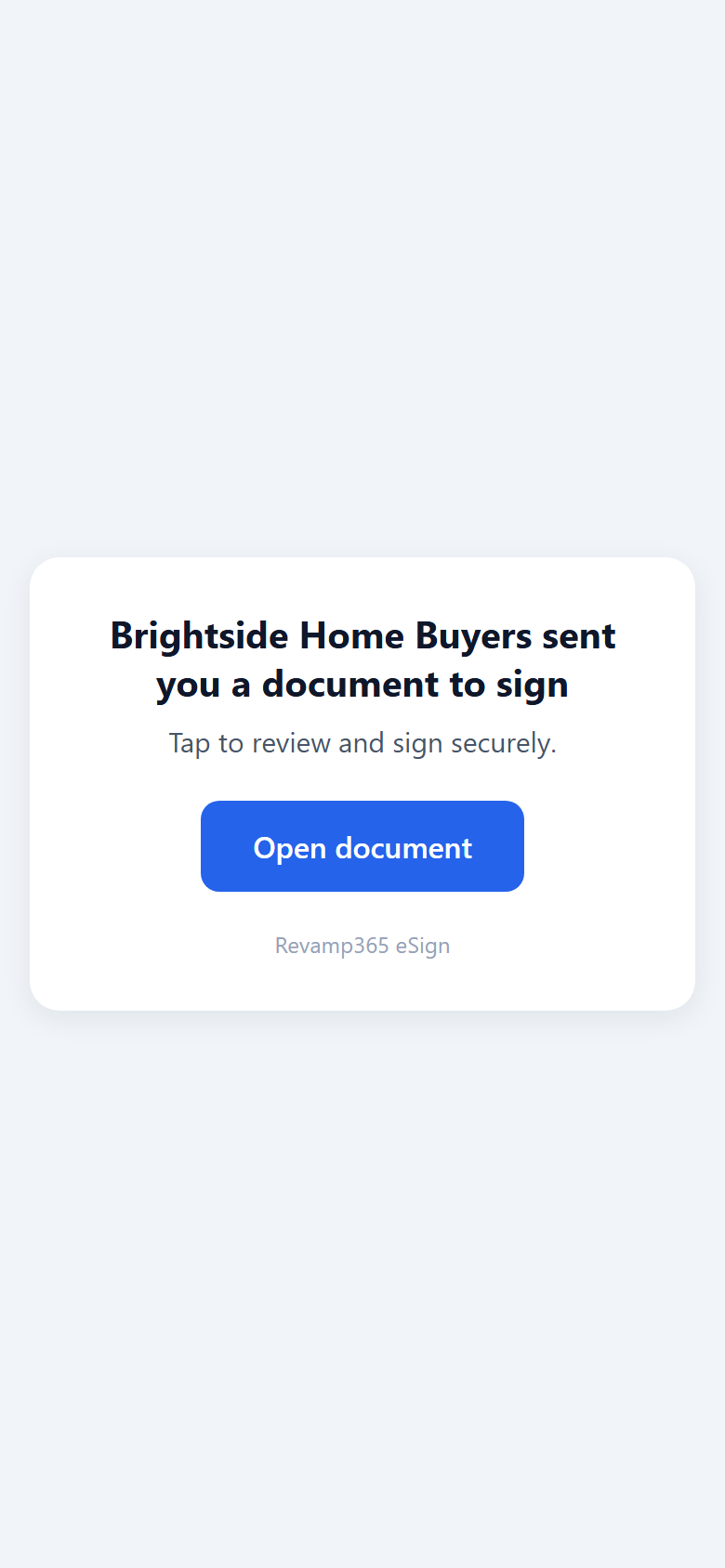
The signer gets a text that greets them by first name, says who sent the document and which one, and ends with a short link and "Reply STOP to opt out".
Tapping the link opens a short page titled with who sent the document. On a phone it forwards straight to the document, so most signers barely see it. Messaging apps read this page to build the preview card under the link. You can change that card's image and wording; see customize the link preview.
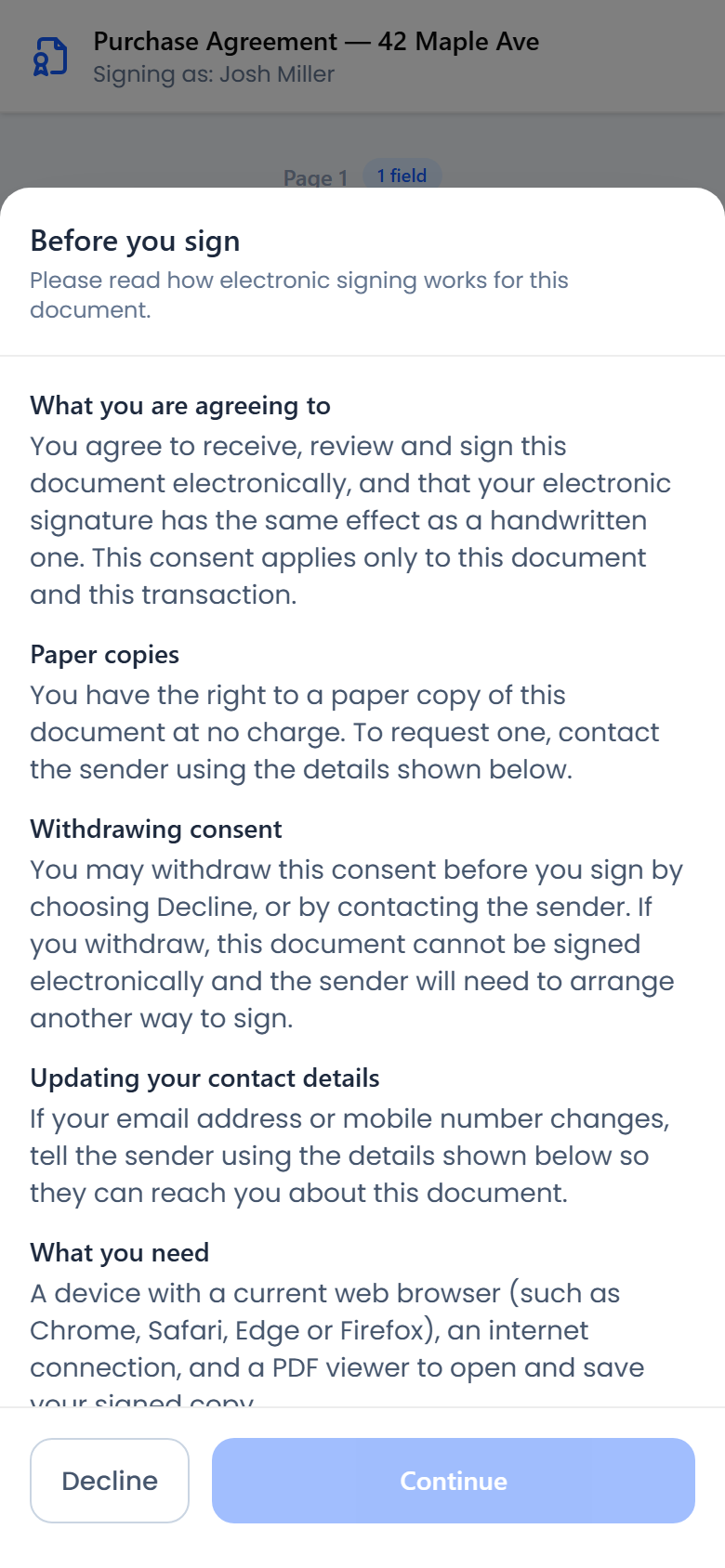
Before you sign
The first time they open the document, the signer sees Before you sign. It explains how electronic signing works for this document:
- What you are agreeing to: signing electronically counts the same as signing by hand, for this document only.
- Paper copies: they can ask you for a paper copy at no charge.
- Withdrawing consent: they can choose Decline or contact you instead.
- Updating your contact details, What you need (a current web browser and a PDF viewer), and Your signed copy.
Your company name (or your name) and your email address appear under Sender, so they know how to reach you.
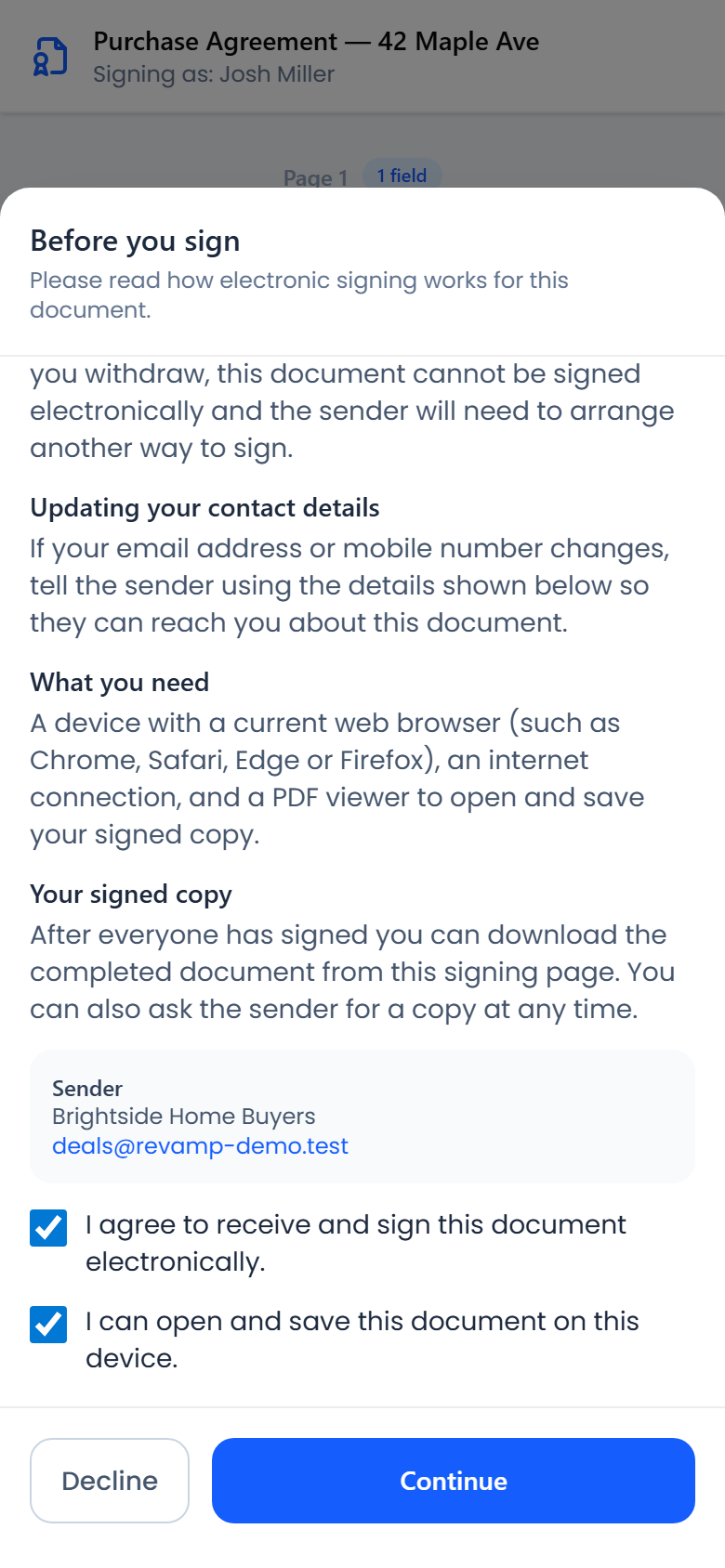
To continue, the signer ticks both boxes, I agree to receive and sign this document electronically. and I can open and save this document on this device, and then taps Continue. If they'd rather not sign electronically, they tap Decline.
Find the fields and sign
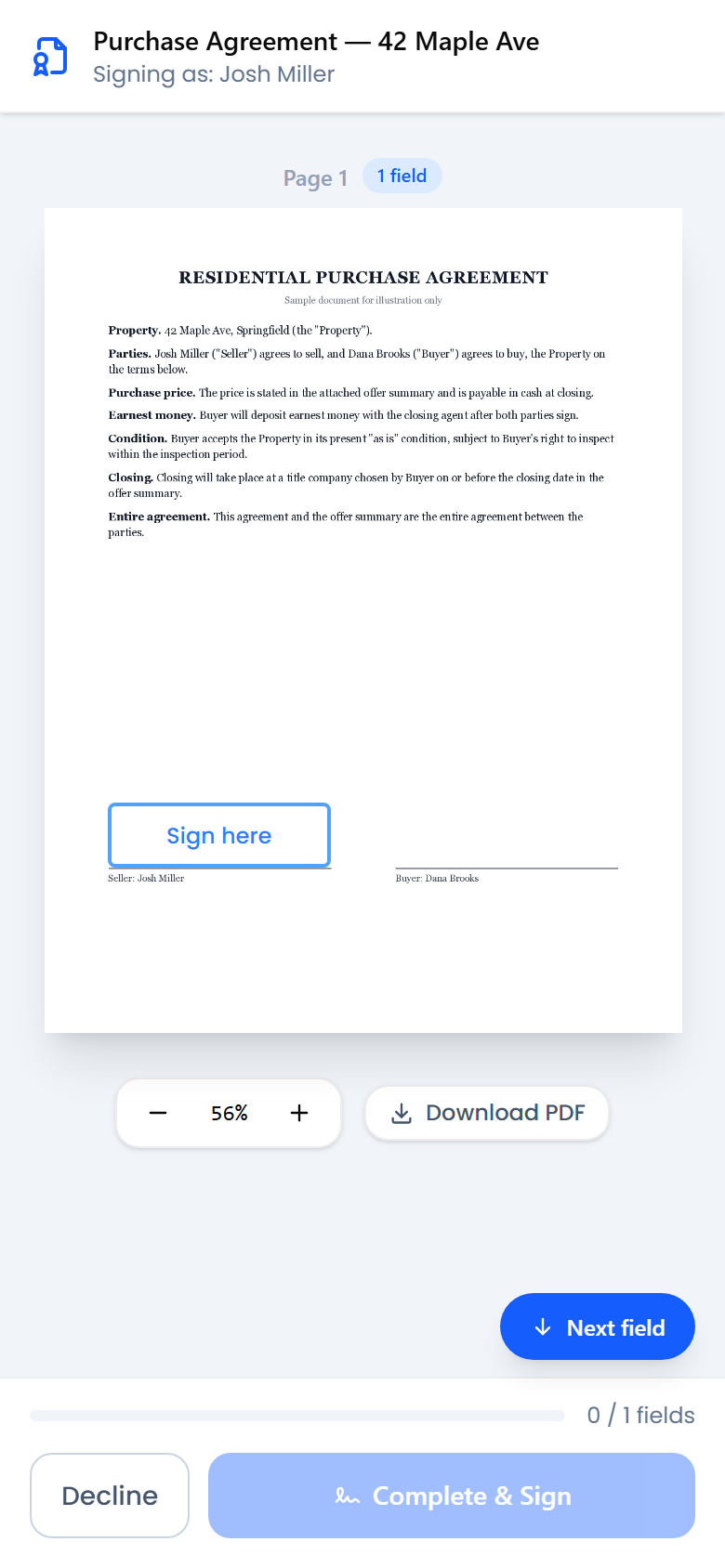
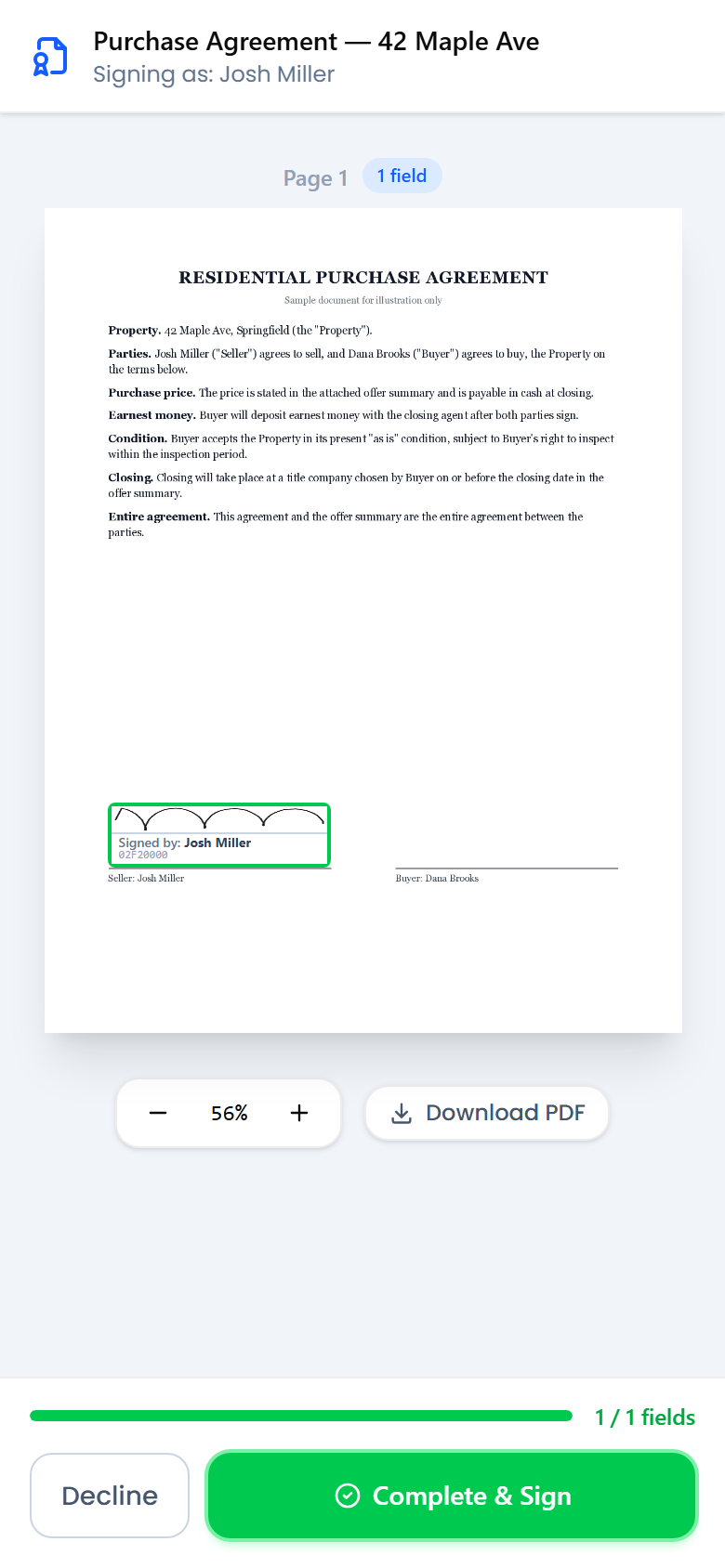
The document opens with the signer's own fields highlighted. The bar at the bottom shows how many required fields are done. The Start button, which becomes Next field after the first fill, scrolls to the next field they still need to fill in, top to bottom through the document. They can pinch to zoom the document. On a computer the same button sits at the bottom right.
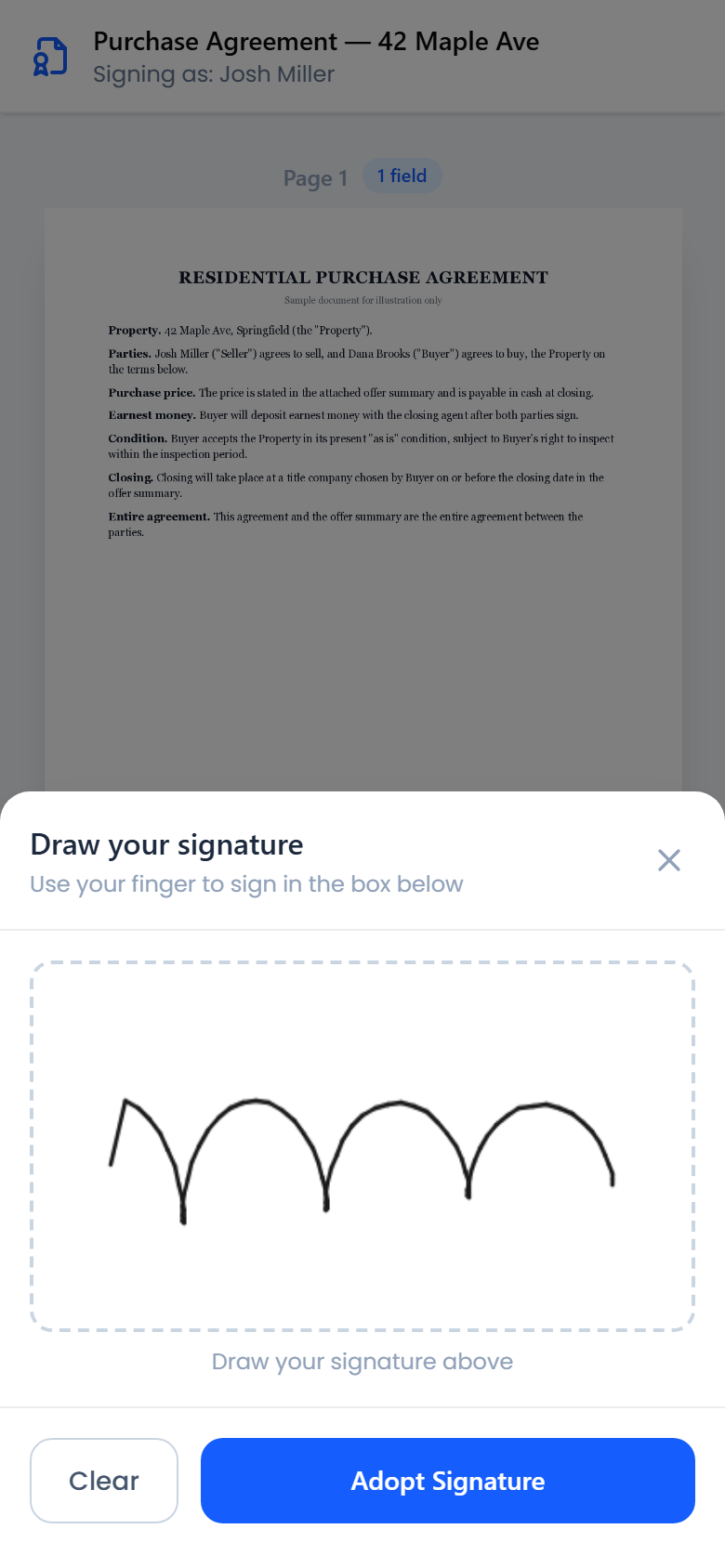
Tapping a signature field opens Adopt your signature, with two tabs:
- Draw: the signer draws with a finger. This tab opens first on a phone.
- Type: the signer types their name and picks one of four script styles. On a computer this tab opens first, with their name filled in.
Adopt Signature stays grayed out until there's a real signature in the box, so a blank signature can't be adopted. Initials work the same way.
After the first signature, every other signature field reads Click to sign: one tap stamps the same signature, with no pad to draw on again. Each field still needs its own tap. Tapping a field that's already signed offers Change Signature or Remove.
After each signature, initial, required checkbox, or press of Enter in a text field, the page scrolls to the next field and highlights it for a moment.
When every required field is filled in, Complete & Sign turns green and a note says all fields are done. One tap finishes signing.
Getting the signed copy
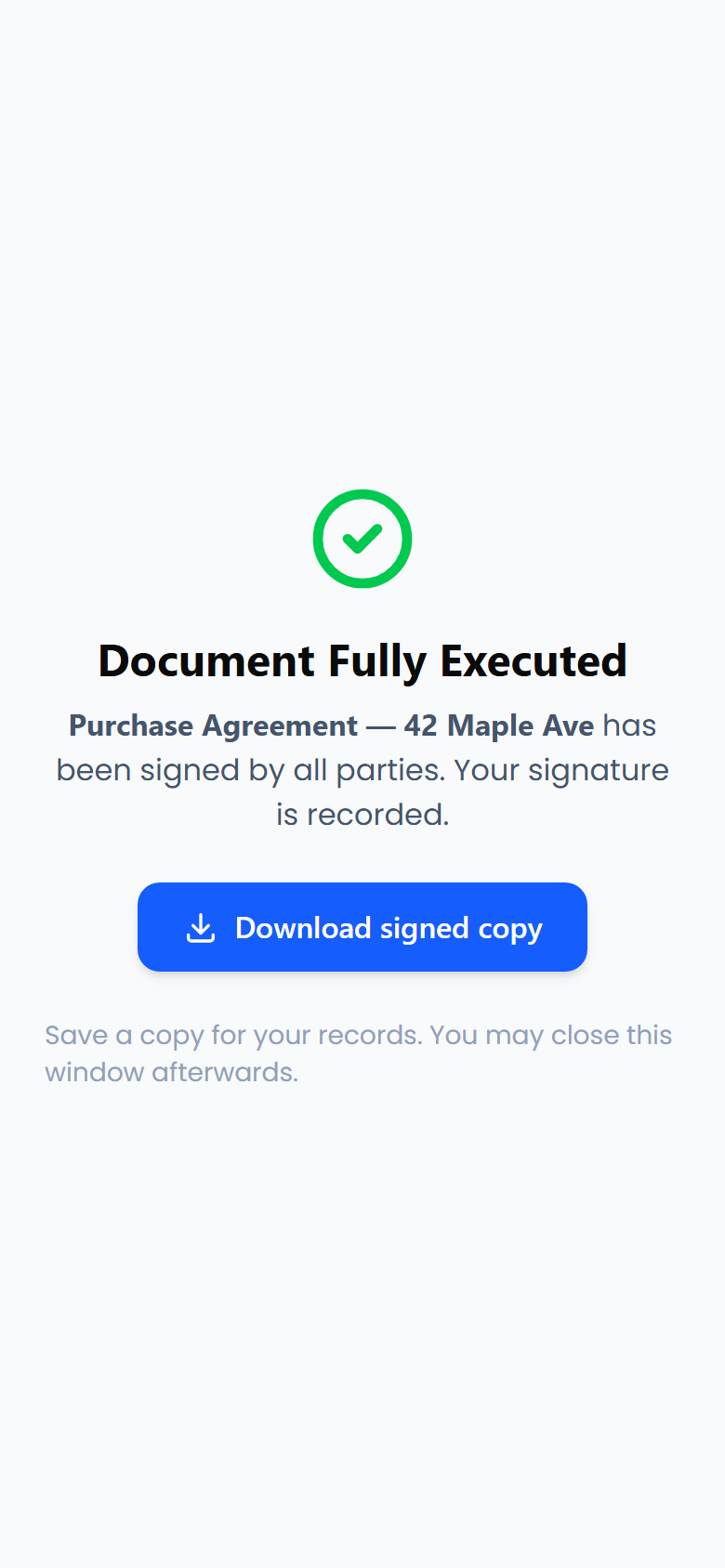
Once everyone has signed, the signer sees Document Fully Executed with a Download signed copy button. Tapping it opens the completed PDF so they can save it on their phone.
If other people still need to sign, the signer sees All Done! instead, with a note to open the same link again once everyone has signed to download their copy. After the last signature:
- A signer with no email address gets a text with a link to their signed copy.
- A signer with an email address gets the signed PDF by email.
If something goes wrong
- The link says the document was voided or has expired. You voided the agreement, or it expired before they signed. Send a new one.
- The link stopped working after you changed their number. A new number always gets a new link, and the old text's link stops working. Resend from the agreement so they get the new link. See send an agreement by text, email, or both.
- They never got the text. Open the agreement and check the Text status next to their name. If it failed, fix the number with Change phone, or resend by email.