
Once a lead books a call, the gap between booking and showtime is where no-shows happen. This playbook chains your booking link, a custom Booking Workflow, and reminder actions so every confirmed appointment gets timed nudges automatically.
How the pieces fit together
A reminder system here is three connected parts:
- An event type (booking link) that invitees use to book.
- A Booking Workflow that listens for a booking event and fires actions.
- Actions (email/SMS) scheduled relative to the appointment time.
Step 1: Confirm your booking link is live
In the left sidebar, open Calendar, then the My Booking Links tab. Under the Event Types sub-tab, make sure you have an active event type. If you do not, see use the scheduling calendar and event types and create and share a booking link.
When editing an event type, turn on Custom workflows under the Notifications and workflows section. With this on and no workflow narrowed to this link yet, Revamp still sends the standard confirmation and reminder emails — a custom workflow replaces them once it is attached.
Step 2: Create the reminder workflow
Go to My Booking Links → Booking Workflows and click Create Workflow. The builder has three steps:
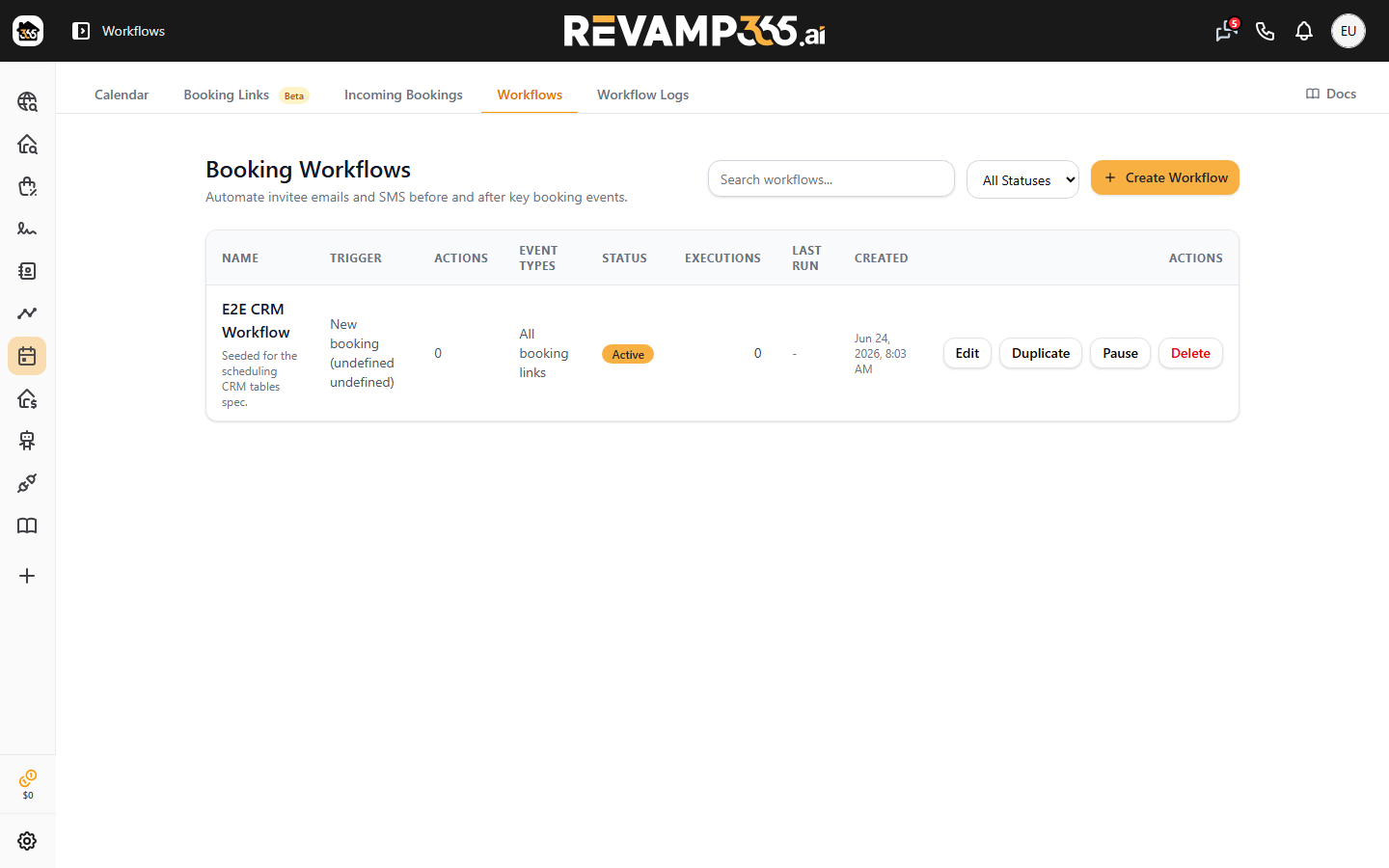
-
Trigger — name it (e.g., "Demo Call Reminders") and choose Before event starts. Set the timing amount and unit (minutes, hours, or days; up to 7 days).
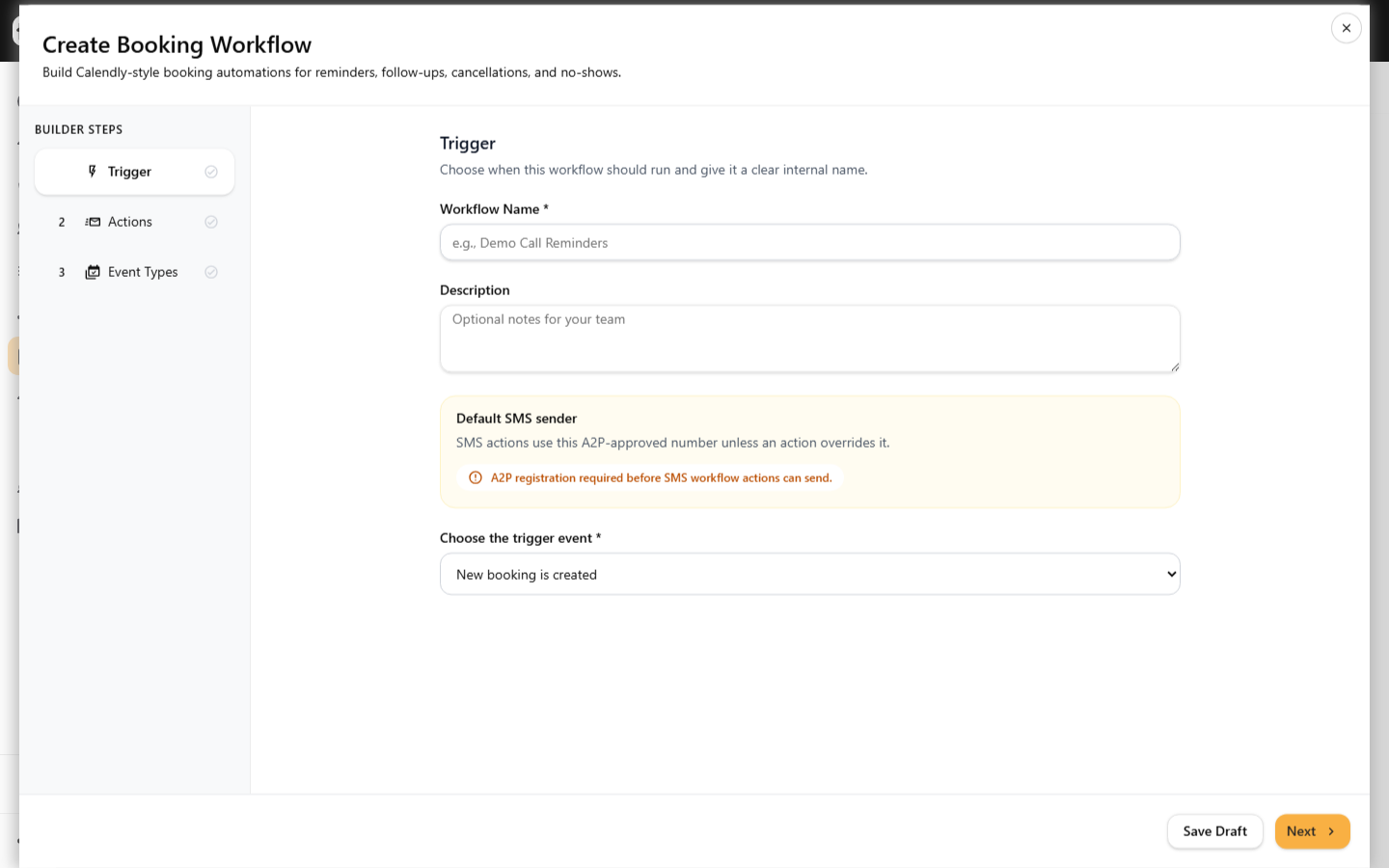
-
Actions — add the reminders (below).
-
Event Types — leave Apply to all event types on, or limit it to specific booking links.
Click Create Workflow to activate, or Save Draft to finish later.
Step 3: Add the reminder actions
On the Actions step, choose an action type and its timing. For a classic two-touch reminder:
| Action | Timing | Sends to |
|---|---|---|
| Send email to invitee | 24 hours before event | The booker |
| Send SMS to invitee | 1 hour before event | The booker |
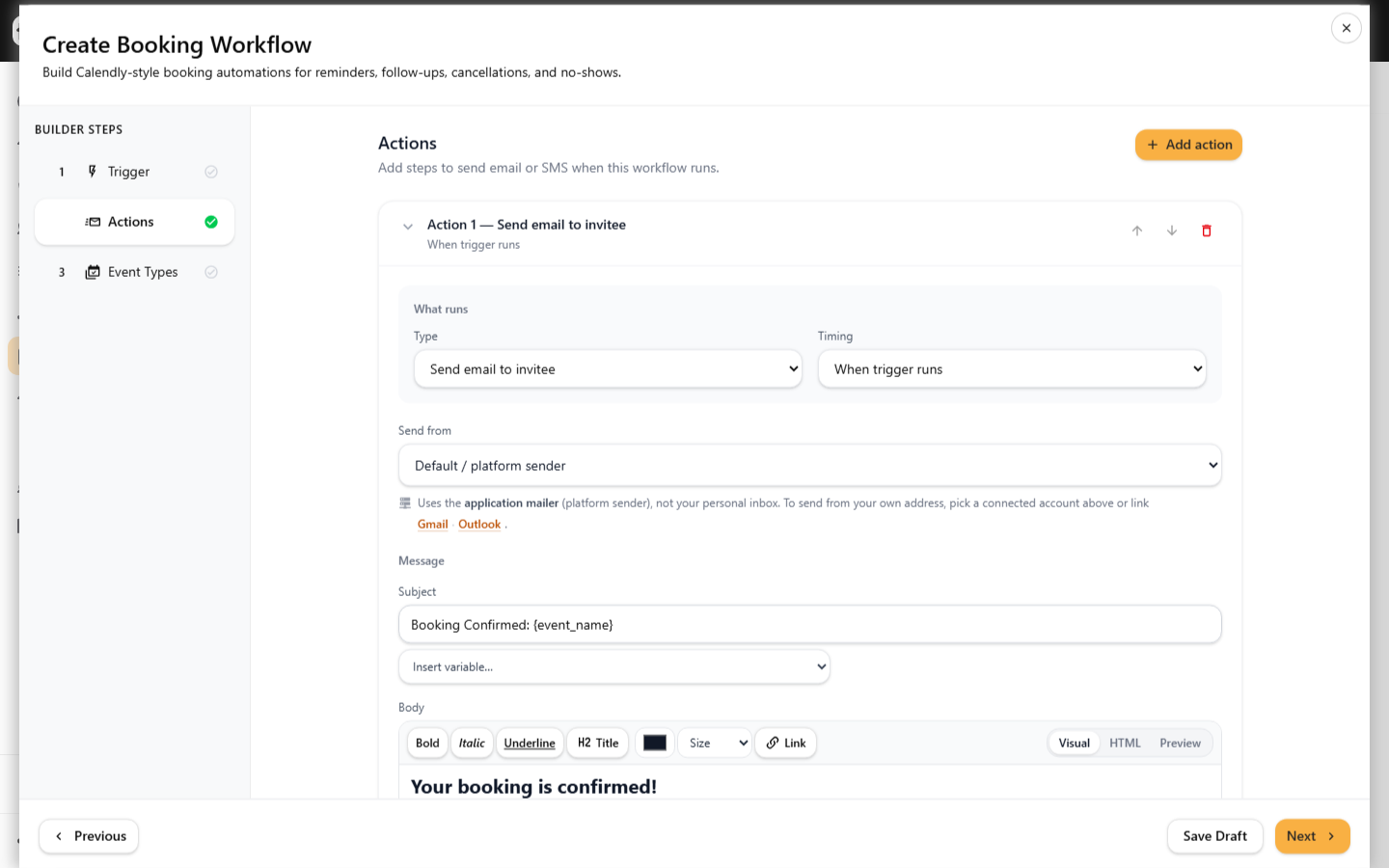
Type your copy and drop in merge fields like {event_name}, {event_date}, and {event_time}. Available action types also include emailing the host or someone else, updating lead status or temperature, adding a note, adding/removing a tag, and moving a contact into a voice workflow.
SMS actions require A2P approval and an A2P-registered sender number. Pick a Default SMS sender on the Trigger step, or override it per action. If you are not approved yet, the builder shows a Complete A2P link. See booking confirmations, reminders, cancellations, and rescheduling.
Step 4: Verify it runs
Reminders dispatch on a schedule, so test with a real booking a day out. Then open the Workflow logs sub-tab (or click a workflow row for its Execution History) to confirm each action shows sent with its scheduled and sent times. Failed rows display the error message.
Extend the chain
- Add a workflow with the Invitee marked as no-show trigger to auto-retag or update lead status.
- Pair reminders with a live agent using connect scheduling to an AI voice agent.
- For broader event-driven automation beyond bookings, see automation triggers, conditions, and actions.