
Your AI voice agent can read your real availability and book appointments mid-call. Setup has two halves: generate a scheduling token under Calendar, then add a Schedule Booking step in the voice agent builder.
Generate the voice scheduling token
The token is what lets the agent reach your calendar API securely.
- In the left sidebar, open Calendar, then the My Booking Links tab and the Event Types sub-tab.
- At the top you'll see the Voice AI scheduling card. Click Generate token.
- Copy the secret immediately from the Save your token popup — it is shown only once. Store it in a password manager.
Status flips to Active with a short token prefix. Use Regenerate token if it leaks (the old one stops working at once) or Revoke to disable voice booking entirely.
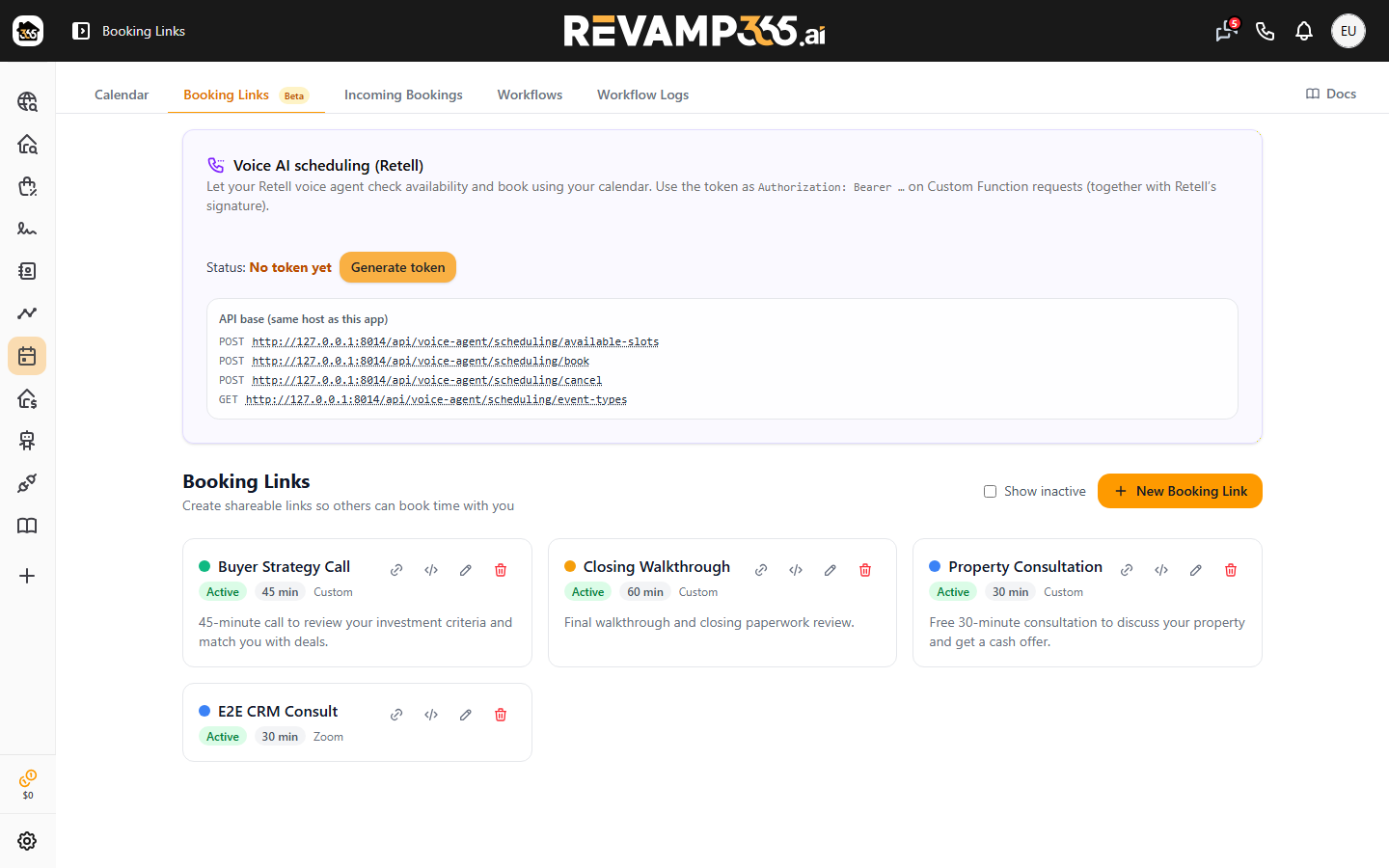
Create the booking link the agent will use
The agent books against an event type (a booking link). If you don't have one yet, create it first — see use the scheduling calendar and event types and create and share a booking link. Only active event types appear to the agent.
Add the Schedule Booking step
- Go to AI Voice & Chat and open the agent you want to edit.
- In the flow builder, add a Schedule Booking node (the violet calendar step).
- The node's setup panel shows a checklist — Booking link created and Voice scheduling token generated. Both must be green.
- Under Booking Link (required), select which appointment type the agent books.
Tune what the agent asks and when it confirms
Each custom question from your booking link appears under Questions the agent will cover. Set How should this be filled? per question:
| Option | Behavior |
|---|---|
| Agent collects during call | Agent asks verbally (add optional phrasing, and skip if the caller already said it) |
| Filled from post-call data | Pulled from a caller-info or post-call field after the call ends |
Other controls in the panel:
- Agent behavior — what to say while checking availability.
- Confirmation message — what to say after a successful booking.
- Defer finalization until call ends — reserves the slot instantly, but sends the calendar invite, confirmation email, and booking workflows shortly after the call (up to ~15 minutes). Required for post-call answers to fill automatically.
The node exits down two paths: Booked or Failed (no slots or an error). Wire each to the next step. The endpoint URLs are pre-configured; you only need the Advanced — Custom function URLs section for manual wiring.
Verify and review
Run a test call from the agent, then open Calendar → My Booking Links → Incoming Bookings. Voice-created bookings land here; a deferred one shows Finalizing until the call ends. To pair booking with status updates, see update lead status after AI voice outcomes.