Every booking on your scheduling link triggers a confirmation, optional reminders, and self-serve reschedule or cancel links for the invitee. Here is exactly what happens and where you control it.
What the invitee sees after booking
When someone books a time, they land on a Booking confirmed page that shows their name, the event type, and the date/time. It includes:
- An Add to Calendar (.ics) button.
- A Join Zoom Meeting link (only when the event type location is set to a Zoom link).
- Reschedule and Cancel buttons.
If your event type uses a Zoom location, Revamp365 creates the meeting and stores the join URL at confirmation.
How the booking gets on the invitee's calendar
The invitee doesn't have to click anything for the meeting to reach their calendar:
- Your Google or Outlook calendar is connected: the event on your calendar invites the invitee and any guests they added, so Google or Outlook sends them a calendar invitation from your account. Rescheduling or cancelling updates or removes it.
- No calendar connected: the confirmation email's calendar file is a calendar invitation, so their email app offers to add it. A reschedule email moves the event and a cancellation email removes it.
Whether an invitation is added automatically depends on the invitee's own calendar settings. The Add to Calendar links stay in the email as a backup.
Confirmation and reminder emails
System emails for confirmation, reschedule, and cancellation are sent automatically, plus two reminders for confirmed bookings:
| Notification | When it sends |
|---|---|
| Confirmation | Immediately after booking |
| 24-hour reminder | Roughly 24 hours before start time |
| 1-hour reminder | Roughly 1 hour before start time |
Each reminder fires once. These platform emails send only when booking workflows are enabled on the event type and you have not selected specific workflows to handle those triggers. If you build your own workflows for a trigger, those replace the default email so invitees do not get duplicates. To customize copy or add SMS, see connect scheduling to your AI voice agent and workflows.
How rescheduling works
The invitee clicks Reschedule (or the link in their email), picks a new date and slot, and confirms with Confirm new time. Behind the scenes:
- The original booking is marked rescheduled (a terminal status).
- A brand-new confirmed booking is created at the new time with fresh reschedule and cancel links.
- Any Zoom meeting is recreated for the new time.
The slot is re-checked at submission, so if the new time was just taken the invitee is asked to pick another.
How cancellations work
Clicking Cancel sets the booking status to cancelled, frees the slot for others, and deletes the Zoom meeting if one exists. Cancelled bookings cannot be reactivated; the invitee books again if needed.
Managing bookings as the host
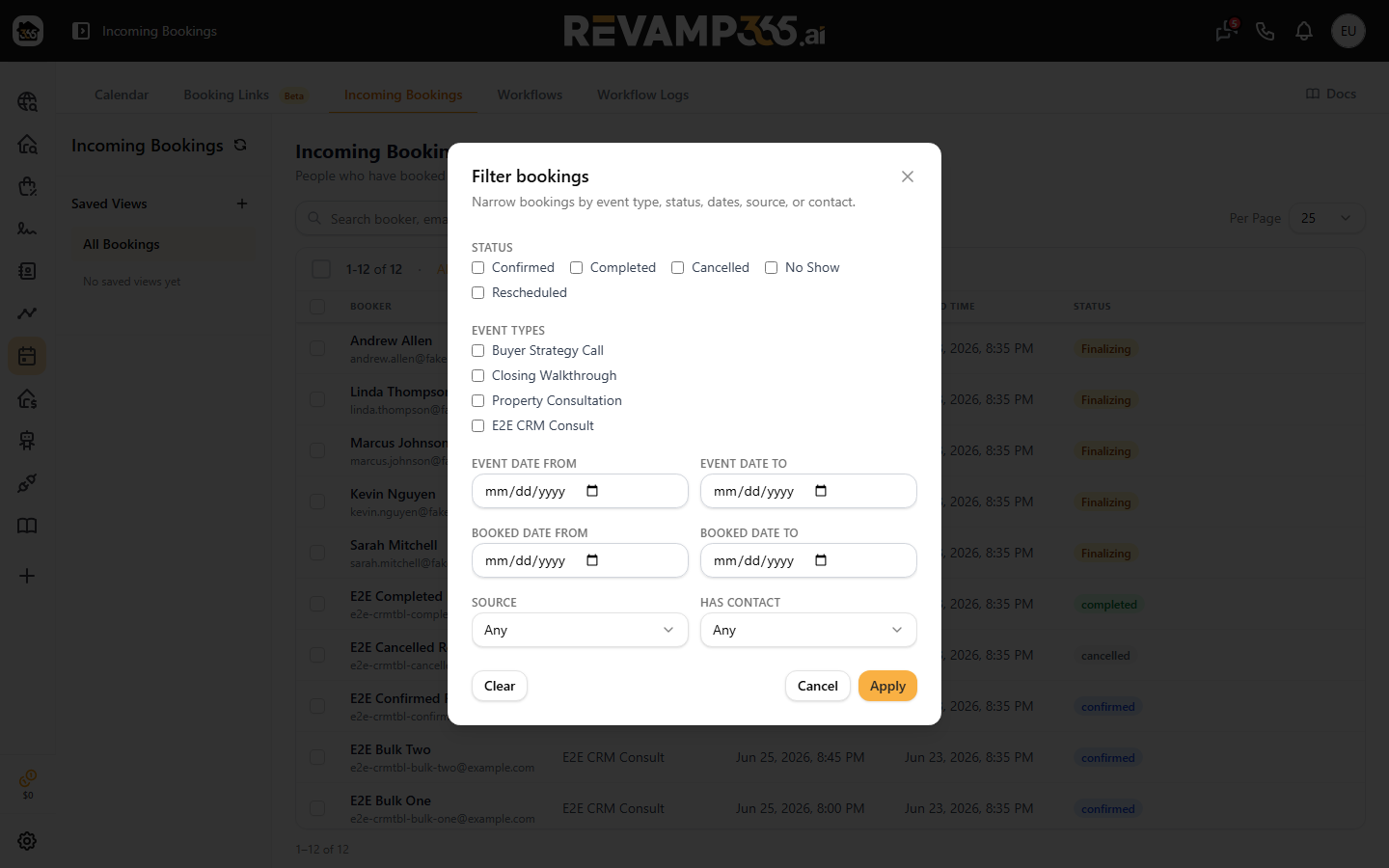
Open Calendar → Bookings (/scheduling/bookings). You can filter by event type, status, and date range. For any confirmed booking, the row actions let you mark it:
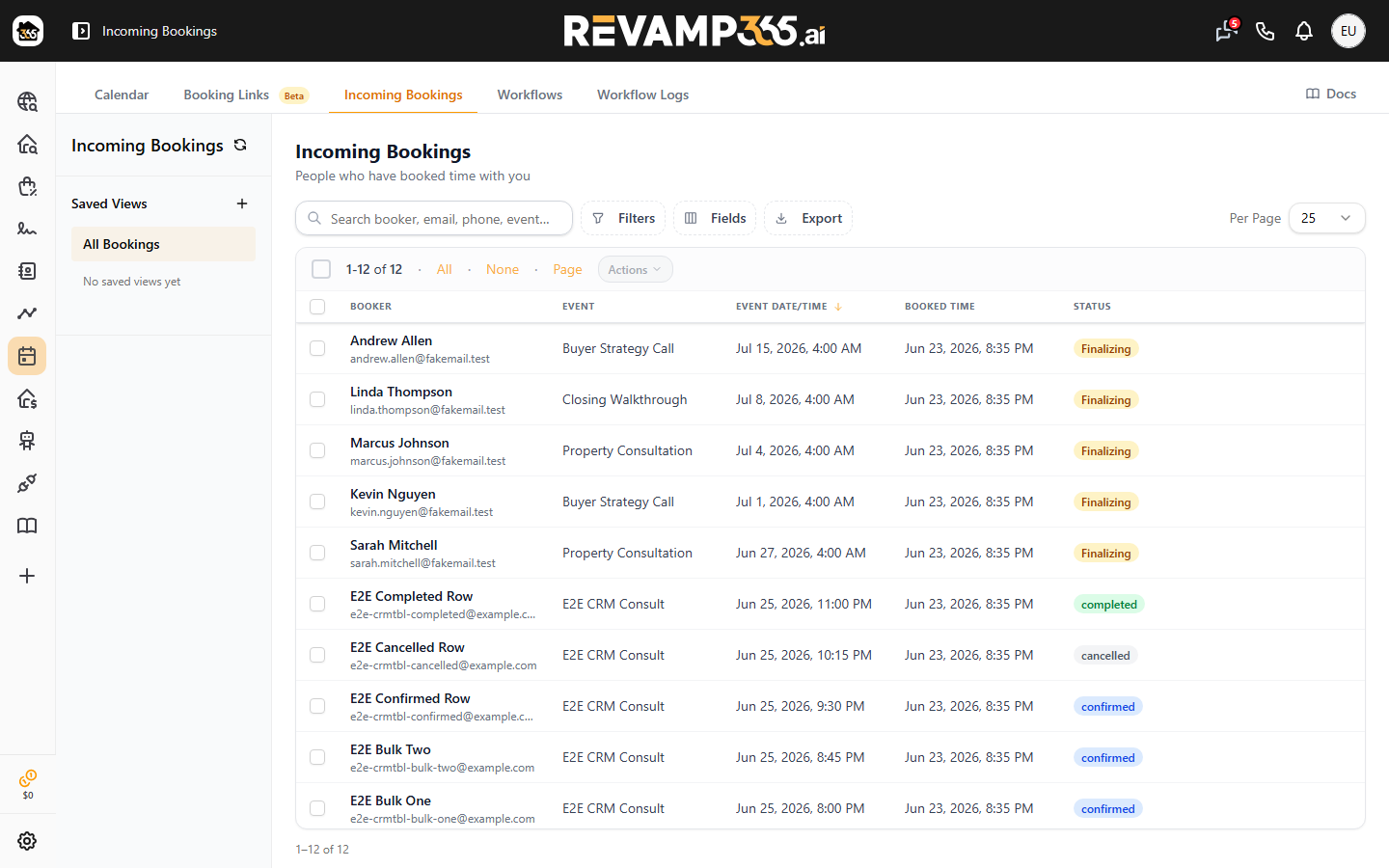
- Complete
- No Show
- Cancel
Booking statuses are: confirmed, completed, cancelled, no_show, and rescheduled. Once a booking is in any non-confirmed status, it is locked and no further status changes apply.