
A booking link is a public page where invitees pick an open time slot and book it themselves. Each link is built on an event type that controls duration, availability, and what you ask the booker.
Open the booking links area
- In the left sidebar, click Calendar (this opens the scheduling area; a paid plan is required).
- Open the My Booking Links tab, then the Event Types sub-tab.
- Click New Booking Link (or Event Types > create from the empty state).
Configure the event type
The editor shows a live preview on the left and collapsible sections on the right. Only the name is required, so you can save fast and refine later.
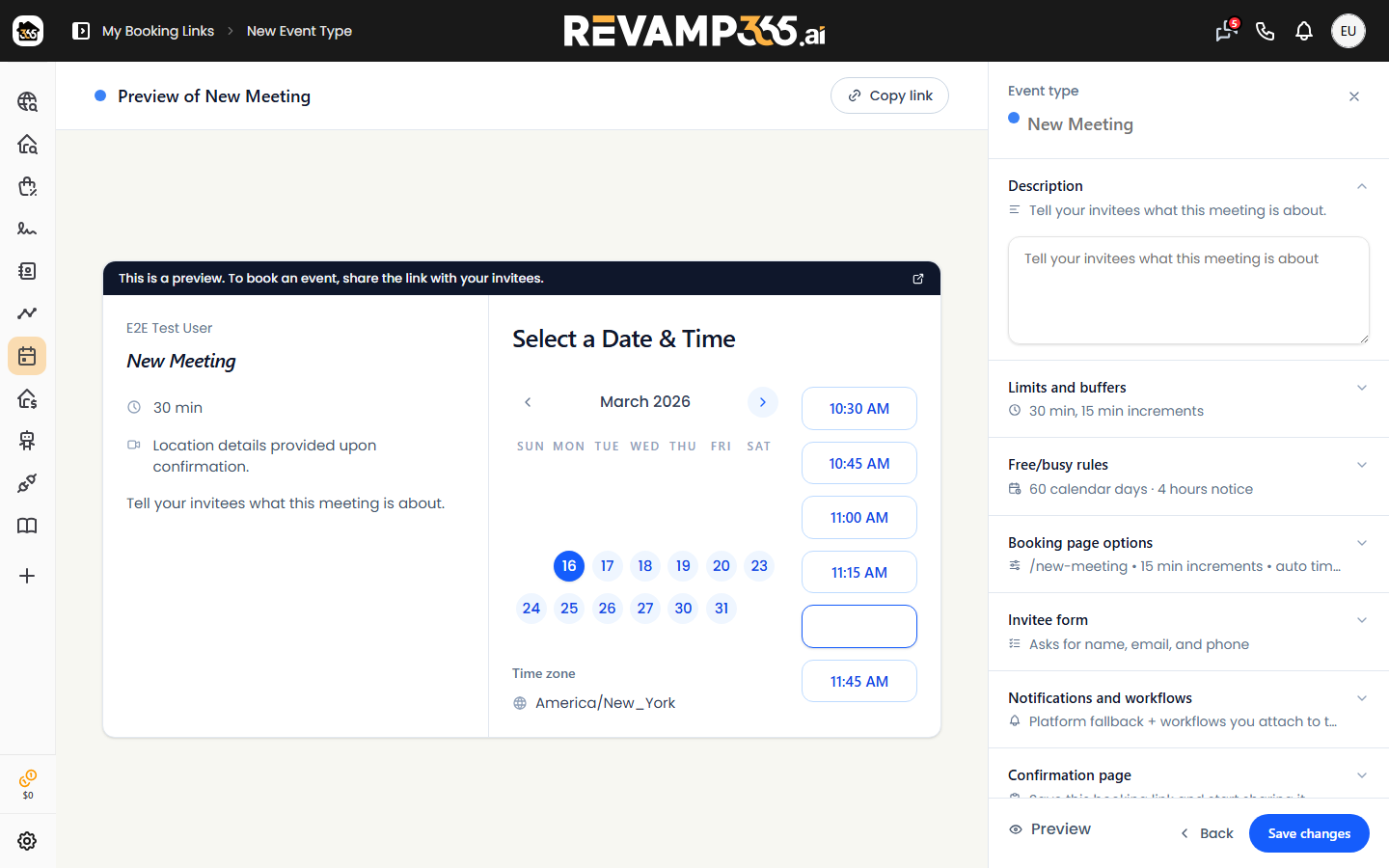
| Section | What you set |
|---|---|
| Event type (top) | Name (required) and a color dot |
| Description | Text invitees read before booking |
| Limits and buffers | Duration, Slot interval (5–60 min), buffer before/after |
| Free/busy rules | Date range, Minimum notice, weekly hours, and whether to block slots when you're busy on Google or Outlook |
| Booking page options | Location — Zoom link, Phone, or Custom — plus time zone |
| Invitee form | Name, email, and phone are always asked; add custom Text or Textarea questions |
| Notifications and workflows | Toggle automated emails/SMS and attach booking workflows |
Click Save changes when you're done. A new link is Active by default.
Copy and share the link
Back on the Event Types sub-tab, each card has action icons.
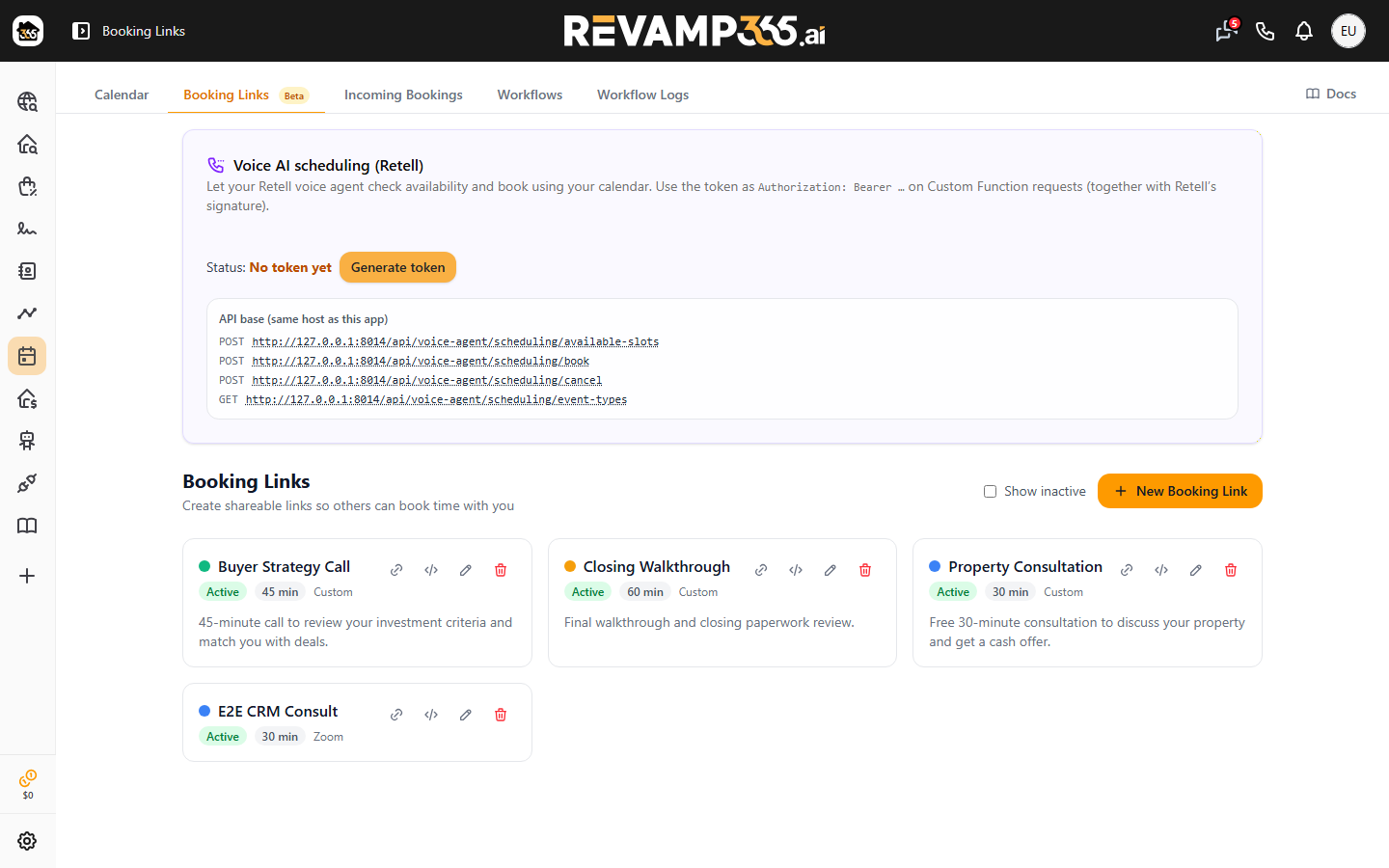
- Click the link icon (Copy booking link) — you'll see "Booking link copied," then paste it anywhere.
- Inside the editor, use Copy link at the top of the preview.
The public URL follows this pattern:
https://your-domain/schedule/<your-slug>/<event-slug>
Your slug is generated from your name (for example, janedoe), and the event slug comes from the event name. Connect Zoom under Booking page options if you want a meeting link created automatically for each booking.
Embed it on a website
Click the code icon (Get embed code) on a card to open Embed Booking Widget. Pick a style, then Copy Code and paste the snippet into your site:
- Inline — shows the full calendar in the page.
- Popup Button — a button that opens the calendar in an overlay.
- Floating Button — a button pinned to the bottom-right corner.
After someone books
Confirmed bookings appear under the Incoming Bookings sub-tab, where you can filter by event type, status, or date and mark each one done, no show, or cancelled. To pause a link without deleting it, edit it and turn off active status; use Show inactive to find it again.
To define your weekly hours and event types in more depth, see use scheduling calendar and event types.