fb-pixel Playbook: Update Lead Status From AI Voice Call Outcomes | Help Center - Revamp365.ai
Skip to main content
Revamp365.ai

Workflow Playbooks

Playbook: Update Lead Status From AI Voice Call Outcomes

5 min read · 2 views

When your AI voice agent finishes a call, the outcome should move the lead forward without manual data entry. This playbook wires a Retell call result to an automation that rewrites the contact's Lead Status and Lead Temperature for you.

How the chain fits together

Step Feature What it does
1 AI voice agent Places/answers the call and records the outcome
2 Automation trigger Fires on the call result
3 Filter Continues only for the outcome you care about
4 Update-field action Sets Lead Status / Temperature

Step 1 — Confirm the AI voice agent is running

The trigger only fires when a Retell call log lands on a contact. Make sure your inbound number has an agent assigned and that calls attach to the right contact. See Assign an AI voice agent to an inbound number and Read AI call transcripts, recordings, and summaries.

Step 2 — Build the automation

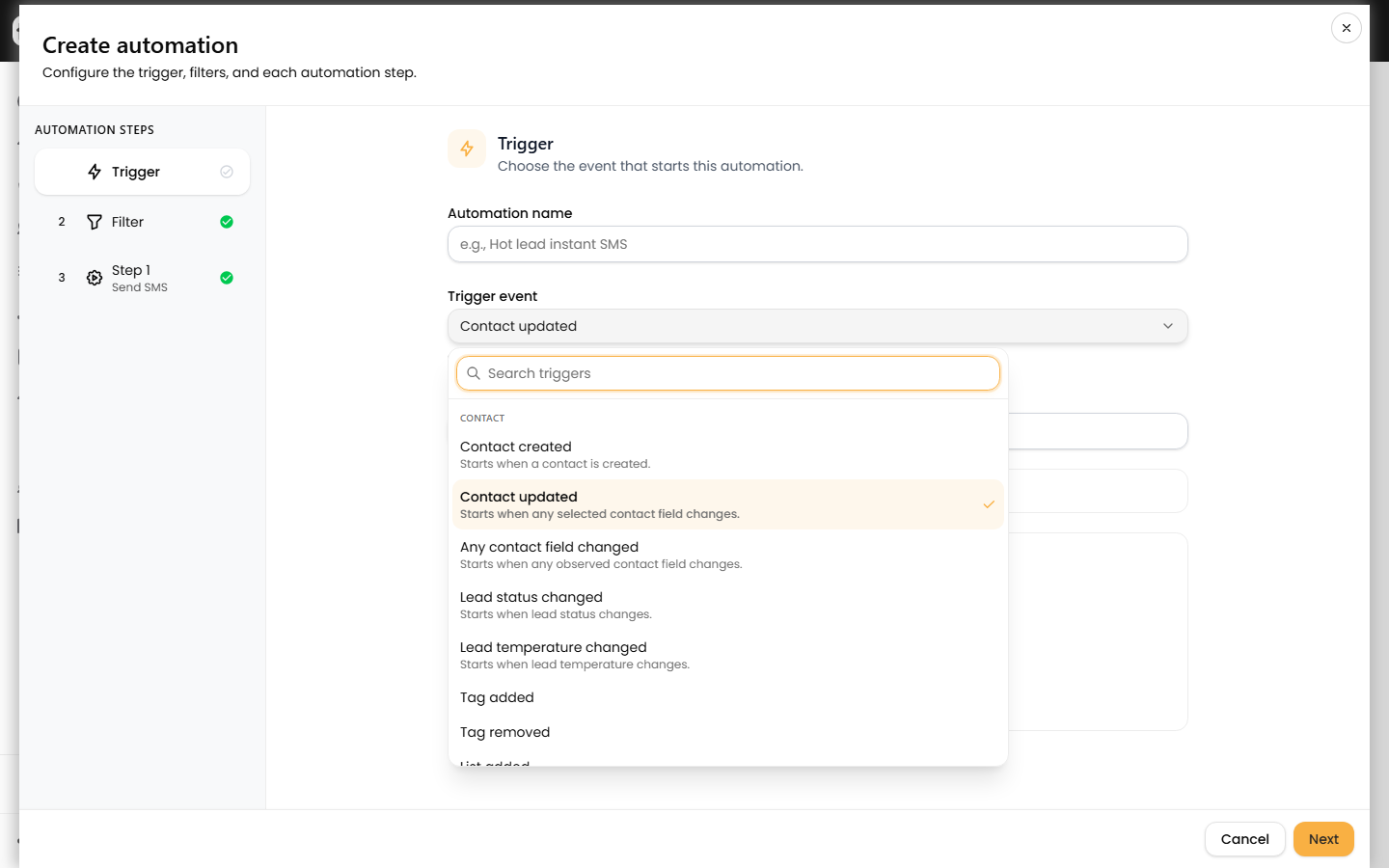
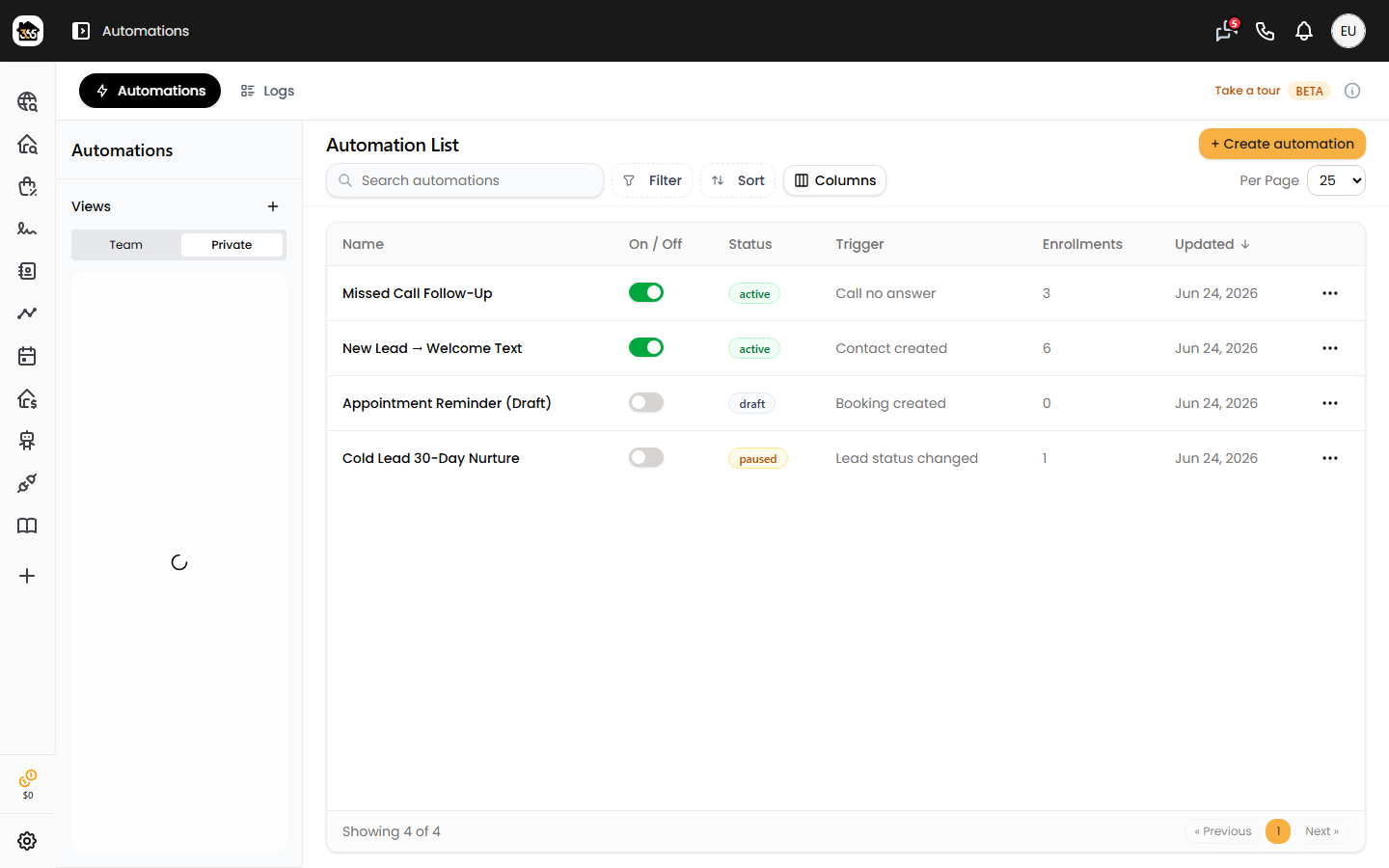
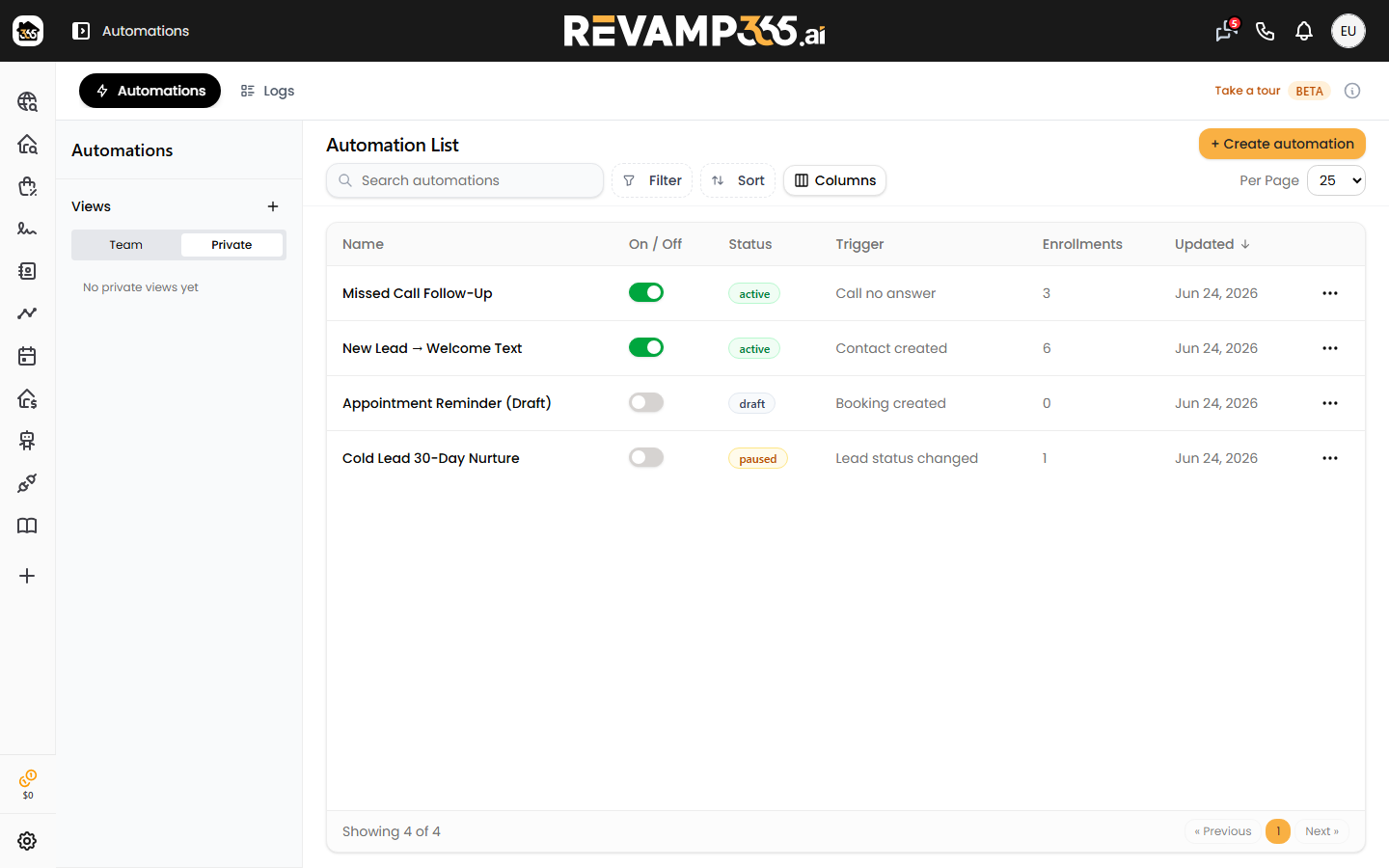
Go to Automations in the left nav, open the Automations tab, and click New automation (the builder walks you through Trigger, Filter, and Action steps). For a refresher, read Create your first automation.

Pick one of these Call triggers:

  • Call completed — fires when the call ends.
  • Call no answer — the contact did not pick up.
  • Voicemail left — the agent reached voicemail.
  • Call record created — any new call log.
Step 3 — Filter on the outcome

The trigger alone fires on every matching call. On the Filter tab choose Add filter to build a condition (it reads "Only continue when a record matches these conditions"). Useful call fields exposed to the filter include:

  • User sentiment (Positive / Neutral / Negative)
  • Call disposition and Interest level
  • Call successful and Spoke with owner
  • Call duration (minutes) and Disconnect reason

Example: continue only when User sentiment is Positive and Call duration (minutes) is greater than 1. Details on operators live in Automation triggers, conditions, and actions.
Step 4 — Update the lead status

Navigate to the first action step (labeled Step 1 in the builder), pick Update contact field, set Field to lead_status, and choose the value. Default statuses include NEW, #1 Make Contact, #2 Warm Follow Up, #3 Motivated Appointment Set, and Dead — plus any custom statuses you have added.
Click Add step to add a second Update contact field step for lead_temperature (Hot, Warm, or Cold) when you want the heat to match. Both fields are writable by automations, and each change is logged on the contact timeline.

Step 5 — Save and activate

Click Save to store the automation. Back on the Automations tab, open the row menu for your new automation and choose Activate. After a few live calls, switch to the Logs tab to confirm enrollments and step runs succeeded. To debug a miss, see Read automation run logs and fix failures.

Run a parallel automation off the same trigger to handle the opposite branch — for instance, route a "no answer" into a missed-call sequence in Set up follow-up after missed calls.


title: "Playbook: Update Lead Status From AI Voice Call Outcomes" slug: automation-update-lead-status-after-ai-voice-outcomes description: "Auto-update lead status and temperature in Revamp365 after Retell AI voice calls using a call-outcome trigger, a filter, and an update-field action."

When your AI voice agent finishes a call, the outcome should move the lead forward without manual data entry. This playbook wires a Retell call result to an automation that rewrites the contact's Lead Status and Lead Temperature for you.

How the chain fits together

Step Feature What it does
1 AI voice agent Places/answers the call and records the outcome
2 Automation trigger Fires on the call result
3 Filter Continues only for the outcome you care about
4 Update-field action Sets Lead Status / Temperature

Step 1 — Confirm the AI voice agent is running

The trigger only fires when a Retell call log lands on a contact. Make sure your inbound number has an agent assigned and that calls attach to the right contact. See Assign an AI voice agent to an inbound number and Read AI call transcripts, recordings, and summaries.

Step 2 — Build the automation

Go to Automations in the left nav, open the Automations tab, and click New automation (the builder walks you through Trigger, Filter, and Action steps). For a refresher, read Create your first automation.

Pick one of these Call triggers:

  • Call completed — fires when the call ends.
  • Call no answer — the contact did not pick up.
  • Voicemail left — the agent reached voicemail.
  • Call record created — any new call log.

Step 3 — Filter on the outcome

The trigger alone fires on every matching call. On the Filter tab choose Add filter to build a condition (it reads "Only continue when a record matches these conditions"). Useful call fields exposed to the filter include:

  • User sentiment (Positive / Neutral / Negative)
  • Call disposition and Interest level
  • Call successful and Spoke with owner
  • Call duration (minutes) and Disconnect reason

Example: continue only when User sentiment is Positive and Call duration (minutes) is greater than 1. Details on operators live in Automation triggers, conditions, and actions.

Step 4 — Update the lead status

Navigate to the first action step (labeled Step 1 in the builder), pick Update contact field, set Field to lead_status, and choose the value. Default statuses include NEW, #1 Make Contact, #2 Warm Follow Up, #3 Motivated Appointment Set, and Dead — plus any custom statuses you have added.

Click Add step to add a second Update contact field step for lead_temperature (Hot, Warm, or Cold) when you want the heat to match. Both fields are writable by automations, and each change is logged on the contact timeline.

Step 5 — Save and activate

Click Save to store the automation. Back on the Automations tab, open the row menu for your new automation and choose Activate. After a few live calls, switch to the Logs tab to confirm enrollments and step runs succeeded. To debug a miss, see Read automation run logs and fix failures.

Run a parallel automation off the same trigger to handle the opposite branch — for instance, route a "no answer" into a missed-call sequence in Set up follow-up after missed calls.

Was this article helpful?