
Inbound routing in Revamp365 connects a phone number to the AI voice agent that picks up when someone calls it. You set this on the Phone Numbers tab inside AI Voice & Chat, and it requires a published agent plus a number that is linked to AI Voice.
Prerequisites
Three things must exist before a call can reach an agent:
| Requirement | Where it lives | How to confirm |
|---|---|---|
| A number linked to AI Voice | Phone Numbers tab | The number appears under My Phone Numbers with a monthly cost |
| A published voice agent | Agents tab | Open the agent and click Publish in its Global Settings tab |
| Pro+ or Dealmaker plan | Account plan | The Call Flows tab and the Inbound flow column are visible |
Call Flows and the inbound-flow control are gated to Pro+ and Dealmaker. Free-plan accounts use a shared test number for outbound test calls only and cannot route inbound calls.
Open the Phone Numbers tab
- In the left sidebar, click AI Voice & Chat.
- Click the Phone Numbers tab.
- Find the number under My Phone Numbers. If you have none, search by a 3-digit area code and click Purchase, or link an existing SMS number — every Revamp365 number is voice + SMS capable.
Assign the agent through an inbound flow
The current routing model points a number at a call flow that contains one AI Agent step. The agent inside that flow answers the call.
- In the number's row, open the Inbound flow dropdown (it lists — None — plus every call flow you have built).
- Pick the call flow whose AI Agent step uses the agent you want.
- The selection saves immediately. Behind the scenes, Revamp365 binds that flow's agent to the number with Retell and updates the number's voice webhook.
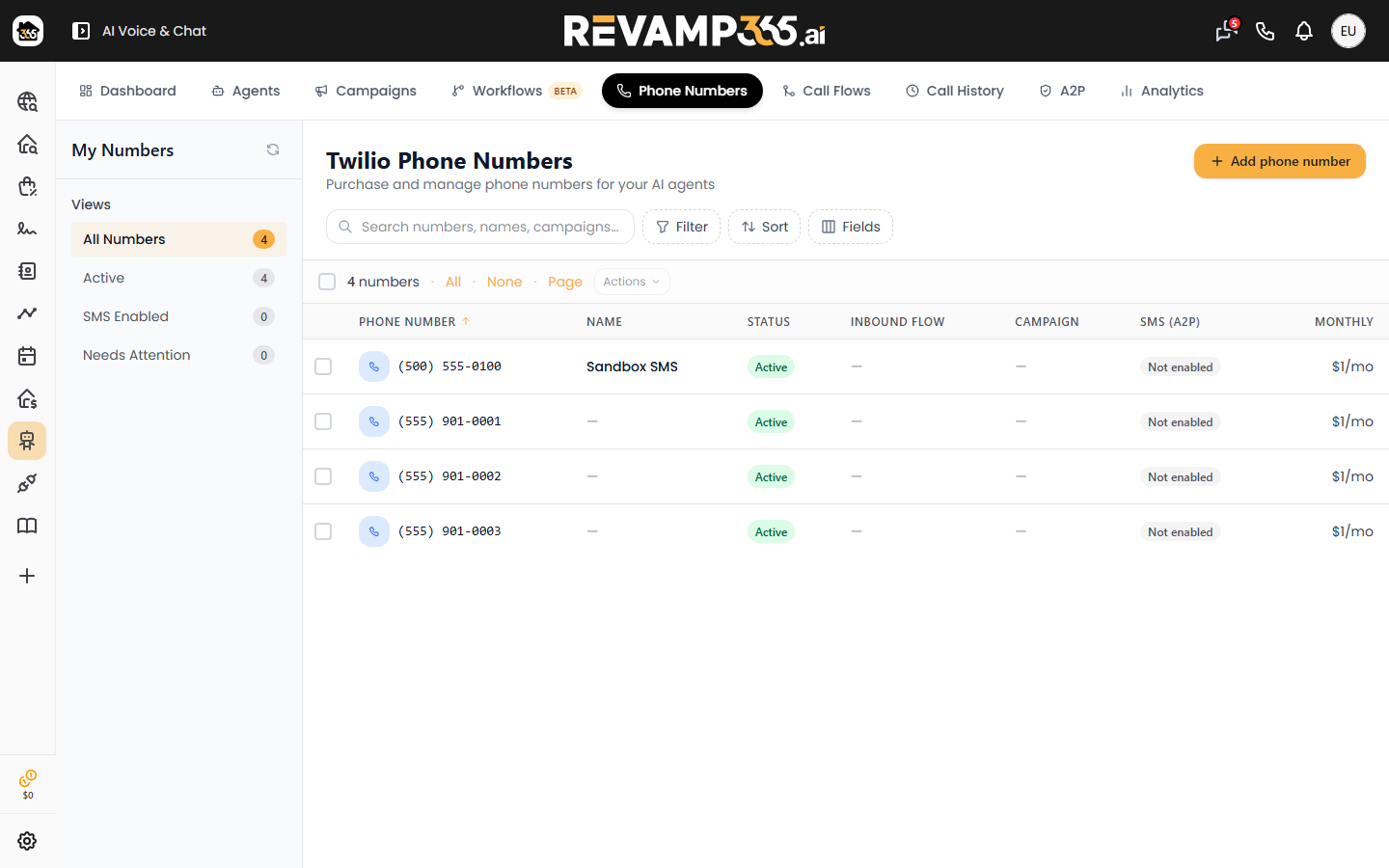
To build or edit a flow first, use the Call Flows tab. A flow needs exactly one AI Agent step — if it has more than one, the system asks you to open the flow editor and choose which step the agent belongs to.
Legacy direct-to-agent routing
Some numbers route straight to an agent without a flow. These show an amber Legacy: routes directly to agent badge under the Inbound flow column. To move a legacy number onto the flow-based model, click Switch to Call Flow in that row.
After you assign
- Place a test call to confirm the agent answers. See place a test call to your AI voice agent.
- If you have not bought or linked a number yet, start with provision a phone number for SMS and AI voice.
Troubleshooting
- No Inbound flow column or Call Flows tab — your plan is below Pro+. Upgrade to Pro+ or Dealmaker.
- The agent never picks up — confirm the agent is published, and that the flow you selected actually contains that agent's step. To check publish state on the Agents tab, open the Columns dropdown and enable the Published column; published agents show a green Published badge (drafts show Draft).
- Dropdown only shows "— None —" — you have no call flows yet. Build one on the Call Flows tab, then return and select it.