
Every AI voice call your Revamp365 agent places or answers is logged with a transcript, an audio recording, a conversation summary, and structured post-call analysis fields. This page shows you where that history lives and what each field on the call-detail screen means.
Where call history lives
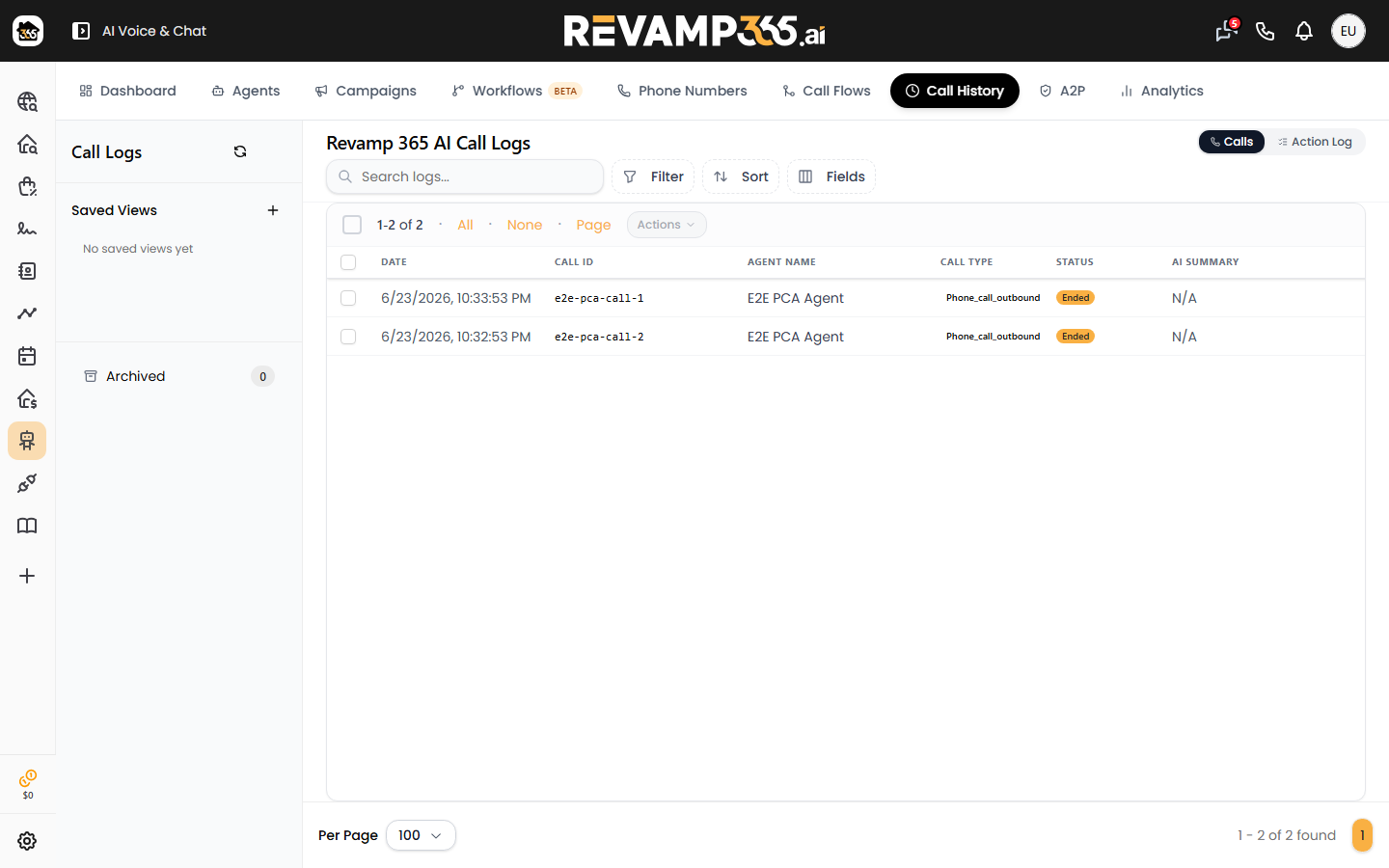
Open the standalone Voice AI Logs page (its heading reads "Revamp 365 AI Call Logs"), or go to AI Voice & Chat and click the Call History tab. Both render the same unified log, which combines AI (Retell) calls, human-dialer calls, and Zoom meeting transcripts into one table.
By default the table shows these columns: Date, Call ID, Agent Name, Call Type, Status, AI Summary, Sentiment, Disposition, Interest, Duration, Cost, Contact Name, Property Address, plus Automations and Actions. More columns — Campaign Name, From/To Number, Tags, Follow-up Notes, and any post-call analysis fields — are available through the column picker. Use the search box to match across the transcript text, phone numbers, and call ID. Archived calls are hidden by default; the sidebar Archived view surfaces them. Calls are never deleted, because each row carries billing and usage data.
Click any row to open the full call-detail dialog.
Reading the transcript and recording
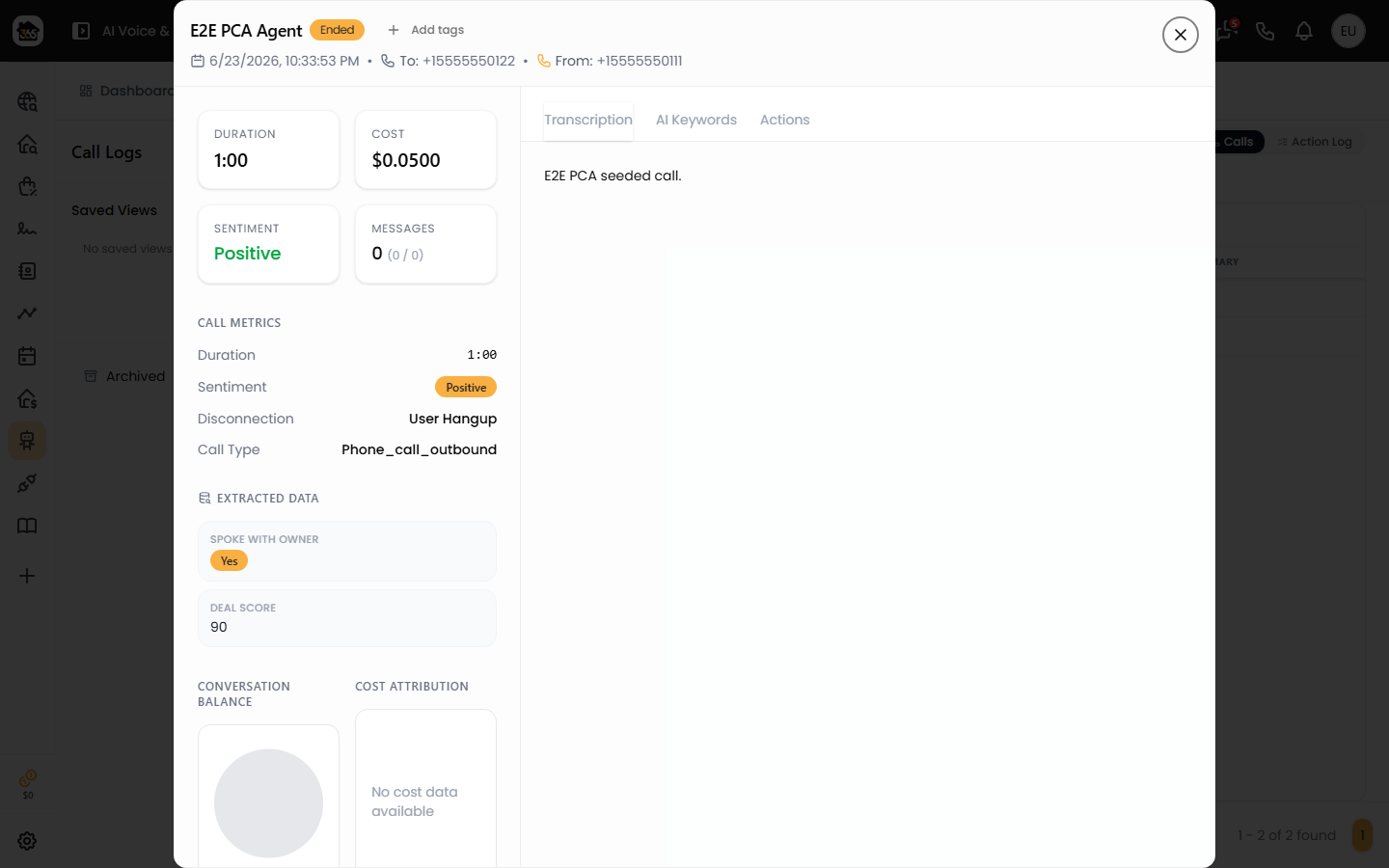
The detail dialog opens on the Transcription tab by default. AI calls render a turn-by-turn chat view (your agent's bubbles on the right, the prospect on the left) with per-line timestamps. If only a flat transcript exists, you see the plain text instead — and a "Whisper transcription — no speaker labels" note appears when the transcript came from the recorded-audio fallback rather than the real-time stream.
The Call Recording panel in the left sidebar gives you an inline audio player plus a Download link. Human-dialer recordings are streamed through Revamp365 so your browser never needs Twilio credentials.
The AI Keywords tab highlights terms you care about (for example "appointment" or "cash offer") wherever they appear in the transcript, with a match counter. Add or remove keywords in that tab's settings and choose whether to scan both speakers or the prospect only.
Post-call analysis fields
The left sidebar and summary pane surface the structured analysis Retell returns after the call:
| Field | What it shows |
|---|---|
| Conversation Summary | AI-written recap of the call (your custom summary is preferred over the default summary) |
| Sentiment | Prospect sentiment: positive, negative, or neutral |
| Call Successful | Whether the call met its goal (Yes / No) |
| In Voicemail | Whether the call hit voicemail |
| Disconnection | Why the call ended (for example user_hangup) |
| Call Disposition | Outcome label from your post-call config |
| Interest Level | Seller interest captured by the agent |
| Price Node Reached | Whether the price step was reached |
Any custom fields you defined for the agent appear under Extracted Data. The sidebar also reports Duration, Cost, the conversation balance (agent vs. user talk time), latency (end-to-end and LLM), LLM token usage, the Call ID, and the Agent ID.
Tips and limits
- List rows include the lightweight
transcriptfor search and export; the word-level transcript and raw payload load only when you open a specific call. - The Actions tab lists automations the call triggered (tags, status changes, callbacks). See reading automation run logs.
- Data & Webhooks and Raw JSON tabs are admin-only.
- No log yet? Confirm your agent is live by placing a test call.