fb-pixel Playbook: Carrot Lead to AI Voice Follow-Up to CRM Update | Help Center - Revamp365.ai
Skip to main content
Revamp365.ai

Workflow Playbooks

Playbook: Carrot Lead to AI Voice Follow-Up to CRM Update

6 min read · 3 views

This playbook chains three Revamp365 features: an inbound lead webhook catches a Carrot form submission, the new contact auto-enrolls in an AI voice workflow, and an automation updates the lead's status from the call outcome. You need a Pro+ or Dealmaker plan for the workflow step.

How the chain fits together

Stage What happens Where it lives
1. Capture Carrot POSTs the form as JSON to your webhook URL Integrations & Apps → Webhooks → Receive Data
2. Create A contact is created with contact_type = lead and lead_status = NEW Contacts CRM
3. Call The contact auto-enrolls in your AI voice workflow and gets dialed AI Voice & Chat → Workflows
4. Update An automation reads the call outcome and sets status/temperature Automations

Step 1 — Capture the Carrot lead

  1. Open Integrations & Apps, then Webhooks, then the Receive Data tab (BETA).
  2. Click New source and complete the wizard's Basics step. Name it (for example Carrot — Main Site) and optionally set a Default lead source of Carrot.
  3. On the Basics step, open the Assign to Workflow dropdown and pick the AI voice workflow that should call these leads. This is the link between capture and calling — it sets the source's default workflow.
  4. Advance through the Security step, skip Field mapping (Carrot's payload already matches Revamp's keys), skip Test, finish to Done, and copy the Webhook URL.
  5. Paste that URL into Carrot's webhook settings, then submit a test lead.
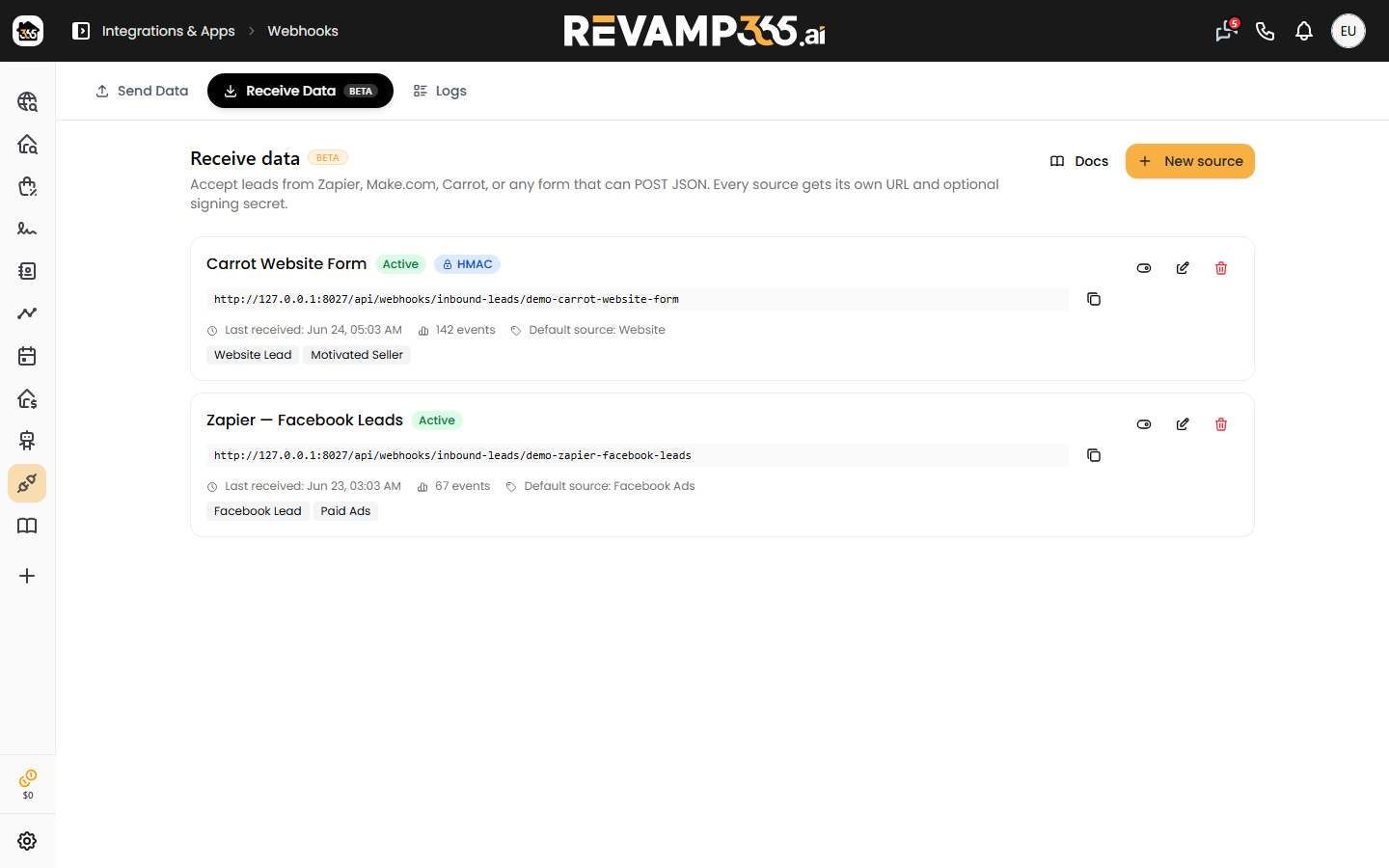
Full detail lives in connect Carrot website forms to Revamp365. At least one of email or phone must be present, and a successful POST returns HTTP 202.

Step 2 — Confirm enrollment and the call

When a lead lands, Revamp creates or merges the contact, then enrolls it in the workflow you chose. Keep these rules in mind:

  • The workflow must be active — archived workflows are skipped, but the contact is still created.
  • Email-only contacts (no phone) are skipped for calling, because the AI agent has nothing to dial.
  • A contact already active in the workflow will not be enrolled twice.

Build or activate the workflow under AI Voice & Chat → Workflows before you send live leads. To put your agent on inbound calls too, see assign an AI voice agent to an inbound number.

Step 3 — Update the CRM from the call outcome

The webhook sets lead_status = NEW; the call result moves it forward. Create an automation that listens for a call-outcome trigger and writes back to the contact:

  1. In Automations, create an automation and pick a trigger such as Call completed, Call no answer, or Voicemail left.
  2. Add an action that sets lead status or lead temperature (for example, Call completed → status QUALIFIED, temperature Hot).
  3. Review each run under the automation's logs.
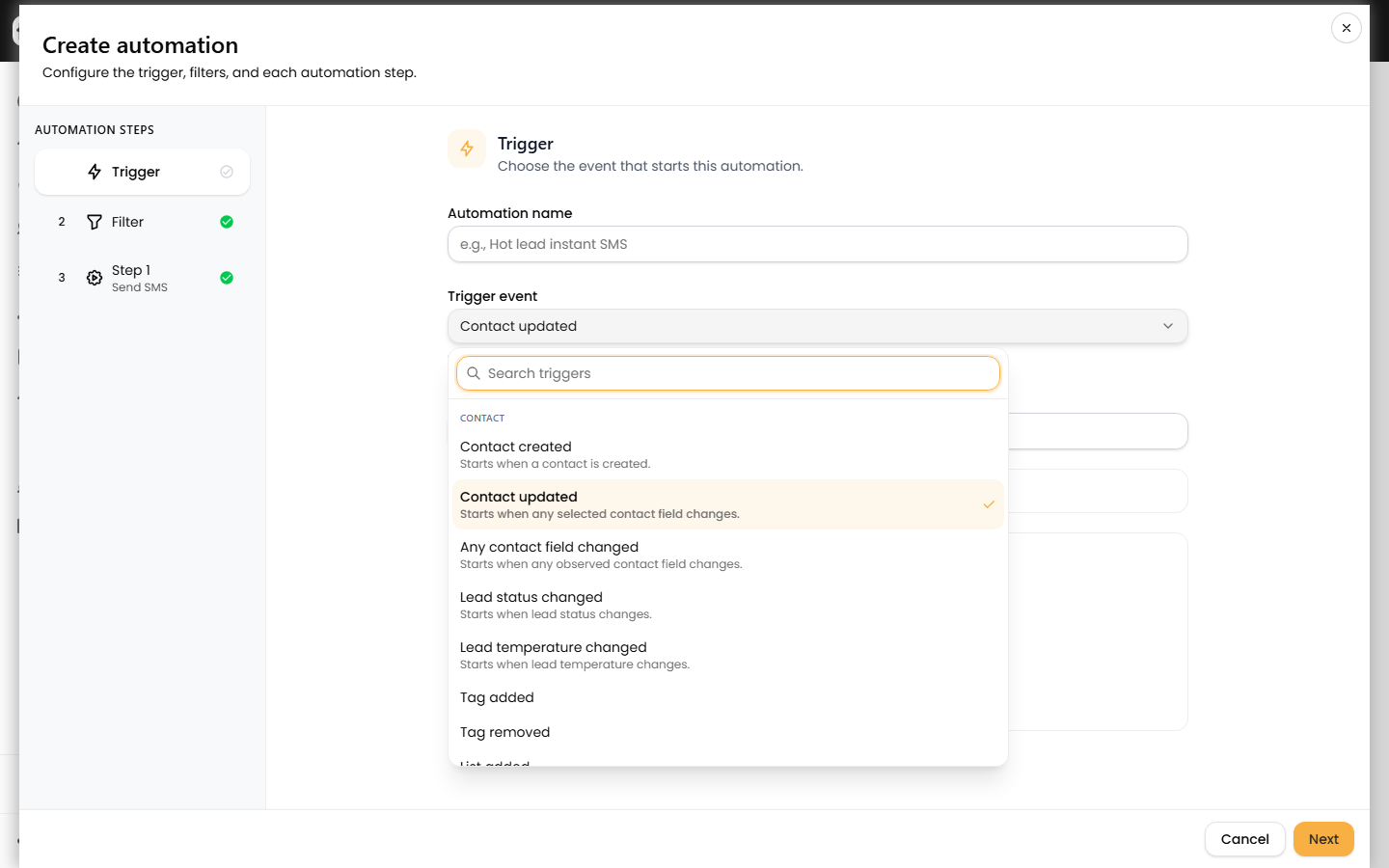
See create your first automation for the builder, and set lead status and temperature for the field values. To review what the agent said before acting, open AI call transcripts, recordings, and summaries.

If a Carrot lead never appears, check inbound lead logs and retry failed leads.


title: "Playbook: Carrot Lead to AI Voice Follow-Up to CRM Update" slug: carrot-lead-to-ai-voice-follow-up-to-crm-update description: "Route Carrot website form leads into Revamp365 via webhook, auto-enroll them in an AI voice workflow, and update the CRM from call outcomes."

This playbook chains three Revamp365 features: an inbound lead webhook catches a Carrot form submission, the new contact auto-enrolls in an AI voice workflow, and an automation updates the lead's status from the call outcome. You need a Pro+ or Dealmaker plan for the workflow step.

How the chain fits together

Stage What happens Where it lives
1. Capture Carrot POSTs the form as JSON to your webhook URL Integrations & Apps → Webhooks → Receive Data
2. Create A contact is created with contact_type = lead and lead_status = NEW Contacts CRM
3. Call The contact auto-enrolls in your AI voice workflow and gets dialed AI Voice & Chat → Workflows
4. Update An automation reads the call outcome and sets status/temperature Automations

Step 1 — Capture the Carrot lead

  1. Open Integrations & Apps, then Webhooks, then the Receive Data tab (BETA).
  2. Click New source and complete the wizard's Basics step. Name it (for example Carrot — Main Site) and optionally set a Default lead source of Carrot.
  3. On the Basics step, open the Assign to Workflow dropdown and pick the AI voice workflow that should call these leads. This is the link between capture and calling — it sets the source's default workflow.
  4. Advance through the Security step, skip Field mapping (Carrot's payload already matches Revamp's keys), skip Test, finish to Done, and copy the Webhook URL.
  5. Paste that URL into Carrot's webhook settings, then submit a test lead.

Full detail lives in connect Carrot website forms to Revamp365. At least one of email or phone must be present, and a successful POST returns HTTP 202.

Step 2 — Confirm enrollment and the call

When a lead lands, Revamp creates or merges the contact, then enrolls it in the workflow you chose. Keep these rules in mind:

  • The workflow must be active — archived workflows are skipped, but the contact is still created.
  • Email-only contacts (no phone) are skipped for calling, because the AI agent has nothing to dial.
  • A contact already active in the workflow will not be enrolled twice.

Build or activate the workflow under AI Voice & Chat → Workflows before you send live leads. To put your agent on inbound calls too, see assign an AI voice agent to an inbound number.

Step 3 — Update the CRM from the call outcome

The webhook sets lead_status = NEW; the call result moves it forward. Create an automation that listens for a call-outcome trigger and writes back to the contact:

  1. In Automations, create an automation and pick a trigger such as Call completed, Call no answer, or Voicemail left.
  2. Add an action that sets lead status or lead temperature (for example, Call completed → status QUALIFIED, temperature Hot).
  3. Review each run under the automation's logs.

See create your first automation for the builder, and set lead status and temperature for the field values. To review what the agent said before acting, open AI call transcripts, recordings, and summaries.

If a Carrot lead never appears, check inbound lead logs and retry failed leads.

Was this article helpful?