
Carrot website form submissions can drop straight into your Revamp365 Contacts CRM through an Inbound Lead Source webhook. Carrot posts Gravity Forms submissions as application/x-www-form-urlencoded with labels like Name, Phone, Email, and Property Address (City) — Revamp auto-detects those, so no field mapping is required.
Create the Inbound Lead Source
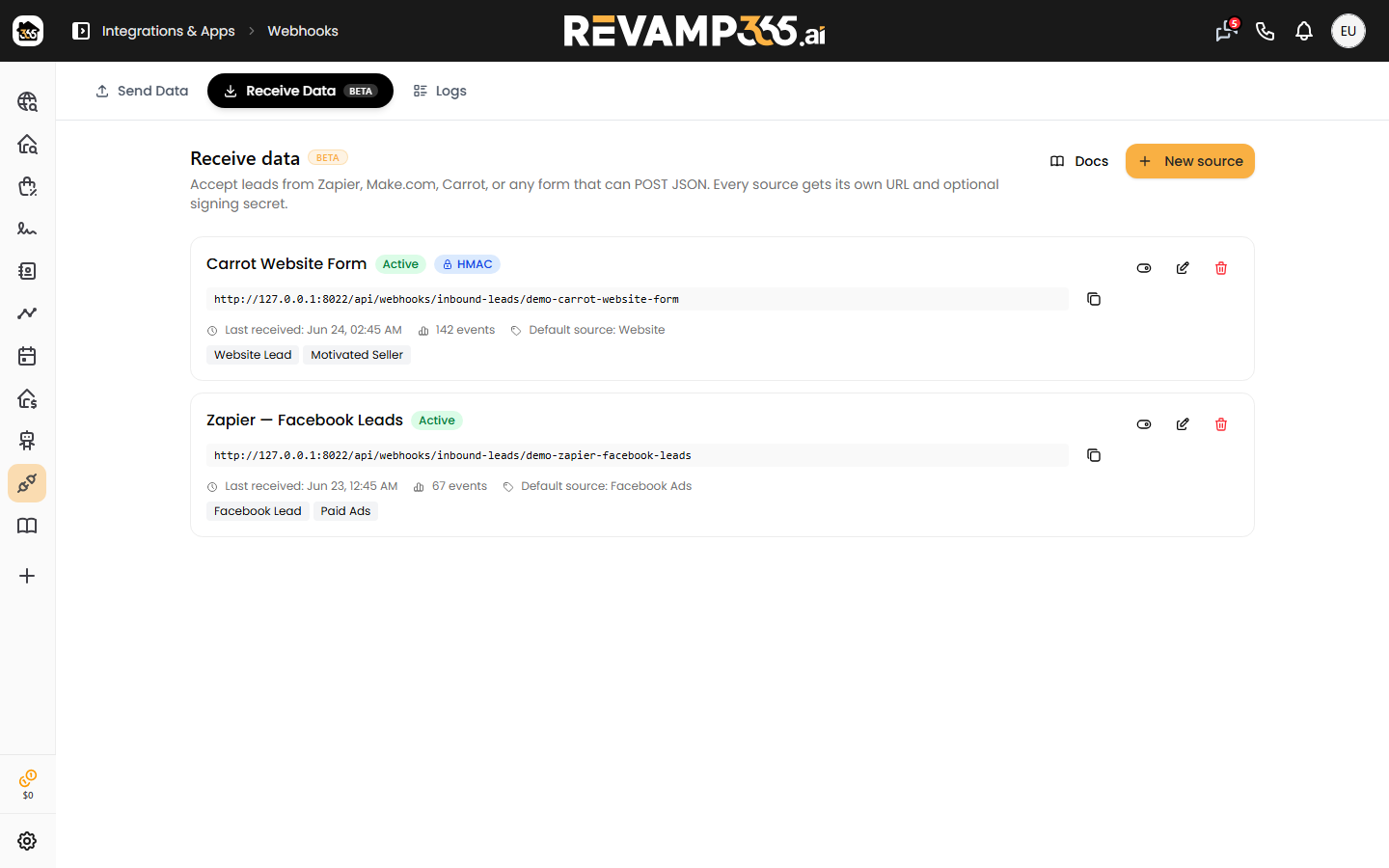
The webhook URL lives inside an Inbound Lead Source you create in-app.
- Open Integrations & Apps, then Webhooks.
- Click the Receive Data tab (marked BETA).
- Click New source to launch the 5-step wizard: Basics, Security, Field mapping, Test, Done.
- On Basics, give it a recognizable name (for example Carrot — Main Site). Optionally set a Default lead source label like
Carrotand Default tags that get attached to every contact from this source. - On Security, leave HMAC signing off. The Security step notes that simple forms like Carrot can skip it — the long random token in the webhook URL is what protects the endpoint.
- Click through Field mapping (skip it — see below) and finish to the Done step.
If you run several Carrot sites, create one source per site so each gets its own stats and webhook URL.
Get and use the webhook URL
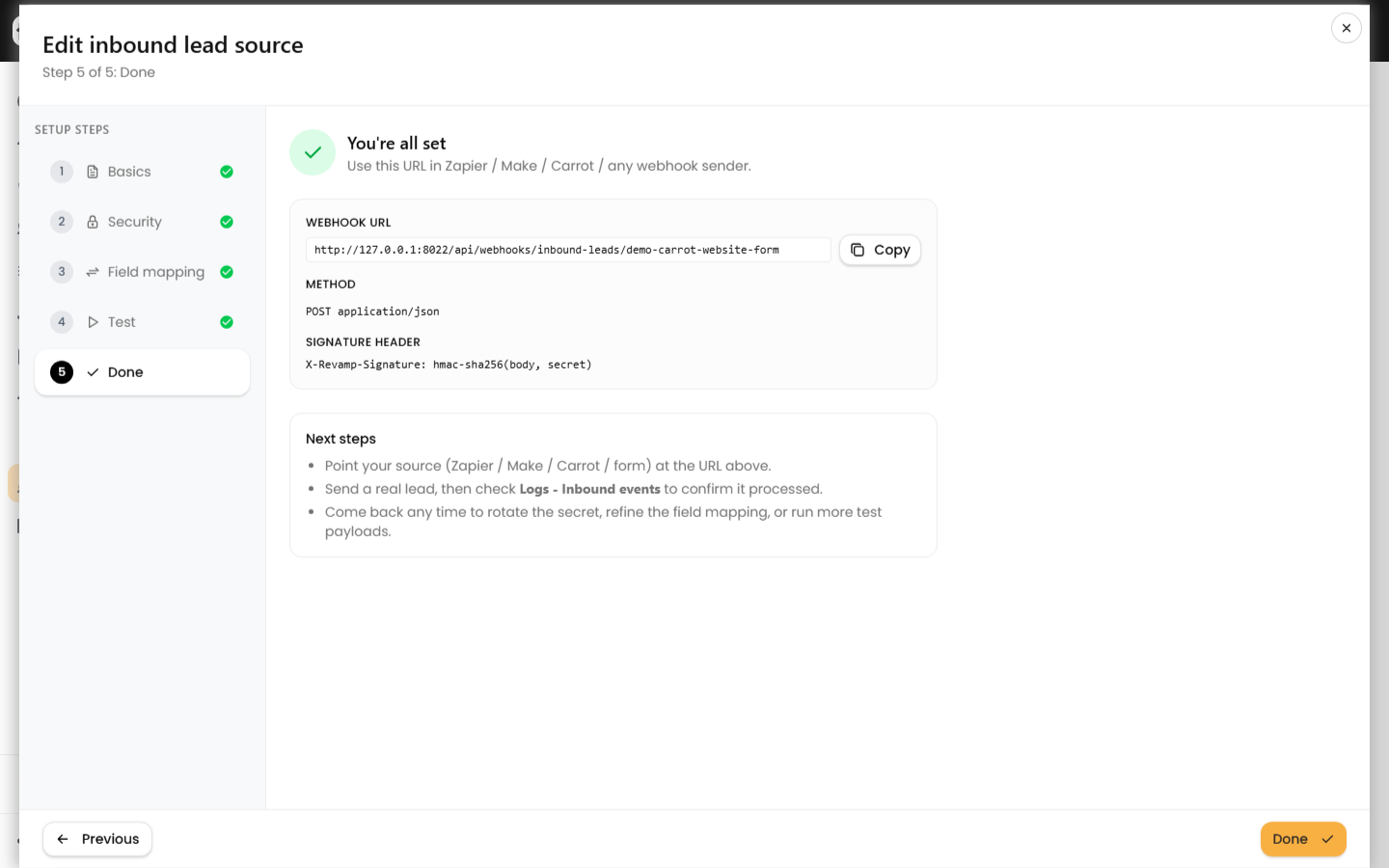
The Done step shows your Webhook URL, which follows this pattern:
https://app.revamp365.ai/api/webhooks/inbound-leads/{token}
The {token} is unique and secret. Click Copy to grab it. The endpoint accepts POST requests with Content-Type: application/json or application/x-www-form-urlencoded.
In Carrot:
- Open your Carrot dashboard and go to the lead/webhook integration settings for your site.
- Add a new webhook and paste the Revamp URL as the destination. Carrot posts form submissions as form-urlencoded Gravity Forms fields, which this endpoint accepts with zero mapping.
- Leave HMAC off on the Revamp source — Carrot cannot send a signature header.
- Save the webhook, then submit a test lead from your Carrot site. The new contact appears under Contacts CRM within seconds.
Field mapping (only if needed)
Leave field mapping empty for Carrot. Revamp auto-detects Gravity Forms labels such as Name, Phone, Email, and Property Address (City), as well as canonical keys like first_name / email / phone. At least one of email or phone must be present — new contacts are deduplicated against existing ones by external ID, then phone, then email.
Open the Field mapping step only if a custom form sends unusual or nested keys. There you paste a sample payload and point each canonical field at a JSON dot-path (or a static: literal). Canonical destinations include:
| Group | Fields |
|---|---|
| Identity | email, phone, first_name, last_name |
| Mailing address | address, city, state, zip |
| Property (seller) | property_address, property_city, property_state, property_zip |
| Lifecycle | lead_source, lead_status, lead_temperature, lead_manager_email |
| Classification | contact_type, deal_type, price_range, counties, lists, tags |
For a deeper walkthrough, see map inbound lead fields to Revamp contact fields.
Confirm it worked and handle errors
A successful POST returns HTTP 202. Other responses to watch for:
404— token is wrong or the source is inactive.415— Content-Type was not JSON, form-urlencoded, or multipart.413— payload exceeds the 128 KB limit.429— more than 200 requests in a minute for one source.
Use the wizard's Test step to send a sample payload and preview the contact that would be created or merged without writing anything. After a real submission, open the Logs tab to confirm processing, or read inbound lead logs and retry failed leads if a lead does not show up.