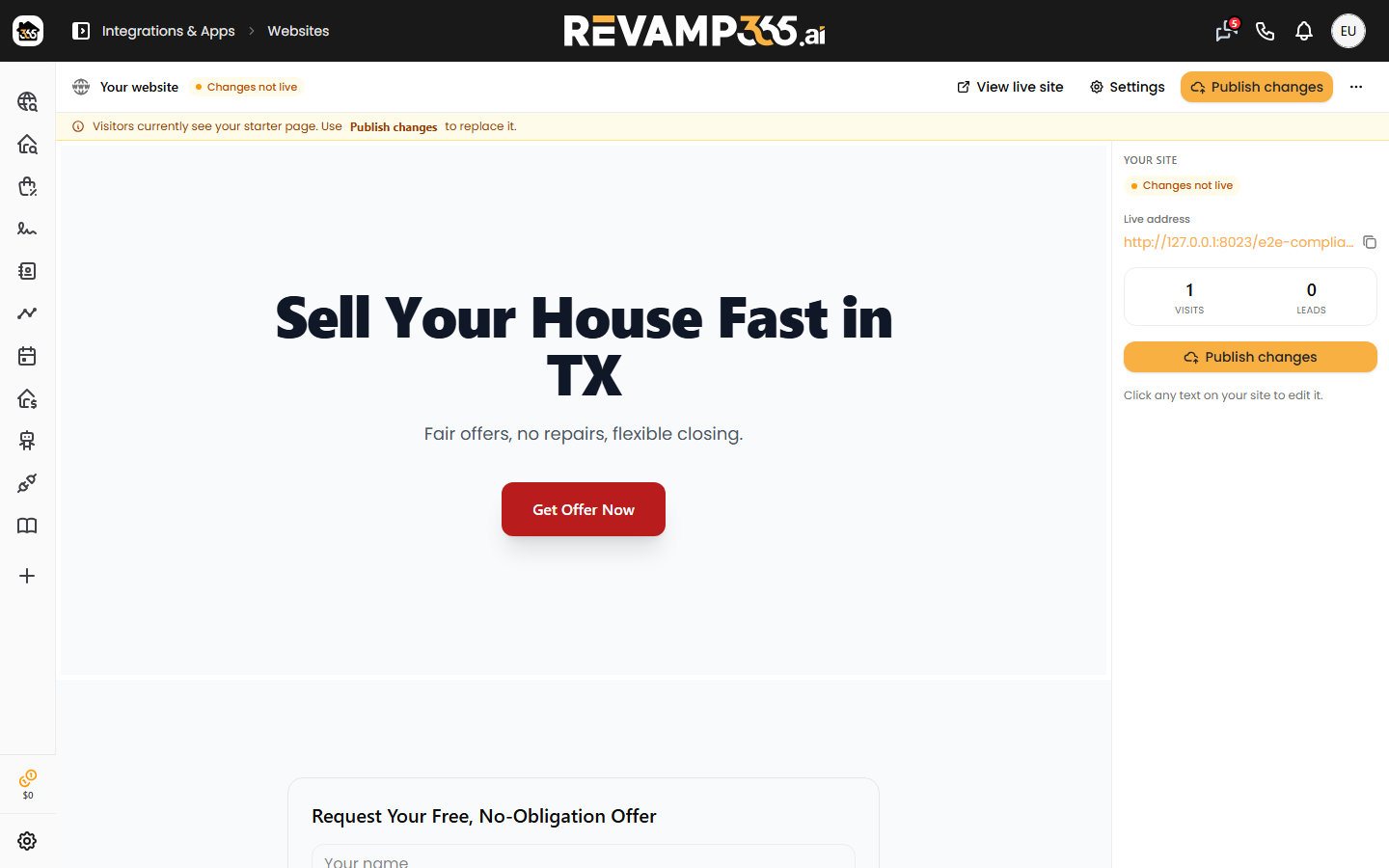
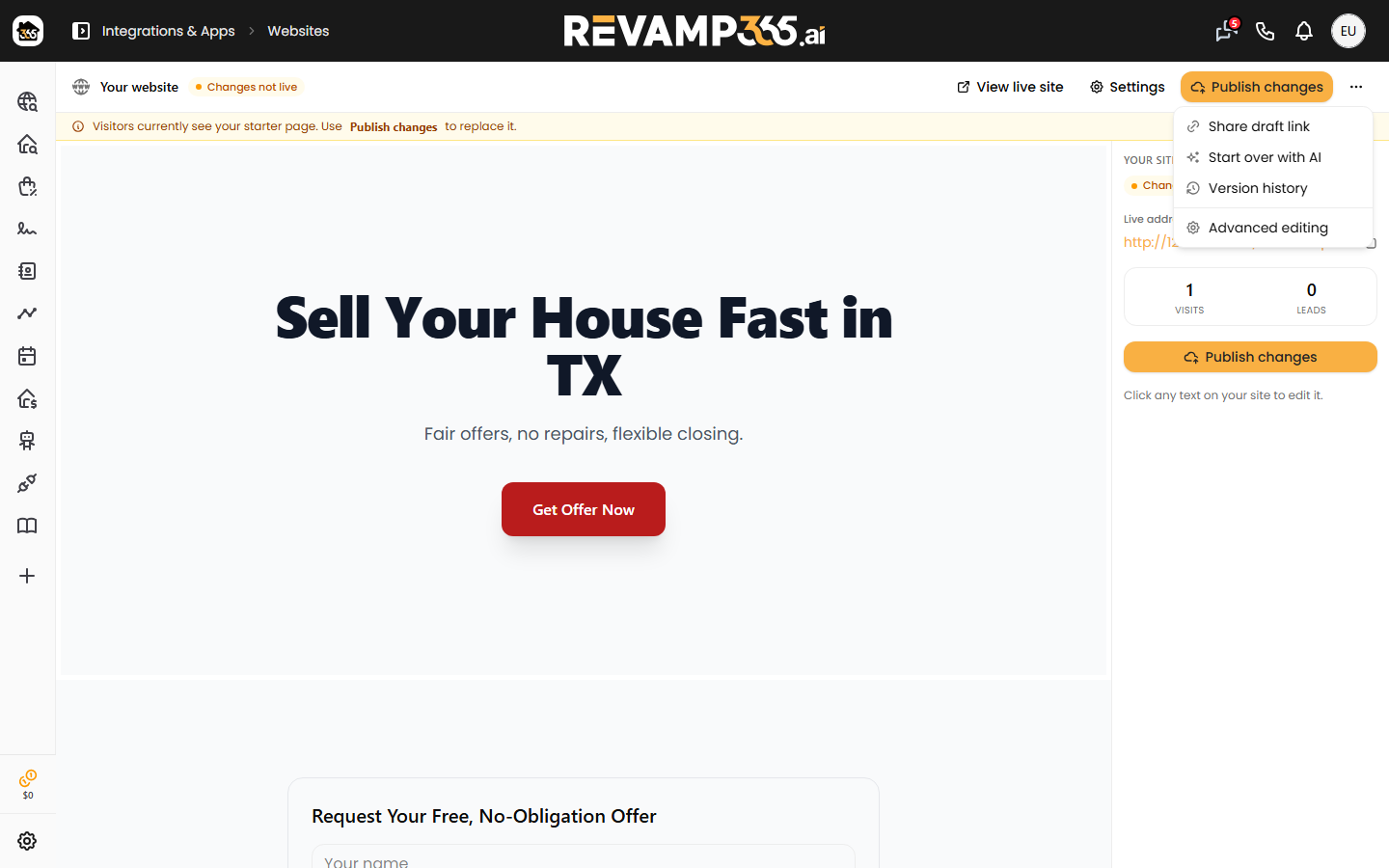
The Websites editor turns the site Revamp365 generates during A2P activation into a block-based page you can edit, then publish to your public compliance URL at /{slug}. It is a Dealmaker plan feature.
Where the editor lives
Open it from the left navigation under Integrations & Apps → Websites, or go straight to /websites. The page opens as a full-screen editor with a top toolbar labeled Website editor and a status pill showing draft, published, or suspended.
If you have not finished A2P activation, the editor shows "Your website isn't ready yet" with a Go to A2P Registration button — your site is generated during that step, so finish it first.
What you can edit
The center canvas has three views you toggle in the toolbar:
| View | What it does |
|---|---|
| Visual | Edge-to-edge WYSIWYG canvas; click a block to select it, drag the grip handle to reorder |
| Preview | Renders the page exactly as it appears live |
| Code | Your page as structured data — one editable JSON card per block; turn on Inspect in Visual to click an element and jump to its card |
The left rail has a Pages list and an Add blocks palette. Block types: Hero, Heading, Text, Image, Feature grid, Process steps, Testimonials, FAQ, Service areas, Blog list, Button, and Spacer. Select a block to edit its fields in the inspector (a Hero exposes Headline, Subheadline, and Button label). List blocks take one item per line: FAQ as Question | Answer, Testimonials as Name | Quote, and Feature grid as a plain item or Title | Description.
Per page, the inspector also lets you set the Page title and Meta description (SEO), publish or unpublish that page, and delete it (the Home page cannot be deleted). A band-leading block gains a Section background control (Default, Light, Dark, Brand color, Gradient).
Edits autosave — watch for Saving… then Saved next to the status pill.
Compliance blocks are locked
The lead-capture form and the Sign Up for Text Updates opt-in CTA are marked with a lock icon and the note "Required for SMS compliance — managed automatically." You cannot delete or edit them in the editor. At render time, Revamp365 re-derives their consent text and the Privacy Policy, Terms of Service, and Opt-In links server-side, because carriers and TCR review the consent shown on the live page. This keeps your lead-capture page aligned with what your Trust Center activation checklist submitted.
How publishing relates to your live site
Because the live site is where visitors opt in, your edits stay on a draft until you commit them:
- Make your changes in the Visual or Code view (they autosave to the draft).
- Use per-page Publish page / Unpublish to control which pages go live.
- Click Publish in the toolbar to take the whole site live at
/{slug}.
Until you press Publish, the original A2P-generated page keeps serving, so an edit alone never swaps your live page. Use View live to open the public URL, and Rebuild with AI to regenerate the draft (your live site stays up until you publish it).
Limits and gotchas
- Plan gate: the editor is Dealmaker-only; other paid tiers see "Coming soon" on the Integrations card.
- A lapsed plan sets the site to
suspendedand reverts/{slug}to the compliance fallback — your pages and blocks are preserved and restore when entitlement returns. - Caps: 25 pages, 100 blog posts, 80 blocks per page; uploaded images max 5 MB (JPEG, PNG, WebP, or GIF — no SVG).
- New pages can be type Page or Blog post; slugs that collide with compliance routes are rejected.
If a leads page stops capturing, confirm the page is published and the locked opt-in blocks are present, then check your inbound lead logs.