
The Conversations view is your two-way SMS inbox inside Revamp365. This walks you through opening a thread and sending your first text to a contact.
Before You Start
Texting needs three things in place:
- An active purchased phone number to send from.
- Completed A2P registration with SMS enabled on that number (US carrier requirement). If registration is incomplete, the send is blocked with a prompt to finish it.
- A current paid plan — the Conversations view is gated to paid accounts.
If you have not added contacts yet, start with adding and importing contacts.
Open the Conversations Inbox
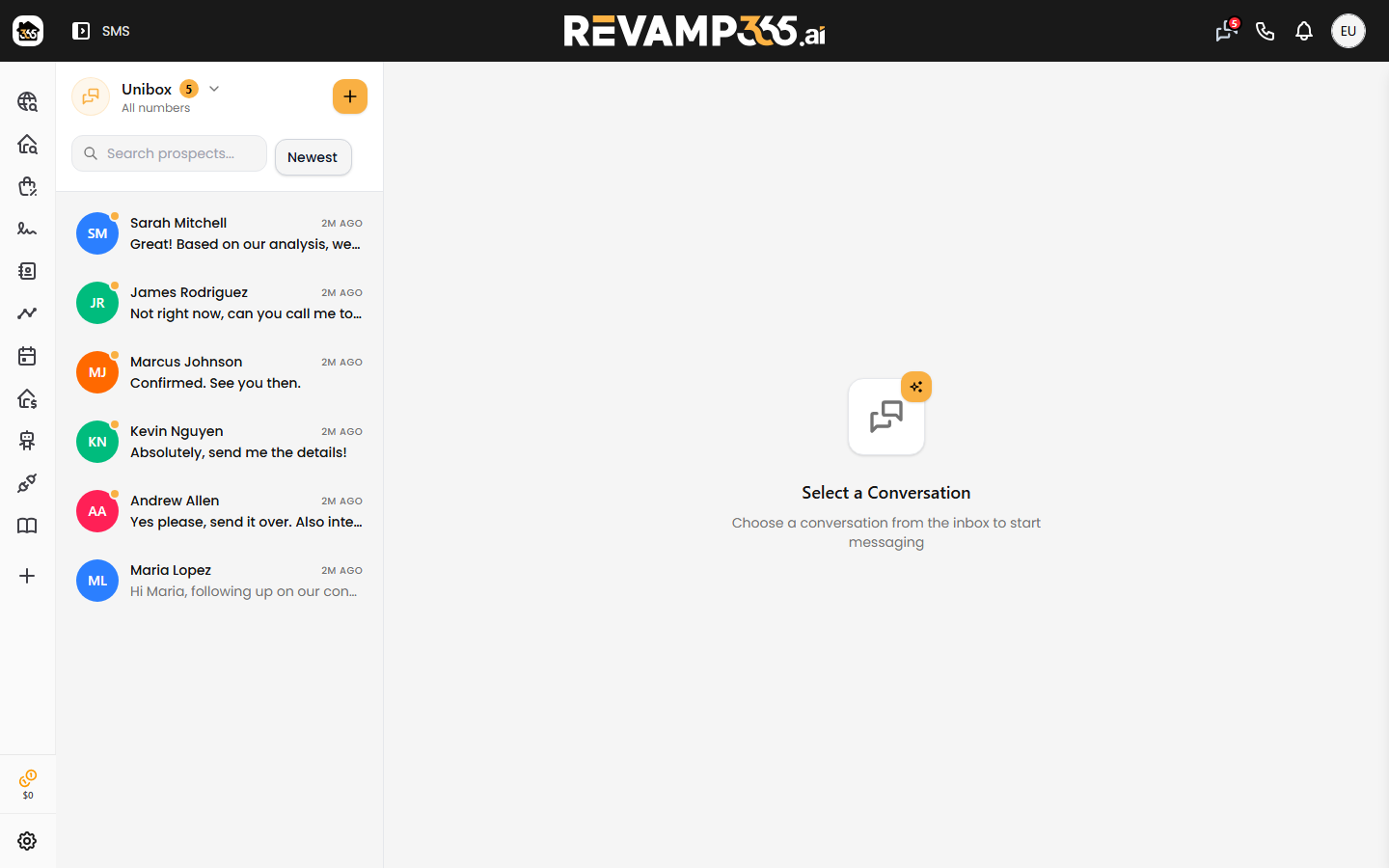
From the top navigation, open Conversations (the SMS area). The screen splits into two panes:
| Pane | What it shows |
|---|---|
| Inbox (left) | Every thread, newest first, with unread dots and a search box |
| Conversation (right) | The selected thread's messages and the reply box |
Use Search prospects... to find someone by name, phone, or last message, and the Newest / Oldest selector to re-sort.
Send a Text to an Existing Thread
-
Click a contact in the Inbox to open the thread.
-
Click into the Type a message... box at the bottom.
-
Write your message. A live counter tracks characters up to 1600.
-
Press the send button (or hit Enter on desktop — Shift+Enter adds a line break).
You will see a "Message sent!" confirmation, and the new bubble appears on the right side of the thread. Sent messages show a delivery check; if a message fails, the bubble is flagged Not delivered.
Start a Brand-New Conversation
To text someone you have not messaged before:
- Click the + button at the top of the Inbox.
- Enter the recipient's phone number and select the number to send from.
- If the number isn't a saved contact yet, create the contact first, then type your message and send.
Add Media or Emoji
The reply box also supports richer messages:
- Attachment button — send images as MMS/RCS (up to 10 files). You can also paste an image straight into the box.
- Emoji button — drop in a quick reaction from the picker.
Who You Cannot Text
Revamp365 protects your sender reputation by blocking sends to:
- Contacts who replied STOP (opted out)
- Numbers on your Do Not Text list
- Numbers on your Spam list
Each blocked attempt returns a clear reason instead of sending. To learn how opt-outs work, see mark a contact DNC and understand STOP opt-outs.
Review the Contact While You Chat
Click Details in the conversation header to slide open the Lead Profile, where you can call or email the contact, check verified phone and email, and jump to the full record with View Full Profile. From there you can work the contact timeline and follow-ups.
Once one-to-one texting feels natural, scale up with an SMS blast campaign or a drip sequence.