
Connecting Podio lets item changes in a Podio app flow into Revamp365 as contacts and trigger automations. The setup runs through a six-step wizard on the Dealmaker plan.
Open the Podio connection wizard
- Go to Integrations & Apps in the left navigation.
- Find the Podio card and click Open. This requires the Dealmaker plan (admins also have access).
- On the Podio hub, stay on the Connections tab.
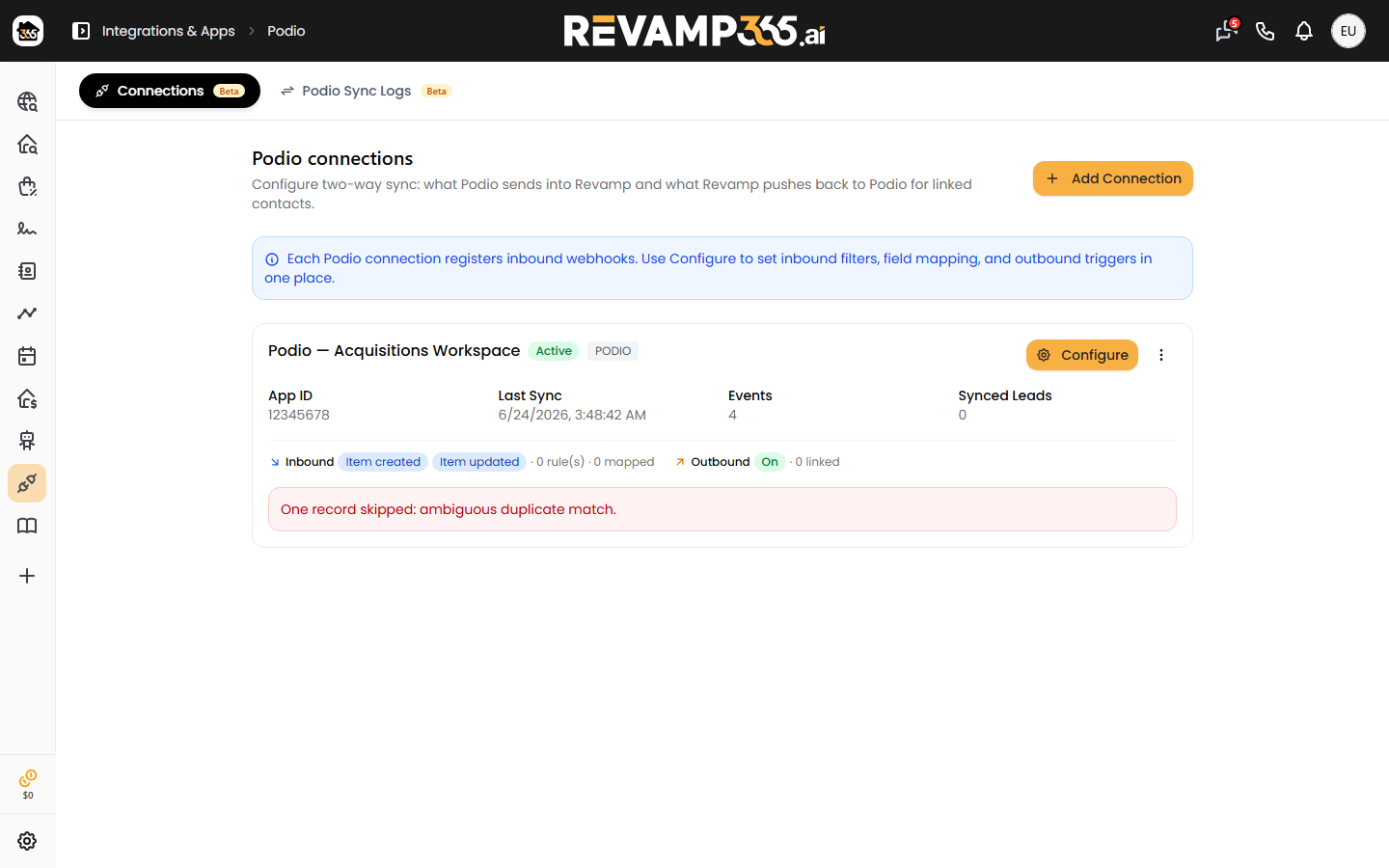
- Click Add Connection to launch the Add CRM Connection wizard. The CRM integration is in Beta.
Work through the six steps
The wizard shows a progress bar across the top. You move with Next and Back.
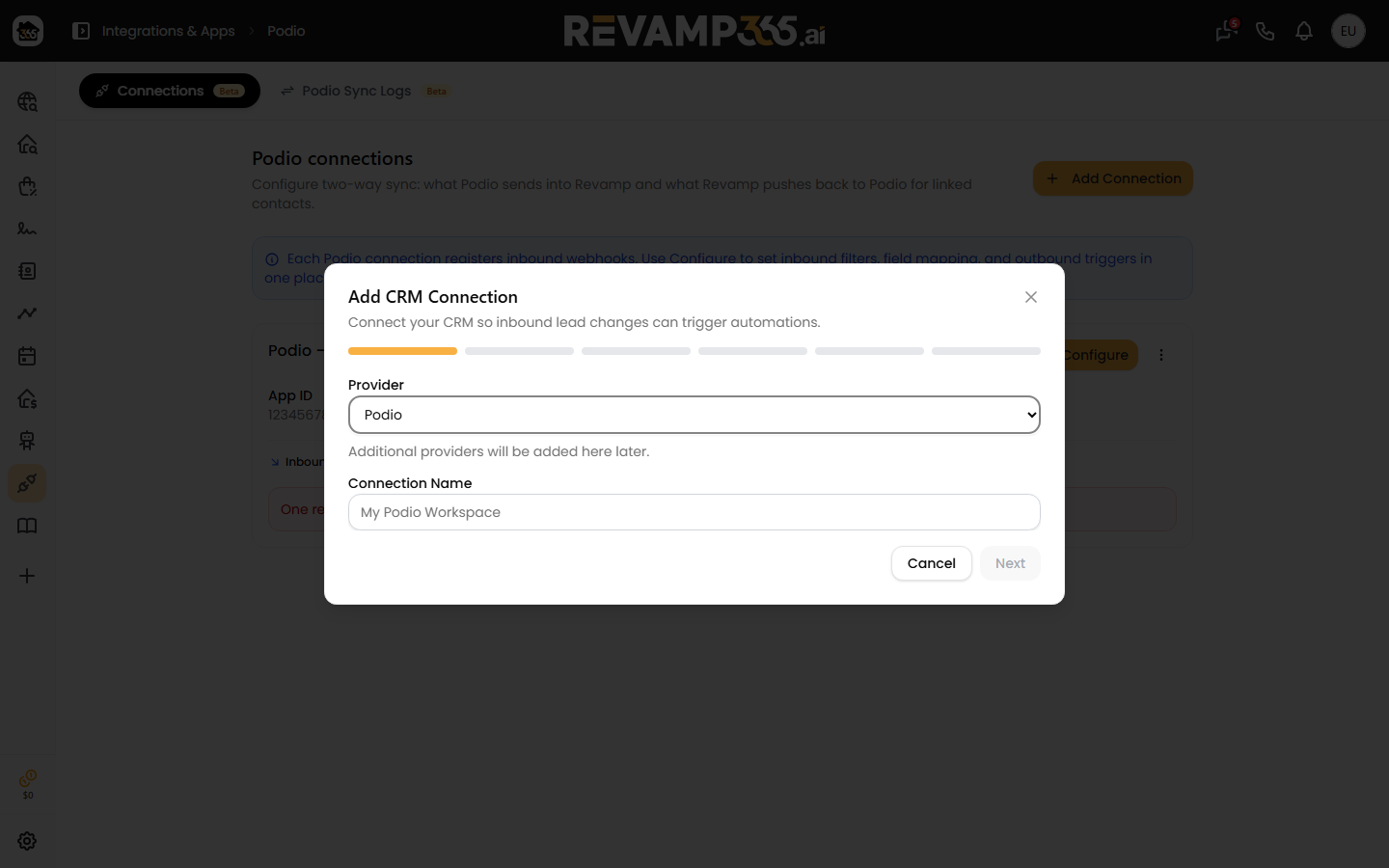
| Step | What you do |
|---|---|
| 1. Provider | Provider is preset to Podio. Enter a Connection Name (for example, "My Podio Workspace"). |
| 2. Credentials | Enter your Podio App ID and Podio App Token. |
| 3. Test Connection | Click Test Connection to validate credentials and load mappable fields. |
| 4. Webhook Events | Choose which Podio events trigger syncs. |
| 5. Sync Conditions | Optionally add rules so only matching items sync. |
| 6. Field Mapping | Map Podio fields to Revamp contact fields. |
Find your App ID and App Token
In Podio, open the app, then go to App → Developer → App Token. Copy the App ID and App Token into step 2. The Next button stays disabled until both fields are filled.
Choose webhook events
A separate webhook is registered for each event you select. Options are:
- Item Created (
item.create) — new leads added to the app - Item Updated (
item.update) — existing lead fields changed - Item Deleted (
item.delete) — leads removed from the app - Comment Created (
comment.create) — new comments on items
Item Created and Item Updated are selected by default. Select at least one to continue. Podio must reach a public HTTPS URL, so localhost setups typically fail with a 400 error.
Save the connection
On step 6, you must map at least phone or email for the Save Connection button to activate. You also have to complete the Test Connection step first. Saving registers the webhooks with Podio and creates the active connection.
After saving, the new card shows its status, App ID, last sync time, event count, and synced-lead count. Use the Configure button to revisit inbound filters, field mapping, and outbound triggers later.
Next steps
- Map Podio fields to Revamp contact fields
- Choose Podio sync events
- Use CRM sync conditions
- Read CRM sync logs
If a save fails with "Podio API error: 400," your webhook base URL is not publicly reachable. See pause, resume, and troubleshoot CRM sync.