
Your Podio connection runs two directions: inbound items flowing into Revamp365 and outbound contact updates pushed back to Podio. You control each side separately and can pause pushes without losing any configuration.
Open the connection
- Go to Integrations & Apps and find the Podio card.
- Click Open (requires the Dealmaker plan or an admin account).
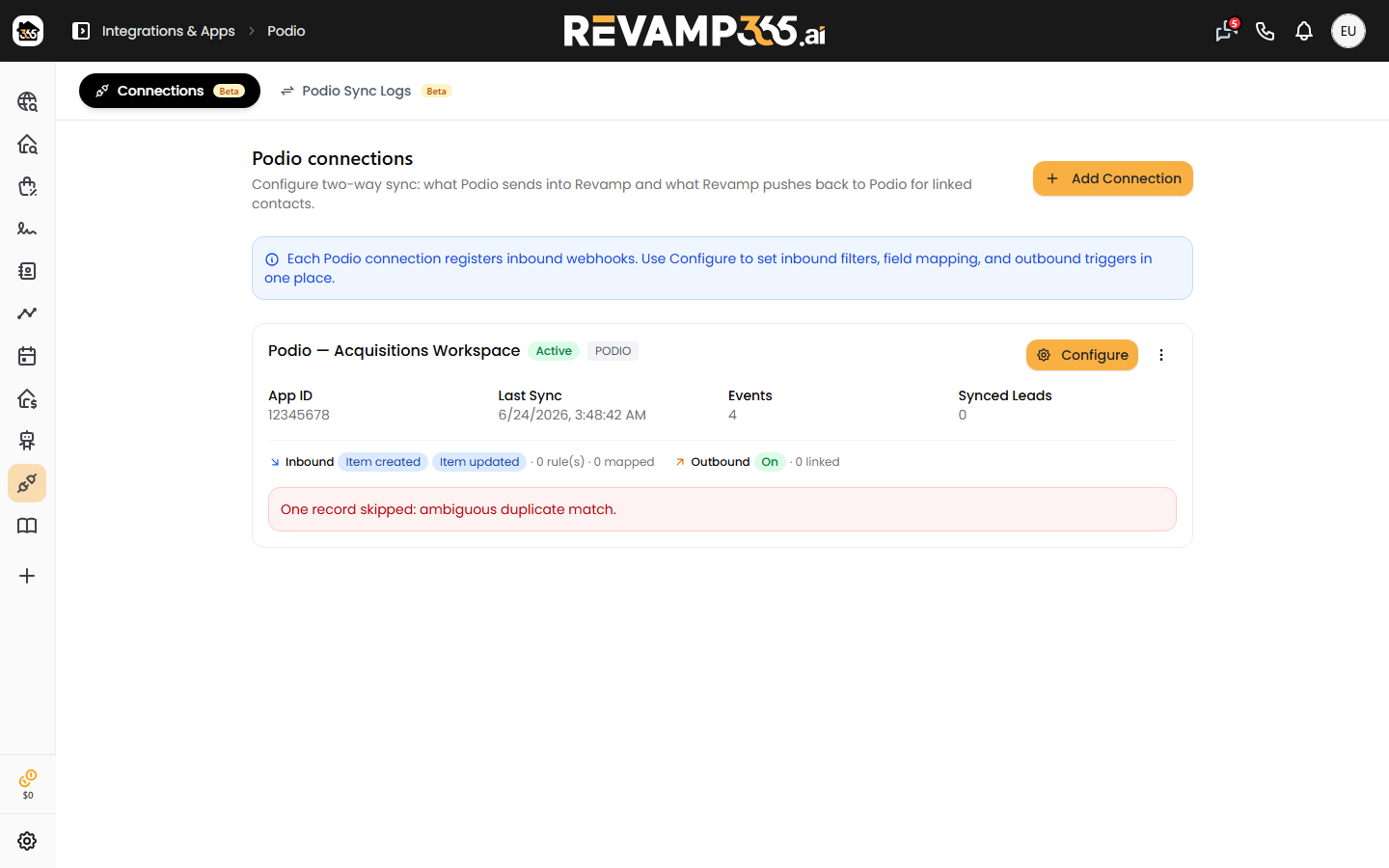
- On the Connections tab, locate the connection card. The colored badge shows its state: green active or red errored.
Pause and resume outbound pushes
Outbound pushes send your Revamp365 contact edits back to the linked Podio item. To stop them temporarily:
- Click Configure on the connection card.
- Open the Outbound triggers category in the left nav.
- Check Pause all outbound pushes (keeps settings; nothing is sent to Podio).
- Click Save changes.
The connection card's Outbound badge then reads Paused. To resume, uncheck the box and save again. To switch outbound off entirely (rather than pause), click Turn off outbound in the same panel — the badge changes to Off.
Stopping inbound items
There is no inbound pause toggle. Inbound items arrive through a registered Podio webhook, so the only way to fully stop them is to Delete the connection (kebab ⋮ menu), which deregisters the webhook. You can narrow what flows in instead by editing Inbound filters under Configure. For a deeper look at what arrived, see read CRM sync logs.
Test and re-trigger a connection
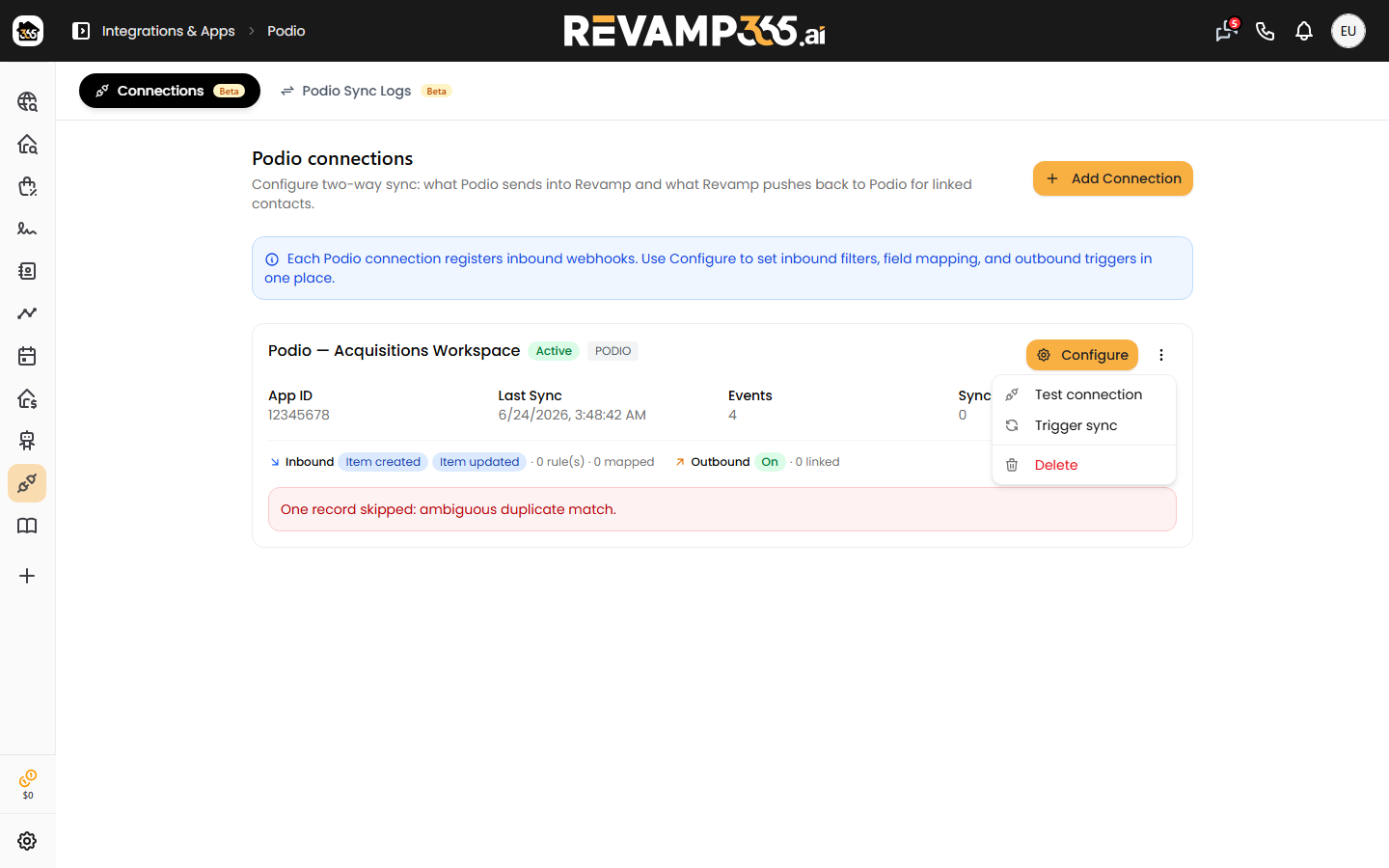
The kebab (⋮) menu on each card has two diagnostic actions:
| Action | What it does |
|---|---|
| Test connection | Re-fetches your Podio app fields. A green "Connection is healthy" toast confirms the credentials still work. |
| Trigger sync | Queues a fresh inbound poll and shows "Sync started." |
Run Test connection first whenever something looks off — it isolates a credential problem from a mapping problem in seconds.
Recover an errored connection
A connection flips to errored automatically after 10 consecutive failed events. When that happens:
- Read the red error message banner on the card — it shows the most recent failure reason.
- Run Test connection. If it fails, the Podio app token or app ID is wrong or revoked; delete and recreate the connection with current credentials.
- If the test passes, the failures were data-related (for example, a removed Podio field). Fix the mapping under Configure → Inbound mapping, where at least phone or email must stay mapped.
- Click Trigger sync to confirm events process cleanly again.
Quick reference
- Outbound badge: On, Paused, or Off — controlled under Outbound triggers.
- Status badge: active or errored (10+ failures).
- App ID, Last Sync, Events, and Synced Leads counters sit on each card for a fast health check.
Pausing outbound never deletes your field mappings, sync conditions, or event subscriptions, so you can resume exactly where you left off.