
When a visitor submits the form on your hosted compliance/marketing site but no contact appears in your CRM, the break is almost always in one of four places: the page isn't live, a required field failed validation, the background queue isn't running, or the payload had no usable phone or email. Work the checks below in order.
How a hosted-site lead becomes a contact
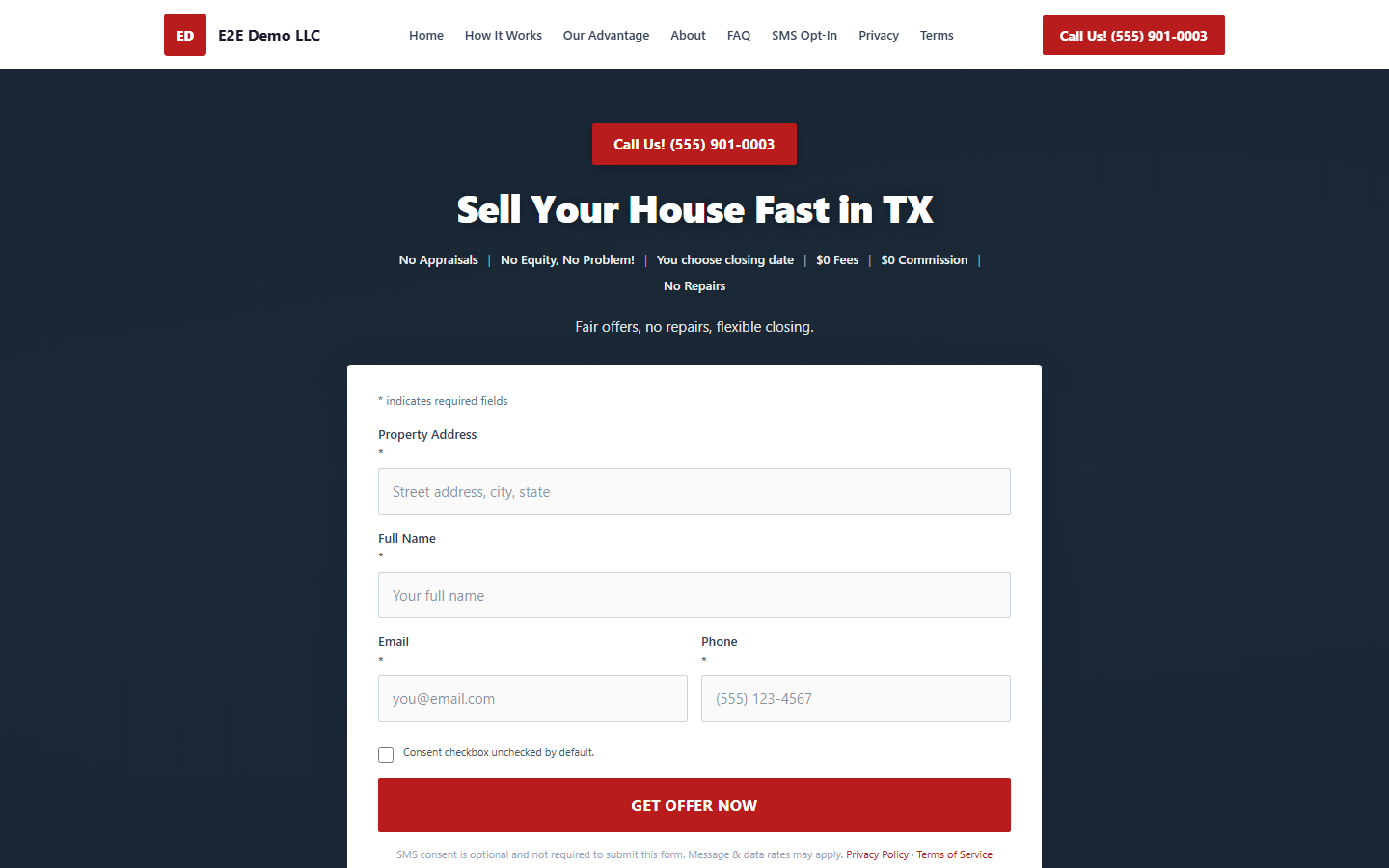
- The visitor submits the form, which posts to
/{your-slug}/lead. - Revamp365 stores the raw submission, then queues a background job on the
inbound-leadsqueue. - The job creates (or merges into) a contact with Lead source = Website, the tag Hosted Site Lead, Lead status = NEW, and a "Lead captured" entry on the contact timeline.
If any step fails, the contact never lands. Note: leads from the Manus-designed live site are processed immediately (synchronously); the standard editor/Vue form uses the queue.
Step 1 — Confirm the page is actually published
A hosted page only accepts form posts when it is publicly visible. If it isn't, the URL returns 404 and the form can't submit.
- Open your public URL (
https://yourdomain/your-slug) in a private window. - A 404 means the page is unpublished. Re-publish it from the Websites editor
 — see Use the Websites editor for your compliance page or regenerate via Generate a hosted compliance website with AI.
Step 2 — Check the visitor entered valid required fields
The form rejects the submission unless all of these are present and valid:
| Field | Requirement |
|---|---|
| Name | Required (first or last name derived) |
| Required, valid format | |
| Phone | Required, valid 10-digit US number |
| Property address | Required |
SMS consent is an optional checkbox. The form also rate-limits to 12 submissions per minute per visitor, so rapid repeat testing can be throttled.
Step 3 — Make sure a queue worker is running
The contact is created by a background job, not during the page request. If no queue worker is processing the inbound-leads queue, submissions sit unprocessed and no contact appears.
- Confirm your worker process is up.
- After a worker starts, pending jobs run and the missing contacts appear.
Step 4 — Verify the payload had a phone or email
The job ignores any submission that has no usable phone, email, or external ID. A garbled phone with no email produces no contact by design. Re-test with a clean 10-digit number and a real email.
Where to look (and a key limitation)
Once a worker runs, the fastest confirmation is the contact itself: search your contacts for the test email or phone, or filter by the Hosted Site Lead tag. See Use tags, saved views, filters, and lists.
Important: the Integrations & Apps → Webhooks → Logs tab (and its retry button) only shows leads from external webhook endpoints — Zapier, Make, Carrot, and custom forms. Hosted-site submissions are tracked separately and do not appear there, so there is no in-app retry for them. Re-submit the form to retry. For webhook-sourced leads instead, see Read inbound lead logs and retry failed leads.