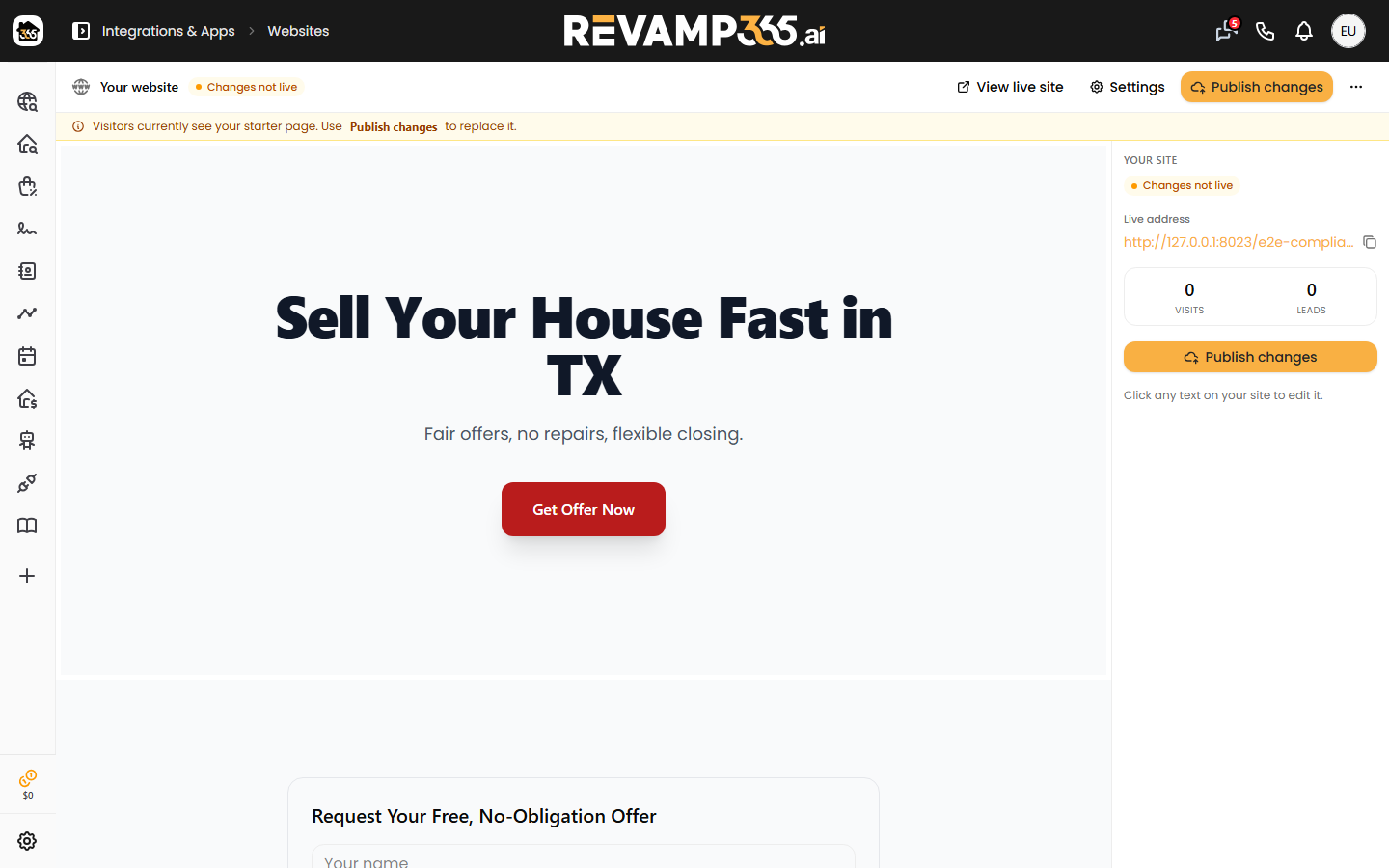
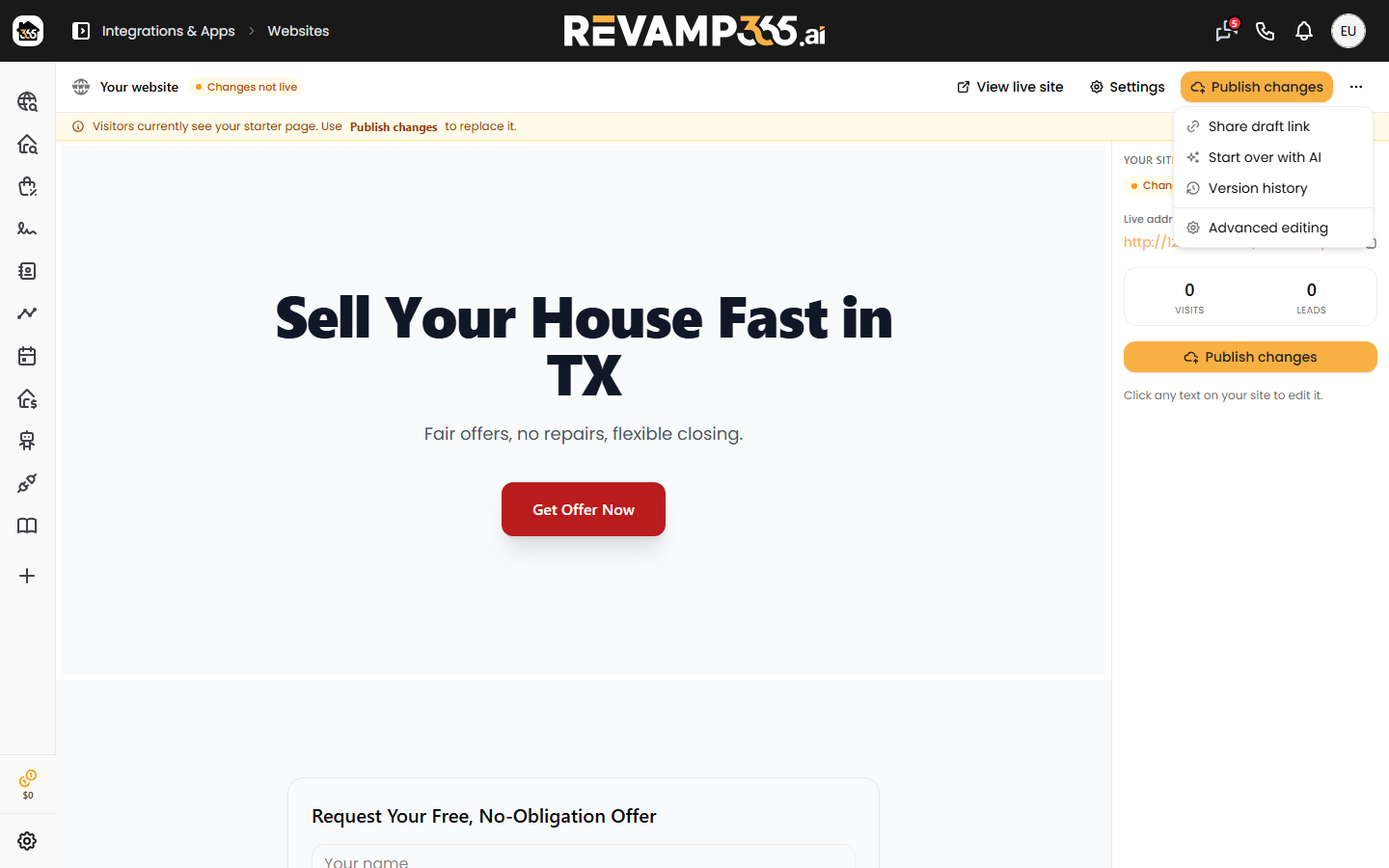
Revamp365 generates a hosted lead-gen website for your SMS compliance slug, then lets you rebuild it from scratch with AI (Manus) into a reviewable draft. Your live site keeps serving until you publish the new version.
Open the Websites editor
- Go to Integrations & Apps in the left navigation.
- Find the Websites card and click Open. (If you see "Coming soon" or "Available on Dealmaker," the editor is gated — Dealmaker includes it, Pro+ adds it as a paid add-on.)
- You land on the Website editor at
/websites, breadcrumbed under Integrations & Apps.
If you see "Your website isn't ready yet," you haven't finished SMS compliance activation. The site is generated during that step. Click Go to A2P Registration and complete the Trust Center checklist first.
Trigger an AI rebuild
In the top toolbar, click Rebuild with AI (the sparkles button). A confirmation appears: it replaces your current draft, but your live site stays up until you publish. Confirm to start.
The button switches to Rebuilding… and is disabled while a build runs. The rebuild runs in a background job for a few minutes — you can keep editing other pages.
Watch the build-process indicator
Once a rebuild starts, a Building chip appears in the toolbar with a pulsing dot. Click it to open the Site rebuild panel on the right, which polls every few seconds and shows an elapsed timer plus a staged timeline:
| Stage | Meaning |
|---|---|
| Queued | The job is dispatched and waiting |
| Contacting the AI builder | Manus has accepted the task |
| Generating your pages | The AI is writing your content |
| Importing into your editor | The new draft is landing in place |
The status pill reads Building, then Ready or Failed. When it succeeds, the editor reloads the draft automatically.
Review the new draft and publish
When the panel shows Your new draft is ready:
- Browse the regenerated pages in the left rail and edit blocks in the Visual, Preview, or Code views. Blocks marked with a lock icon are required for SMS compliance and are managed automatically.
- Click View live in the panel or toolbar to open the current public page in a new tab.
- When satisfied, click Publish in the toolbar. This publishes your home page and stamps the site live — you'll see "Your site is live."
If the build failed, the panel shows the error with Try again and Dismiss buttons. A failure most often means the AI builder isn't enabled on the environment; retry, and if it persists, contact support.
Limits and edge cases
- A second rebuild click while one is queued is deduplicated — only one build runs at a time.
- Page caps: 25 marketing pages and 100 blog posts per site; 80 blocks per page.
- Rebuilds never touch the live site — publishing is the only action that swaps public content.
- Reloading mid-build resumes the indicator from the server-recorded start time, so the elapsed timer stays accurate.
- While the panel shows Building, you can close it and keep working — the draft updates on its own when the job finishes, and the in-progress note confirms your live site stays up until you publish.
For hand editing instead of regenerating, see use the Websites editor for your compliance page.