
Sync conditions let you filter which incoming CRM records actually become contacts in Revamp365. Add rules to your connection and only leads that match flow in; everything else is logged and skipped.
Where to find sync conditions
Sync conditions live inside each CRM connection, not in a global setting.
- Open Integrations & Apps, then your Podio integration.
- On the Connections tab, find the connection and click Configure.
- In the left nav of the configuration screen, choose Inbound filters.
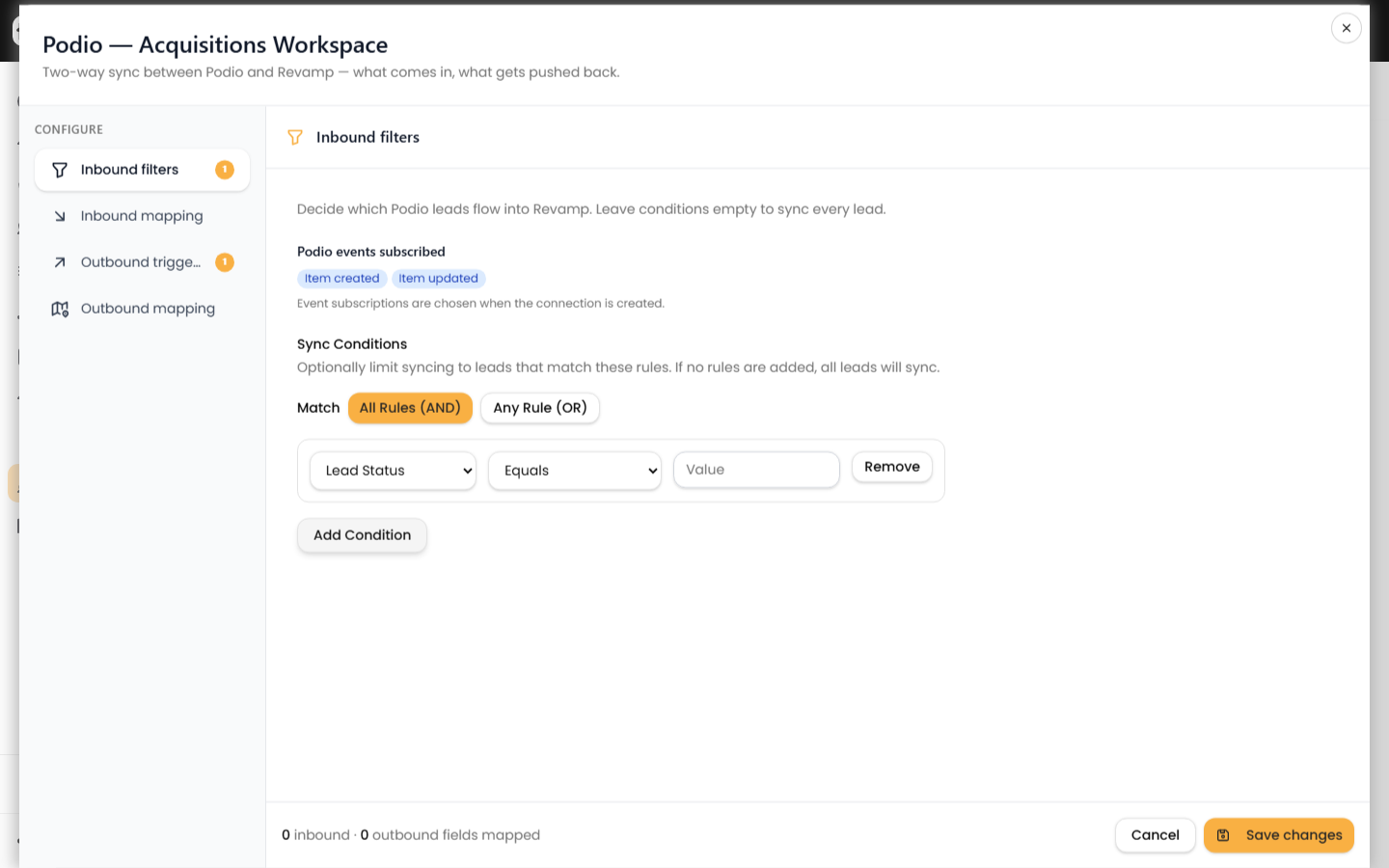
The Inbound filters tab shows your subscribed Podio events and the Sync Conditions editor. A badge on the tab shows how many rules are currently set.
Build a rule
Each rule has three parts: a field, an operator, and (for most operators) a value.
- Click Add Condition. A row appears defaulting to
Lead Status/Equals. - Pick a field from the dropdown.
- Pick an operator.
- Type the value to match. For
Is EmptyandIs Not Empty, no value is needed.
Add as many rows as you need, and use Remove to delete one.
Match logic (AND / OR)
At the top, choose how rules combine:
- All Rules (AND) — a lead must satisfy every rule to sync.
- Any Rule (OR) — a lead syncs if it matches at least one rule.
If you add no rules, every lead syncs.
Available operators
| Operator | Matches when the field… |
|---|---|
| Equals | exactly equals the value |
| Does Not Equal | is anything other than the value |
| Contains | includes the value as text |
| Does Not Contain | does not include the value |
| Starts With | begins with the value |
| Is Empty | is blank, null, or an empty list |
| Is Not Empty | has any value |
Matching is case-insensitive, and for list fields like Tags, Contains checks each tag.
Fields you can filter on
You filter on Revamp's canonical lead fields (the normalized result of your inbound mapping), not raw Podio field names. Options include Phone, Email, First/Last/Full Name, Notes, Lead Status, Lead Temperature, AI Campaign Status, Lead Tracking Campaign, Date Lead Came In, Full/Property Address, City, State, ZIP, Assigned User, Tags, Opt Out Status, and Do Not Contact.
Save and verify
Click Save changes. Conditions apply to records processed after you save; they do not retroactively remove contacts already synced.
When a lead fails your conditions, Revamp does not create or update a contact. The incoming event is marked filtered and recorded, so nothing is silently lost. To confirm what passed or was filtered, check the CRM sync logs.
Sync conditions only control what comes in. To decide which Revamp changes get pushed back out to Podio, set Podio sync events instead.