
CRM sync logs show every record that moved between Revamp365 and your connected CRM, so you can confirm a lead synced, see what changed, and retry a push that failed.
Open the sync logs
- Go to Integrations & Apps in the left sidebar.
- Open your Podio or Salesforce card.
- Click the Sync logs tab. The page lists inbound and outbound activity across all connections for that provider.
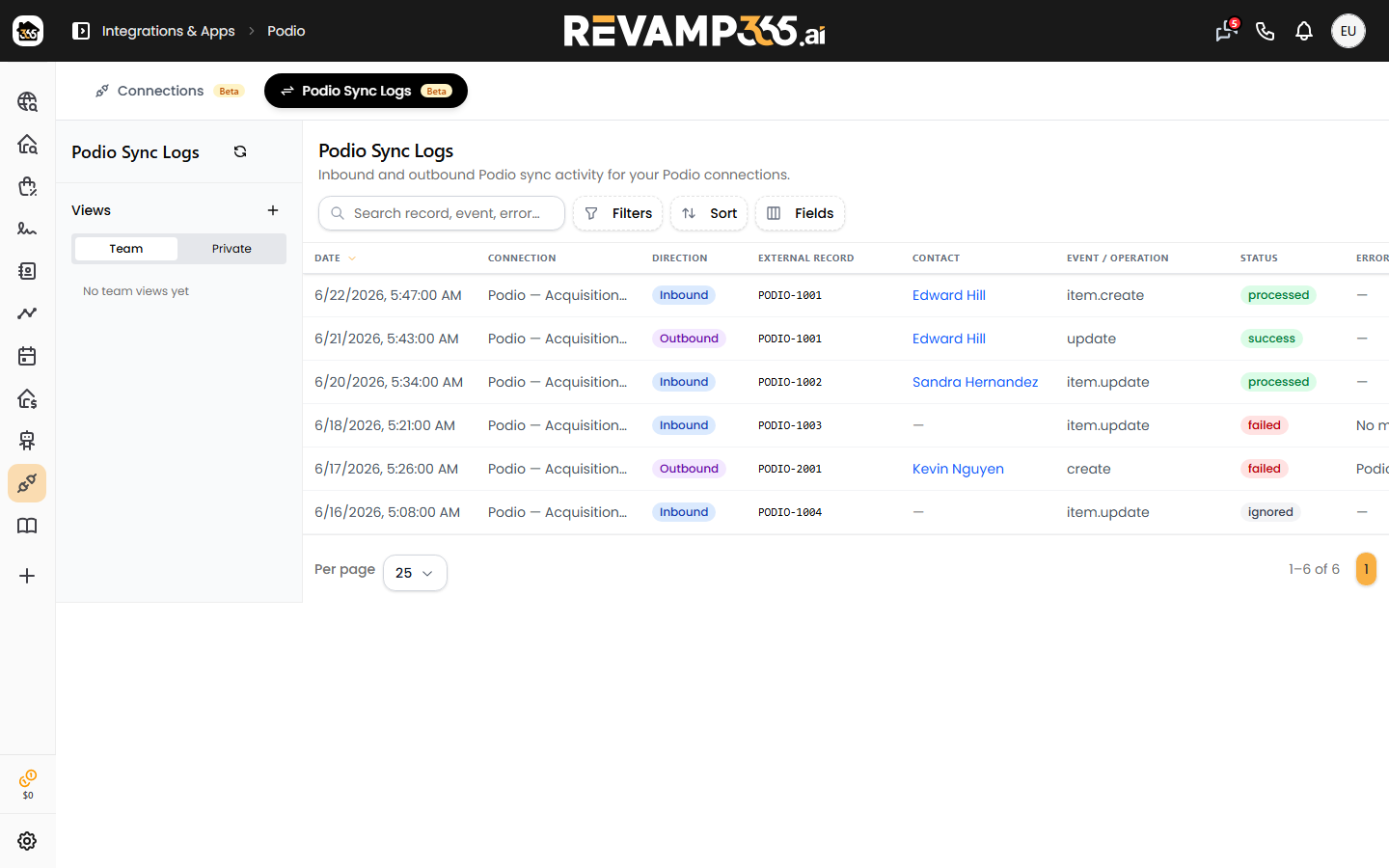
Read a row
Each row is one sync event. The default columns are Date, Connection, Direction, External record, Contact, Event / operation, Status, and Error.
- Direction is
inbound(received from the CRM) oroutbound(pushed to the CRM). - Contact links to the matched Revamp365 contact when one exists.
- Click any row to expand full detail, including connection, provider, attempts, and a What changed field-level diff (shown on inbound syncs).
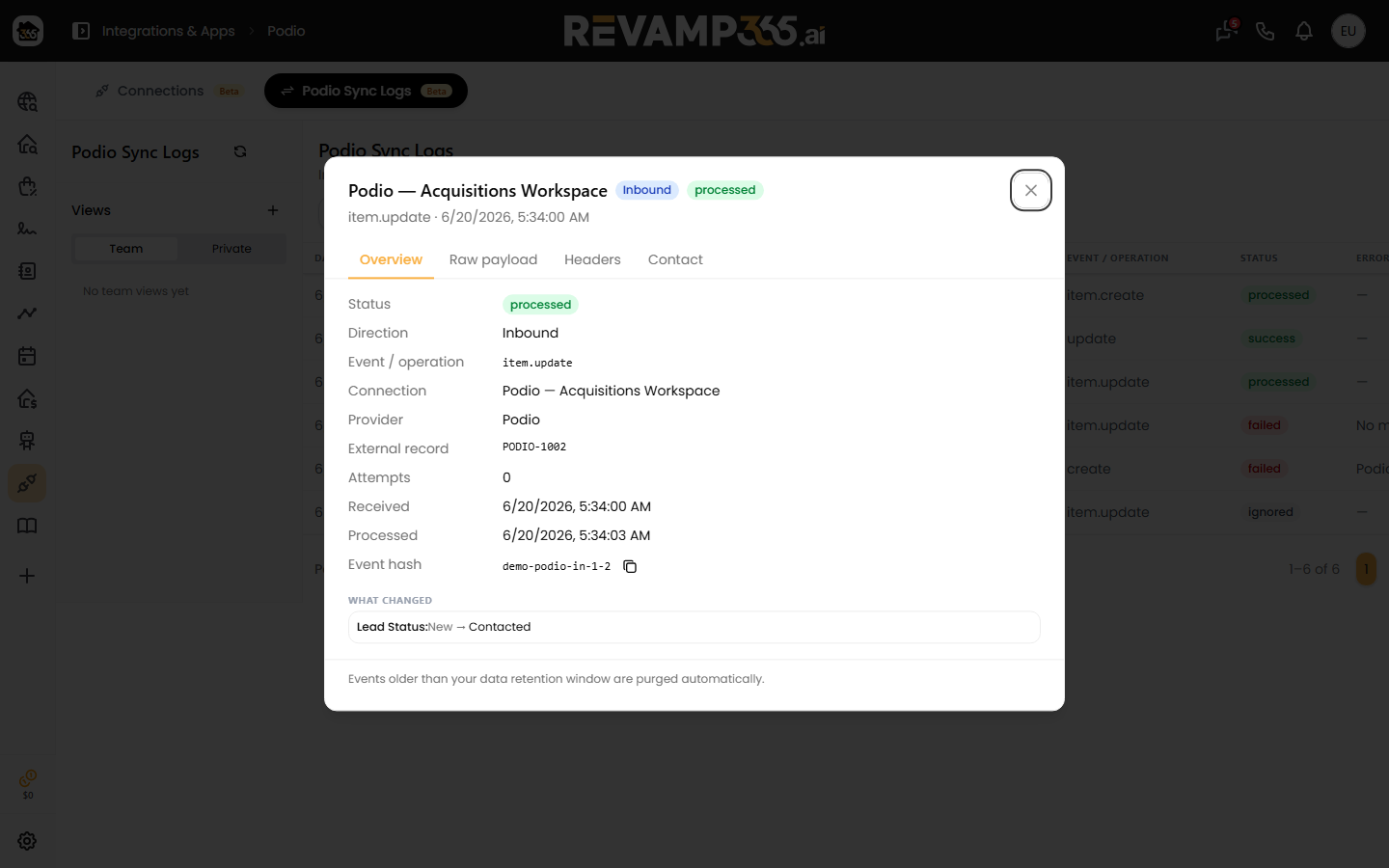
Use the Fields button to show, hide, drag-reorder, or resize columns. Attempts and Provider are hidden by default.
What the statuses mean
Status values depend on direction.
| Direction | Statuses |
|---|---|
| Inbound | Received, Queued, Processed, Filtered, Coalesced, Ignored, Failed |
| Outbound | Pending, Success, Skipped, Failed, Dead |
Green means it landed (Processed / Success), yellow is in progress (Queued / Received / Pending), and red flags a problem (Failed / Dead).
Filter and find logs
- Type in the Search box to match an external record ID, event type, or error message.
- Click Filters to open categories: Direction & Status, Connection, Date (Today through This Month presets, plus a custom range), Event / operation, and Record & contact. The Errors only toggle surfaces just the failures.
- Use Sort to order by newest, status, connection, or most attempts.
- Save a filter set as a Team or Private view from the left rail, then reselect it later.
Retry a failed outbound push
When an outbound row shows Failed or Dead, a refresh icon appears in the Actions column.
- Click the refresh icon on that row.
- The push is requeued and the row resets to Pending.
The retry needs an active outbound field mapping on the connection. If none exists, you'll see a "No active outbound mapping" message instead of a queued retry. Inbound rows are read-only and cannot be retried here.
Inbound versus webhook lead logs
These logs cover structured CRM record sync (Podio, Salesforce). For raw webhook lead intake and per-lead retries from form submissions, see read inbound lead logs and retry failed leads.