
Field mapping tells Revamp which Podio field feeds each contact field when leads sync in. You set it per connection in the inbound mapping screen, and at least one of phone or email must be mapped before you can save.
Open the inbound mapping screen
- Go to Integrations & Apps and open the Podio card.
- On the Connections tab, find your connection and click Configure.
- In the sync settings dialog, select Inbound mapping from the left nav.
If you have not connected an app yet, set that up first in the Podio CRM sync wizard.
Map each field
The editor shows two columns: Revamp Field on the left and CRM Field on the right. For each Revamp field you want to fill, click its CRM Field box and pick the matching Podio field. Each option lists the Podio field name and its type, like Phone (phone).
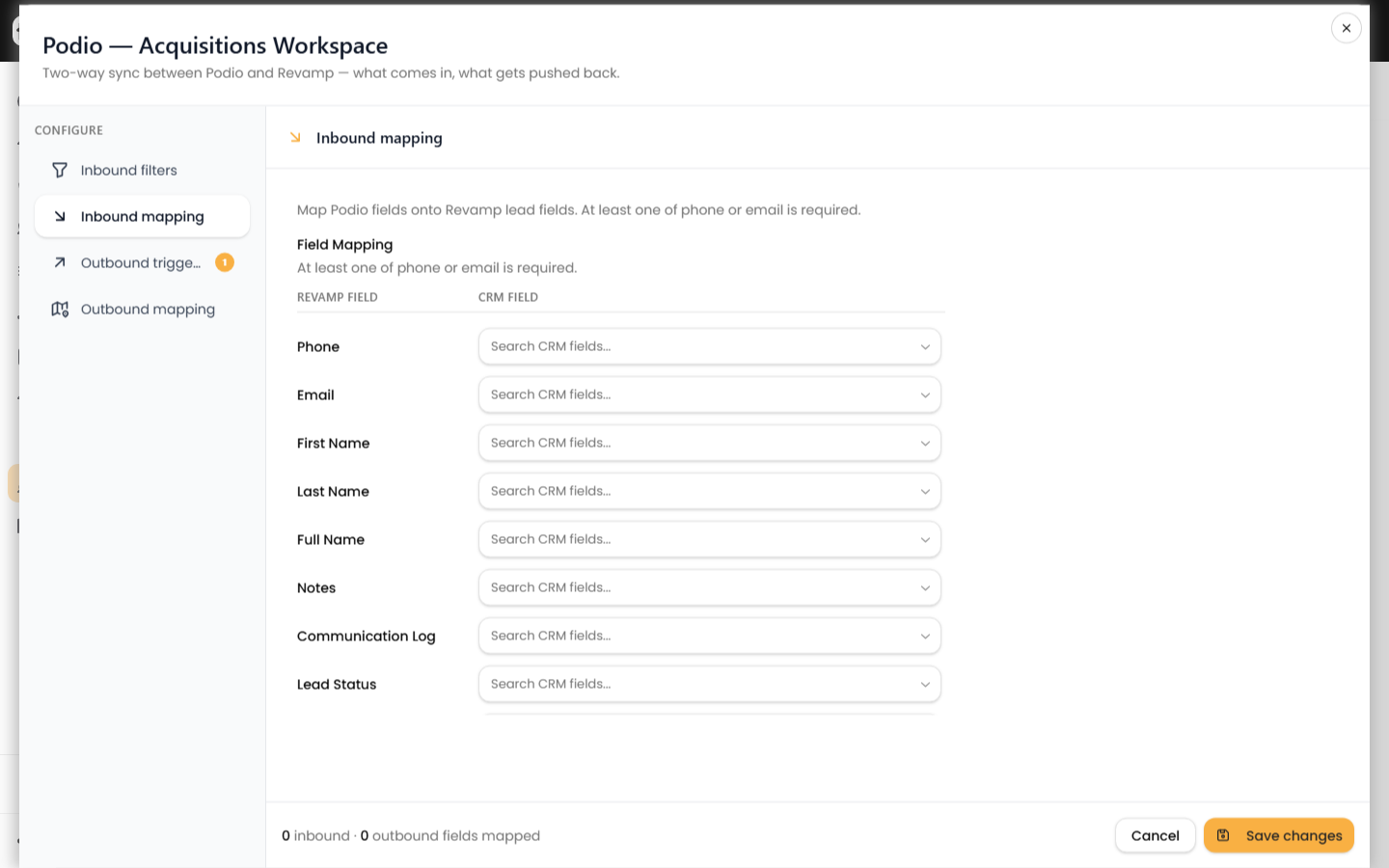
Standard rows you can map include:
| Revamp field | Typical Podio source |
|---|---|
| Phone / Email | Contact phone, email |
| First Name / Last Name / Full Name | Name field |
| Lead Status / Lead Temperature | Category fields |
| Lead Tracking Campaign | Source or campaign field |
| Date Lead Came In | Created date |
| Notes / Communication Log | Text or comment field |
| Assigned User, Tags, Opt Out Status, Do Not Contact | Matching Podio fields |
Leave any row blank to skip it. Unmapped fields are simply not written.
Address fields
Address leads with a single Full Address field, which is recommended because most Podio apps store the whole address in one place. If your app splits it, click Use separate address fields to reveal Property Address, City, State, and ZIP rows.
Map custom fields
Under Additional field mappings, click Add field to map any other Revamp field — including your own custom CRM fields — to a Podio field. Pick the Revamp field on the left and the Podio field on the right. Each Revamp field can be used once, so already-mapped fields drop out of the picker.
Save
- Click Save changes in the footer. The footer shows a running count of how many fields are mapped, like "3 inbound · 0 outbound fields mapped."
- Saving fails with an error if neither Phone nor Email is mapped — map at least one and try again.
- Each save creates a new active mapping version, so prior mappings are kept in history.
Next steps
- Decide which Podio events feed the sync in choose Podio sync events.
- Filter which leads come in with CRM sync conditions.
- Confirm leads land correctly by reading the CRM sync logs.