
While you build a voice agent, the fastest real-world test is to have it call your own phone. You can do that from the phone dialer in the top bar. Pick the agent, press Start AI call, and your phone rings. You don't need a campaign or workflow, and you don't need to enroll anyone.
You can use the same button to have an agent call one specific contact, like a lead who just asked for a call back.
Browser test call or real phone call?
The agent builder already has a browser test call. Both are useful:
| Browser test call (Test Audio) | Real phone call (dialer ✨) | |
|---|---|---|
| Where | Inside the agent builder | The phone dialer in the top bar |
| What rings | Your browser, using your microphone | A real phone number |
| Call transfers | Not supported | Works like a live call |
| Caller ID, voicemail, phone audio | Not tested | Exactly what your leads get |
| Logged on the contact's timeline | No | Yes |
Use the browser test while you're editing prompts. Use a real phone call before you put the agent in front of leads.
Before you start
- Publish the agent. AI calls always use the agent's latest published version. Draft edits aren't heard until you publish.
- Have a number to call from. Pick it under Caller ID in the dialer. If you don't pick one, the call uses the agent's own outbound number.
- Save yourself as a contact. AI calls go to saved contacts. To call yourself, add a contact with your own cell number.
- Verify your own phone number on your profile. This lets you test at any hour, as explained below.
Call yourself (or a contact) with an agent
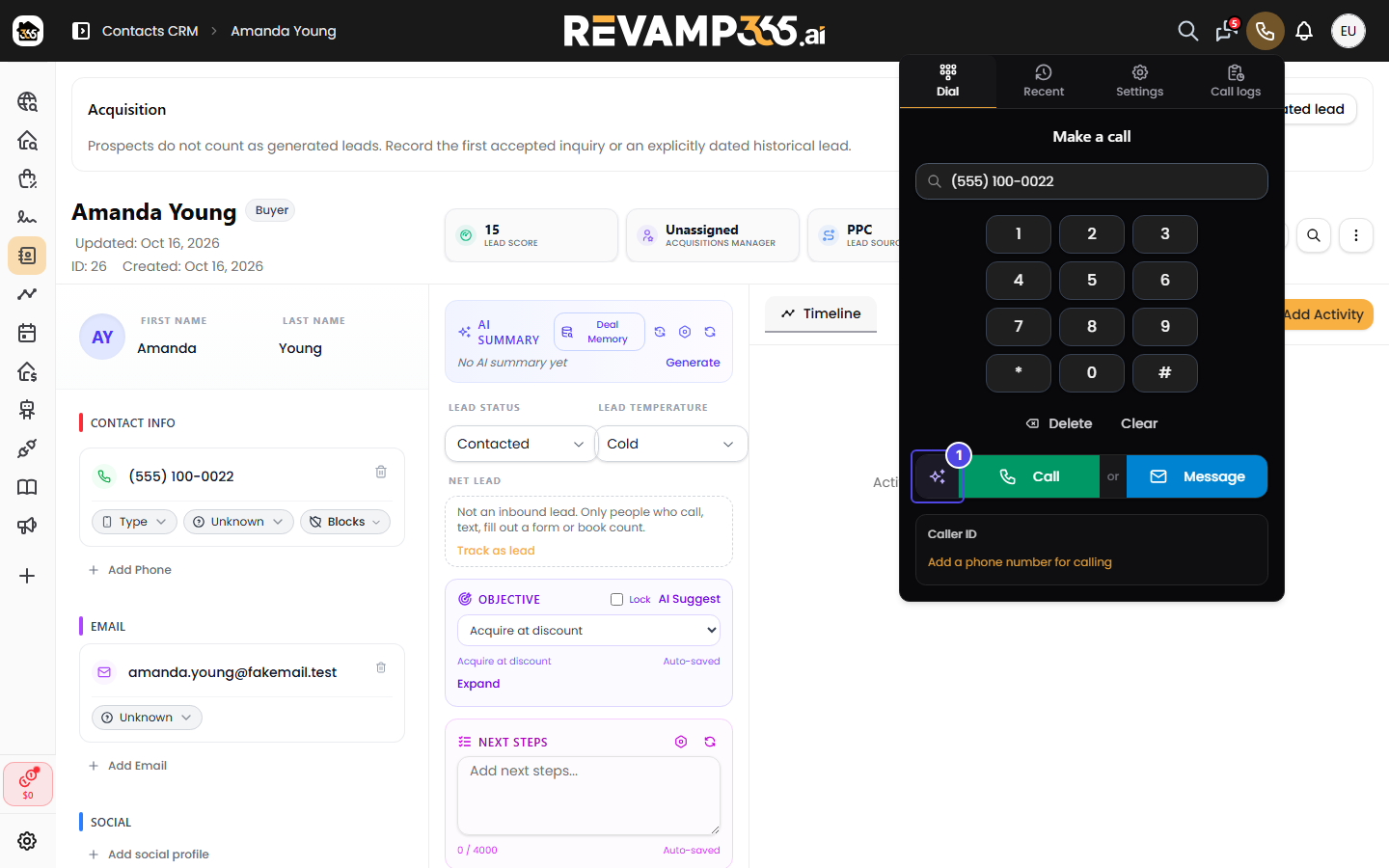
- Open your contact's page and click the call icon next to the phone number. The phone dialer opens on that contact.
- Under Caller ID, choose the number the call should come from.
- Click the ✨ button at the left of the Call row.
- In Call with an AI agent, click the agent you're testing. Clicking only selects it.
- Check the summary line. It names the agent, the contact, the number it will ring and the Caller ID it calls from.
- Click Start AI call. Your phone rings within moments.
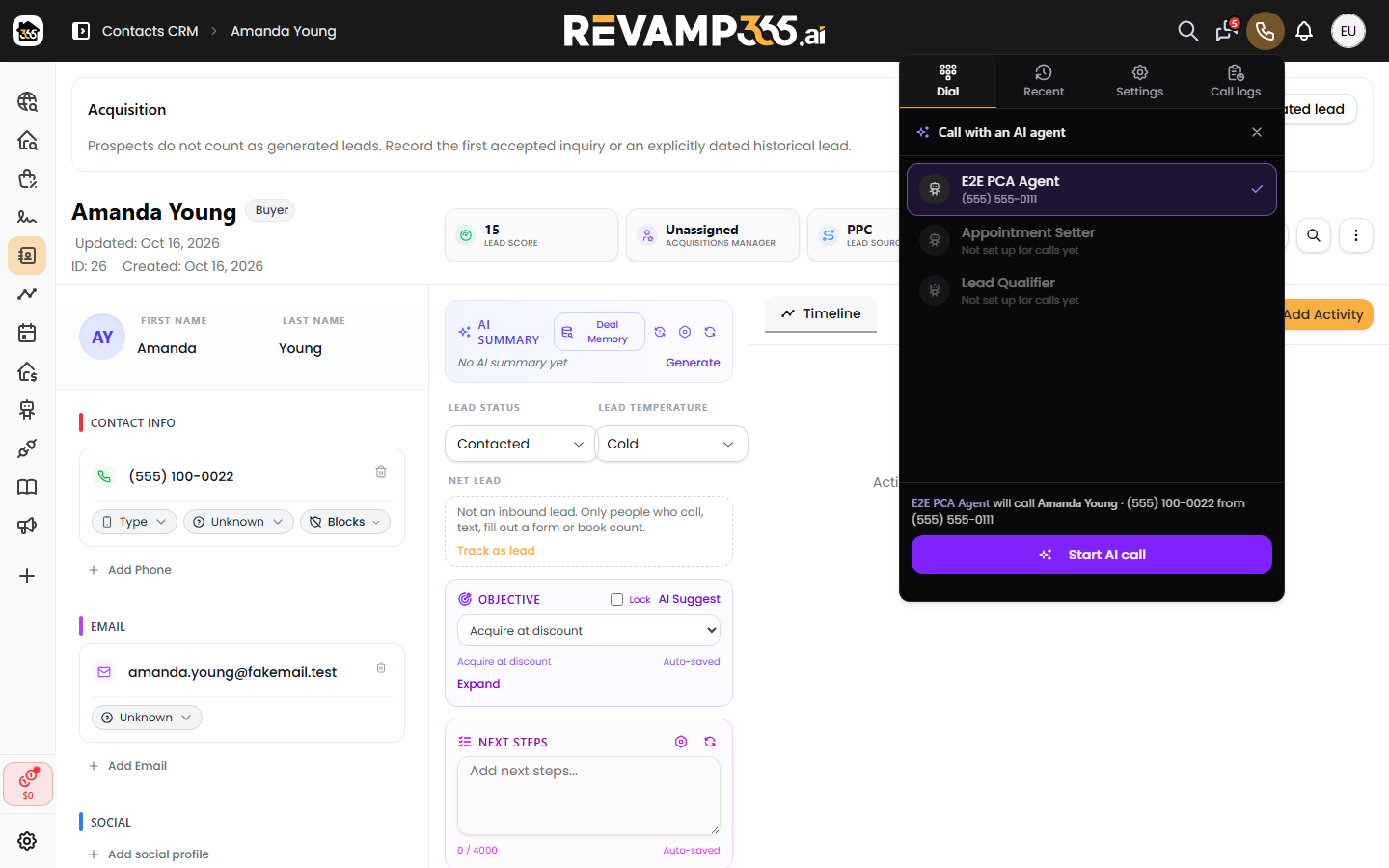
The dialer remembers the agent you used last, so re-testing after each change only takes a couple of clicks.
What the call checks first
A one-off AI call follows the same rules as a campaign call. If a check fails, nothing is dialed and the dialer shows the reason:
- Do-not-call. Contacts tagged DNC or DNT, numbers on your block list, and numbers flagged on the TCPA do-not-call or litigator lists are never called.
- Calling hours. The call only goes out during legal calling hours in the contact's local time zone (8 a.m. to 9 p.m. by default). The exception is your own number. If the contact's number exactly matches the phone you verified on your profile, the call goes out at any hour, so you can test late at night. Seat users don't get this exception.
- US and Canada numbers only. The contact's number must be a valid US or Canada number.
- Primary number. AI calls always ring the contact's primary phone number. If you opened the dialer from a different number on the contact, you'll be asked to open it from the primary number.
- Balance. The same balance checks as any other AI voice call apply.
After the call
- The call appears in Call logs (dialer → Call logs tab → Open call logs) and on the contact's timeline. There you'll find the recording, transcript, summary and post-call analysis. See read AI call transcripts, recordings, and summaries.
- Anything that normally happens after an AI call happens here too. For example, the contact's AI summary updates from what was said. Keep that in mind when you test on a real lead instead of yourself.
- The call is billed like any other AI voice call.
Troubleshooting
- "This agent is not set up for calls yet." Or the agent shows Not set up for calls yet in the list. Finish building the agent in AI Voice & Chat and publish it.
- "Outside legal calling hours in this contact's time zone." The message tells you when you can try again. To test after hours, call your own verified number.
- "This number isn't set up for AI calls yet. Pick another Caller ID." The Caller ID you picked couldn't be connected to AI calling. Choose a different number, or check it on the Phone Numbers tab.
- "Pick a Caller ID or give this agent an outbound number." There's no number to call from. Choose a Caller ID in the dialer.
- "AI calls go to this contact's primary number…" Open the dialer from the contact's primary phone number and try again.
- No ✨ button. Your seat doesn't have permission to manage voice. Ask the account owner.
Next steps
- Make calls from the phone dialer: everything else the dialer does.
- Publish, unpublish, duplicate, and archive AI voice agents
- Assign an AI voice agent to answer an inbound number